

Receive a shipment end to end
From purchase order to counted-in stock to putaway in bins.
Receiving is where a vendor's delivery becomes stock a brand can sell. You start from the purchase order the brand (or you) raised, open the Receive flow, scan every unit into the bin it will live in, count the pallets and cartons off the truck, and complete the PO. This guide follows one delivery from the PO to stock on hand.
Everything here lives under the Receiving section of the sidebar. The PO list and the Create PO form are shared with brand accounts; the Receive flow itself is staff-only — the link is hidden from a client's sidebar, the page refuses a client user with "Receiving stock onto shelves is available to warehouse staff only.", and every scan, unreceive, and complete is refused for them server-side. For the screen-by-screen reference, see the Receiving manual.
About the screenshots
The screenshots are taken in the Canopy Condiments demo warehouse, so PO numbers, vendors, bin labels and counts will differ from yours. Where a screen depends on your setup — the Warehouse picker, the Lot column, the sell-ahead column — the text says so.
Before you start
- A purchase order. Receiving is scan-against-a-PO. If the brand has not raised one, you can create it yourself (step 2 below), or import a batch of them from a CSV. For a delivery with no paperwork at all, Blind Receive (No PO) on the Receive screen starts an empty PO you scan freeform into.
- The right warehouse in the top bar. A PO is pinned to a warehouse when it is created, and every bin you receive into must be in that building — a bin label from another warehouse is refused. If the top bar is on All warehouses and your tenant runs more than one, the Receive screen asks "Which warehouse are you receiving at?" before it lets you start.
- Bins to receive into. Each line goes into a storage bin you pick. The picker only offers bins the SKU's storage tags allow and never offers a returns-zone bin. Damaged units need a bin in a Quarantine zone — if the warehouse has none, add one before the truck arrives.
- Lot numbers for any lot-tracked SKU on the PO, plus expiry dates where the SKU requires them. You will be asked for them at the first scan.
And you need an operator role: client users cannot reach any of this.
How to receive a shipment
Find the PO
Open Receiving → Purchase Orders. Today's Arrivals shows the POs expected today as cards; All Purchase Orders is the full table across every client (or just the one pinned in the top bar). Filter the table with the status dropdown and look for the vendor's PO — its Order Status should be Pending, or In Progress if someone already started it.
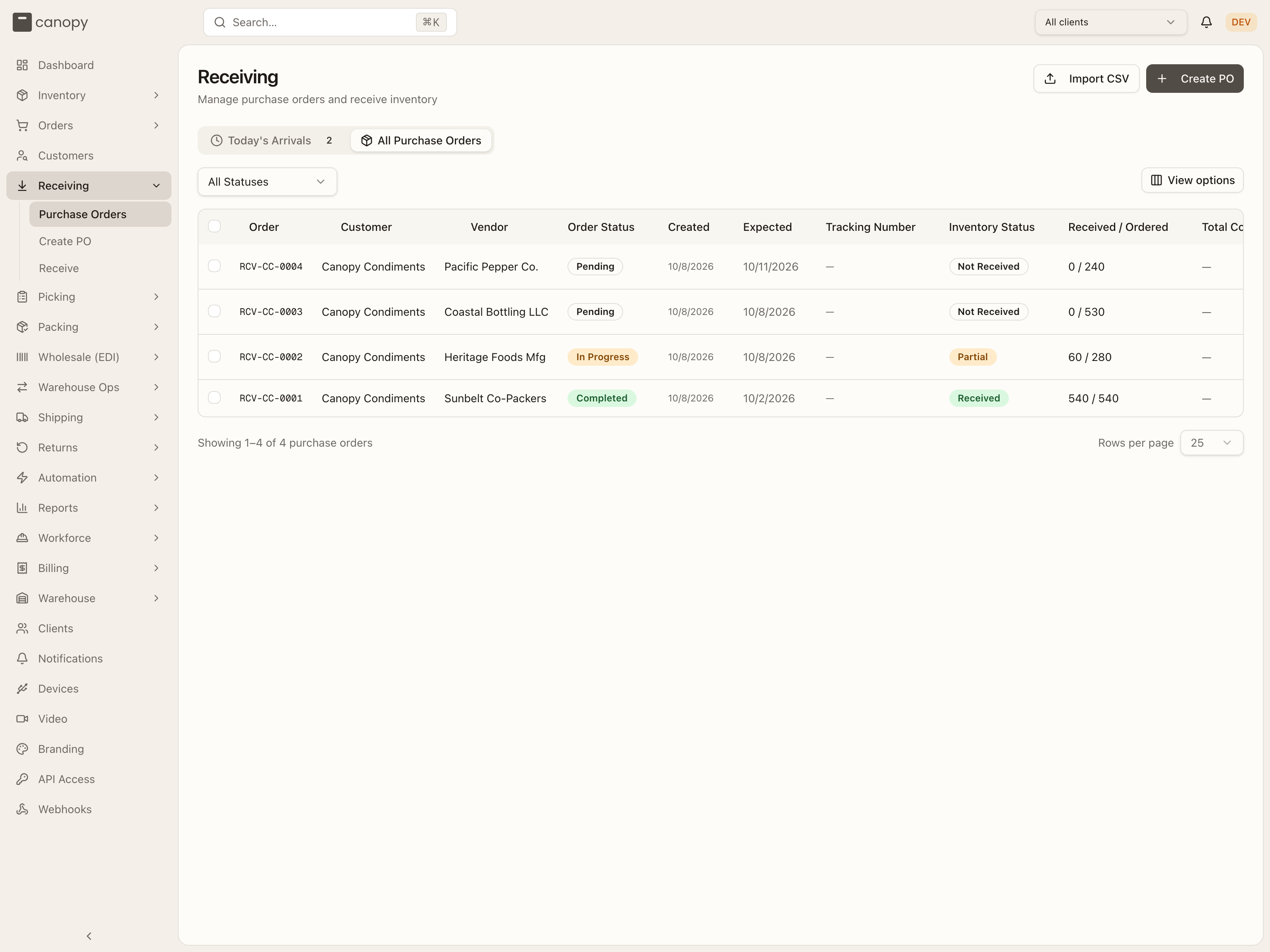
The row ends in the button you want: Start on a Pending PO, Continue on an In Progress one (a Today's Arrivals card offers Start Receiving / Continue Receiving). Either takes you straight into the Receive flow with that PO loaded, skipping step 3. If the PO is there, press it and jump to step 4.
Create the PO if there isn't one
If the delivery has no PO yet, press Create PO in the page header (Receiving → Create PO). Pick the Client the stock belongs to, then the optional details — Vendor Name, Expected Arrival Date, Tracking Number, Expected Pallets, Expected Cartons, Notes. The pallet and carton counts are worth filling from the vendor's paperwork: they pre-fill the counts you confirm at the end of the receive.
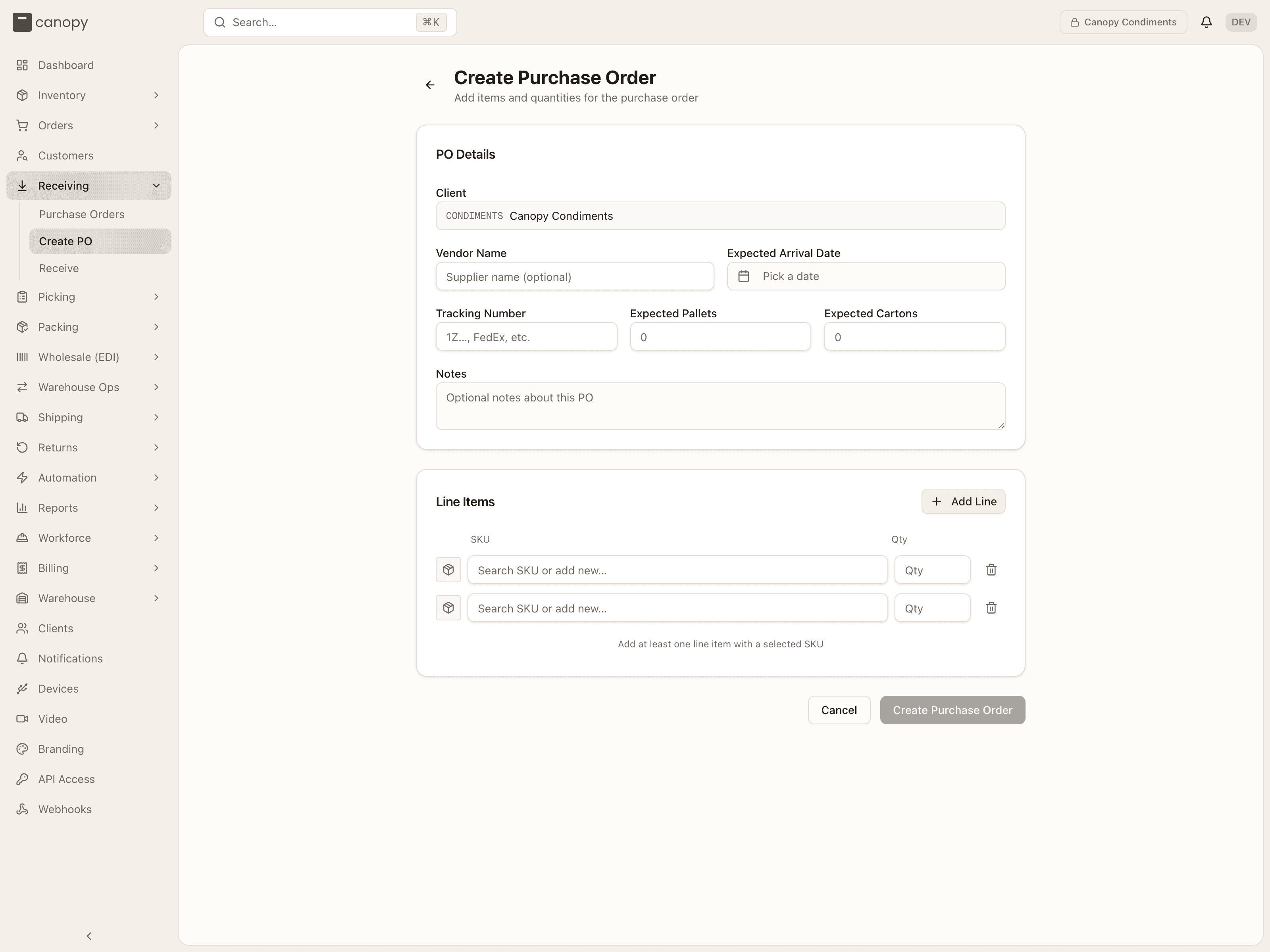
Under Line Items, search a SKU into each row and type its Qty; Add Line adds rows. The SKU box also creates a SKU inline ("Search SKU or add new…") for a product the brand has not set up yet. If the top bar is on All warehouses and the tenant has several, a Warehouse field asks where the PO will arrive. It starts on Client's default warehouse, which files the PO at the client's default — refused if the client has no active default — so pick the building the truck is coming to if that's another one. Press Create Purchase Order: the PO is saved as Pending and opens on its detail page, where Start Receiving in the header continues to step 4.
Copying a previous PO
A repeat order from the same vendor is quicker from the old PO's page: press Duplicate and the form opens pre-filled (any unexpected lines from the old receipt are left out). See Creating a PO.
For a vendor's whole delivery schedule, Import CSV beside Create PO makes many POs from one file — one row per line, rows that share a PO Number becoming one PO — and each comes out exactly as Create PO would have written it, as Pending. Every SKU in the file has to exist already. See Importing purchase orders.
Open Receive and select the PO
If you did not arrive from a Start / Continue button, open Receiving → Receive. The page is headed Receive Inventory with a four-phase stepper — Select PO → Scan Items → Review → Complete — and opens on Select Purchase Order.
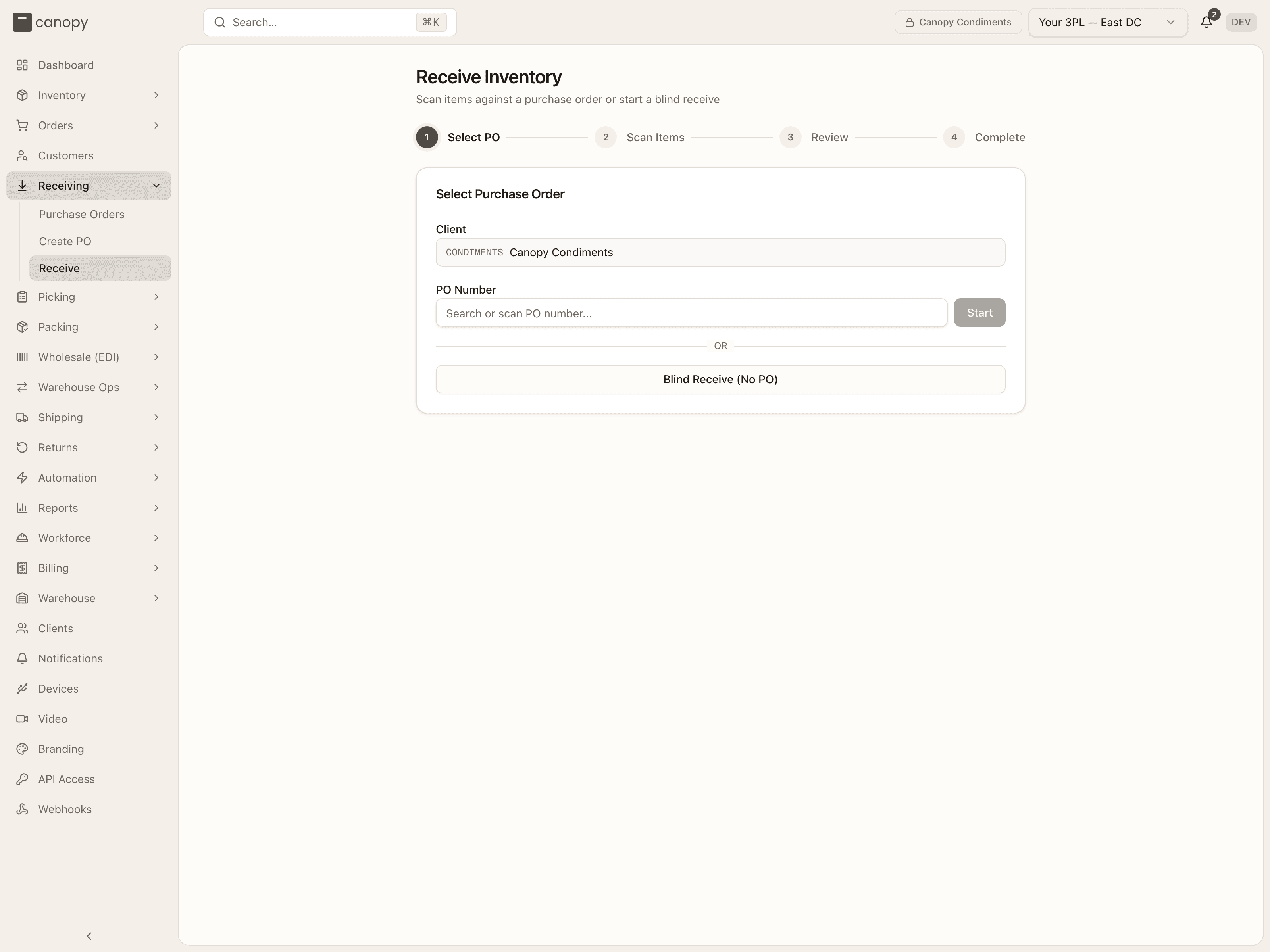
Pick the Client, then find the PO in the PO Number box: scan or type the number and press Start (or Enter), or click it in the dropdown of Pending and In Progress POs (each with its vendor, unit count and status). Picking a Pending PO starts it and claims it for you; an In Progress one just resumes. A typed number that is Completed or Cancelled is refused — "Purchase order is COMPLETED — cannot receive".
If a banner says "This purchase order is currently being received by …", another operator holds the PO. Cancel and find them, or Take over if they have left the station — the handoff is written to the PO's timeline.
Set a location on each line
You are now on Scan Items: the PO number and vendor, Pallets / Cartons boxes, a progress bar across the whole PO, and one row per line with Product, Location, Ordered, Rejected, Accepted and Progress columns (a Lot column too when the PO has lot-tracked SKUs).
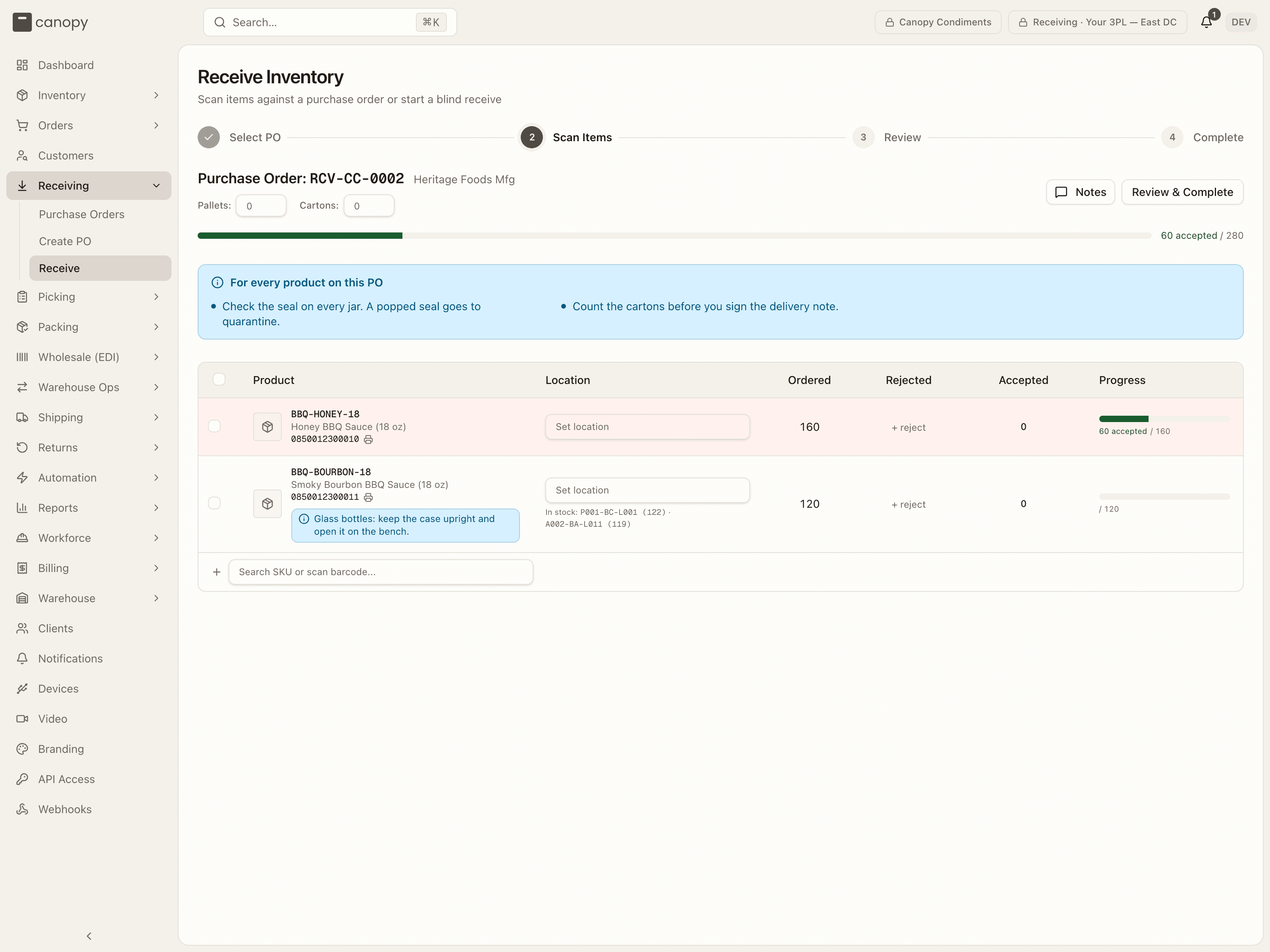
Before you scan, tell each line where its units are going. On the row, open Set location and pick a bin — the picker only lists bins the SKU may be stored in, in this warehouse. Where the SKU already lives, an In stock: BIN (qty) shortcut under the box assigns that bin with one click. To give several lines the same bin at once, tick them (or the header checkbox) and use Set location in the bulk bar that appears.
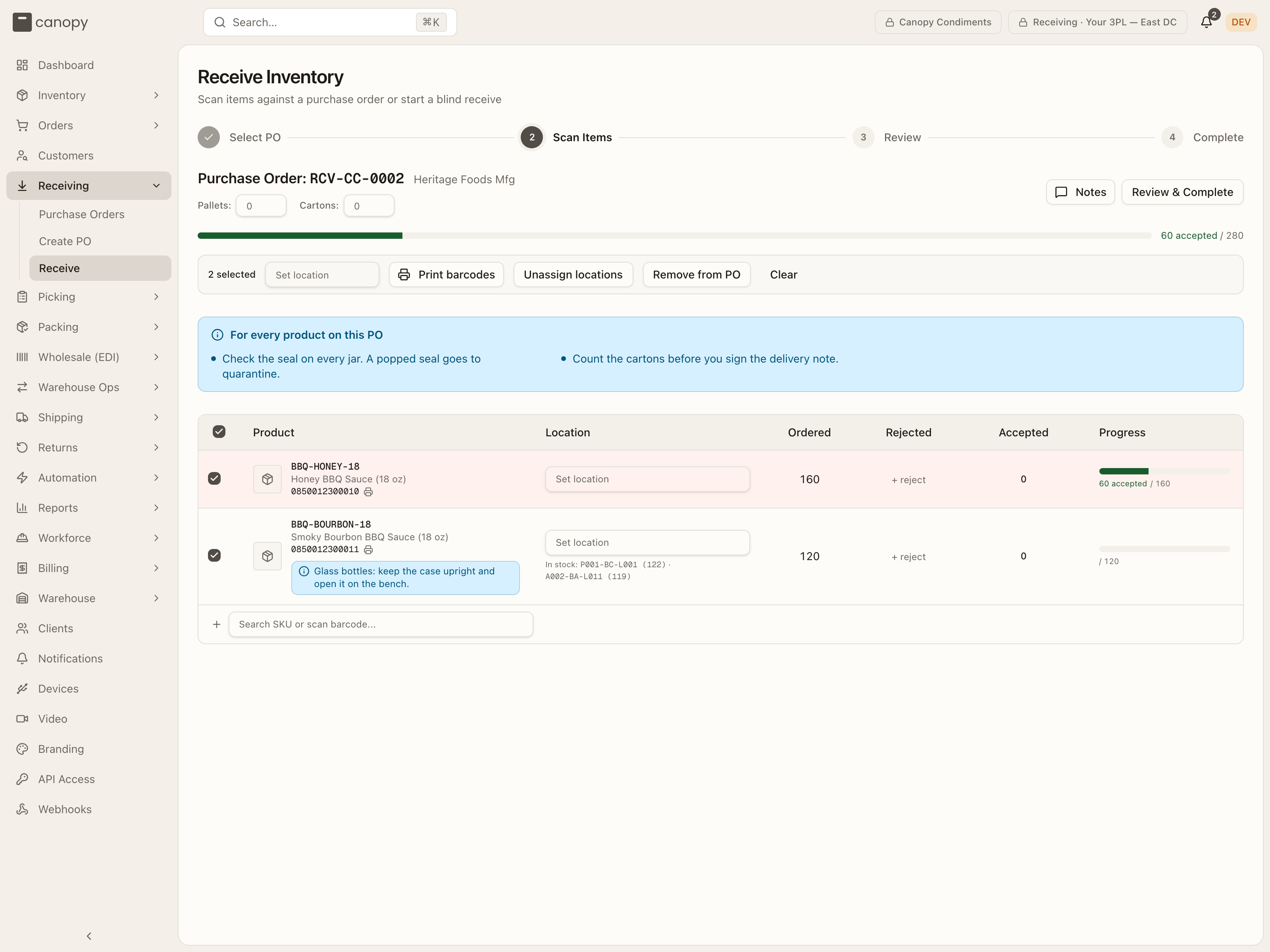
You can also skip this and let the first scan ask for it — see the next step. A location is not a putaway suggestion: it is the bin the stock is booked into the moment it is scanned.
Scan the units
Scan each unit's barcode. With a location set, every scan books one unit into that bin immediately — the row flashes green, the Accepted count and Progress bar move, and a green line under the header confirms your last scan. To count instead of scanning, click the Accepted number and type the count, or use its + / −. A SKU with pack forms (cases, inner packs) shows +1 case (12)-style buttons that receive one sealed pack — a case barcode does the same by scan.
If you scan a SKU whose line has no location yet, the scan is parked: the row turns amber, a banner reads "Scanned N × SKU — scan a location barcode (or pick a location on its row) and it will be received there automatically", and nothing else can be scanned until you resolve it. Scan the bin's barcode, pick a bin on the highlighted row, or press Cancel on the banner to drop the scan. Re-scanning the same SKU stacks more units onto the parked count.
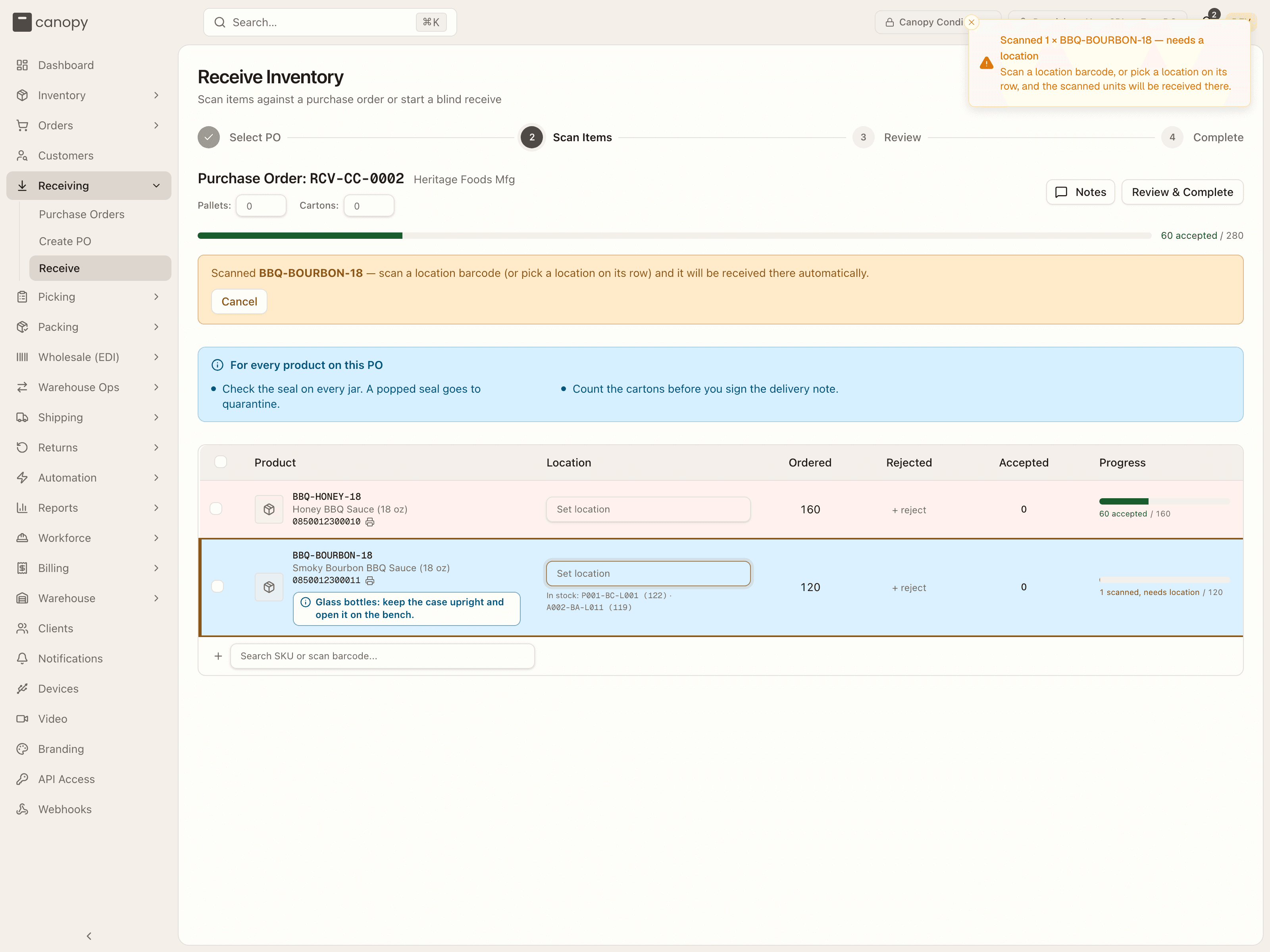
A parked scan is not stock
Parked units are counted on your screen only. Review & Complete refuses to leave Scan Items while one is open — "Give SKU a location first" — so they can never be lost silently, but they are not on hand until they have a bin.
Receiving more than the line ordered is allowed: the row turns amber and the Progress cell reads · N over. Whether that is right is a judgement for the Review step and the discrepancy notes afterwards, not something the scanner blocks.
Enter lot details when asked
For a lot-tracked SKU the first scan into a bin opens Lot details required. Type the Lot number and, if the SKU requires expiry, the Expiry date (otherwise optional), then press Receive. You can also set the lot up front in the row's Lot column once the location is chosen — it reads Set location first until then.
One rule to know: a storage bin holds one live lot at a time. A bin that already holds a lot of this SKU pins the picker to that lot; to receive a different lot, receive into a different bin (+ on the location row adds one). Damaged units in a quarantine bin are exempt.
Reject units, and say why
Before you scan, read the brand's receiving notes in the blue bar above the lines, and any note on a product's row. They tell you what to look for. The receiving reference explains where they come from.
For units that arrived damaged or wrong, press + reject on the line. One form opens and asks for everything at once, so every rejection says why.
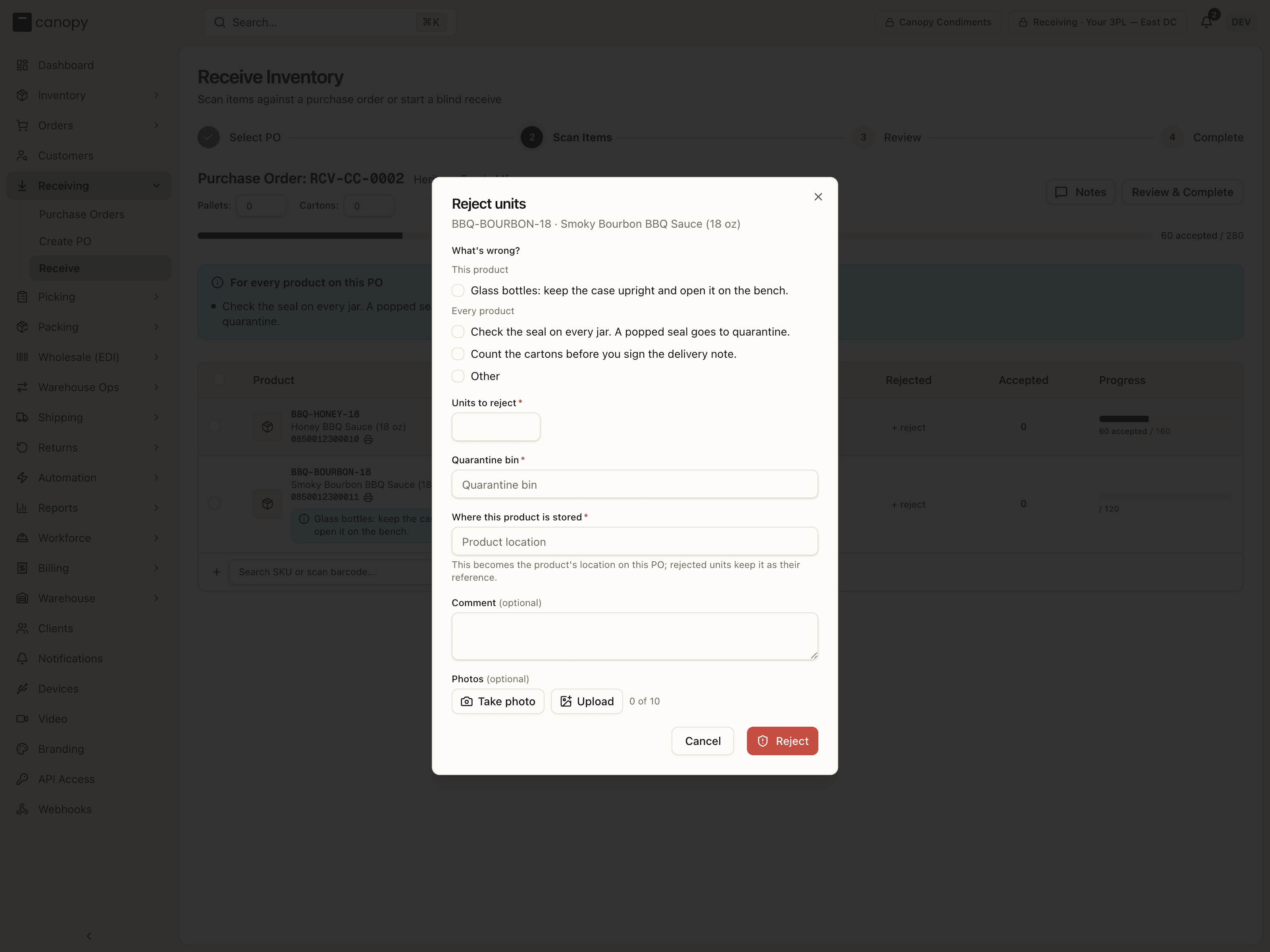
- Under What's wrong?, tick the brand's note that was broken, or tick Other and describe the problem.
- Enter the Units to reject and pick the Quarantine bin. Only bins in a Quarantine zone are offered. A lot-tracked product asks for its lot as well.
- Add a Comment or take Photos if they help, then press Reject.
The reason is saved on the PO as a problem report, with the photos, and the units are booked into the quarantine bin, not the storage bin. They show in the Rejected column and the PO's Damaged total, and they count toward the line's received total, so a line with 10 ordered, 8 good and 2 damaged completes as Complete. The damage is recorded, not hidden.
Add anything that isn't on the PO
A unit the vendor sent that is not on the PO is not a mistake to hide. Scan it anyway: an SKU the brand already has is added to the PO as a new line (expected 0, flagged New here and Unexpected on the PO) and the unit parks until you give it a location. For a barcode nobody knows, the "Search SKU or scan barcode..." row at the bottom offers + Add "…" (creates a new SKU if unknown), which opens the same Add SKU form as the SKUs page.
While you are on this screen: click a SKU code to open its detail modal and fix a barcode or dimensions without leaving the flow, and press Notes in the header to read the PO's notes or add one — the brand sees those notes too.
Count pallets and cartons, then review
Type what came off the truck into the Pallets and Cartons boxes in the header (the placeholders show what the PO expected). Then press Review & Complete.
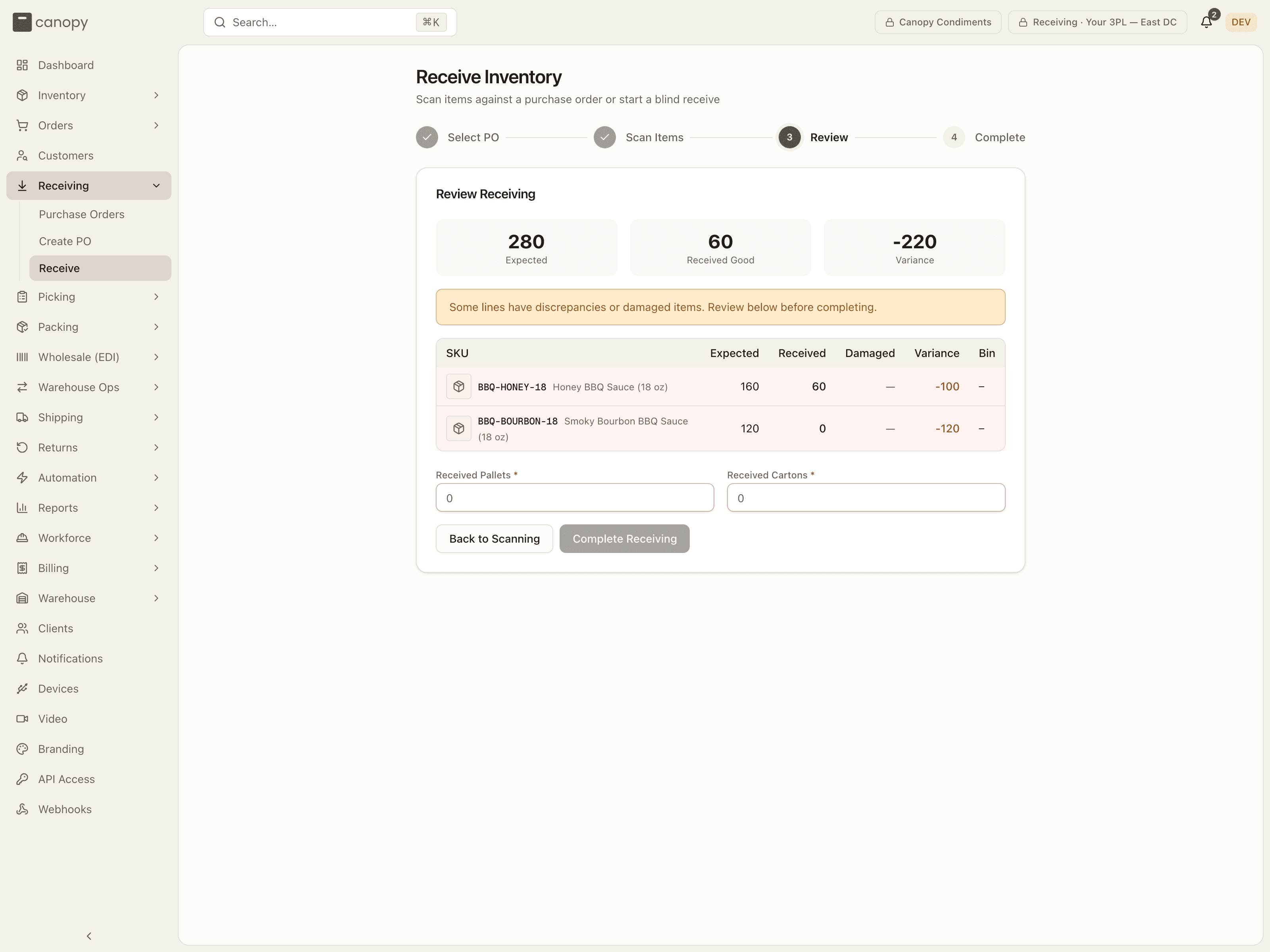
Review Receiving shows tiles for Expected, Received Good, Damaged (when any) and Variance, a warning if any line is off or damaged, and a table of every line with its Expected, Received, Damaged, Variance and Bin — short lines shaded red, over lines amber. Read it against the delivery note. Anything wrong, press Back to Scanning and fix it (see When something is off).
Received Pallets and Received Cartons are required; they carry over from the header and a note flags when they differ from what was expected. Complete Receiving stays disabled until both are filled.
Complete the receipt
Press Complete Receiving. The PO becomes Completed, each line takes its
final status — Complete when good plus damaged equals what was ordered,
Short below it, Over above it or for any unexpected line — the brand's
integrations get a purchase_order.received event, and every SKU on the PO
re-syncs its stock to the sales channel. You land on Receiving Complete
with the totals and a count of Complete / Short / Over / Damaged lines.
If billing is switched on for your tenant, an Add ad-hoc charge button sits beside the two exits — use it to bill special handling (a repack, a pallet rebuild) before you leave. Then Return to Purchase Orders, or Receive Another to go back to Select PO for the next delivery.
Check the PO
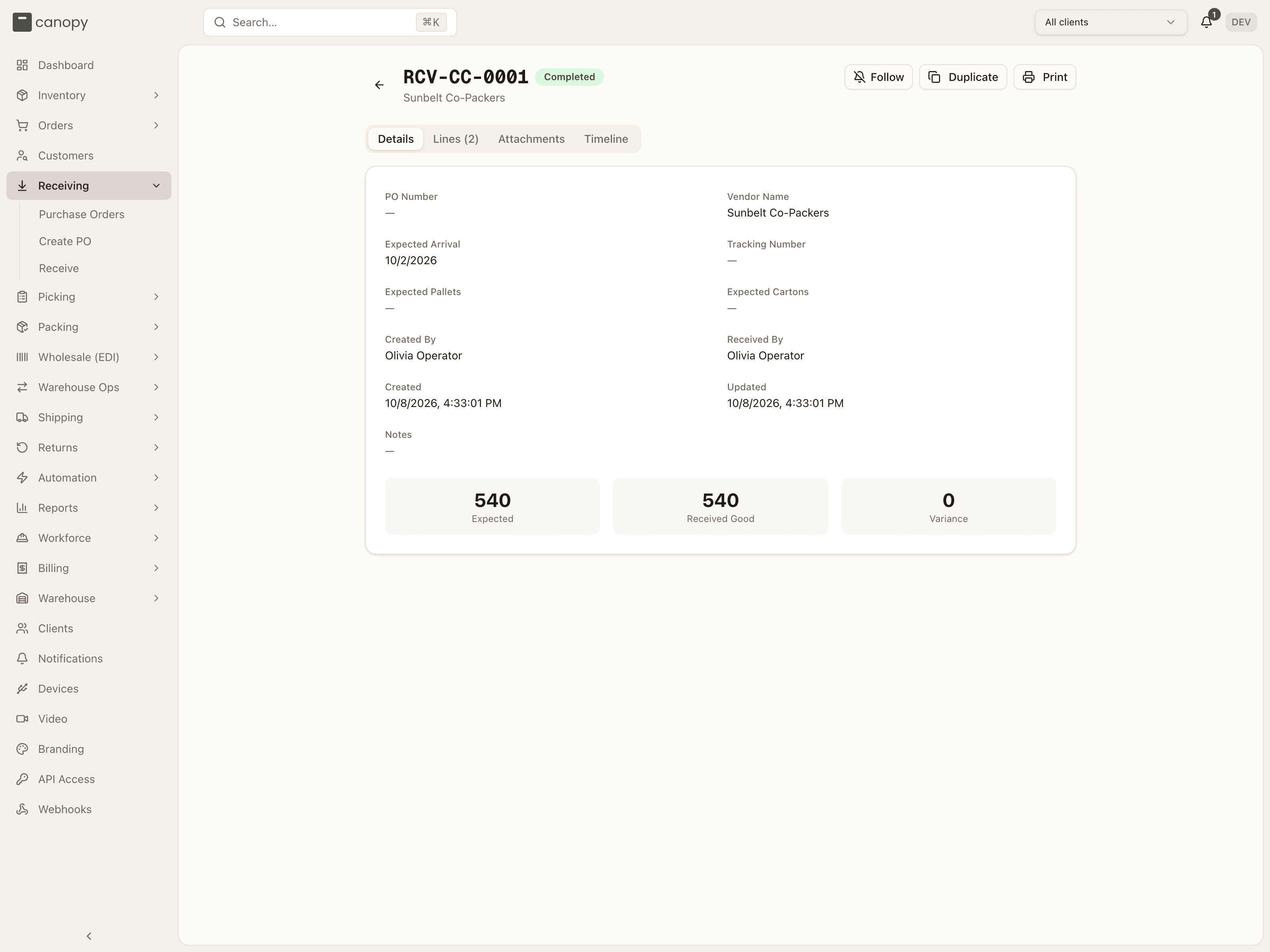
Open the PO from the list. Details shows who received it, the received pallet and carton counts beside the expected ones, and the totals row.
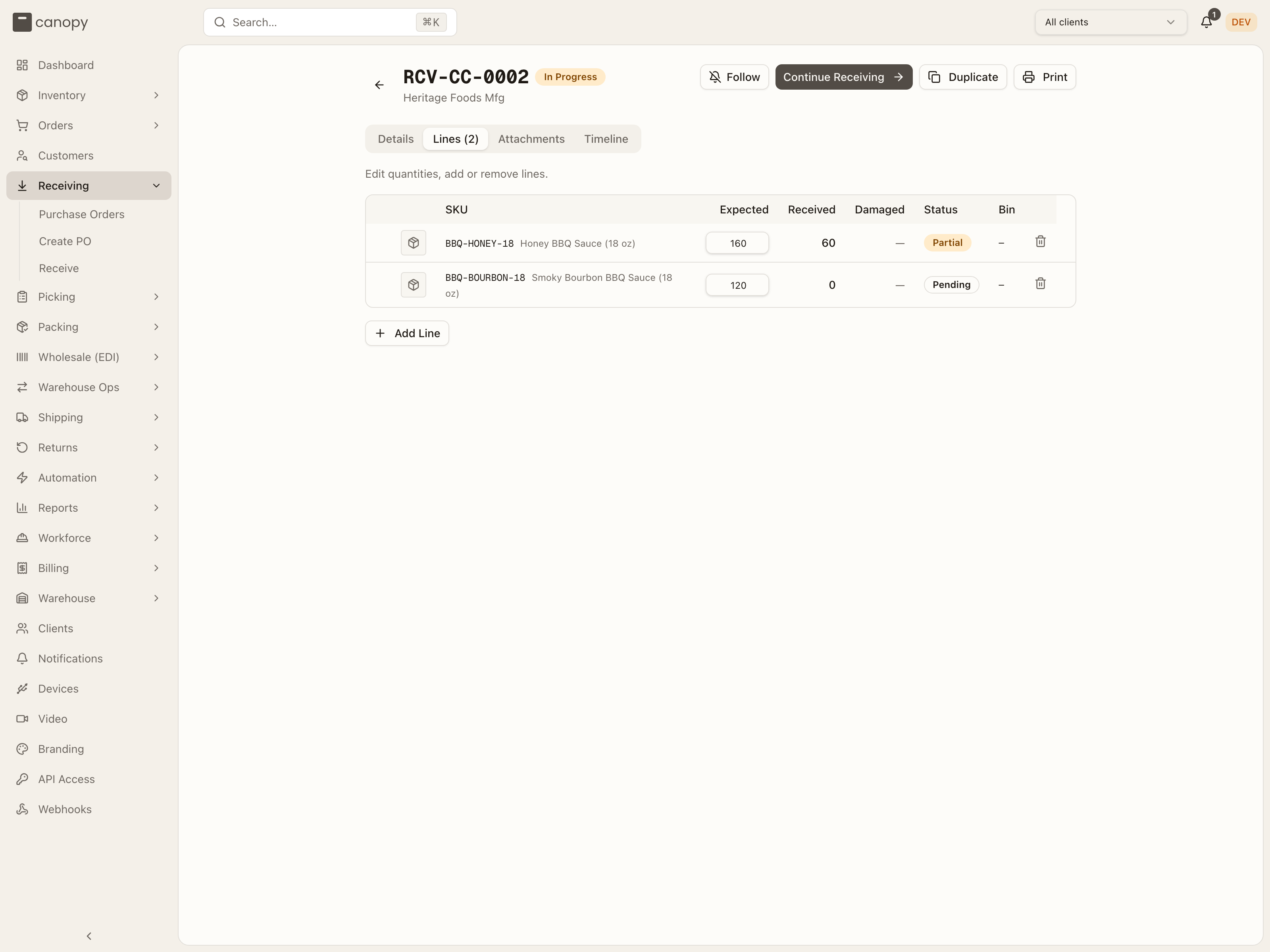
The Lines tab is the operator's view of where everything went: each line with its status and a Bin column (or N locations for a split line), and each line expandable to its receipts — when, how many good units to which bin, how many damaged to which quarantine bin. The brand sees the same tab without the bin columns.
When something is off
- Short. If the vendor sent fewer than ordered, receive what came and complete anyway — the line finishes Short and the PO's Variance goes negative. Do not pad the count to match. If the rest is on a later truck, leave the PO In Progress instead: Continue picks it up where you left off. If the vendor's paperwork says fewer were ever sent, lower Expected on the PO's Lines tab and the line's status follows at once (see Lines).
- Over. Receive it; the line finishes Over. Whether the brand keeps the extra is a conversation for the discrepancy notes, not the scanner.
- Damaged. Use + reject with a quarantine bin (step 7). Quarantine bins are held out of fulfillment, so what you set aside is never picked.
- An item not on the PO. Scan it in as an unexpected line (step 8). It completes as Over, and the Receiving Report counts it under Unexpected.
- Wrong location. If units went into the wrong bin, press the X on that location row — "Remove BIN?" — and confirm: the units are unreceived, stock comes back out of the bin, and a reversing adjustment is logged. Then set the right bin and count them again. To move a whole set of lines, tick them and Set location in the bulk bar to the right bin: the confirm says how many already-received units it will move. Unassign locations in the same bar reverses everything booked against the checked lines.
- Wrong SKU on the PO. Tick the line and Remove from PO — but only a line with nothing received or rejected can go; one with units has to be unreceived first, and the confirm names which lines it kept.
- The whole PO is wrong. A PO can only be cancelled while nothing on it has been received or rejected; unreceive the receipts first, or complete it (see Following a PO).
- Someone else has the PO. The "currently being received by …" banner names them. Take over only if they have walked away — the takeover is logged against you in the PO's timeline.
After the receipt
The stock is already on hand. There is no separate putaway step: every accepted unit was written into the bin you set on its line the moment it was scanned, with a RECEIVE adjustment in the ledger for each receipt, and every rejected unit into its quarantine bin with a DAMAGE adjustment. Completing the PO changes statuses and notifies the brand; it moves nothing. Receiving creates no putaway task in the Task Queue.
The exception is stock you deliberately received to a dock or staging bin rather than its shelf — the system treats stock in a non-pickable bin as received but not yet put away. Move it with an ad-hoc move in Warehouse Ops → Active Tasks: scan the receiving bin as the source, pick the item, choose its destination (see Ad-hoc moves). Until it is moved, pickers cannot be routed to it.
Write up the discrepancies. On a Completed PO with any short, over, damaged or unexpected line, the Lines tab grows a Discrepancy Notes card with a note box per affected line — type what happened and it saves when you leave the field. Below it the Receiving Report totals the lines that were Complete, Short, Over, Damaged and Unexpected, with Print Report and Export CSV (the CSV includes the putaway and quarantine bin columns for operators). The brand can open the same report, so this is the record you both work from with the vendor.
Attach the paperwork. Drag the packing list, delivery note or damage photos into the Attachments tab. The Timeline already holds every receipt, edit and status change, interleaved with notes.
Fixing a mistake after the fact. While the PO is still In Progress, expand the line on the Lines tab and press Unreceive on the wrong receipt — "N to BIN will be removed from its bin and a reversing inventory adjustment will be logged." A damaged receipt is reversed the same way, out of quarantine. Unreceive refuses if the bin no longer holds those units (they were picked, moved, or broken into smaller packs). Once the PO is Completed, receipts cannot be unreceived — correct the stock with an inventory adjustment and record the reason in the discrepancy notes.
What the brand sees. The PO's status and totals, the Lines tab without bin labels, the discrepancy notes, the Receiving Report, attachments, and the timeline. Never which bin a unit went into.