

Inventory
Every client's SKUs and stock, the bins that hold it, lot tracking, storage-tag placement rules, and the full adjustment history.
Inventory is the source of truth for what stock exists, where it lives, and how it's moving — across all your clients. As an operator you also manage the physical bins themselves, the storage tags that decide where a SKU may be put away, and you can adjust, transfer, and count stock.
Operator vs. client view
A brand sees only SKUs and Lots, and only their own. You see every client's, plus four staff-only pages — Locations (bin management), Item Locations (stock by bin), the Adjustment Log, and Storage Violations — and the Storage Tags catalogue, which admins edit and operators read. Hands-on actions (import, transfer, cycle count, lot hold/recall, storage placement, merging SKUs) are staff-only; creating bins — one at a time or from a CSV — and editing the tag catalogue are admin-only.
SKUs
Inventory → SKUs. The product catalogue with live stock, across all clients.
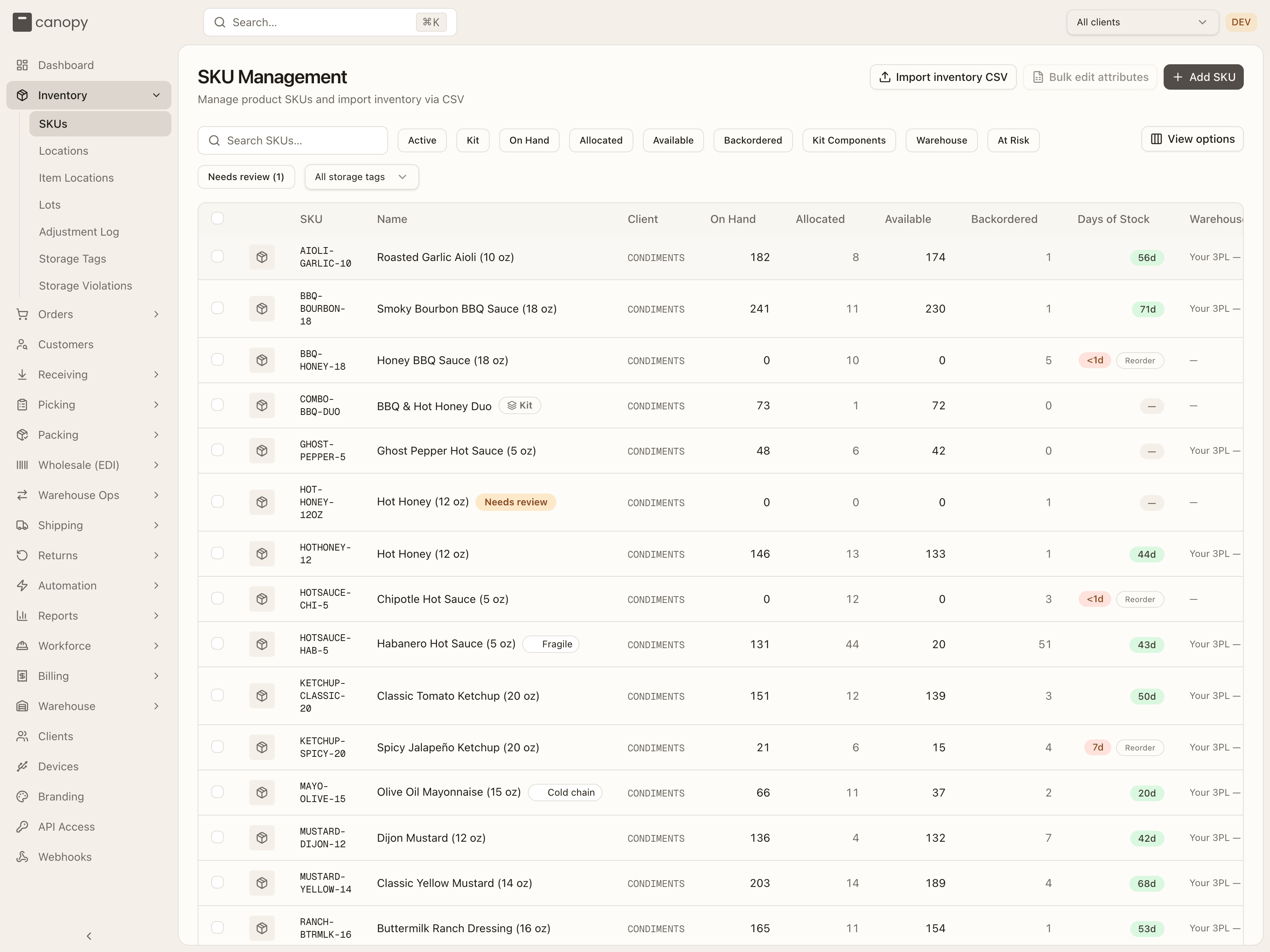
Each row shows the SKU code and image, the name, the Client code, on-hand, allocated, available and backordered units, a days of stock pill (🔴 under 7 / 🟡 7–14 / 🟢 14+ / — no recent sales; hover it for the math), the Warehouse holding the stock, and a Status badge (Active / Inactive). A Reorder badge appears next to the pill when on-hand is at or below the SKU's reorder point, which also forces the pill red. Badges in the name cell flag Kit, Non-physical and Needs review SKUs — the last is one order import created for a code it didn't know, see Merging SKUs — and up to two storage-tag chips show the placement rules a SKU carries. Click a column header to sort the whole catalogue; View options hides columns.
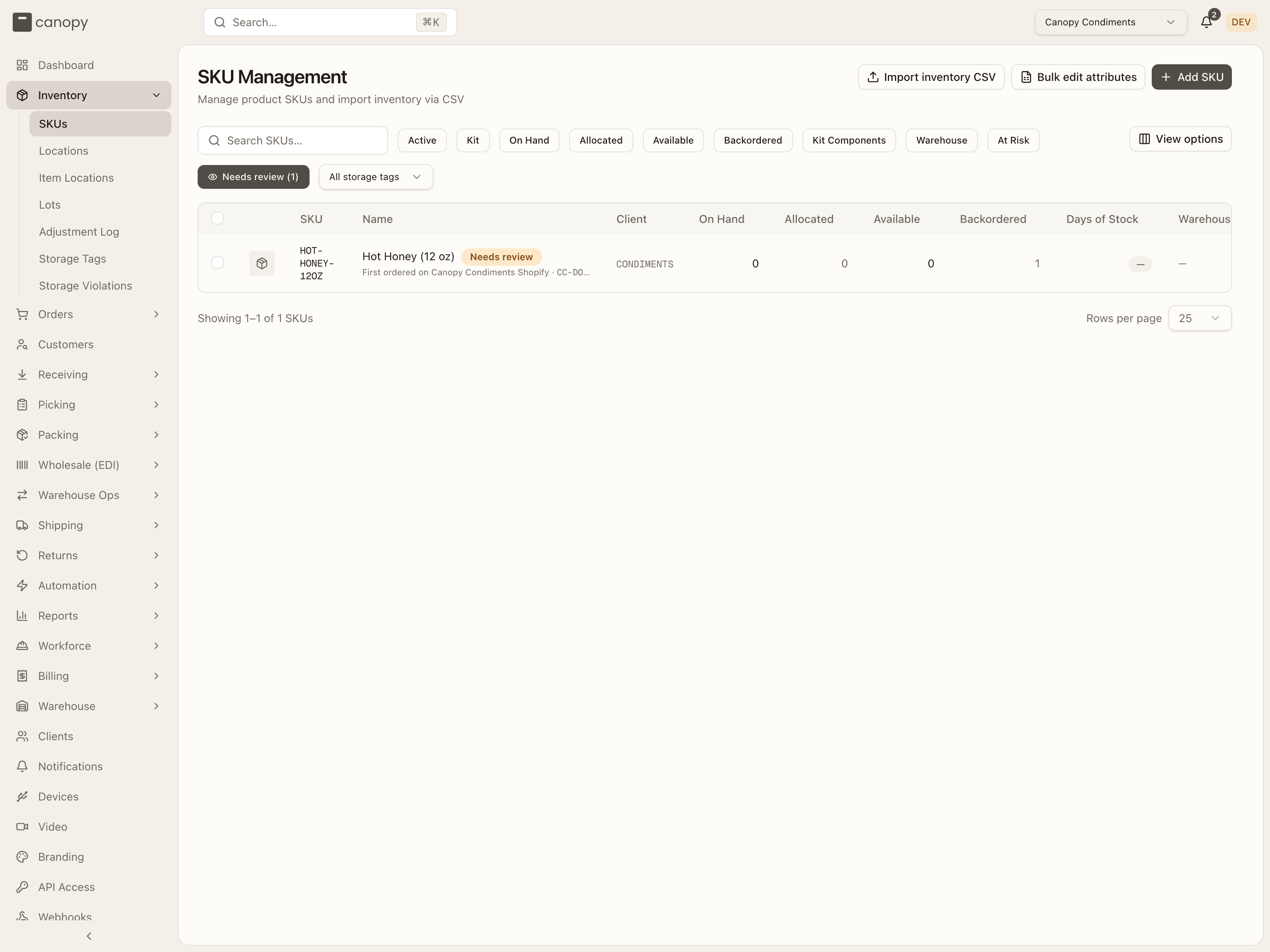
Nine filter chips narrow the list — Active, Kit, On Hand, Allocated, Available, Backordered, Kit Components, Warehouse, and At Risk (each cycles all → show only → hide). Once at least one storage tag exists, a Storage tag dropdown follows the chips and narrows to SKUs requiring that tag. Every filter runs server-side against the full catalogue. As staff you get a tenth chip, Needs review, whose label carries the size of the review queue (Needs review (3)); switched to show only, each row also says where the SKU first turned up — First ordered on Canopy Condiments Shopify · CC-….
Three header actions:
- Import inventory CSV — operators and admins only; the bulk stock-adjustment importer described below.
- Bulk edit attributes — needs a client pinned in the topbar (it's disabled under All clients). A brand can run this on their own catalogue too.
- Add SKU — every role can create SKUs; yours has extra fields.
Sell Ahead
Pin a client whose account has sell ahead switched on and a Sell Ahead column joins the list: units on an open PO that the brand is advertising to opted-in sales channels before they arrive, at the active warehouse. They're never allocatable — orders for them wait as backorders until the PO is received. The column can't show under All clients, because the setting is per client.
Add SKU
Add SKU opens a form for a new product. As staff you pick the Client first (the picker is hidden when a flow such as receiving has already pinned one), then the SKU Code and Name (required), an optional Description, Barcode, weight and dimensions, and a Size Category. The Kit / Bundle switch turns the form into Add Kit — search and add component SKUs with quantities, and the button becomes Create Kit. Non-physical item marks a service or fee that skips picking and packing.
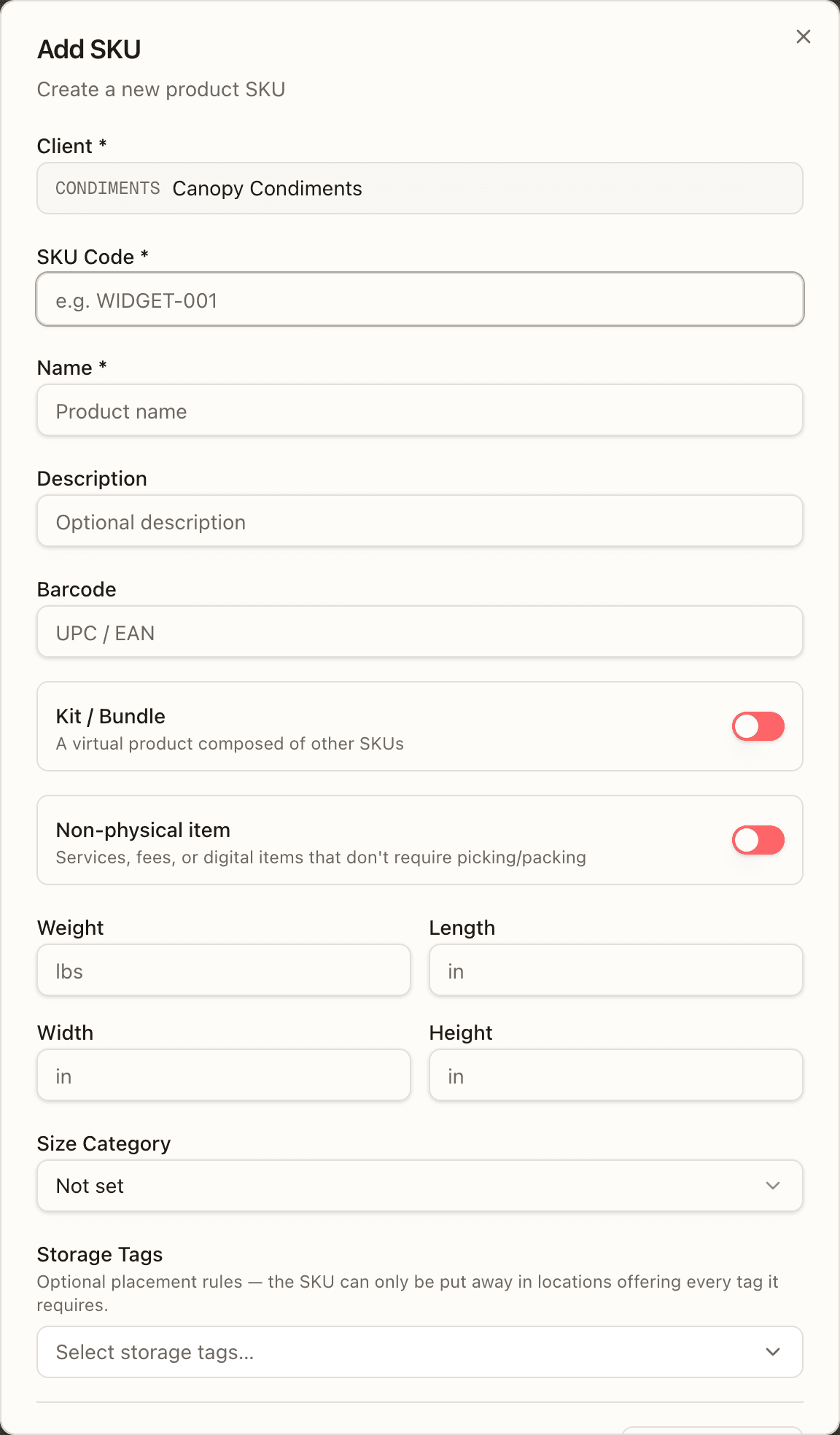
Two sections are yours alone: Storage Tags (the placement rules the SKU requires — it can only be put away where every tag it needs is offered) and Initial Stock, where + Add Location rows let you place starting quantities straight into bins (you're asked which warehouse the bins are in when it can't be inferred from the topbar). Tags are applied right after the SKU is created; if that step fails the SKU still exists and a toast tells you to set the tags from its detail view.
A kit's components can't be SKUs that were merged away — the form refuses with "Merged SKUs can't be kit components — use the SKU they were merged into: …" — and no SKU picker in the app offers a merged SKU.
Import inventory CSV
Import inventory CSV is a bulk stock-adjustment importer, not a catalogue loader — the dialog is titled Upload Inventory CSV and needs a client pinned first ("Please select a client before uploading a CSV."). It runs on the import dialog every CSV import in Canopy shares, so it behaves like Import locations CSV and the Receiving page's purchase-order import: drop a file, read every row's verdict, then apply.
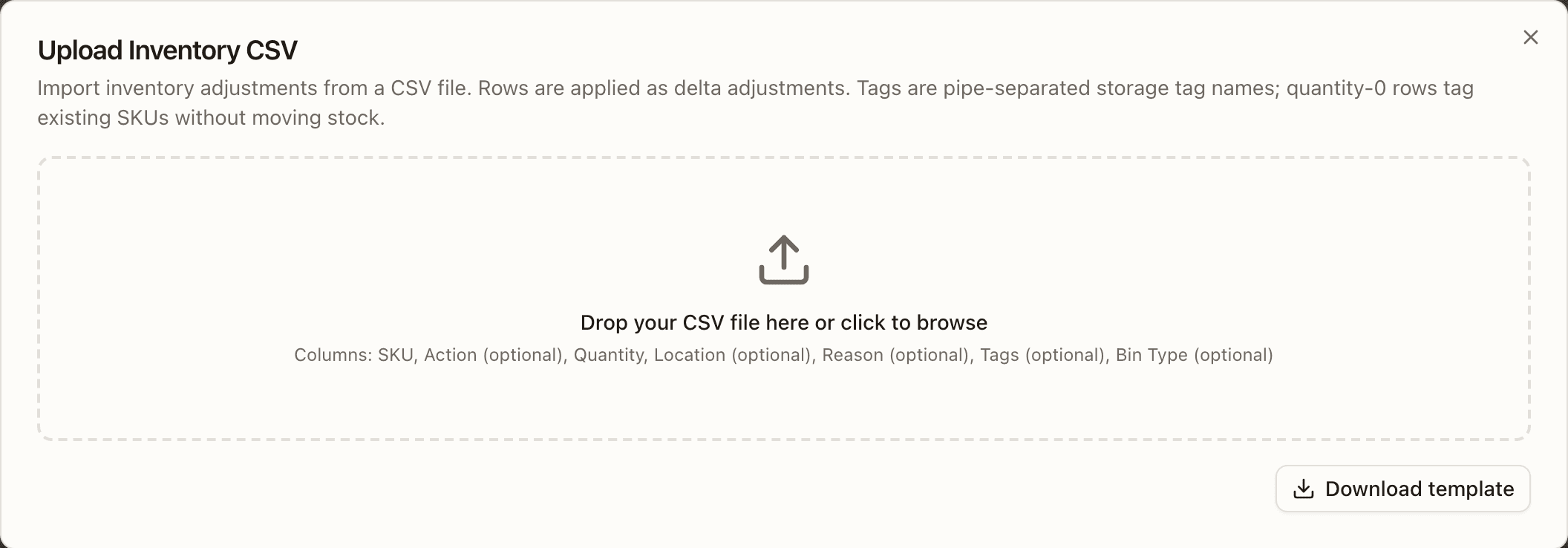
Each row is a delta adjustment in base eaches, written to the Adjustment
Log as a MANUAL row with the row's Reason (CSV
import when the cell is blank). The drop zone lists the columns, and
Download template gives a stock-template.csv with one example row:
| Column | Required | What it means |
|---|---|---|
| SKU | yes | The SKU code. An unknown code creates a bare SKU named after it — the row's verdict says create SKU … — and a code that was merged away lands on the SKU it was merged into, with a note. |
| Action | no | Free text; not read. |
| Quantity | yes | The signed change in eaches — 10, -2. |
| Location | unless quantity is 0 with tags | The bin label. An unknown label is minted in the Legacy Imports zone (mint bin … in Legacy Imports), typed from Bin Type. A pallet bin that holds another client's stock refuses the row: Pallet "…" holds another client's stock. Use a different location. |
| Reason | no | The ledger reason. |
| Tags | no | Storage tag names separated by a vertical bar, put on the SKU. A name not in the catalogue rejects the row: Unknown storage tag(s): … — create them in Storage Tags first. |
| Bin Type | no | SHELF, PALLET, FLOOR, CART, TOTE or STAGING (none still means STAGING); read only when a location has to be minted. |
A quantity 0 row with tags applies the tags without moving stock and may
leave Location blank; it never creates a SKU (SKU not found — tag-only
rows (quantity 0) don't create SKUs), and a quantity 0 row with no tags is
skipped with a warning. Header names are matched loosely — sku code, qty,
bin, storage tags and type are accepted spellings, and a column the
import doesn't know is ignored with a banner; a file carrying a column's own
name beside one of its aliases (SKU and Product) reads the own name and
ignores the alias with the same banner, while the own name twice, or two
aliases with no own name, refuse the file as duplicates — and a missing
required column refuses the file before anything is sent. A blank row (an
empty line, or the ,,, Excel leaves for a cleared row) is skipped and not
counted against the row cap, but keeps its number, so the rows after it keep
their file numbers; N rows read counts the rest.
The dialog runs in steps:
- Choose a file. It is parsed in the browser with the parser the server uses, so a quoting error is named with its line (Fix the file and choose it again. Nothing was imported.), and a missing required column (Missing required column(s): …) or a duplicated one refuses the file. If the warehouse can't be resolved from the topbar or your default, a Warehouse picker asks "Which warehouse are these locations in?" — bin labels are only unique per warehouse — and Preview waits for it.
- Preview. Every row comes back with a verdict — ok; warning, applied
with a note (Create SKU X, Mint bin Y in Legacy Imports); rejected,
with the column and the reason; or skipped — rejected rows listed first,
and the badges count each row once. The import is all-or-nothing: while
any row is rejected the button stays off (Every row must pass before this
import can be applied), and Download errors.csv returns the whole file
with an
import_errorcolumn filled on the rejected rows — fix those cells and choose that file again. - Import N (or Import N, skip M) applies the rows in one transaction; a row that fails while applying rolls everything back and the rows come back marked. Closing the dialog is refused while the commit is in flight — it applies on the server whether or not you watch, and a second upload would post the same deltas twice.
- Import complete counts Rows applied, With warnings, Rejected (Rejected, skipped on a partial import) and Skipped above the same row table; Import another starts over. Rows applied counts every row that went in, a row applied with a note included — so it and With warnings deliberately overlap, and the applied figure is the whole of what the file changed rather than only its clean rows.
A file may hold up to 2,500 rows and 10 MB; a larger one is refused with a message that says to split it. The old multipart upload route the previous dialog posted to still answers scripts but is deprecated.
Bulk edit attributes
Two entry points open the Bulk edit SKU attributes dialog, always pinned to one client:
- Bulk edit attributes in the header — Export catalogue CSV, edit in a spreadsheet (keep the ID column, drop columns you don't want to touch, blank cells clear values), then Upload edited CSV.
- Tick rows in the list — Select all N matching rows extends a selection across pages — then Edit selected attributes in the selection bar. The selection must be from one client (the bar says so otherwise) and at most 5,000 SKUs. This route is a form: tick the fields to change, type the shared value (a ticked blank clears it), and Review changes.
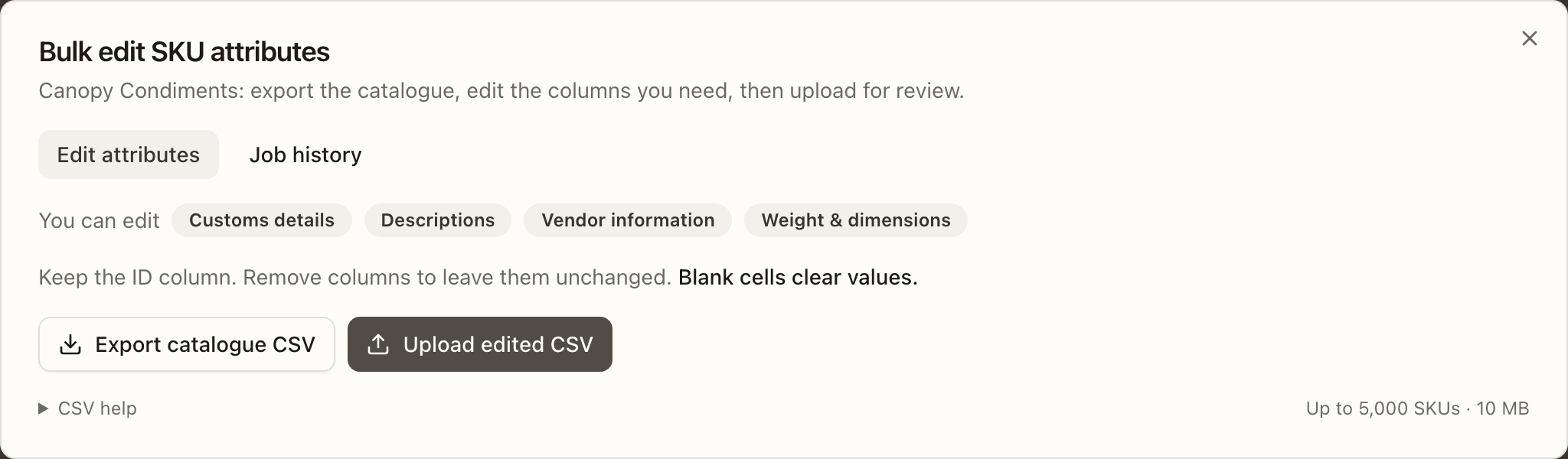
Editable attributes are customs details, descriptions, vendor information, and weight and dimensions, up to 5,000 SKUs and 10 MB per upload. Every upload is validated first; the preview counts changed, unchanged and cleared values, lists errors (Download all errors), and shows a before/after table. Tick I reviewed the N SKU changes and Apply changes to N SKUs — only the uploader can apply their own preview. Job history keeps each upload with its user and time: View preview, Original file (.txt), Error report for rejected or failed jobs, and Prior values CSV on an applied job, which you upload again to undo it.
SKU detail
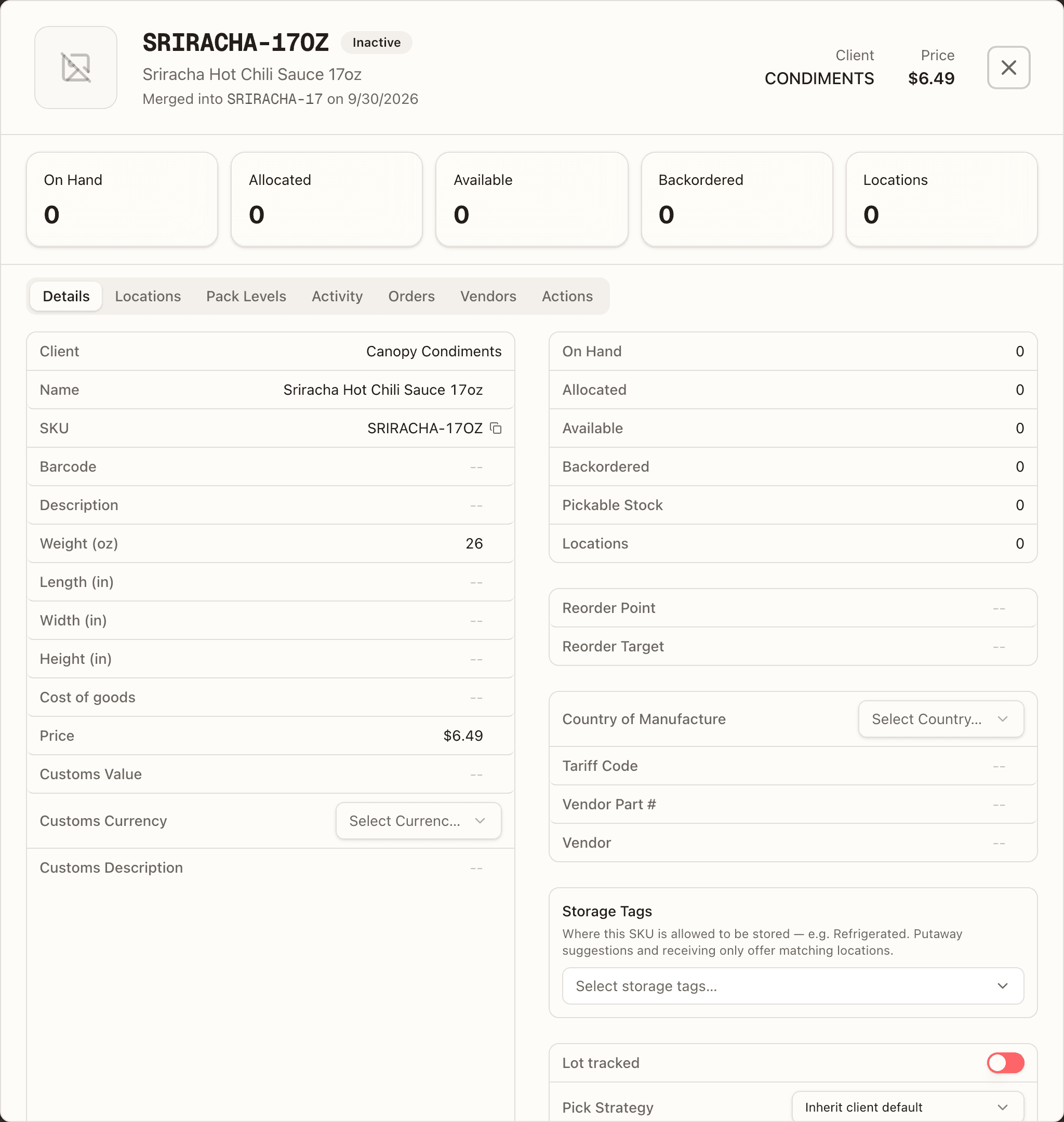
Click a SKU for its detail. The header carries the code, its status badge, the name, and the barcode, client code and price — plus a Needs review badge on a SKU order import created, and, on a SKU that was merged away, a Merged into CODE on date line linking to the SKU its code now redirects to. Up to six KPI cards follow —
On Hand, Allocated, Available, Backordered, Sell Ahead (when the SKU's client is opted in) and Locations (the number of bins holding it; staff only; hover Allocated for what it counts: "Units reserved for orders, including Replenish orders backed by sellable overstock.") — above the tabs: Details, Locations, Pack Levels, Activity, Orders, Vendors, and Actions. A kit SKU shows Kit Components instead of Pack Levels (with the bottleneck part flagged), and only a prebuilt kit — one that holds assembled stock — keeps a Locations tab.
Available is sellable stock less everything already owed — Allocated and Backordered both — so it only shows what nothing has already claimed. Backordered itself nets out any order parked On Hold for an operator's attention: those units aren't waiting on stock, so they stop counting here once the order is parked, even though nothing is reserved for them.
Details
Every field, editable in place (click a value, Enter or blur saves, Escape cancels). On the left: client, an Active switch (absent on a merged SKU — a retired code can't come back), name, SKU code, barcode, description,
Weight (oz), length / width / height (in), Cost of goods (the per-unit acquisition cost in the client's currency, which must be zero or greater — the Sales by SKU report reads it for its COGS and Current value columns), price, and the customs fields — Customs Value, Customs Currency, Customs Description. On the right:
- Stock figures — On Hand, Allocated, Available, Backordered, Pickable Stock (units in pickable bins that are also sellable), an Unsellable / Expired line when stock sits on a bad lot, and the location count.
- Sell Ahead (opted-in clients) — the live balance and a table of the open POs behind it: PO (linked), ETA, Expected, Received, and Sell ahead remaining.
- Reorder Point and Reorder Target.
- Trade fields — Country of Manufacture, Tariff Code, Vendor Part #, Vendor.
- Storage Tags — where this SKU is allowed to be stored. Putaway suggestions and receiving only offer matching locations. Staff only; a brand doesn't see this block.
- Lot tracked, which reveals Expiry required and Min Shelf Life; Pick Strategy (Inherit client default, FEFO, FIFO, or Bin efficiency) for every SKU. Flip lot tracking on before the first receipt — stock received while it's off lands untracked.
- Size Category, a Non-physical switch, kit flag, and created / updated dates.
Locations
Stock by location — every bin holding the SKU in the active warehouse, with Break pack (when sealed packs exist) and Adjust stock in the corner and, when the SKU is stocked in sealed forms, a breakdown by pack form (for example 5 cases (60 ea) · 8 loose). Both actions are described under the Adjustment Log. Adjust stock is withheld on a merged SKU: the server refuses stock added to one ("this SKU was merged into another SKU — adjust that SKU instead."), as it refuses a cycle count that would add units to it, though either may still remove leftovers.
Pick order
The Locations tab lists every bin holding the SKU, and warehouse staff can drag the rows to set the pick order — the top location is picked from first. The list is grouped by bin (one bin can hold several rows of the same SKU: a different lot, a sealed case beside loose eaches), because pick order is a property of the location, not of an individual stock row; the grip handle sits on the bin.
Dropping a row saves the whole visible list, so every bin ends up ranked, and the numbers renumber from the top. Reset to automatic clears the manual order and hands ranking back to the system. Drag is locked while a save is in flight, and a save that fails snaps the list back to what the server has and says so.
Un-ranked bins sort by how much they hold, heaviest first — a stocked bin ahead of a trickle.
Rotation still comes first
Pick order only decides between locations that are otherwise equal. A SKU picking by FEFO rotates by expiry first, so the order only separates locations holding the same expiry date; under FIFO it only separates locations holding the same lot. For untracked stock under FIFO the tiebreak is the stock's own age, so a manual order rarely applies at all. The tab says which of these is in force above the list.
Previous locations
Below the live table, Previous locations lists the bins this SKU used to sit in and no longer does — drained rows are never deleted, so this is the full trace of where it has been. Each shows the bin, zone, warehouse, bin type, lot, pack form, when it last moved, and an Emptied badge.
A bin that still holds the SKU in some form is not a previous location: a drained case row beside a live loose row, or a rotated-out lot beside the current one, stays in the live table. Only a bin with nothing left of this SKU is history.
Pack Levels
The pack forms the SKU is stocked in — Each, Inner pack, Case, Master case, Pallet — with the eaches each one holds and a barcode. Edit Pack Levels adds or removes levels; Each is always the base at 1, and each higher level must hold more eaches than the one below and be a whole multiple of it. Once a sealed level exists, Auto break-pack during picking prompts the picker to open packs when loose eaches run short mid-pick.
Activity
The SKU's slice of the Adjustment Log, with the same search, filters, and paging. For an on-demand kit, which holds no stock of its own, the tab shows its components' activity instead, with a SKU column. A SKU that others were merged into shows their ledger too — a retired SKU's history stays on it, and reads whole here.
Orders
Every order line this SKU is on, newest first — the demand behind Allocated and Backordered. Open to every role. An order merged into another is no demand of its own: its parked lines rest at zero while the order it ships in holds the reservation, so a merged unit never counts twice in those figures.
Two kinds of line stop counting once they are packed. A kit's parent line is the line for the kit itself; its components sit on lines of their own and carry the stock. A non-physical line is an item with no stock at all. Neither holds units, so once either reaches Packed it owes nothing. It leaves the Backordered figure here and on the SKU list, the Backorder report, and Sales by SKU.
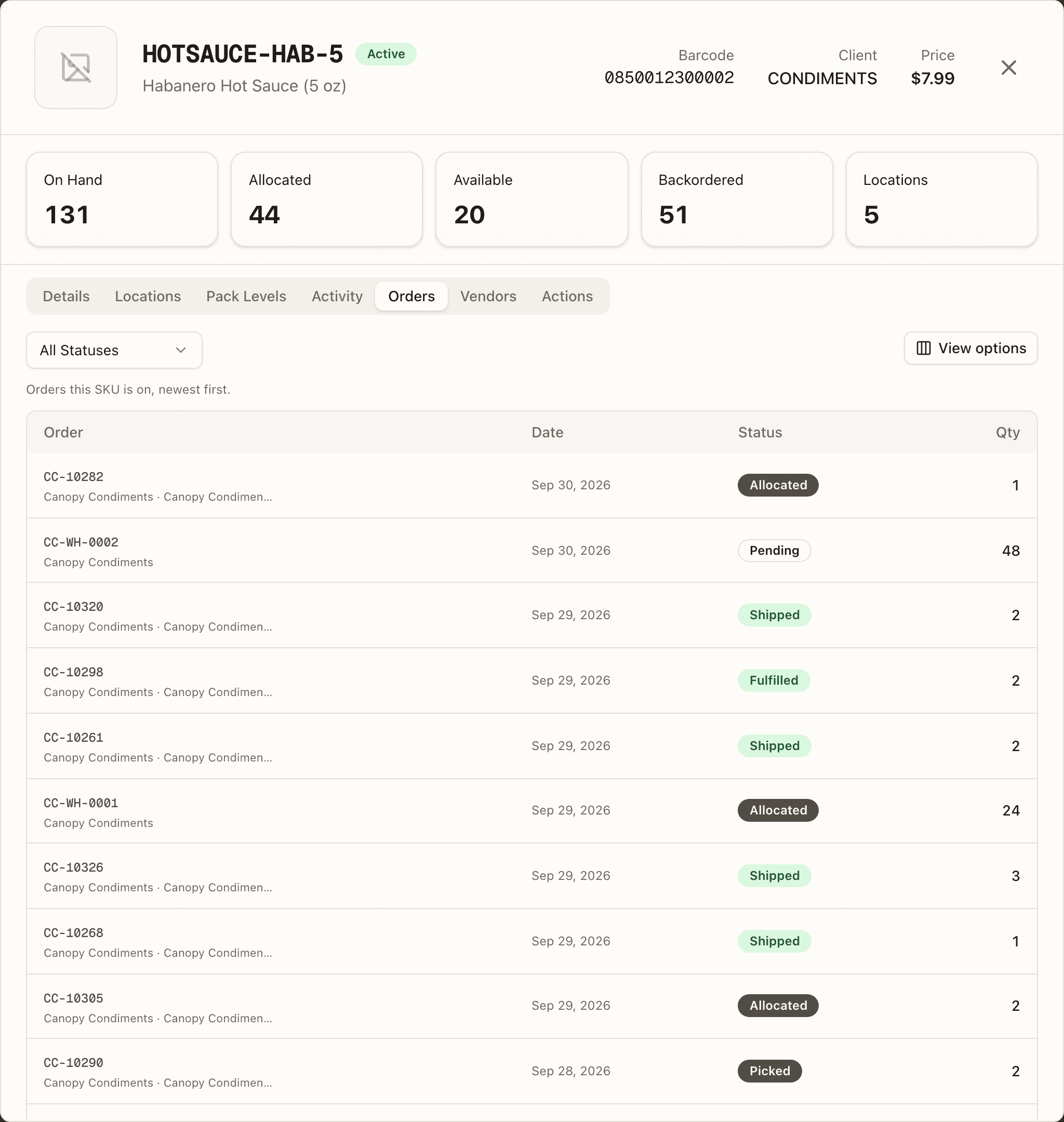
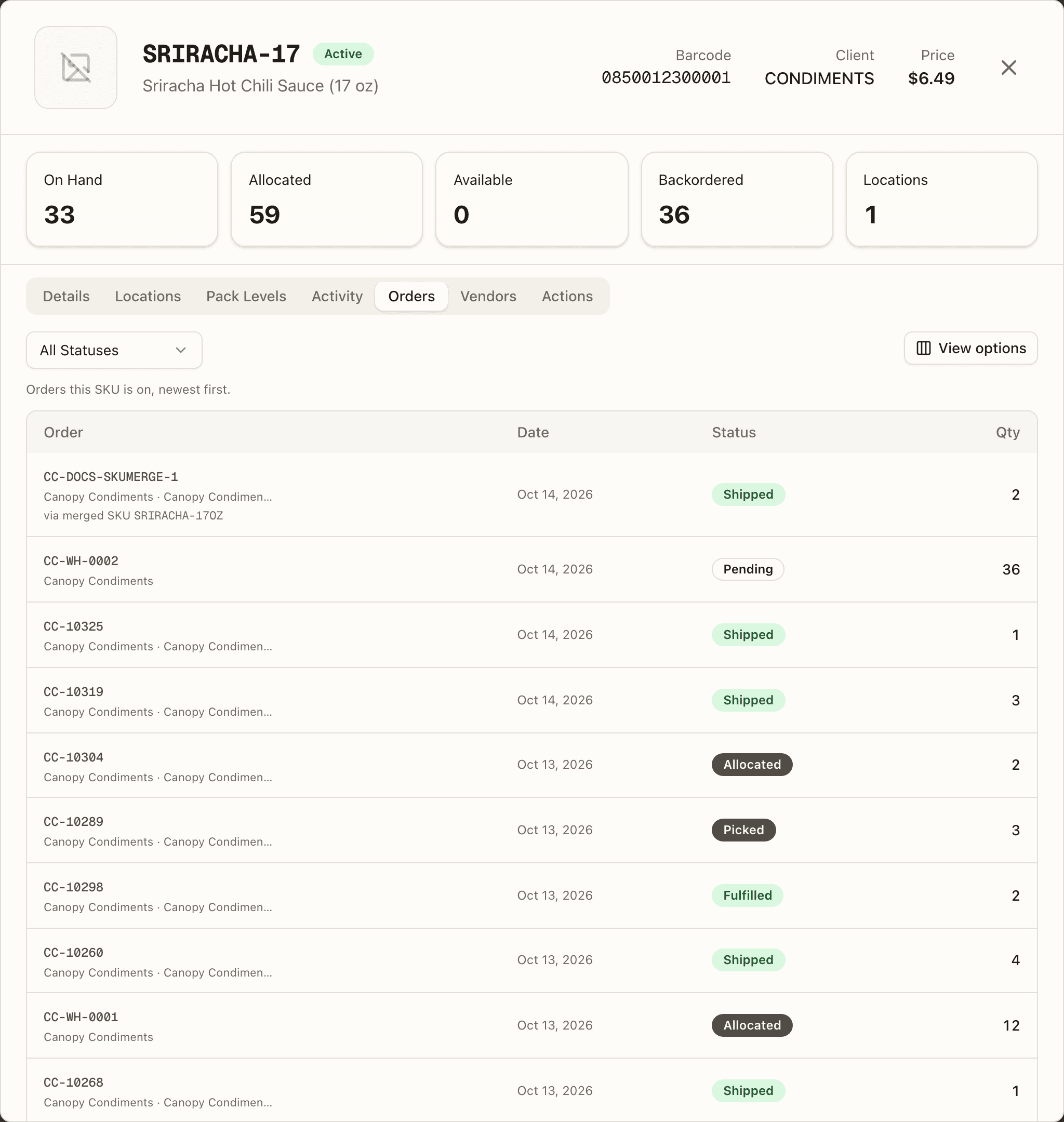
Each row shows the Order number (linked to the order), with the client and channel beneath it, the Date, its Status badge, and the Qty. Filter by one or more order statuses; the active filter shows as a removable chip. The status list includes Replenish — an order whose units are reserved but sitting in overstock rather than on a pick face; its badge is amber and hovering it reads "Stock is available in overstock. Replenish picking locations or fulfill through Bulk Ship." When the SKU shipped inside a kit, a Kit component column names the kit and links to its detail. A SKU that has never been ordered reads "This SKU isn't on any orders yet." A line that came in on a code since merged into this SKU carries via merged SKU CODE under its order number — the closed history a merge leaves on the retired SKU, read here so the demand and sales behind this one are complete.
Vendors
Every purchase order this SKU is on, newest first — the inbound supply behind On order. Open to every role.
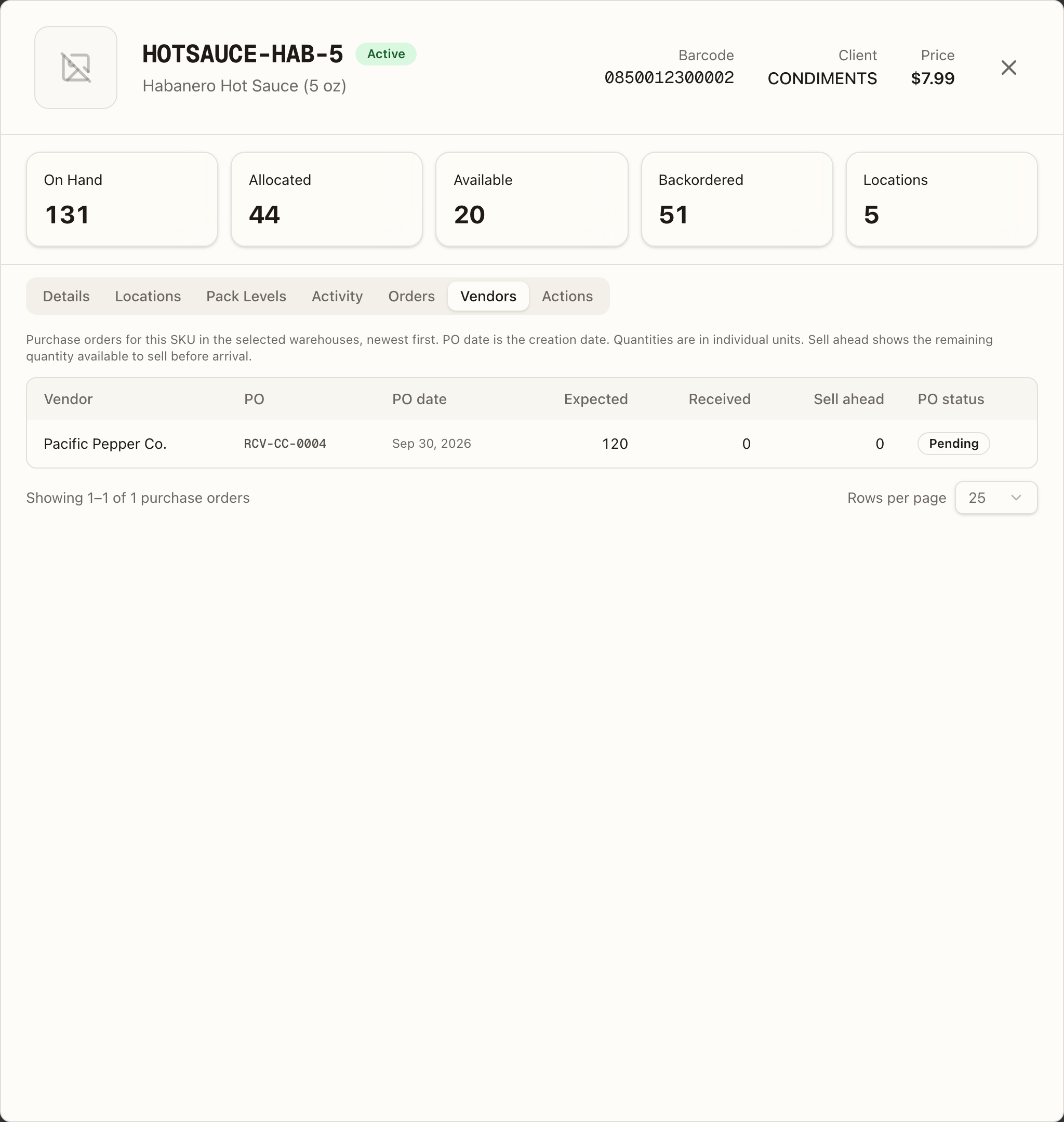
Each row shows the Vendor (Not specified when the PO doesn't name one), the PO — the external PO number where one is set, otherwise the shipment number, linked to the receiving record — the PO date it was created, then Expected, Received and Sell ahead, and the PO status badge: Pending, In Progress, Completed or Cancelled.
Quantities are individual units. Sell ahead is the remaining quantity still
available to sell before the PO lands — 0 for a client that doesn't sell
ahead. Rows page 25 at a time.
The tab follows the top bar's warehouse selector, listing only POs bound for that warehouse; across all warehouses it lists them all. With nothing inbound it reads "No purchase orders found for this SKU in the selected warehouses."
Actions
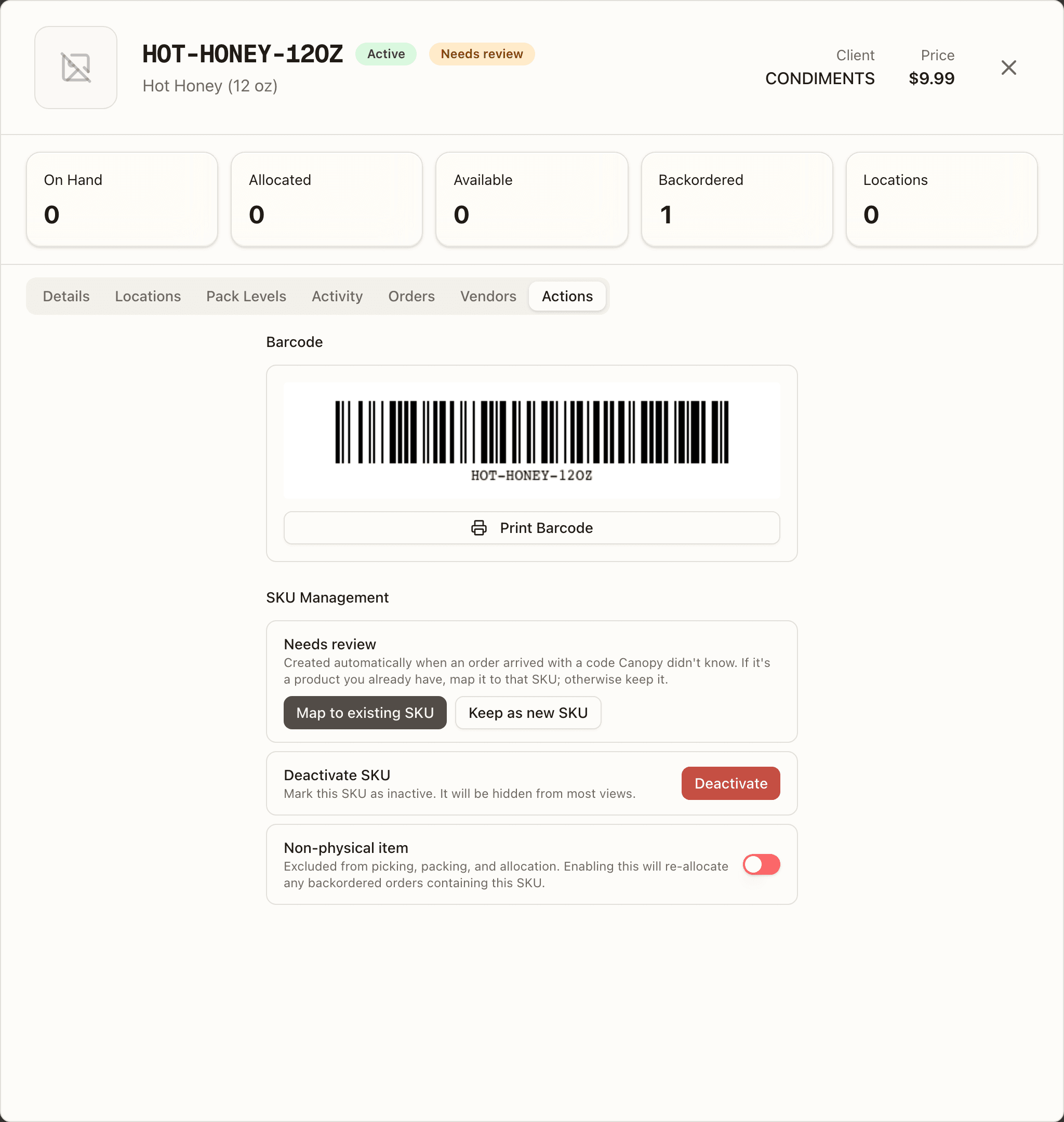
A printable barcode (the SKU code when no barcode is set — the scanners resolve either) with Print Barcode, then SKU Management:
- A Needs review card on a SKU order import created — "Created automatically when an order arrived with a code Canopy didn't know. If it's a product you already have, map it to that SKU; otherwise keep it." — with Map to existing SKU, which opens the merge dialog, and Keep as new SKU, which clears the flag. Staff only.
- Merge into another SKU — "Fold this SKU into the one to keep: open orders, stock and channel listings move, and its code redirects there." — with Merge…, on any SKU that isn't a kit and isn't waiting for review. Staff only; see Merging SKUs.
- On a SKU already merged away, Move leftovers to CODE instead, shown only while Stock or open orders reached this SKU after it was merged; Move sweeps them onto the kept SKU.
- Deactivate / Reactivate the SKU — absent on a merged SKU, which is retired for good.
- A Non-physical item switch, which re-allocates any backordered orders containing the SKU when turned on.
Merging SKUs
An order from a new channel can carry a code Canopy doesn't know. Order import then creates a stub SKU named after the channel line (Hot Honey (12 oz)), flags it Needs review, keeps the channel's code on the order line, and the order backorders against the stub — stock will never arrive on it. A merge folds that stub, or any duplicate SKU, into the SKU it really is.
The Needs-review queue
Switch the Needs review chip to show only: the list narrows to the flagged SKUs and each row names the order and channel it first arrived on. Open one and its Actions tab offers the two ways out — Map to existing SKU or Keep as new SKU.
The merge dialog
Map to existing SKU and Merge… open the same dialog, Merge CODE into another SKU, headed by the rule: "Open orders, on-hand stock and channel listings move to the SKU you keep. Shipped history stays on CODE, which is retired — orders and scans for its code land on the kept SKU from now on. This can't be undone." Pick the SKU to keep (the picker never offers a merged SKU) and the preview loads — Checking what would move…:
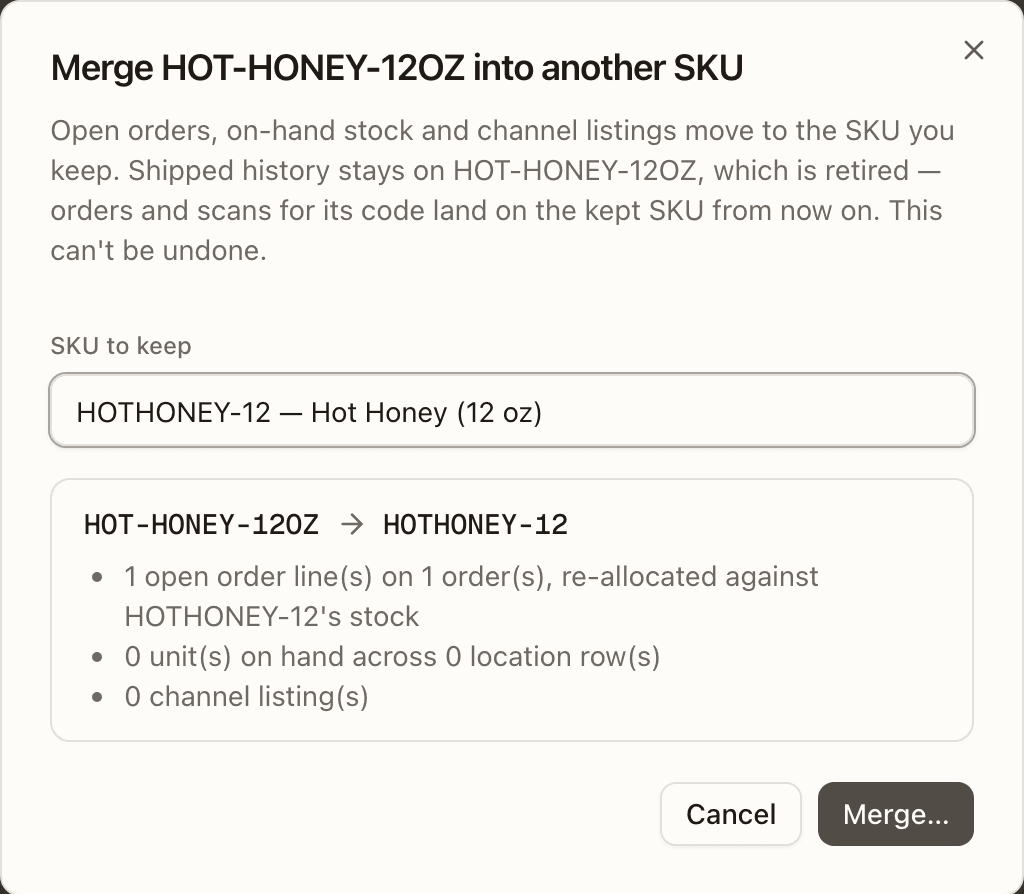
- what moves — the open order lines and the orders they sit on (re-allocated against the kept SKU's stock), the units on hand and their location rows, and the channel listings;
- Can't merge yet — a red list of blockers; the merge is refused until every one is cleared. One of them is negative stock on the SKU being retired ("SKU shows negative stock in A-01-01, A-02-03 — count those bins first."): a negative row is ledger drift, it cannot fold into the kept SKU's pool without guessing at what is sellable, and once the source is retired it can never be counted away — so the count has to come first;
- Before you merge — amber warnings that don't block;
- a Move barcode(s) … to CODE checkbox when the retired SKU's barcode, or a pack-level barcode, can move onto an empty slot on the kept SKU; when it can't, a warning says the barcode will stop scanning.
Merge… doesn't merge. It opens the confirmation — Confirm this merge — it is permanent — which restates every move: the retired SKU's code becomes a permanent redirect to the kept one (it can't be reactivated or split back out), open lines that can't be covered will backorder, the units are recorded as the kept SKU in the same bins, and Shipped history, pack levels, lot settings and other per-SKU setup stay on the retired SKU. Type the retired SKU's code to enable Yes, merge CODE; the toast reads CODE merged into KEPT.
What blocks a merge. The preview checks, and the merge checks again under a lock, so a blocker that appears in between refuses the merge ("This merge is blocked — resolve the items listed and retry."):
| Blocker | Message |
|---|---|
| The same SKU, or two clients | A SKU can't be merged into itself. / Both SKUs must belong to the same client. |
| The kept SKU is inactive or itself merged | X is inactive or merged — pick an active SKU. |
| Already merged elsewhere | X is already merged into another SKU. |
| A kit on either side | Kits can't be merged — change the kit's components instead. |
| The SKU is a kit component | X is a component of N kit(s) — take it out of those kits first. |
| Physical work in flight | X has N … — finish or cancel them first. — order lines picked or packed but not shipped, items on open pick lists, open wholesale pick lines, bulk-ship pick items in progress, pending put-back tasks, open putaway or replenishment tasks, open work orders, lines on open inbound shipments, lines on open returns, open wholesale order lines, unresolved stock discrepancies |
| Stock onto a non-physical SKU | Y is non-physical and can't take X's on-hand stock. |
| Lot tracking differs | Lot tracking differs between X and Y — align it before merging stock. |
| Stock in an aisle level | X has stock in aisle level(s) …, which can't hold stock — move it to a storage bin first. |
| Pack levels disagree | X holds CASE stock but Y has no CASE pack level — define it (12 eaches) or break the packs first. / CASE is 12 eaches on X but 6 on Y — break the packs first. |
| A lot on hold or recalled, or with a different expiry on each SKU | Lot L is on hold or recalled — resolve it before merging. / Lot L has a different expiry (or none) on each SKU — align them before merging. |
| Two lots in one bin | BIN holds lot A of Y and lot B of X — one lot per bin; move one first. |
Warnings name what the merge won't fix for you: lots that move to the kept SKU (look them up (and recall them) under Y from now on), automation rules and lists that name the retired code, rate-card rules that price it by SKU, and a barcode that will stop scanning because the kept SKU has its own.
What a merge writes. In one transaction: the open lines move to the kept SKU (a channel line keeps the code the channel knows it by), their reservations are released and re-made against the kept SKU's stock, and each order's timeline gets a SKU merged row; every stock row drains to 0 with a SKU Merge ledger row (Merged into Y) while the kept SKU's row in the same bin is credited with its twin (Merged from X); the channel listings are re-pointed; and the retired SKU is set inactive with its redirect. Afterwards the kept SKU's listings push their new stock, backorders re-allocate against it, and replenishment sees the credited bins. A merge that collides with another writer is refused and asks for a retry — "Another update to this SKU was in progress — retry the merge.", "A different lot of the kept SKU landed in one of these bins during the merge — refresh and retry.", "A barcode now belongs to another SKU — merge without moving barcodes."
After the merge. The retired SKU stays in the catalogue as Inactive with a Merged into Y on date line in its header, no Active switch and no Deactivate card; it can't be reactivated ("this SKU was merged into another SKU and can't be reactivated."). Its code is a redirect: a channel order, product sync, a scan, a stock or purchase-order import, the EDI 850 and a new order line for the old code all land on the kept SKU — always one hop, since a merge re-points anything already merged into its source. Shipped history, and the returns and reships of old parcels, stay on the retired SKU; the kept SKU's Orders tab reads them via merged SKU X and its Activity tab includes the retired ledger. Stock or open orders that reach the retired SKU later show up as leftovers on its Actions tab, and Move leftovers to Y sweeps them across (Already merged — this moves what arrived on X since.).
Locations
Inventory → Locations. Bin management — the staff-only view of every storage location in the warehouse (a brand who types the URL sees a "warehouse staff only" notice).
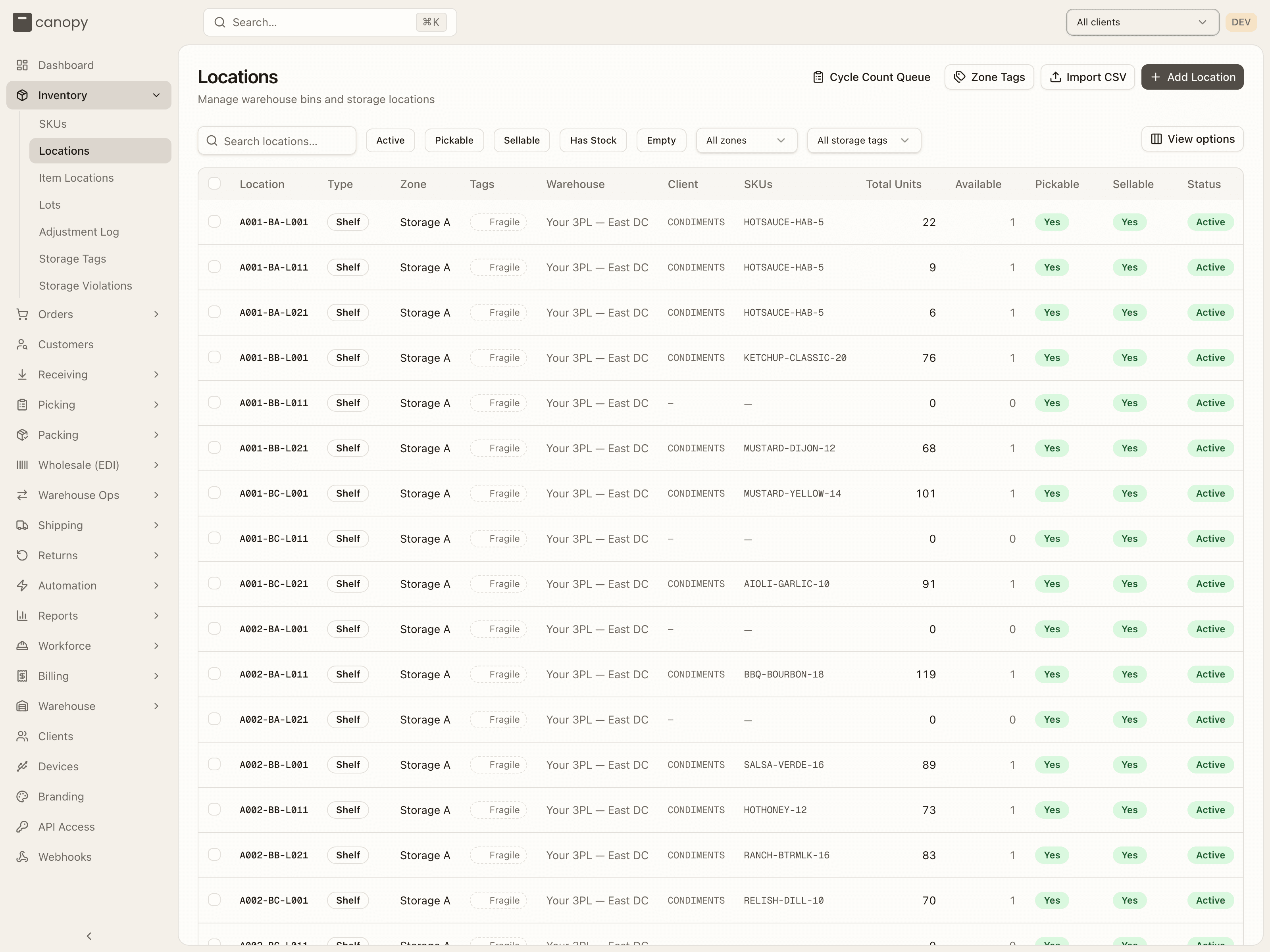
| Column | What it shows |
|---|---|
| Location | The bin label. |
| Type | Shelf, Pallet, Floor, Cart, Tote, or Staging. |
| Zone | The zone the bin belongs to. |
| Tags | Storage tags: solid chips are set on the bin, dashed muted chips are inherited from its zone. |
| Warehouse | The facility. |
| Client | Codes of every client with stock in the bin. |
| SKUs | The SKU codes stocked there — click one to open its detail. |
| Total Units | Units on hand across every stock row in the bin. |
| Available | The number of stock rows in the bin (one per SKU, lot and pack form) — a row count, not units. |
| Pickable / Sellable | The bin's flags — Sellable (its stock counts toward channel availability and can be reserved for orders, pick face or overstock) and Pickable (a forward pick face pickers route to). Stock in a sellable non-pickable bin is reserved like any other, but an order backed by it rests in Replenish until the units reach a pick face — or ships through Bulk Ship. |
| Status | Active / Inactive. |
| Actions | Staff only: Transfer opens Transfer Contents with this bin as the source. |
Search by label, and narrow with the Active, Pickable, Sellable, Has Stock and Empty chips, a Zone dropdown, and — once tags exist — a Storage tag dropdown (which matches tags set directly or inherited from the zone). Every column sorts server-side across all matching bins.
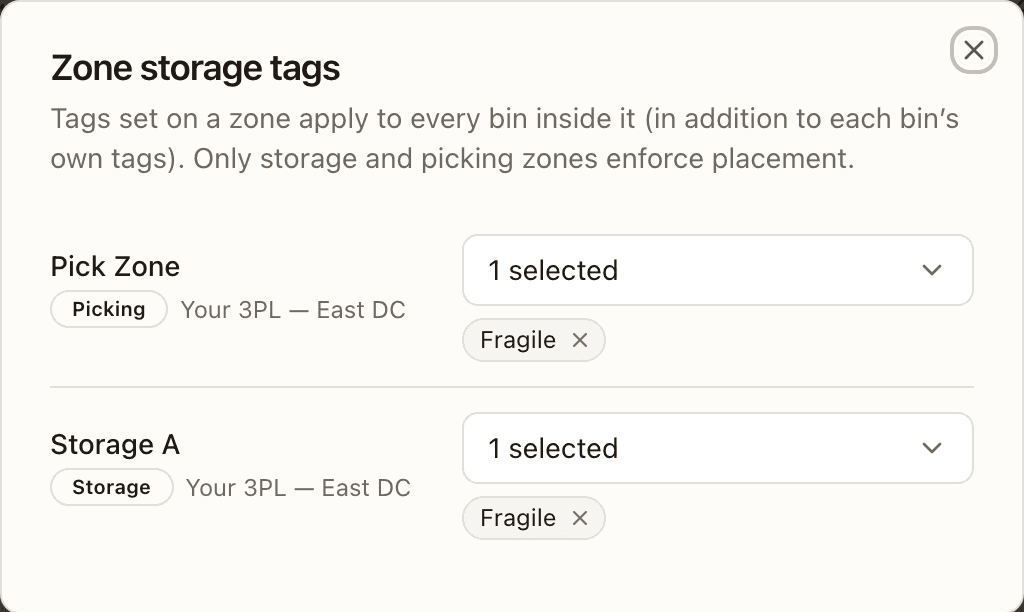
The header has four controls: Cycle Count Queue jumps to Warehouse Ops → Cycle Count; Zone Tags edits zone-level storage tags; and Import CSV and Add Location (both admins only) create bins — many from a file, or one at a time.
Pickable and Sellable
Click a bin's Pickable or Sellable badge to flip it. A non-sellable bin can't be pickable, so Pickable is locked while Sellable is off, and bins in a Quarantine zone are locked off for both (the tooltip says why). Turning Pickable off does not take the bin's stock out of the allocation pool — its tooltip says so: "Enable or disable normal picking. Sellable non-pickable stock remains available for allocation and Bulk Ship." Turning Sellable off on a bin that holds stock asks you to confirm — those units drop out of sales-channel availability on the next inventory sync, and Pickable turns off with it. Changing either flag is an admin action; the server refuses an operator's click.
Storage tags on locations
Click a bin's Tags cell to open a small editor for that bin's own tags (zone-inherited ones are edited through Zone Tags). To tag many bins at once, tick them — Select all N matching rows reaches across pages — and click Edit storage tags in the selection bar. The Tag N selected locations dialog has an Add tags and a Remove tags picker (the latter also offers deactivated tags, so you can strip them); Apply works through the selection in batches and reports progress. Zone-inherited tags are never touched by a bulk edit.
Zone Tags lists every Storage and Picking zone with a tag picker; a change saves immediately. Tags set on a zone apply to every bin inside it, on top of each bin's own tags. Other zone types never enforce placement, so they aren't listed.
Add Location
Add Location (admins only) opens a sheet for a new bin:
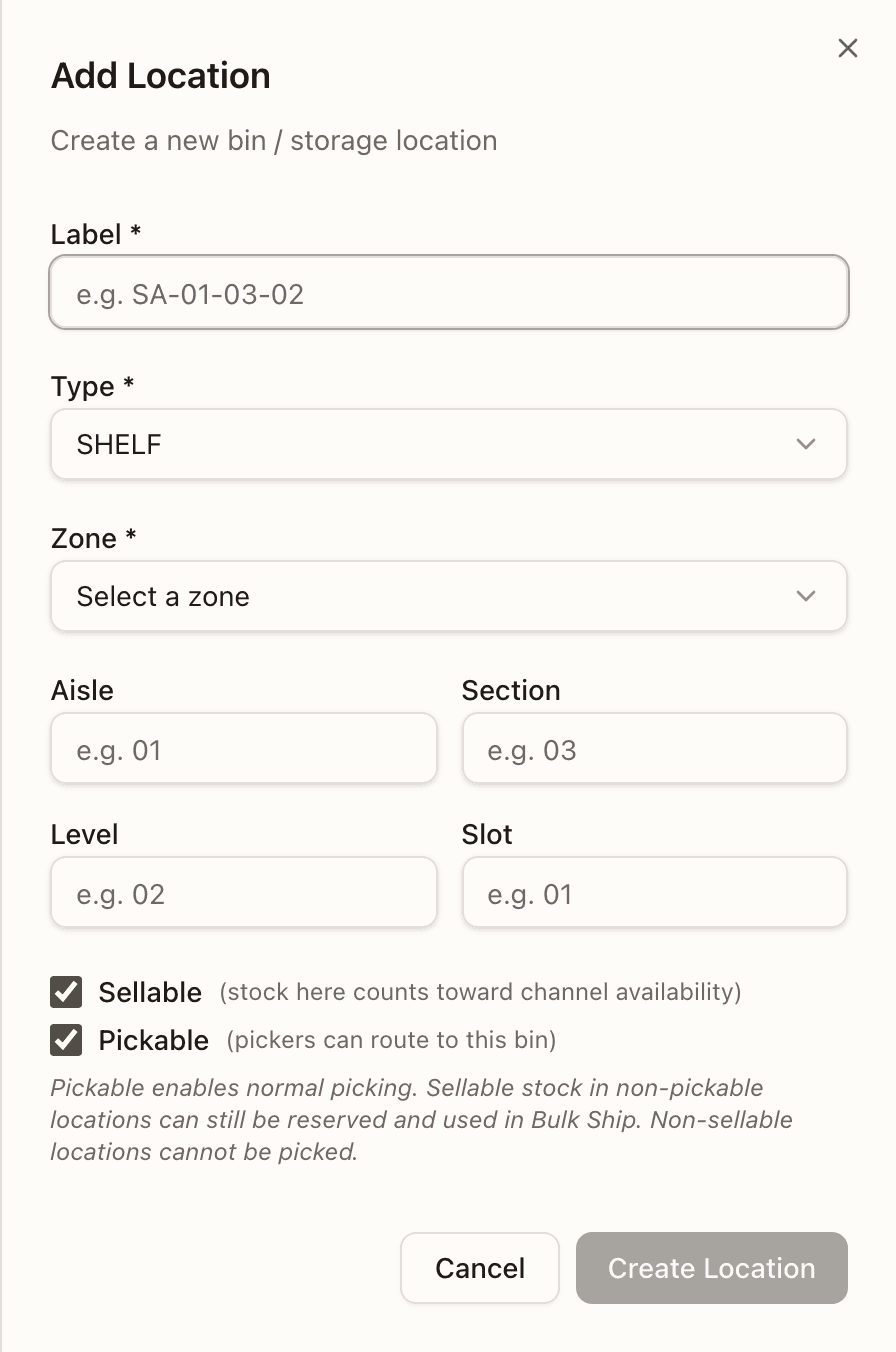
- Label and Type (required; SHELF, PALLET, FLOOR, CART, TOTE or STAGING).
- Warehouse — shown only when you run more than one; it narrows the zone list.
- Zone (required), grouped by warehouse with each zone's type.
- Aisle, Section, Level, Slot — optional coordinates.
- Sellable and Pickable checkboxes. Picking a Storage or Picking zone pre-ticks both; other zone types pre-clear them; a Quarantine zone locks both off. Unticking Sellable also clears Pickable. A line under the pair spells out what they do: "Pickable enables normal picking. Sellable stock in non-pickable locations can still be reserved and used in Bulk Ship. Non-sellable locations cannot be picked." In a Quarantine zone the line instead says such locations are held out of fulfillment.
Import locations CSV
Import CSV (admins only) creates bins from a file on the same import dialog as the SKU page — Import locations CSV; the columns it accepts are in the table below. Bins are the warehouse's own, so no client is involved. The warehouse is the topbar's, or a Warehouse picker asks; a Default zone picker (Zone for rows with no zone) takes the rows whose zone cell is blank — left on None (Legacy Imports) they land in the Legacy Imports zone, and a file with no Zone column at all gets one notice saying where its locations go. Once the file is read, that notice is a blue note of its own above any column warnings: No Zone column: locations go to Legacy Imports (or the Default zone you picked).
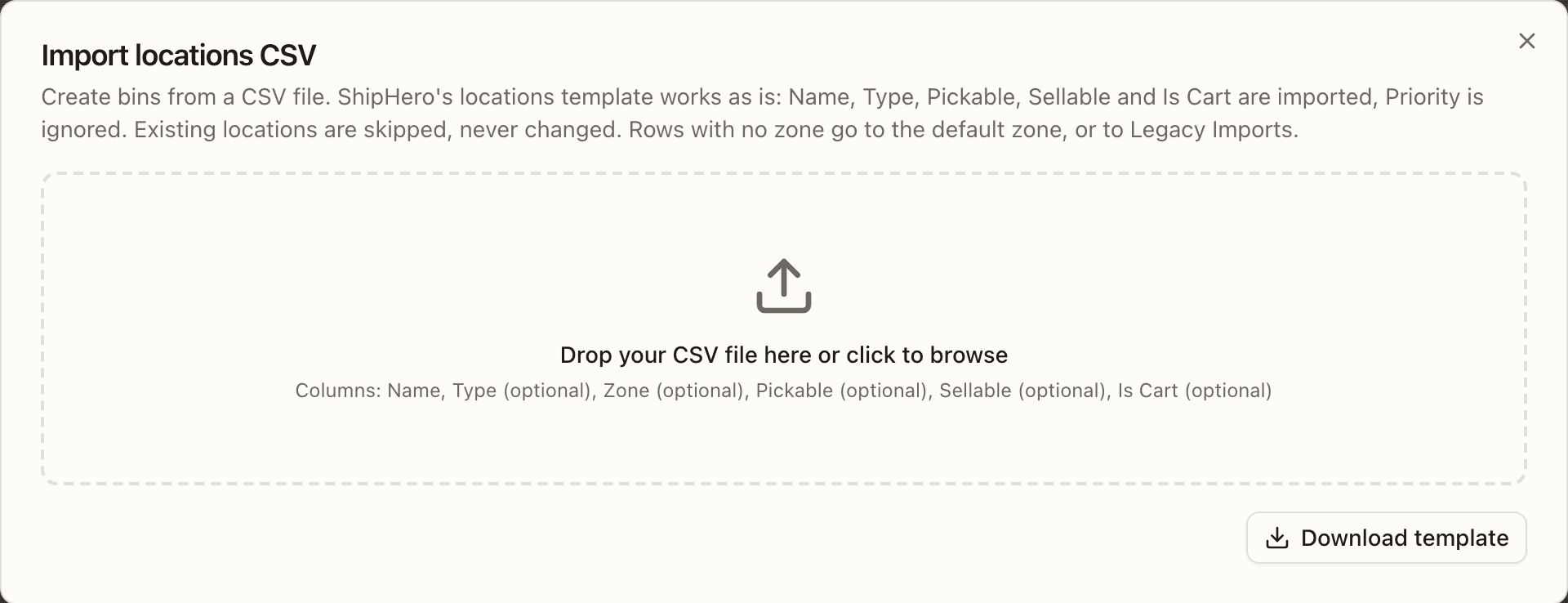
| Column | Required | Rule |
|---|---|---|
| Name | yes | The bin label, up to 50 characters. A label already in the warehouse is skipped, never changed; a label repeated in the file is an error after its first row. |
| Type | no | SHELF, PALLET, FLOOR, CART, TOTE or STAGING; bin, shelving, pallet rack and none are understood. Blank is SHELF, and a name Canopy doesn't know imports as SHELF with a warning. |
| Zone | no | An existing zone by name; an unknown name is created as a Storage zone (create zone "…"). Blank uses the Default zone, else Legacy Imports. |
| Pickable / Sellable | no | Yes/No (y/n, true/false and 1/0 work). Blank takes the zone type's default, as Add Location does; a combination the zone forbids — pickable but not sellable, either flag in a Quarantine zone — is a row error. |
| Is Cart | no | Yes makes the bin a CART; Yes with a different Type is an error (Is Cart is Yes but type is …). |
A name shaped like a map location — the labels the Warehouse editor mints for racked shelves and pallet bays — is refused (… is a map location; racked locations are created in Warehouse › Editor), so an imported bin never joins the map or blocks a later layout save, and is never linked into a rack bay. Any other column is ignored. The import is all-or-nothing, up to 2,500 rows per file, and each bin is written with the flag defaults and the flag rule Add Location applies.
Item Locations
Inventory → Item Locations. Stock broken out by bin — useful when one SKU lives in several places. Staff only; this is also where you move stock between bins and cycle count a bin.
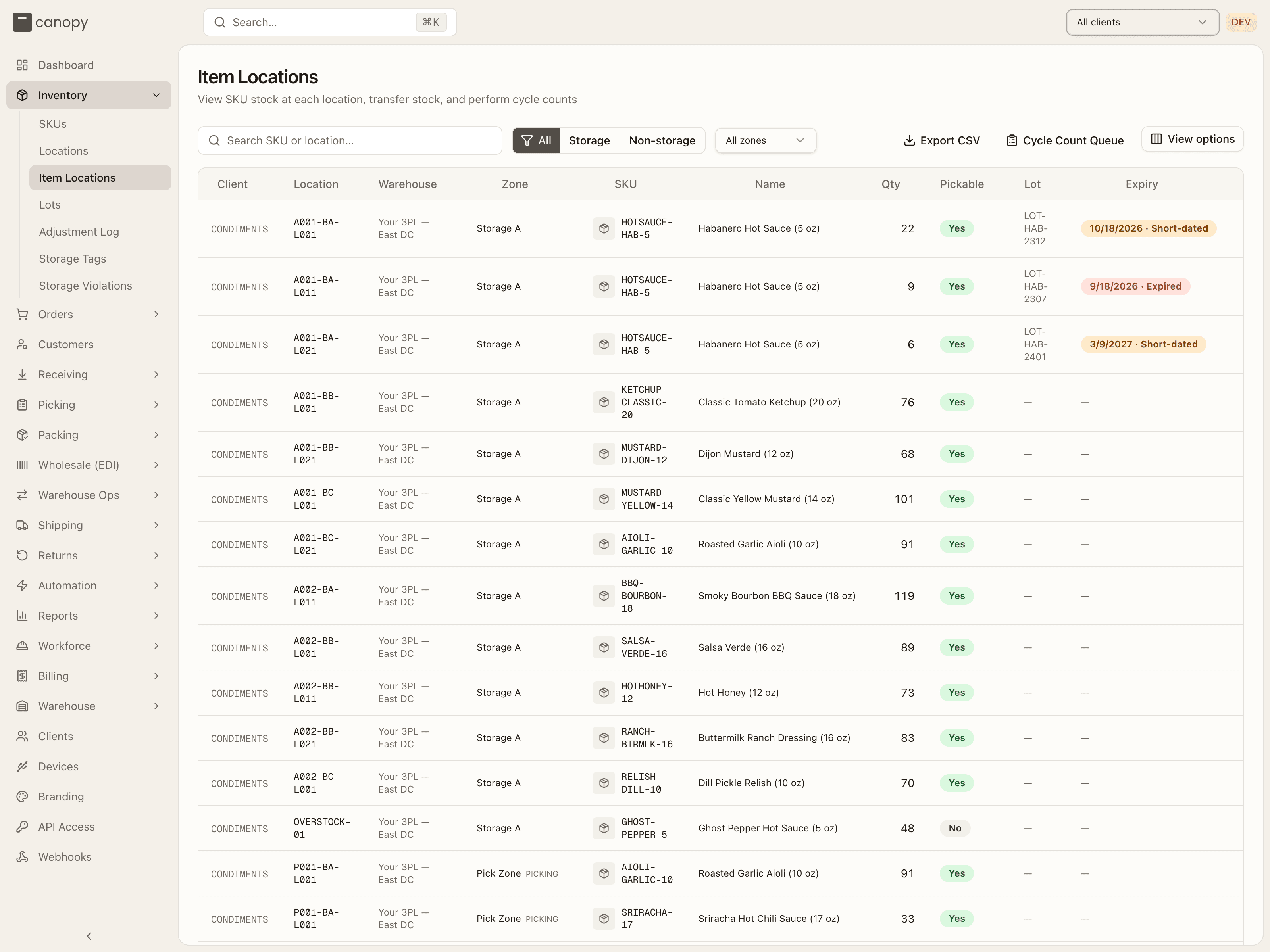
Each row shows the Client code, Location, Warehouse, Zone (with its type after the name when it isn't a storage zone), the SKU and Name, Qty, whether the bin is Pickable, the Lot, and the Expiry — rendered as a red date · Expired badge once past, or an amber date · Short-dated badge while it's inside the SKU's minimum shelf life or the lot is on hold. Every column sorts server-side.
The toolbar:
- Search SKU or location…
- All / Storage / Non-storage — where the stock physically sits: Storage is the STORAGE reserve flow; Non-storage is receiving, returns, quarantine, and pick faces. Picking a specific Zone from the dropdown clears the group filter, and vice versa.
- Pinned to warehouse / Pinned to SKU chips appear when you arrive through a link (from Storage Violations or the dashboard's inventory health panel) — the list is scoped to that warehouse or SKU until you click the chip's ✕.
- Export CSV downloads the full filtered set, not just the page, as
item-locations-<date>.csvwith Name, Sku, Warehouse, Client, Location, Zone, Quantity, Pickable, Lot and Expiry columns, in the order on screen. - Cycle Count Queue jumps to Warehouse Ops.
Two icon buttons end each row: Transfer (arrows) on every row, and Cycle Count (clipboard) once per bin.
Transfer Contents
Transfer opens Transfer Contents with that bin as the Source Location. The same dialog opens from a Locations row's Transfer and from the Task Queue's Transfer Contents button, where you search or scan the source yourself. It lists everything in the source — one row per SKU, lot and pack form, with Item / Lot, On hand and Move units — and you tick the rows to move, or Move everything, and enter the units for each, in whole packs for sealed stock ("Select up to 1,000 stock rows and enter quantities within the available stock, in whole packs." when a figure won't do). Pick a Destination Location in the same warehouse: with a single-SKU source the list is limited to bins that satisfy its storage tags; a mixed source lists every bin, and a drive-through aisle is refused. The footer keeps a running count (1 SKU · 22 units). Add an optional Reason and click Move Stock, which stays disabled until a destination is chosen.
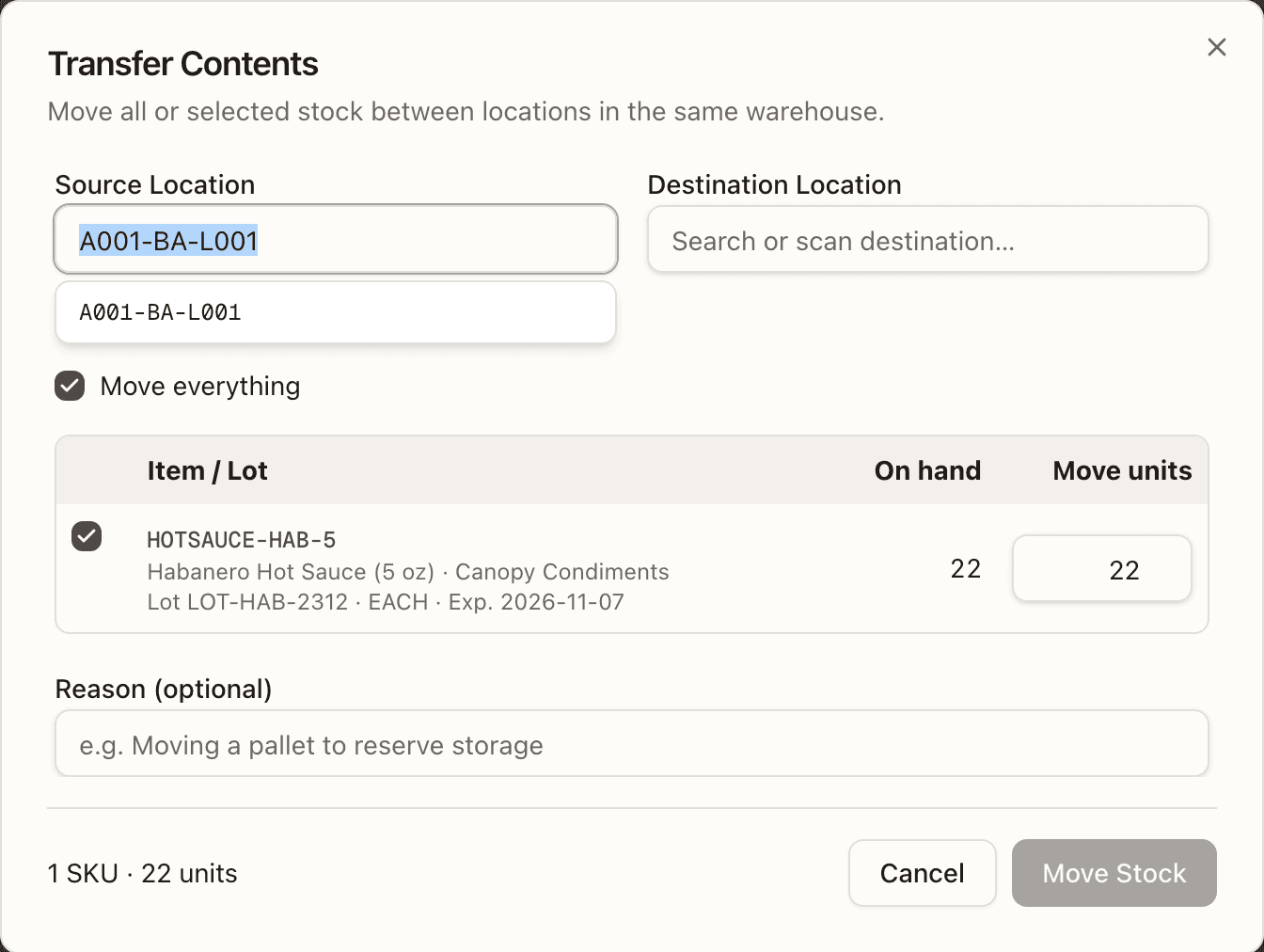
The move is all or nothing. It is refused while any selected stock has open
picking or putaway work ("Selected stock has open picking or putaway tasks.
Complete or cancel those tasks before transferring it."; a wholesale pick
already closed, even short, no longer holds it), while any of it is
boxed in an open EDI carton — its units sit in the box but only leave the bin
when the carton closes, so moving the bin would move goods already packed
("Selected stock is boxed in open carton N of wholesale order WO-… . Close that
carton or take the item out of it before transferring it.") — when a selected
location is reserved for order staging or assembly, and when the source
changed since you opened it ("Source contents changed. Refresh the contents
and review the transfer again." — Refresh contents reloads it). On
success the toast reads "Moved N units from A to B" and the dialog shows
Current inventory at destination, with View destination to open that
bin on the Locations page. Each row moved writes a TRANSFER line in the
Adjustment Log, and lots and pack forms keep their identity.
Cycle Count
Cycle Count opens a count sheet for the whole bin: one row per SKU and lot
with the Expected quantity and an Actual Count box. Sealed pack rows
are read-only ("break packs to count as loose"); when a bin holds only sealed
packs the button reads Verify Sealed Stock and marks the bin counted
without changing quantities. Submit Count records any difference as a
CYCLE_COUNT adjustment and shows a table of expected, actual and delta per
SKU, with how many discrepancies were recorded.
Lots
Inventory → Lots. For perishable stock, each batch is tracked with its own expiry, origin, and status, across all clients.
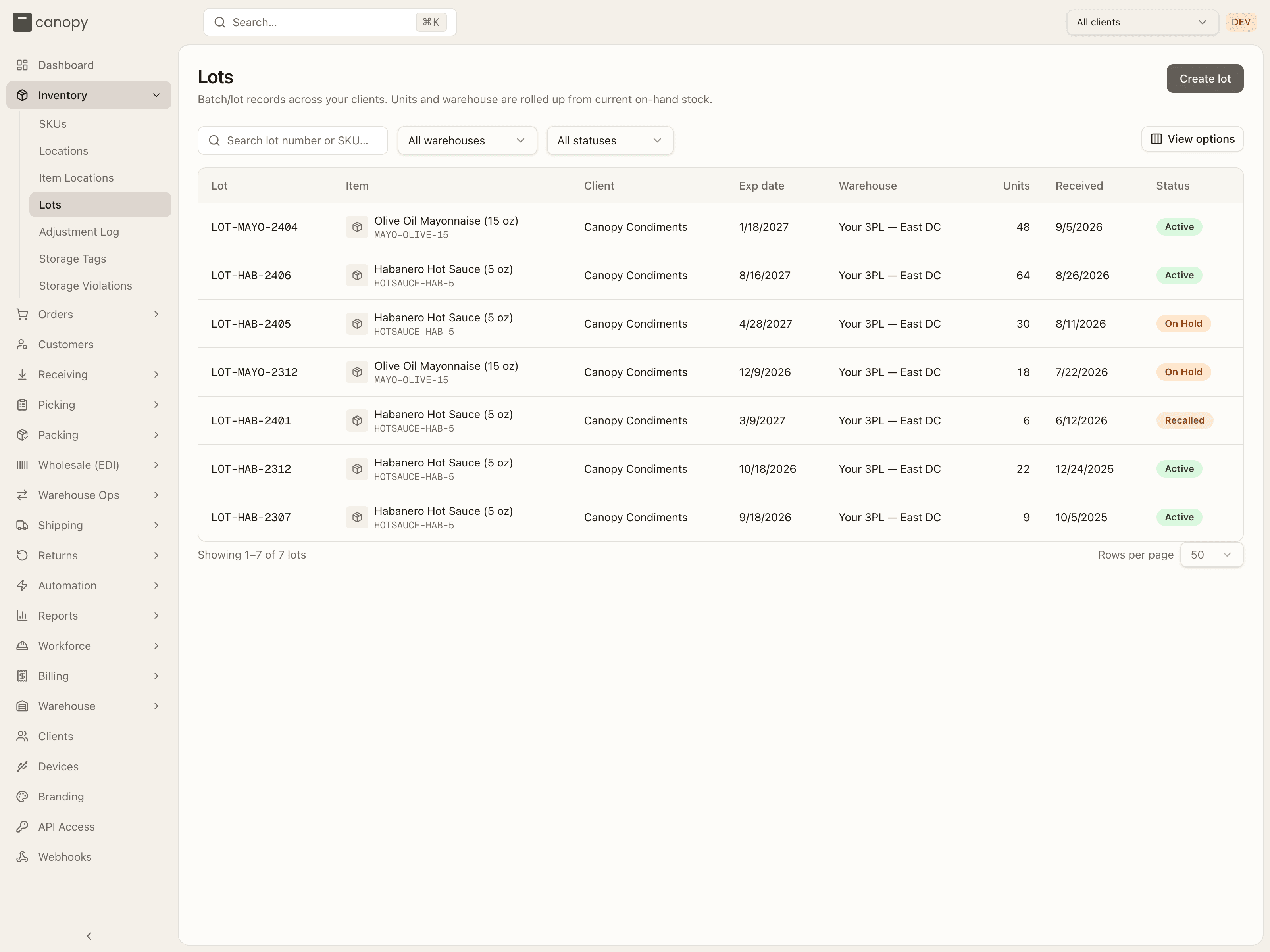
Search by lot number or SKU and filter by warehouse and status. Each row shows the Lot, Item (name and SKU code), Client, Exp date, Warehouse, on-hand Units, Received date and Status. Units and warehouse are rolled up from current stock, so a sold-through lot shows 0 and no warehouse.
| Status | Meaning |
|---|---|
| Active | In good standing — counts toward sellable stock (unless expired or short-dated). |
| On Hold | A soft, reversible hold — held back from picks pending a decision. |
| Recalled | A hard, terminal withdrawal — blocked from picking and shipping. |
Create lot (staff only) makes the lot record with 0 units: pick the Client, search a SKU (only lot-tracked SKUs match), and give it a Lot number, plus an optional expiry date, manufactured date, vendor and notes. Stock arrives by receiving against the lot, or from the lot's detail page.
Open a lot to see its status, on hand, SKU, warehouse, expiry, manufactured and received dates, vendor and notes, with an On-hand by location table (bin, zone, warehouse, units) that a brand never sees. The header holds the staff actions:
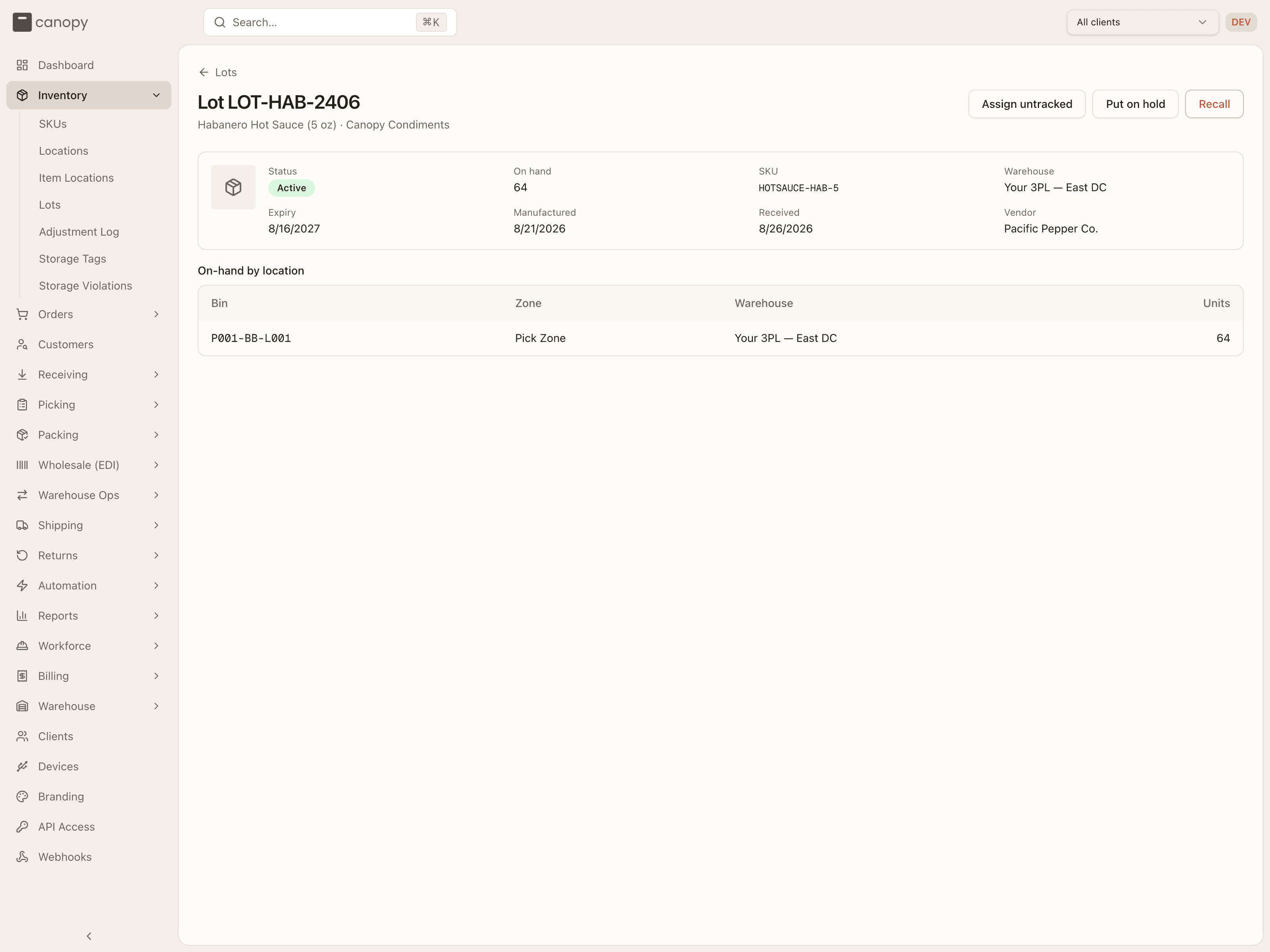
- Assign untracked (any lot that isn't recalled) folds pre-existing untracked stock of the SKU into this lot. The dialog lists each bin holding untracked units (with any free-text lot it carried) and a quantity to assign, defaulting to all of it. Totals don't change — the stock is relabelled and becomes subject to this lot's expiry. A bin already holding a different lot is skipped.
- Put on hold (active lots) excludes the lot from sales-channel availability and new allocations; orders allocated but not yet picked are backordered, while picks already in progress finish. Release hold (lots on hold) returns it to Active.
- Recall (any lot that isn't recalled) does the same and is permanent. If open pick-list lines reference the lot, the dialog warns how many units: those lines are shorted, and already-picked units are pulled for quarantine at the Short Picks queue or the pack station, whichever handles the order first — orders holding them can't pack or ship until the units are removed.
Only sellable stock counts toward a SKU's available quantity — stock on expired, short-dated, on-hold, or recalled lots stays visible but can't be allocated or shipped.
Storage Tags
Inventory → Storage Tags. The catalogue of placement rules: a tag names
something a SKU needs and a location offers — Refrigerated, Hazmat,
Heavy. A SKU can only be put away where every tag it requires is offered, by
the bin or by its zone. The sidebar link is admin-only, and only a
TENANT_ADMIN gets the editing controls; an operator who opens the page sees
the same table read-only.
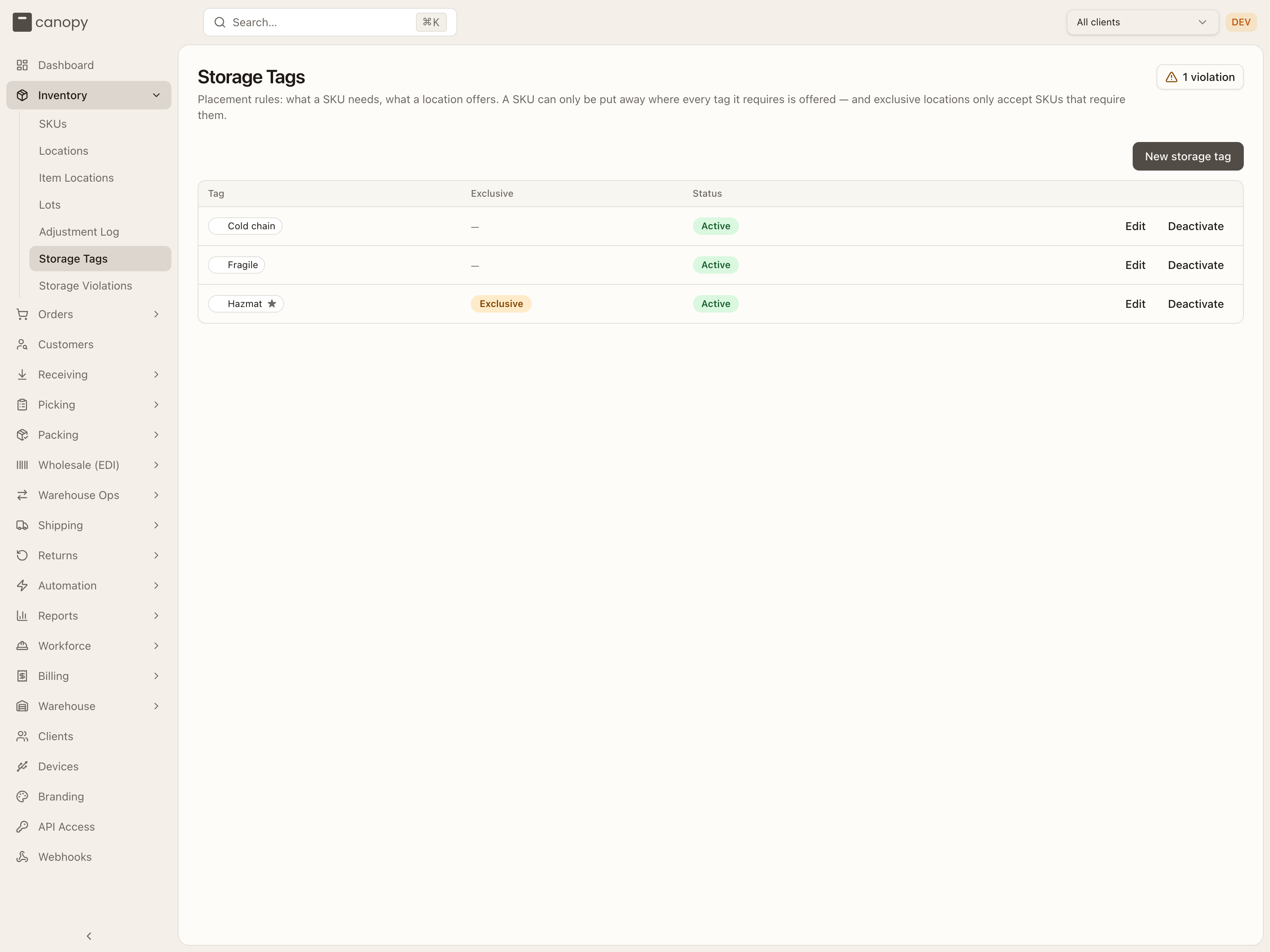
The table lists each Tag as its chip (name, colour swatch, and a ★ for exclusive tags), whether it's Exclusive, and its Status. A header button counts the current violations and links to the report whenever there are any. Admins get New storage tag, and Edit / Deactivate / Reactivate per row:
- New storage tag / Edit storage tag — a Name (up to 40 characters), a Color from the same swatch grid zones use, and an Exclusive switch. An exclusive tag's locations only accept SKUs that require it — that keeps ambient stock out of the cooler or the bonded cage.
- Deactivate asks you to confirm and shows how many SKUs, locations and zones use the tag. Assignments are kept, but the tag stops enforcing and disappears from pickers (its chips render faded) until you Reactivate it.
Tags are applied elsewhere: on a SKU from its detail Storage Tags block,
the Add SKU form, or the Tags column of the inventory CSV; on locations from
the Locations page (per bin, in bulk, or per zone) and when adding a zone or a
storage zone on the map. The map's Tags overlay shows a tag's coverage
across the floor. Enforcement applies to new placements — putaway
suggestions, receiving, and a single-SKU Transfer Contents only offer
compatible bins — so stock
tagged after the fact, or written by a count or import, can already be in the
wrong place. That is what the next page is for.
Storage Violations
Inventory → Storage Violations. A tenant-wide sweep of stock sitting in locations that don't satisfy its storage tags. Staff only.
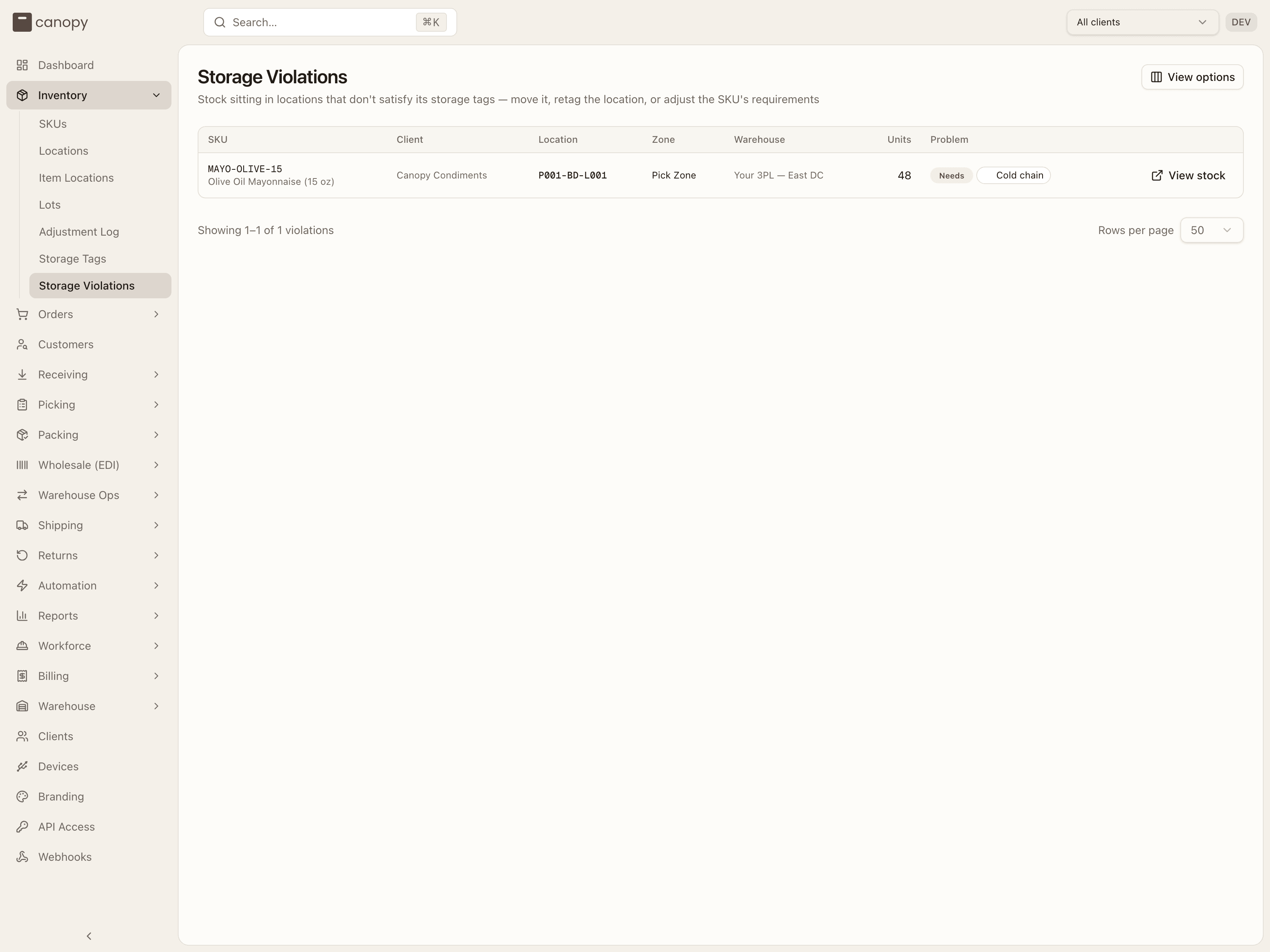
Each row shows the SKU (code and name), Client, Location, Zone, Warehouse, Units, and the Problem: a red Needs badge followed by the tag chips the location doesn't offer, and/or an amber Reserved for badge with the exclusive tags the location carries that the SKU doesn't require. View stock opens Item Locations pinned to that SKU and warehouse, where the Transfer button is one click away. When nothing is misplaced the page reads "No misplaced stock — every unit is in a location compatible with its storage tags."
Three fixes clear a row: move the stock to a compatible bin, add the missing tag to the location (or its zone), or drop the requirement from the SKU.
Adjustment Log
Inventory → Adjustment Log. The audit trail for every stock change across all clients — who changed what, when, where, and why — with the on-hand before and after each change. It's also where the former Reports → Inventory Changes report lives now; old links to it redirect here.
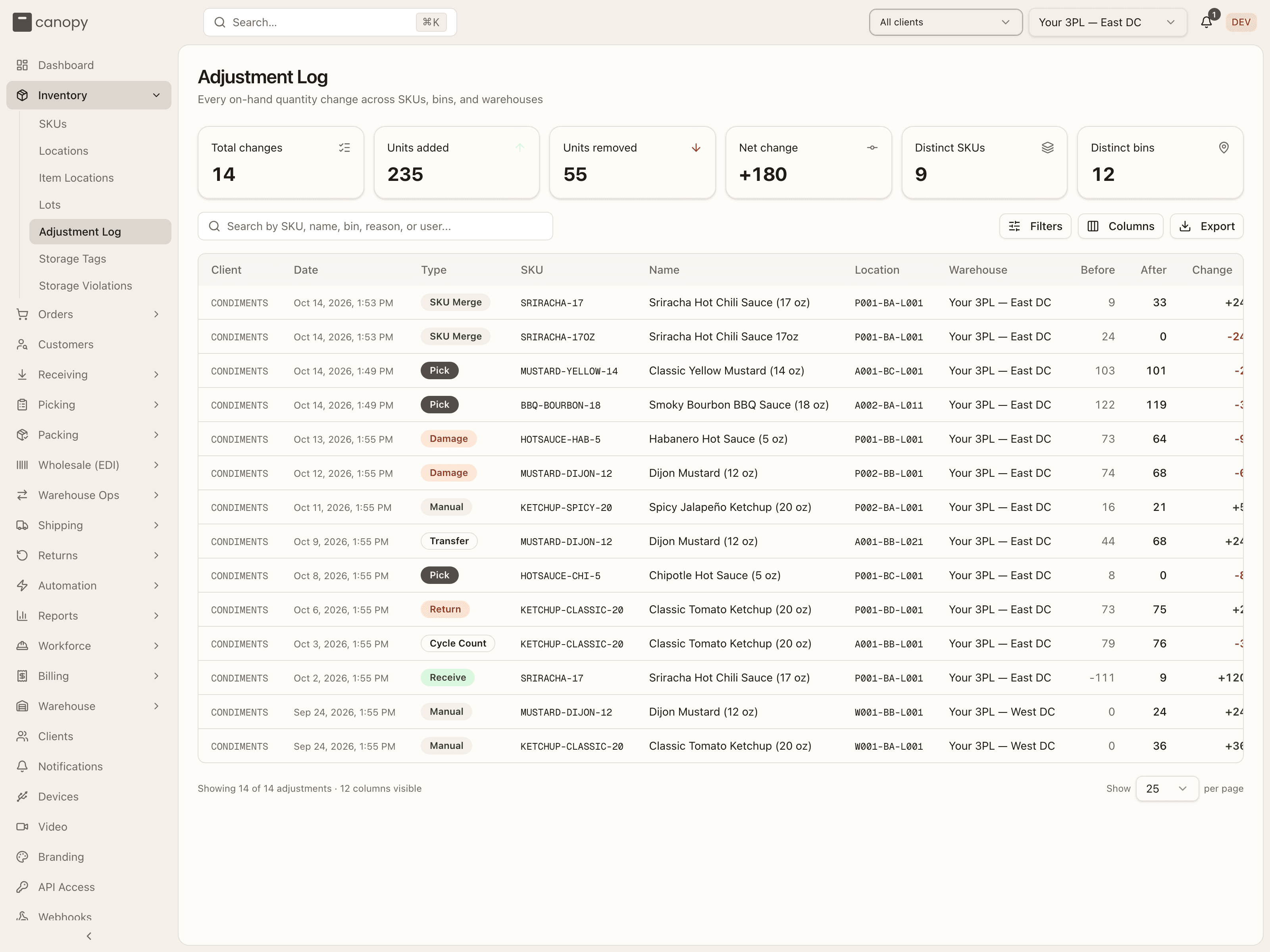
Headline tiles total every change that matches the current search and filters — across all pages, not just the rows on screen: changes, units added, units removed, net change, distinct SKUs, and distinct bins.
To find a change:
- Search by SKU code or name, bin label, reason, or who made it. Separate
terms with commas to match any of them (
SALSA-16, A-01-02). A bin search matches part of a label, soA-01also findsA-01-02. - Filters narrow by date range (whole days, in UTC) and by one or more types. Each active filter shows as a chip below the search box; click its × to remove it.
- Click a column header to sort. Before and After can't be sorted — they're worked out from the history, not stored.
Columns shows or hides columns, Export downloads the rows on screen as a CSV, and the per-page selector goes up to 500.
Each entry has a type badge and a signed change (green added, red removed):
| Type | Cause |
|---|---|
| Receive | Received against a PO. |
| Pick | Pulled for an order. |
| Return | A returned item restocked. |
| Cycle Count | A count correction. |
| Manual | A hand adjustment (reason required). |
| Damage | A damaged-goods write-off (reason required). |
| Transfer | Stock moved between bins. |
| Break-pack | A sealed pack opened one level down (e.g. a case into inner packs, or into loose eaches) — the pack form changes, net units don't. |
| Assembly Consume | A work order used component stock to build kits. |
| Assembly Produce | A work order put the finished kits into stock. |
| SKU Merge | A SKU merge: the retired SKU's row drained (Merged into Y) and the kept SKU's row in the same bin credited (Merged from X) — the pair changes the units' identity, not their bin. |
Each entry records the SKU, bin, warehouse, who made the change, and a reason — or, for a pick (which records none), the orders it was picked for, each linked to the order.
You post the two operator-driven types yourself. Adjust Stock (from a SKU's
Locations tab, or the per-bin pencil) opens a sheet — Add/Remove direction,
location, lot (for lot-tracked SKUs), quantity, and a required reason — and
writes a MANUAL row; it works even when on-hand is 0. Break pack opens a
sealed case/master-case/pallet down one level (eventually to loose eaches) in the
same bin, writing a BREAK PACK row. Both are operator-only.
How to fix a storage violation
Open Inventory → Storage Violations and read the row's Problem: a Needs tag means the location lacks something the SKU requires; Reserved for means the location is exclusive to a tag the SKU doesn't carry.
Click View stock. Item Locations opens pinned to that SKU and warehouse, so the offending bin is on screen.
Click the row's Transfer icon. Transfer Contents opens with that bin as the source; tick the row and, because the source holds one SKU, the destination list is already limited to bins it is allowed in — pick one, enter the units (sealed packs move whole), and click Move Stock.
If the stock is in the right place and the rule is wrong instead, fix that: add the tag to the bin or zone from Locations (the Tags cell, or Zone Tags), or remove it from the SKU under its detail's Storage Tags.
Return to Storage Violations — the row is gone. With nothing left, the page reads "No misplaced stock".