

Process a return
Receive an RMA, inspect it, disposition the stock, and refund.
A return runs the outbound job in reverse. An RMA is raised, a parcel comes back, you open it at the bench, book each unit in with an inspection result and a destination, close the RMA, and settle the refund. This guide follows one return from the moment it exists to the moment the customer has their money.
Everything here lives under Returns in the sidebar. A brand on a client account can watch its RMAs, but every write on this page — create, receive, complete, refund, void — is refused server-side for a client user, so the job is yours. For the screen-by-screen reference, see the Returns manual.
About the screenshots
The screenshots are from the Canopy Condiments demo warehouse, so RMA numbers, SKUs and bins will differ from yours.
Before you start
- An operator role. Client users see the list and the RMA, but none of the buttons this guide presses.
- The source order. Every RMA is raised against an order that has shipped — the create form will not save without one, and an order's units can only be returned up to what the customer bought, bounded by what ever went out to them (a parcel counts once its pack or batch completed). An order split across two of your warehouses is one order here: raise the RMA on any of the orders the split made, and it can take units whichever warehouse shipped them (see Items to Return). The one exception is a blind return for an order Canopy never had (shipped before your cutover, say): flip Blind return (no source order) on the create form and add the items by SKU instead. An order whose sales channel cancelled a fulfillment Canopy had recorded as made elsewhere isn't a return at all — nothing physical is coming back. Its order banner's Reship these items action re-picks and re-ships the line instead; raise an RMA only once goods are actually back in your hands.
- Reason codes for the brand. The reason you pick decides who pays for the return label. If a brand has no codes yet, set them up first under Return Codes.
- A warehouse with returns bins. Restocked units go into pickable, sellable bins that meet the SKU's storage tags; quarantined units go to the warehouse's inspection-zone bins. Without either, the receiver has nowhere to put the goods.
How to process a return
Find the RMA — or create it
Open Returns → All RMAs. Most RMAs are already there: a return requested in a connected store syncs in on its own (it wears a Shopify badge). On an order split across your warehouses it opens on the first of its orders. The row you want is Pending or In Transit with a Receive button, or Inspecting with Continue — both open the RMA. Search by RMA number, tracking number or customer, or use the Pending / In Transit tabs.
A store return of items another location shipped — the merchant's own, or another 3PL's — comes in like any other while the channel's Receive returns for items other locations shipped setting is on, as it is by default. Switched off, the RMA holds only your items, or there is none, and the order's Timeline says what was left for that location (see Returns from a connected store).
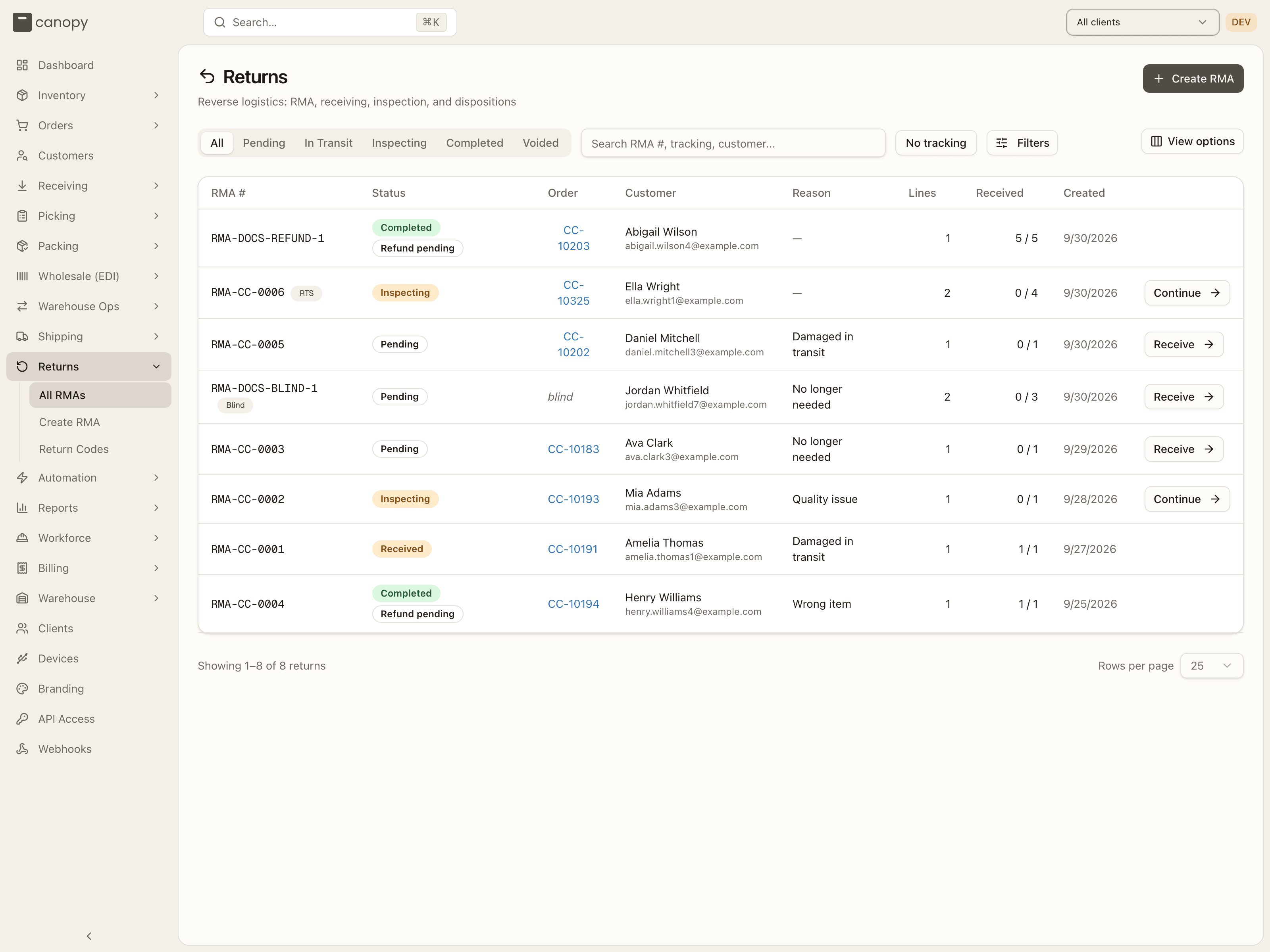
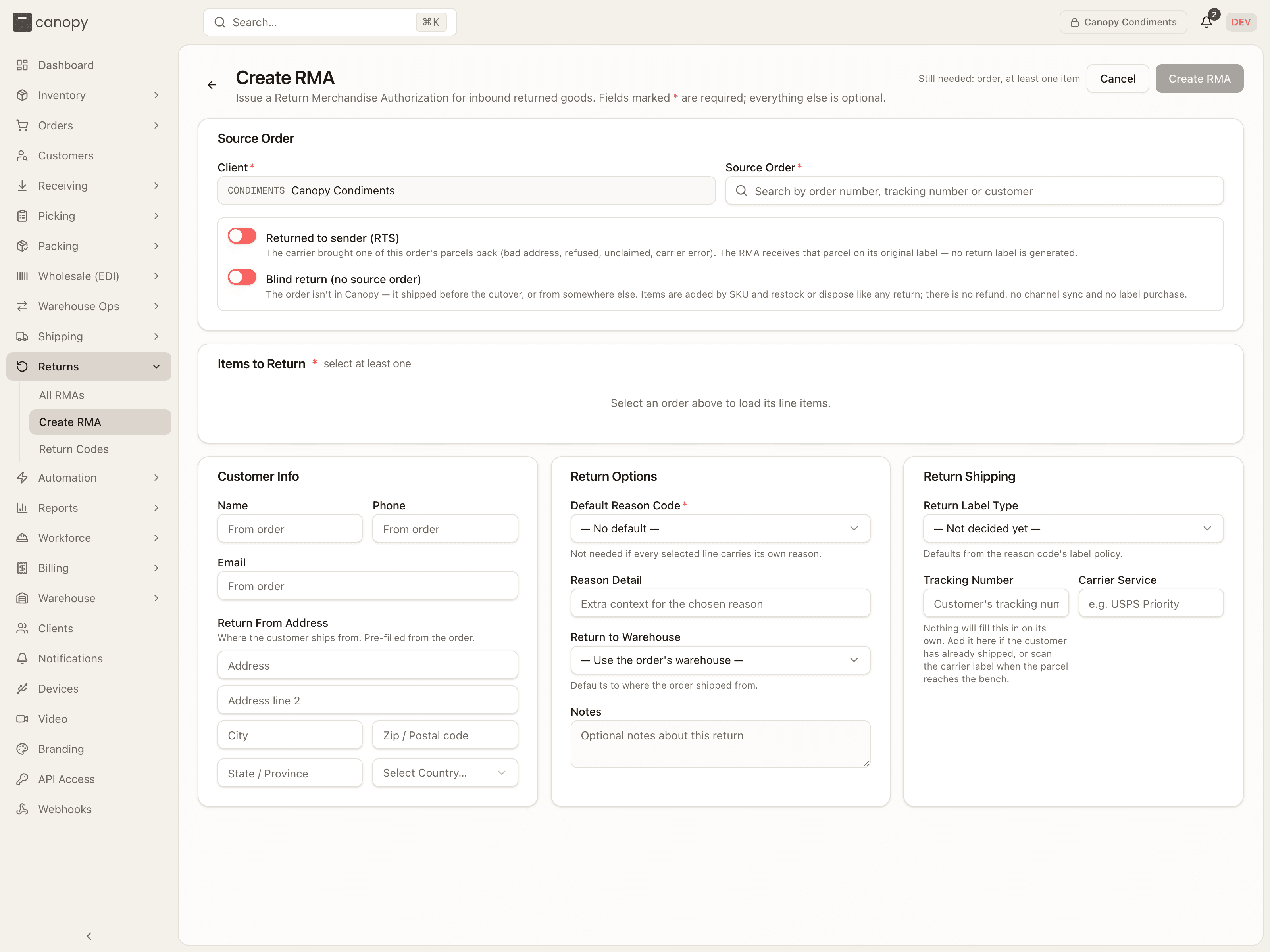
If the customer went through you rather than the store, raise the RMA yourself. There are three ways in, and they all land on the same form:
- Returns → Create RMA in the sidebar — pick the Client first, then search for the Source Order by order number, tracking number or customer.
- Create RMA on the order's sheet, offered on a Shipped, Delivered, Partially shipped or Externally fulfilled order — it arrives with the client and order filled in.
- Create RTS return on the Shipments list, under the Returned to sender attention row — for a parcel the carrier brought back. It opens the form in RTS mode with the parcel already named (see A parcel that came back to you).
Choosing the order loads its lines, all unticked. Tick what is coming back, set the Qty (capped at what is still returnable on the line), and a Return Type per line — Refund, Store Credit, Exchange, Replacement, Warranty or No financial action. Give each line a Return Reason, or set one Default Reason Code for the whole RMA.
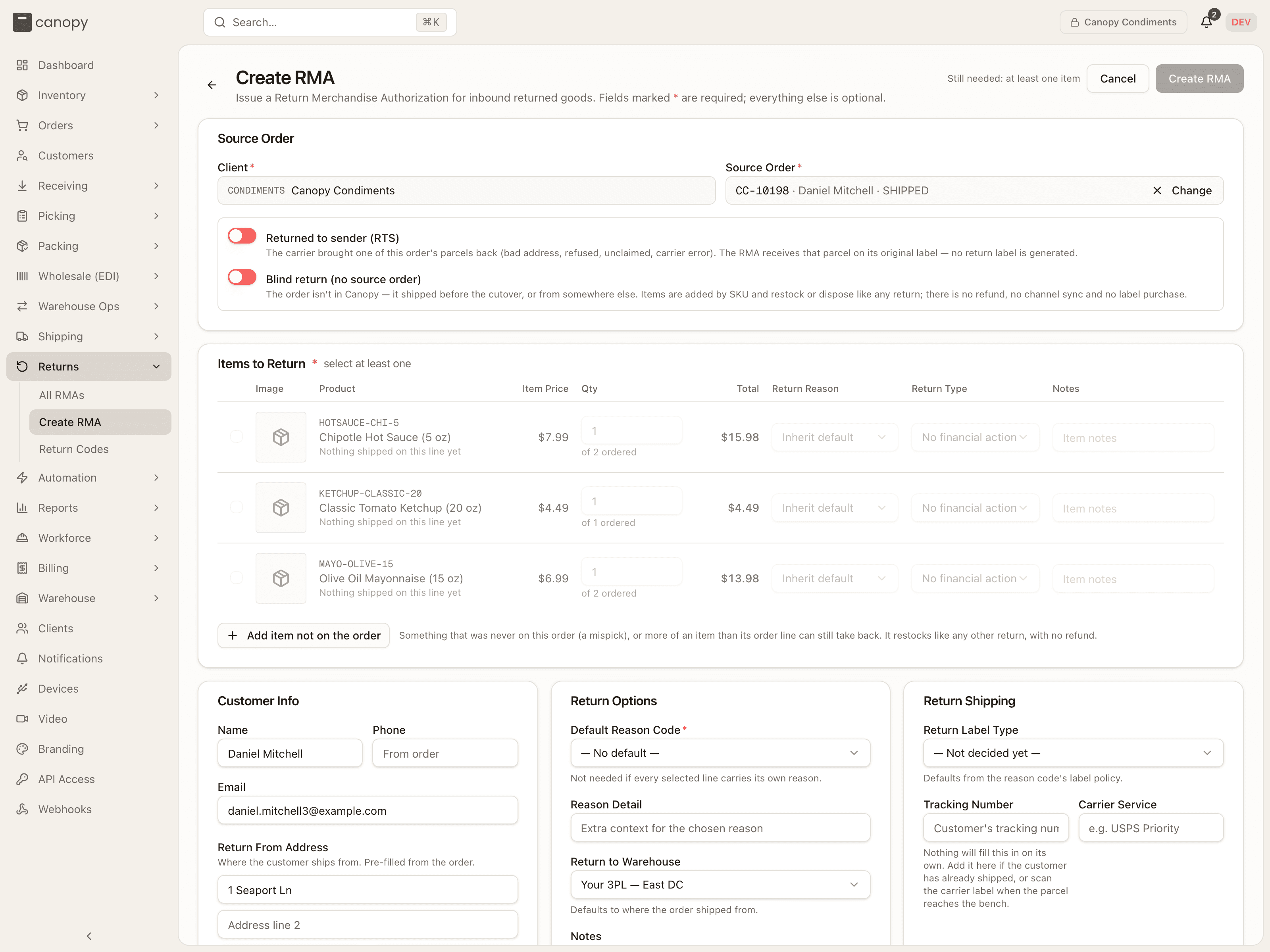
Then decide how the parcel is coming back. Return Label Type defaults from the reason code's label policy and you can override it:
| Label type | What happens next |
|---|---|
| Label paid by store | Canopy buys the label; the brand is billed. |
| Label paid by customer | Canopy buys the label; the cost comes off the refund. |
| Self return | The customer ships it themselves — enter their Tracking Number if you have it, or leave it blank and scan the carrier label at the bench. |
| Return to sender | An undeliverable parcel coming back on its original label. |
The header lists what is still missing (Still needed: order, at least one item) until Create RMA enables. Saving lands you on the new RMA in Pending. The full field-by-field walkthrough is in Creating an RMA.
Generate the return label, if Canopy is buying it
On a Pending RMA whose label type is paid by store or paid by customer, and which has no label or tracking yet, the header offers Generate Label. Enter the Weight (oz) and optional dimensions; leave Postage type blank for the cheapest tracked service. The label is bought, emailed to the customer, and its tracking number lands on the RMA.
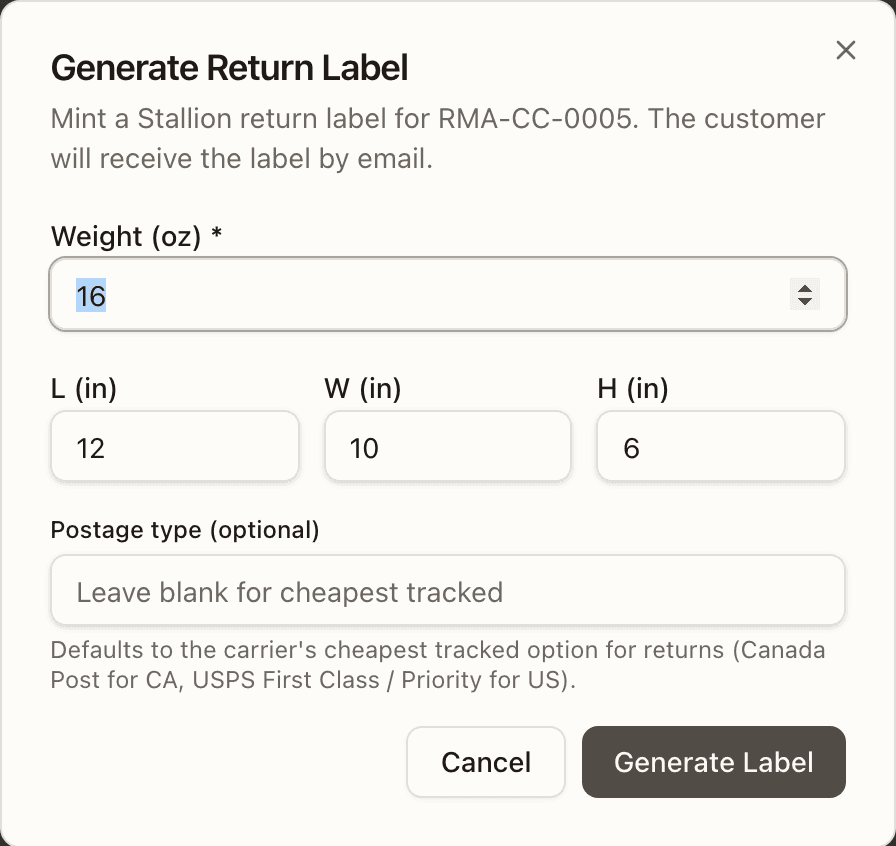
From here the carrier drives the status for you: a pickup scan moves the RMA to In Transit, a delivery scan to Received. Wrong weight or wrong RMA? Void Label (same spot, while the RMA is still Pending) cancels it so you can mint another. Self-return and RTS parcels skip this step — nothing is bought for them. See Return labels.
Log the tracking number when the parcel shows up
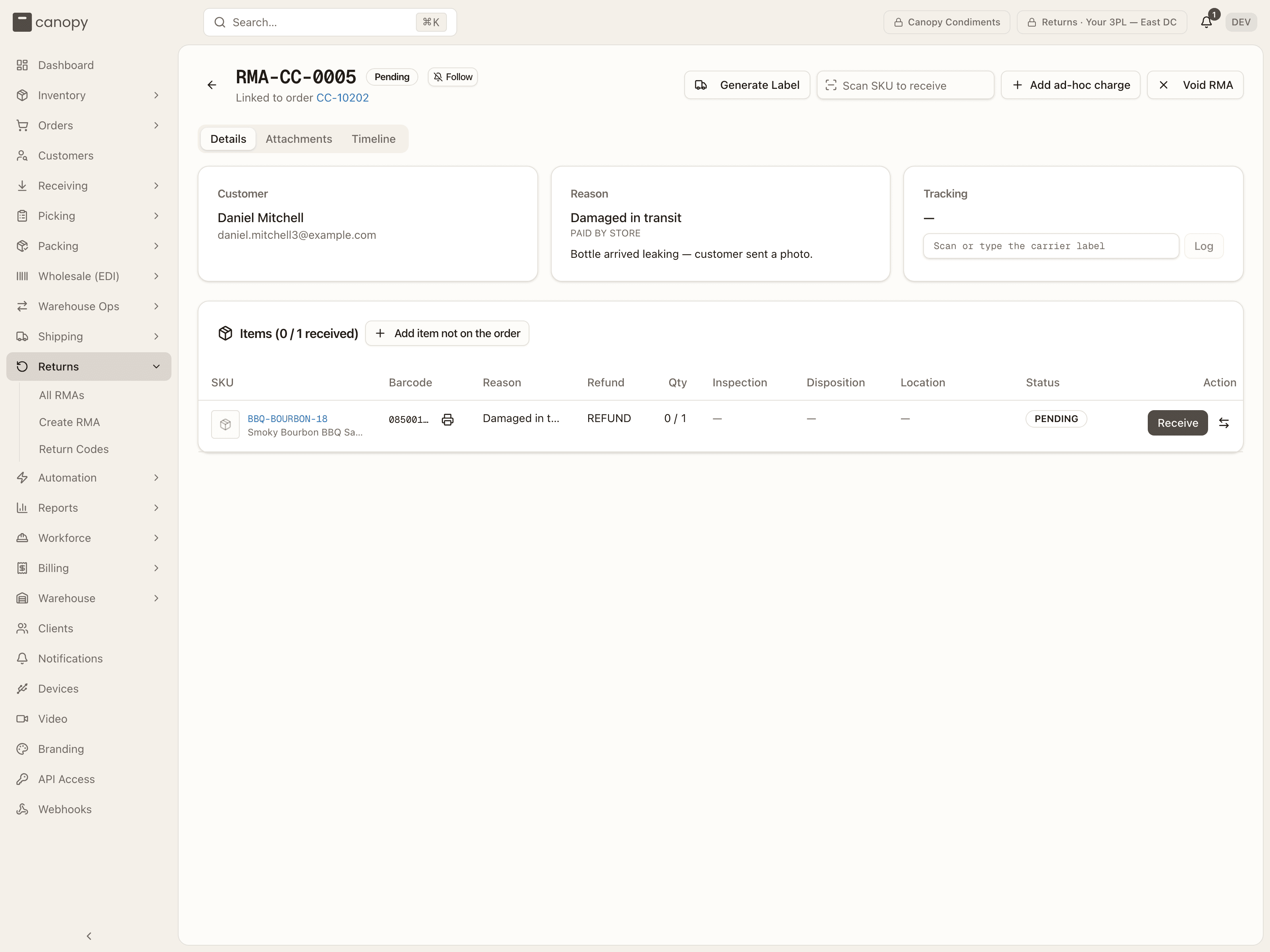
Open the RMA. If the Tracking card shows a dash — typical for a self return where the customer never sent the number — scan or type the number off the carrier label into Scan or type the carrier label and press Log. The carrier is detected from the number's format. This is the last chance to tie the parcel to the RMA before it is opened, and it is what the No tracking filter on the list is chasing.
Open a line's receiver
There is no separate receiving screen: you book units in on the RMA's Details tab. Scan the unit's barcode into Scan SKU to receive in the header — the matching line that still has units outstanding opens its receiver — or click the line's Receive button, or the row itself.
A scan that matches nothing on the RMA is looked up before the app answers: No SKU matches means an unknown code; a SKU that shipped on this order but is not on this RMA belongs on an order line (use Change item on a line, or raise a second RMA); a SKU that is on this order, but this RMA can't take it through its order line — its line's room is held by another RMA, or this RTS parcel never carried it — and a SKU that is not on this order both get an Add as item not on the order button in the banner (see Items the customer never ordered). A SKU already fully received on the RMA is refused, so you cannot over-receive by scanning twice, and the code of a SKU since merged into another opens the kept SKU's line.
Inspect the unit and choose its disposition
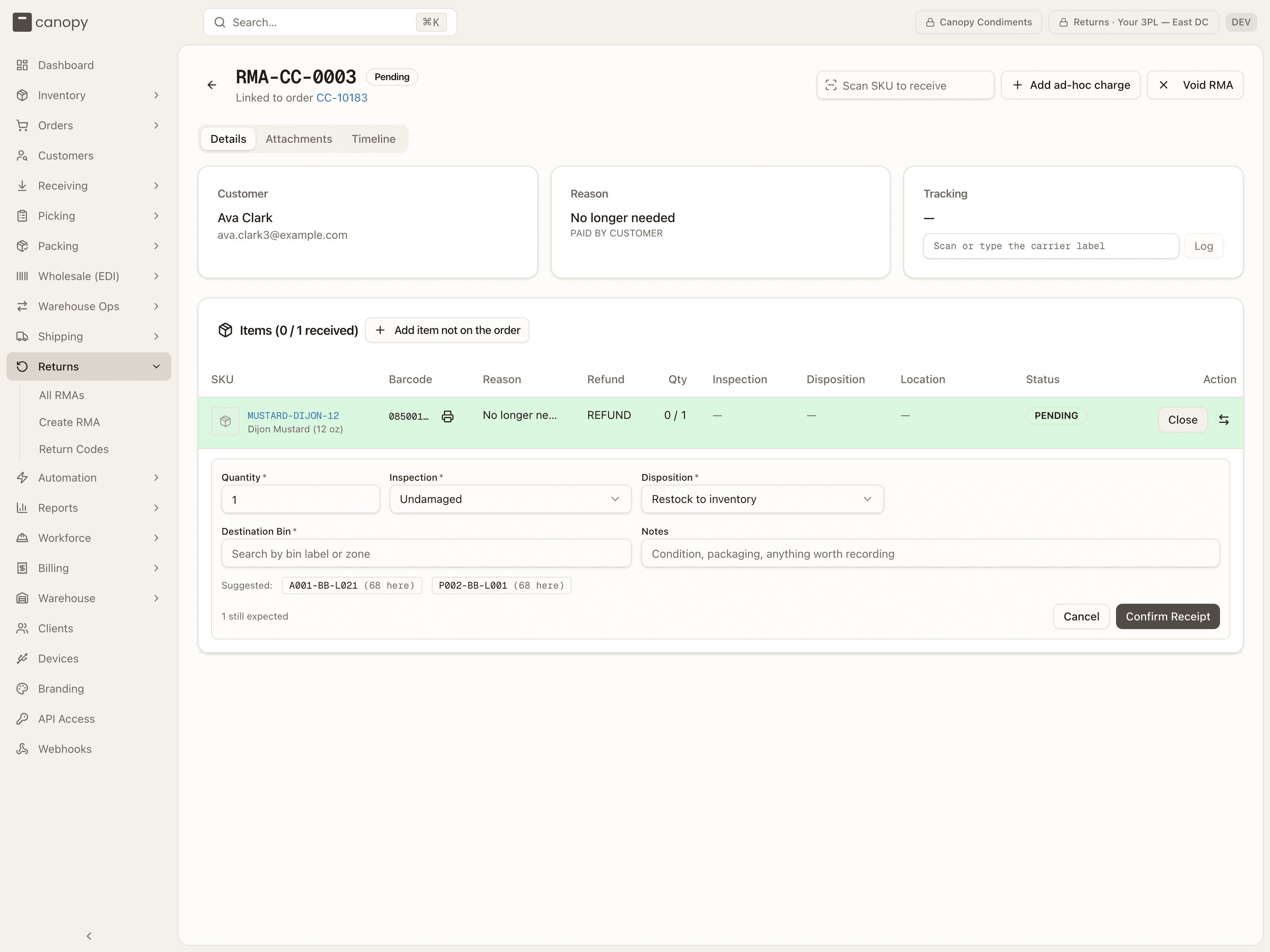
Quantity starts at what the line still expects (the footer reads 1 still expected). Pick the Inspection result — Undamaged, Opened (still resellable), Defective or Wrong item — and the Disposition is suggested for you: undamaged or opened suggest Restock to inventory, defective suggests Dispose / write off, wrong item suggests Quarantine for review. You can change it, but only within what the inspection allows (the server refuses anything else):
| Inspection result | Allowed dispositions |
|---|---|
| Undamaged | Restock, Quarantine |
| Opened (still resellable) | Restock, Quarantine, Dispose |
| Defective | Quarantine, Dispose, Return to vendor |
| Wrong item | Quarantine, Return to vendor |
Restocked units are on hand and sellable from the moment you confirm — a channel can sell them again immediately — so restock only what you would ship.
Pick the lot and the destination bin, then confirm
For a lot-tracked SKU, the Lot field appears. The lot that shipped on the order is pre-selected when there was exactly one; otherwise choose it (shipped lots are marked · shipped). If the lot cannot be read off the unit, set the disposition to Quarantine instead of guessing.
Destination Bin is hidden for Dispose; for everything else, tap one of the Suggested chips — the bin the line was picked from, bins holding the SKU now (3 here · LOT-…), or a bin that last held it — or search by bin label or zone. Restock lists only pickable, sellable bins that satisfy the SKU's storage tags; Quarantine and Return to vendor swap the chips for the warehouse's Inspection bins. A bin can hold only one lot of a SKU, so a chip adopts its lot and a conflicting hand-picked bin is refused. Add Notes if the condition is worth recording, then press Confirm Receipt.
The first receipt you confirm moves a Pending RMA to Inspecting on its own, and on an RTS return marks the outbound parcel as returned. If the receipt is refused, the error says why and what to do — lot required, one lot per bin, or a storage-placement refusal.
Repeat for every line, and correct anything you got wrong
Scan the next unit. As lines fill, their Inspection, Disposition and
Location cells stack one entry per receipt and the raw Status pill
moves from PENDING to PARTIAL to COMPLETE. While the RMA is Inspecting,
each receipt has a pencil (Edit this receipt — the form reopens on its
values and Save Receipt replaces it) and a trash icon (Remove this
receipt — the unit is un-received and the stock move reversed).
If the customer sent back a different item from the same order than the line says, press Change item (the ⇄ icon, on a line with nothing received yet) and pick the order line it should be, before you receive it.
Complete the return
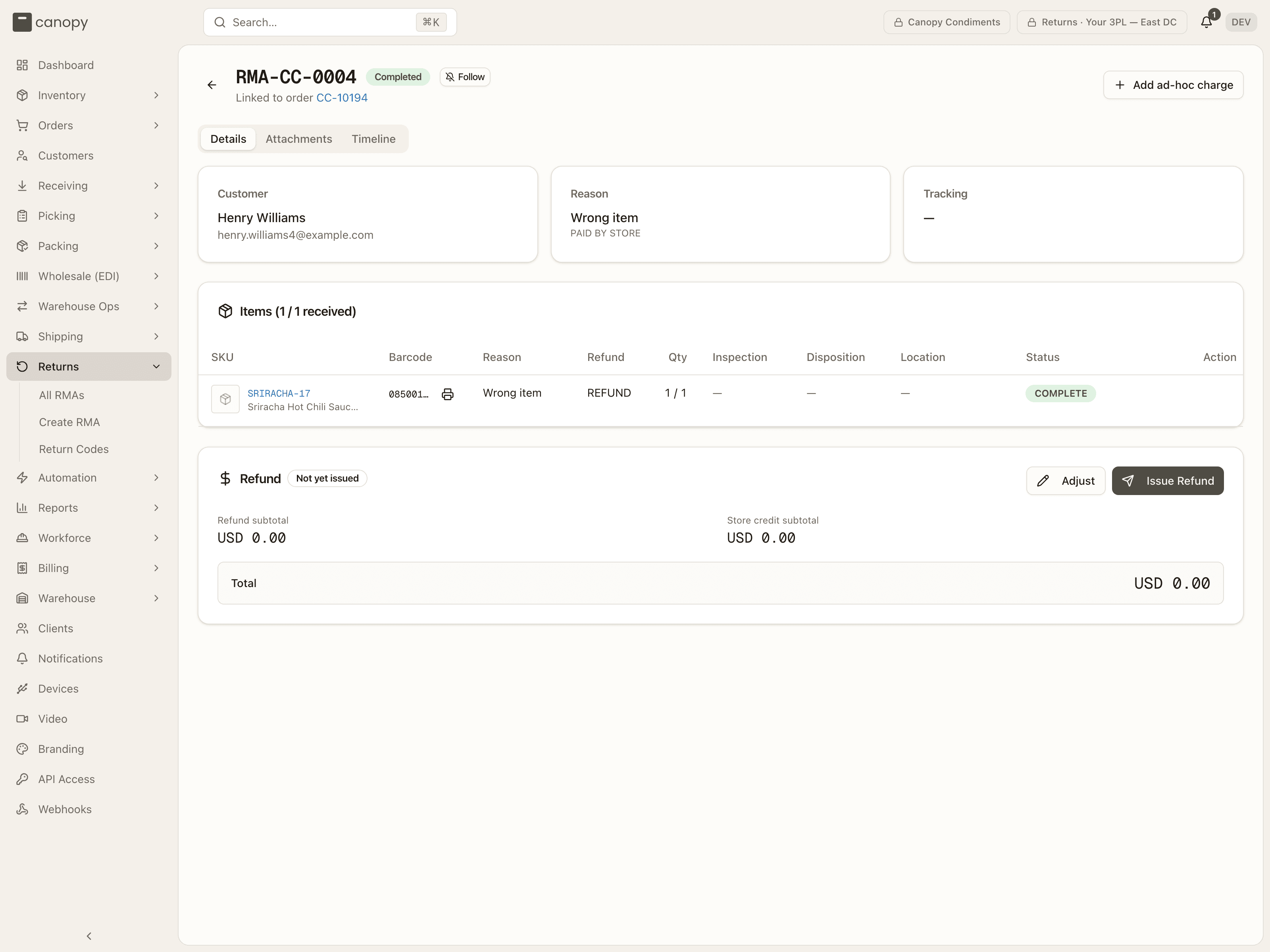
Once at least one receipt exists, Complete Return in the Items card header
enables (it pulses so you do not miss it). Press it. The RMA becomes
Completed; each line is finalized — COMPLETE when every expected unit
came in, SHORT when only some did, OVER when more did, and a line with
nothing received stays PENDING — and the Refund card appears below the
items. Completing with a short or untouched line is how you record that the
rest never arrived. If billing is switched on for your tenant, Add ad-hoc
charge in the header records special handling against the brand before you
close.
Completion cannot be undone, and receipts can no longer be edited or removed.
Adjust the refund if a fee or credit applies
The Refund card shows the computed payload — Refund subtotal, Store credit subtotal, any Adjustments, the Total — and per-type line-item tables. If the brand charges a restocking fee, deducts the return postage, or wants to add goodwill, press Adjust first.
The card already pays for at most what the customer bought: a unit received beyond what was bought, or already refunded on the order — by an earlier RMA or in the store itself, on any of the orders a split made — is received but not paid, and a Capped at what the customer bought banner names the line.
Already refunded in the sales channel notes money the store refunded with no items attached; it isn't subtracted, so check what the channel will still refund before issuing.
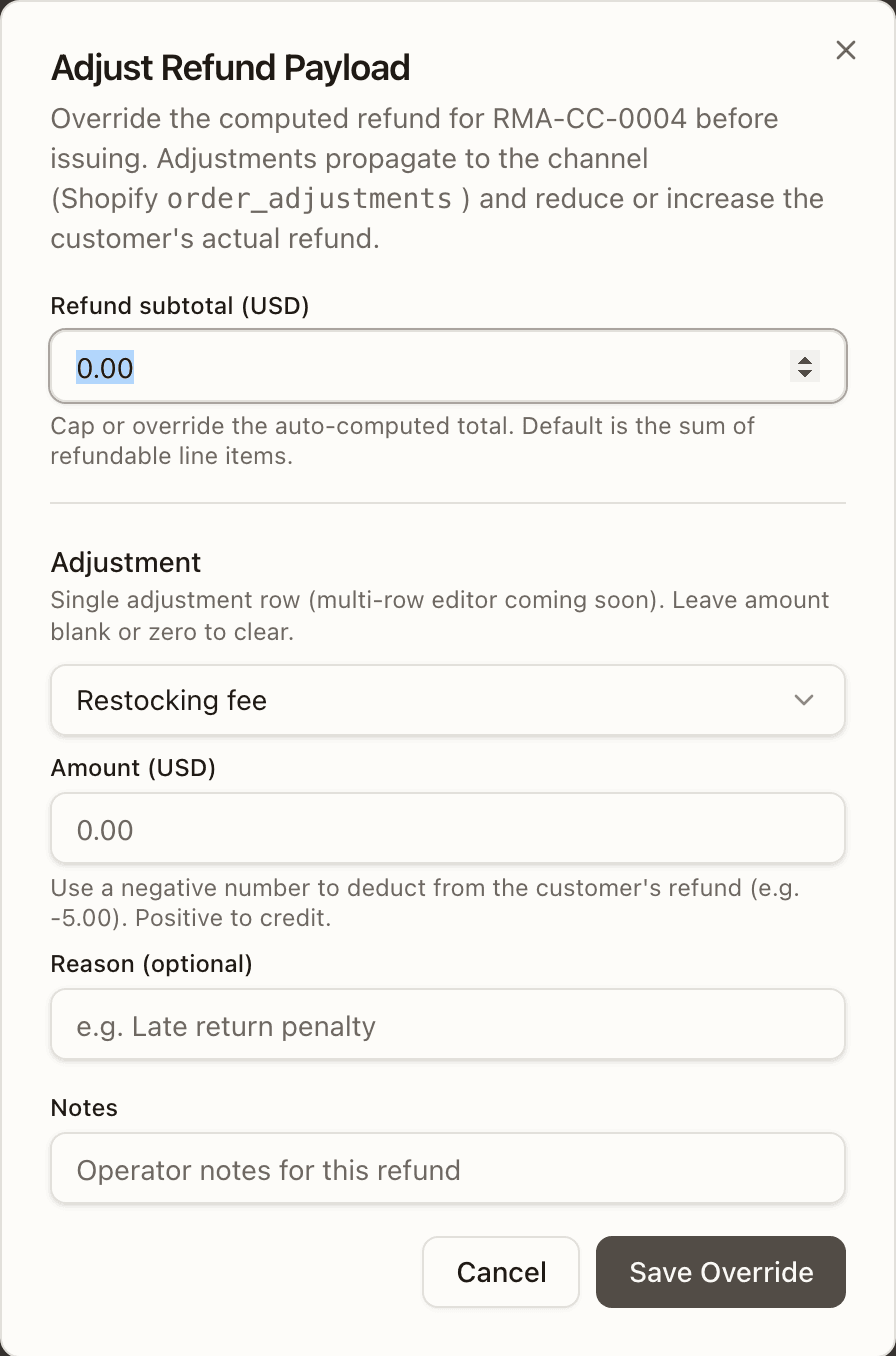
Adjust Refund Payload lets you lower the Refund subtotal (never raise it past what the items allow) and add one adjustment — Restocking fee, Return shipping fee, Goodwill credit, Shipping refund, or Other (reason required) — with an Amount (negative deducts from the customer's refund, positive credits; blank or zero clears a saved one), a Reason and Notes. Save Override stores it and the card's chip turns to Ready. Adjustments propagate to the channel and change what the customer actually gets. See Refunds.
Issue the refund
Press Issue Refund. The refund is paid out through the sales channel and the card's chip reads Issued, with when and by whom in the footer (by Shopify when the store issued it first). The list shows the RMA as Completed · Refunded, and that is the end of the return.
The chip tells you where you stand if it did not go through:
| Refund card | List chip | What to do |
|---|---|---|
| Not yet issued | Refund pending | Nothing issued yet — Adjust or Issue Refund. |
| Ready | Refund pending | An override is saved; Issue Refund sends it. |
| Issued | Refunded | Done. |
| Failed — retry available | Refund failed | The channel rejected it; the payload is kept. Fix the cause and press Retry Refund. |
| Unconfirmed — verify on channel | Refund unconfirmed | The attempt timed out or got no answer. Check the order on the sales channel first — the customer may already be refunded. Adjust is locked, and Retry Refund unlocks ten minutes after the attempt. |
If the RMA's header shows Sync failed, the return status or refund did not make it back to the store — Retry sync sits next to the badge. Two refusals send you back to the card: a saved override the ceiling has overtaken since (The saved refund no longer matches what is refundable on this order … — review the refund and save it again), and a payload whose items leave nothing to move while its adjustments add money (remove them, or refund that amount in the sales channel).
Special cases
A parcel that came back to you
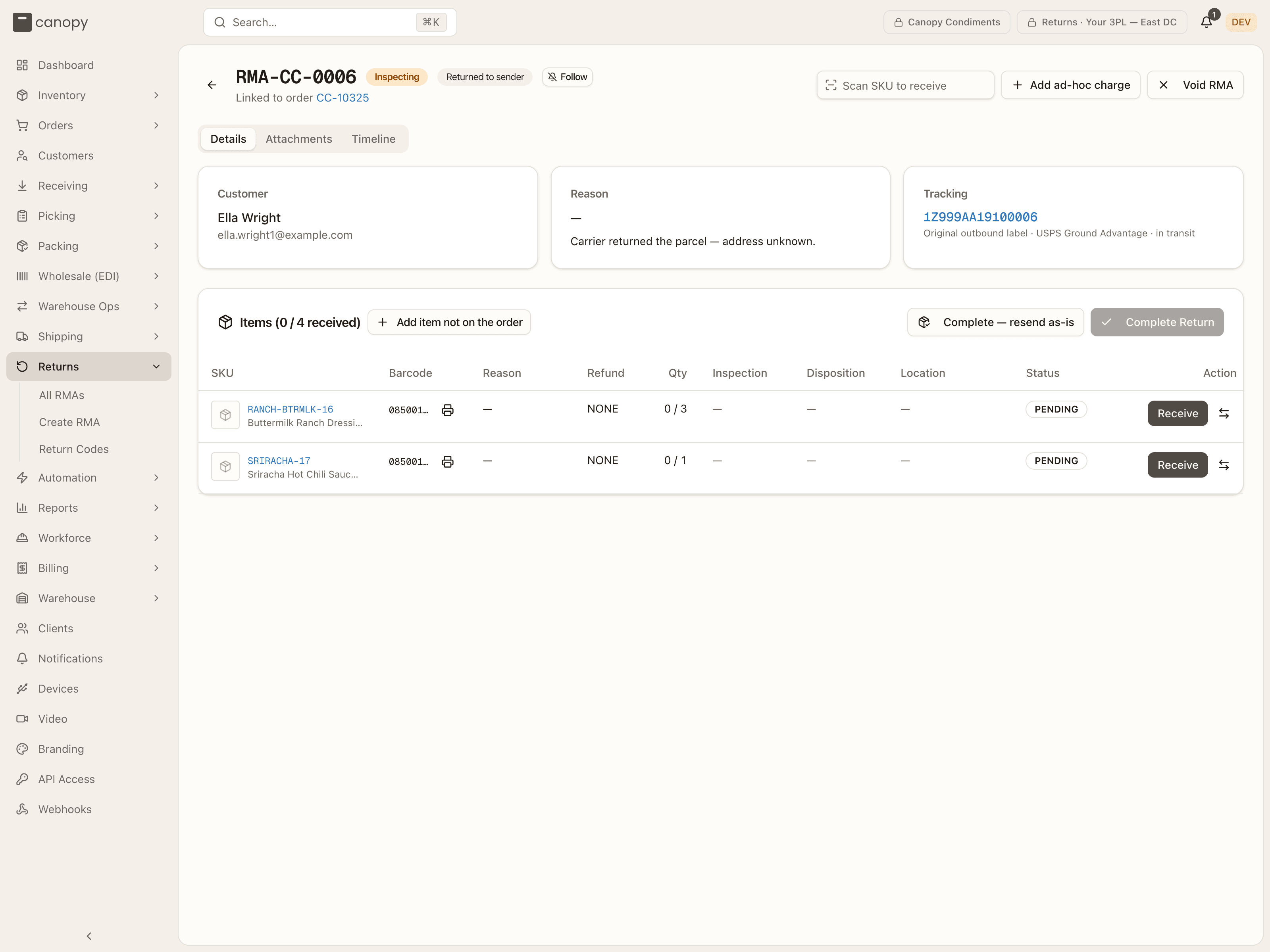
A returned-to-sender (RTS) return is an outbound parcel the carrier brought back — bad address, refused, unclaimed — on its original label. It starts from the Shipments list: pick the Returned to sender attention row ("Needs an RTS return to receive it") and press Create RTS return on the parcel. The form opens with Returned to sender (RTS) on, the Outbound parcel that came back confirmed, and its contents prefilled and ticked with return type No financial action; Return Shipping reads Comes back on the original label — nothing is bought or billed. Untick anything that was not in the box and press Create RMA. The RMA wears a Returned to sender badge and its Tracking card watches the original outbound label. If the order you picked was merged into another it has no parcel of its own — the form says "This order has no parcel of its own — it was merged into CC-… and its goods ship in CC-…'s box. Raise the RTS return on CC-…" and Use CC-… switches to that order; on the master's box, lines that came from a merged order wear from CC-… with their return type locked to No financial action.
Now open the box. There are two ways to settle it:
- The contents are intact and the order should just go back out. Do not receive anything. Once the RMA is Inspecting with zero receipts, the Items card header offers Complete — resend as-is — but only when the relabel it settles for could run right now. The server asks the reship engine, and hides the button (and refuses the completion) when it would refuse: a wholesale order, a Delivered or Partially shipped order, a multi-package label whose boxes share one label, or a box a reship already re-sent units from. In those cases receive the box through the RMA instead. The confirm spells it out: nothing is received and no stock moves; the RMA is marked Completed with a Resent as-is badge and on-hand is untouched. The box still has to leave: on the order, use Reship → Package came back → intact, which buys a fresh label for this same parcel. A repick is refused for it — there is nothing to re-pick.
- Something needs to come out of the box. Receive those units through the normal steps above and press Complete Return. The moment one receipt exists, resend-as-is is off the table — the units are on the shelf, so the box is no longer intact — and the reship goes out as a repick that needs no disposition of its own: the RMA already settled each unit.
An RTS return takes an item not on the order only for a SKU the parcel never carried — a mispick in the box; anything the parcel carried goes on its line, whatever another RMA claims. The RMA lands on the label that speaks for the box, so a box relabelled while the carrier held it is one box under two labels, and an RTS return is refused while its relabel is mid-way. The full picture is in Returned-to-sender (RTS) returns.
Voiding an RMA
An RMA raised in error, or against the wrong order, is voided rather than deleted: Void RMA in the header, on any RMA that is not Completed or Voided. The confirm explains the effect — the RMA is marked Voided, nothing can be received against it, and its lines stop counting toward the per-line return cap, so the units become returnable on a fresh RMA — and takes an optional Reason that is written to the timeline. It cannot be undone.
The button is disabled while the RMA has receipts (Remove the receipts on each line first): un-receive each one with its trash icon, then void. If the goods are genuinely here and booked in, complete the return instead. A cancel that arrives from the store after you received units is not applied — the RMA stays open, the timeline says why, and the order is flagged for review. See Voiding an RMA.
Items the customer never ordered
Sometimes the box holds something that was never on the order — a mispick from the outbound side coming home — or more of an item than its order line can still take back. Press Add item not on the order in the Items card header (or the banner's Add as item not on the order after a scan that matched nothing). Pick the SKU — an order SKU whose line still has room is excluded, since it returns through that line — set Qty and a Reason, and the line is added with return type No financial action: it restocks like any other receipt but carries no refund. Non-physical SKUs are refused. You can add one while the RMA is Pending, In Transit, Received or Inspecting, on an RTS return too, and the trash icon removes it while nothing is received on it. The same control is on the create form under Items to Return.
After the return
- Stock is live. Restocked units were sellable from the moment each receipt was confirmed; the RMA's Location column (operators only) shows the bin and lot for each. Quarantined units sit in the inspection bins until someone reviews them — see Warehouse Ops.
- The brand sees the result. A client user opens the same RMA and sees each line's inspection and disposition, the refund card and its status — but no bin locations and no action buttons.
- The store is told. For a channel return, the return status and the refund sync back; a Sync pending or Sync failed badge in the header says when that has not happened yet. The exception is an RMA that holds only part of the store's return, the rest being another location's to receive: completing it never closes the return in the store, and its timeline says Not closed in the channel.
- The Timeline tab holds the audit trail — every receipt and un-receipt, line change, label event, refund, void and note, each with its actor — and a notes composer for anything worth leaving for the next person. See Following an RMA.