

Handle a stockout
Spot low cover, replenish the pick face, and clear backordered orders.
A stockout is an order that cannot be picked because the units it needs are not on a pick face. Sometimes that is a true stockout — the brand sold more than the warehouse holds. Just as often the stock is in the building, sitting on a reserve pallet, in a quarantine bin, or in a lot the system will not sell. This guide takes one SKU from the first warning to the last order released: find it, work out which kind of stockout it is, fix the shelf or raise the PO, and deal with the orders caught in the middle.
The running example is HOTSAUCE-CHI-5 in the Canopy Condiments demo warehouse — zero on hand, three orders waiting. Every screen here is operator-only except the SKU list and the Backorders report, which a brand user also sees for their own catalogue.
Before you start
One rule explains most of this guide, so read it first: the allocator reserves any sellable stock in the warehouse; whether it is on a pick face decides what happens next. When an order comes in, the system reserves units from every active bin flagged Sellable — pick face or overstock — outside a Quarantine zone, skipping any lot that is expired, on hold, recalled, or inside the SKU's minimum shelf life. If pickable stock covers the whole order it goes Allocated and can be picked. If the units it holds are only in non-pickable overstock, it rests in Replenish: the stock is committed, but someone has to move it to a pick face — or ship the order through Bulk Ship, which can pick overstock directly. Backordered now means what it says: there is not enough sellable stock in the building — an order parked On Hold for an operator's attention doesn't count here even while it waits, since it is waiting on a decision rather than on stock — though a backordered order the brand lets split is still picked for what it holds, unless the brand's minimum or wait holds it whole (it then wears PARTIAL HELD). Available is sellable stock less everything already owed — Allocated and Backordered both — so it only ever shows what nothing has already claimed.
You also need:
- An operator role. Replenishment, Item Locations, Short Picks, and Prioritize are closed to client users.
- To know the brand's settings. Five fields on the client's record change what you can do — Sell ahead (can the brand sell against an open PO?), DTC partial shipments (can a regular order ship what it has and backorder the rest?), Wholesale partial shipments (the same default for wholesale orders), and, when either is on, Minimum to split and Wait before splitting (hours), which apply to both kinds of order and decide when a short order may go: under the minimum, or before the wait is up, it waits whole and wears PARTIAL HELD. All five are on the client detail panel.
- The warehouse in mind. Backorders are counted per SKU and warehouse; the Backorders report has its own warehouse selector, while Item Locations and Replenishment follow the one pinned in the top bar. So does Manage Orders, unless you pick warehouses in its Ships from filter (offered once you run two or more).
How to handle a stockout
Spot it on the dashboard
Open the Dashboard. Two panels flag a stockout before anyone shouts:
- Inventory health ranks SKUs by days of cover, and its Out of stock
counter is the number to check first. A row at 0 on hand with a red
<1dpill is out; an amber pill means a week or two of runway. The Bins count links to Item Locations pinned to that SKU (the dash means it is in no bin at all). - Exceptions counts the orders that are already stuck: Orders to replenish links to Manage Orders filtered to Replenish (stock reserved, but in overstock), Backordered orders does the same for that status, and the operator-only Low-stock bins and Pending replenishments rows land on the Replenishment worklist.
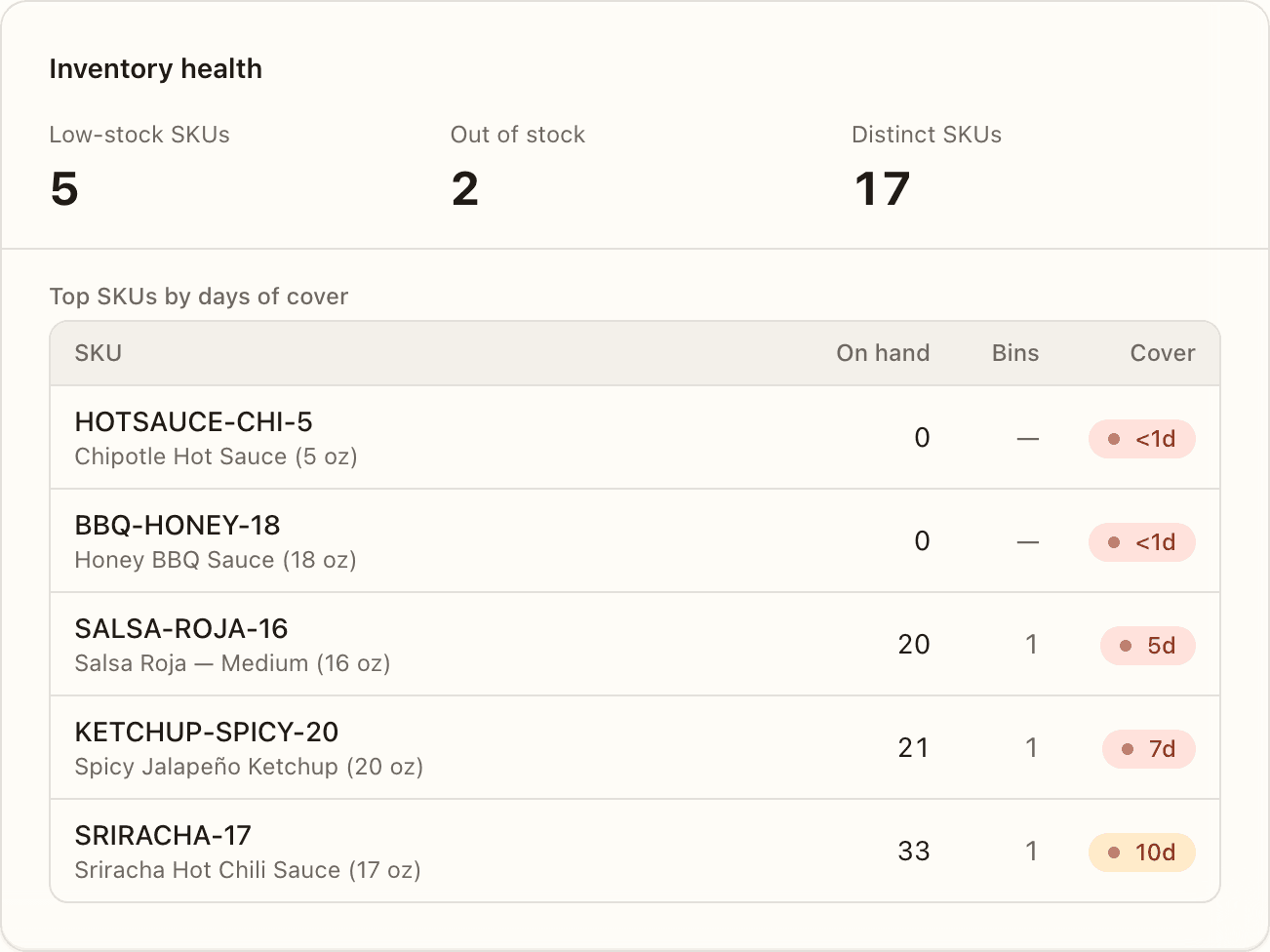
Days of cover counts only sellable stock, so a SKU can show red here while boxes sit on the shelf — that is your first hint that a lot, not a shortage, is the problem. The panel is described in full under Inventory health and Exceptions.
Check the SKU on the list
Open Inventory → SKUs and search the SKU. Read the row across: On Hand, Allocated, Available, Backordered (units on orders waiting for this SKU), and the Days of Stock pill. A Reorder badge beside the pill means on-hand is at or below the SKU's reorder point — that forces the pill red whatever the velocity says.
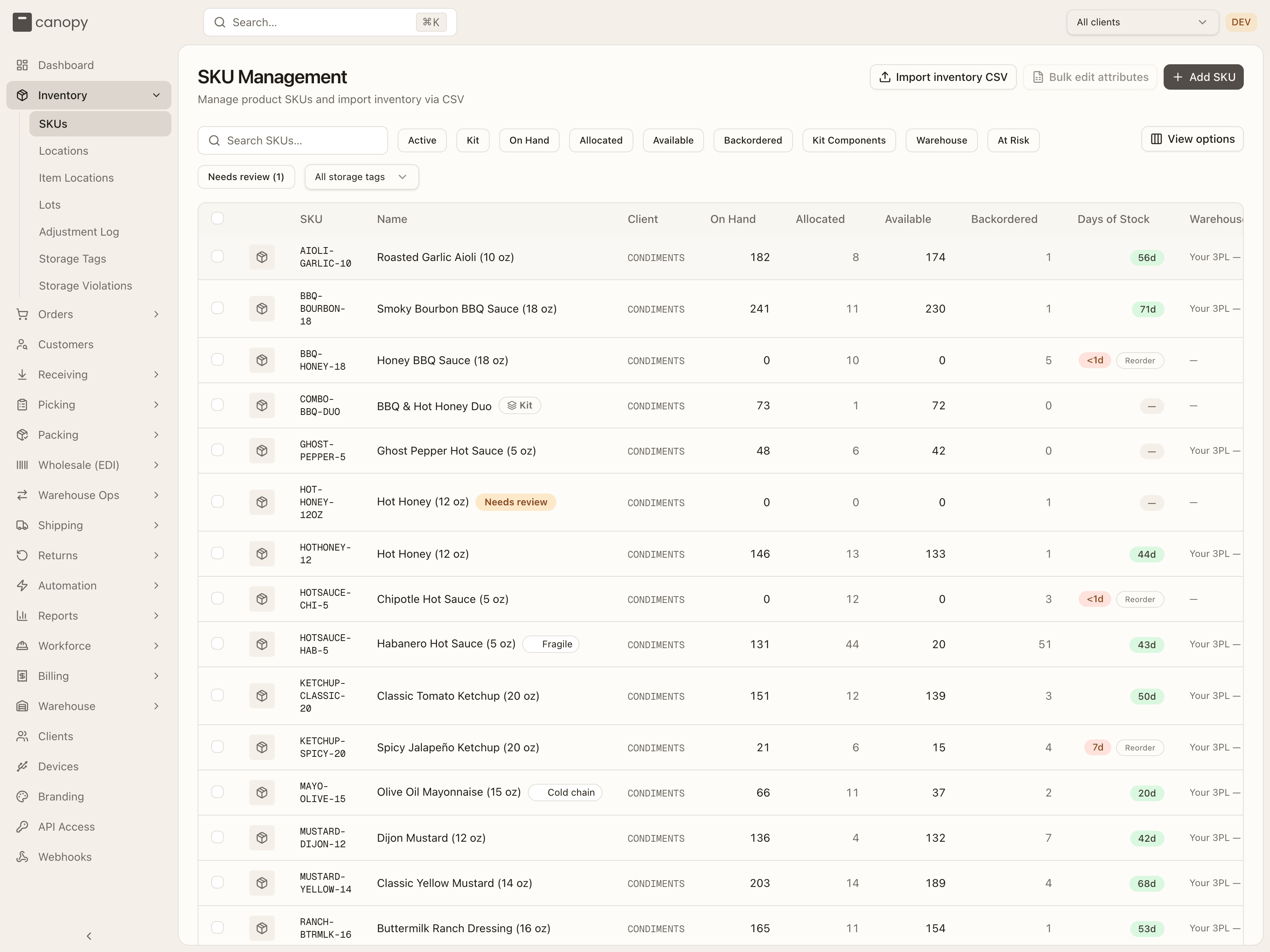
To see every SKU in this state at once, press the Backordered chip (SKUs with units on waiting orders) or At Risk (at or below reorder point, or under 14 days of cover). If the brand sells ahead and you have pinned it in the top bar, a Sell Ahead column shows units already promised against an open PO — those orders will wait as backorders until the PO lands, by design. The columns and chips are in the SKUs reference.
Open the Backorders report
Reports → Backorders is the working list for the rest of this guide. It holds one row per SKU and warehouse where an open order is short of stock — so a SKU at zero that nobody has ordered does not appear, and a SKU with stock on hand that is all reserved by other orders does. Orders on hold are left out — among them a new order a warehouse routing rule held for review because none of its warehouses could fill it ("No warehouse can fill this order — rule "…""); find those under On Hold in Manage Orders. Under a rule that chooses by First that can fill or Most units, such an order is released where it waits once stock there lets the rule pick that warehouse — or, with the rule's Re-route backorders on, moved to another of its warehouses that can take it (step 7).
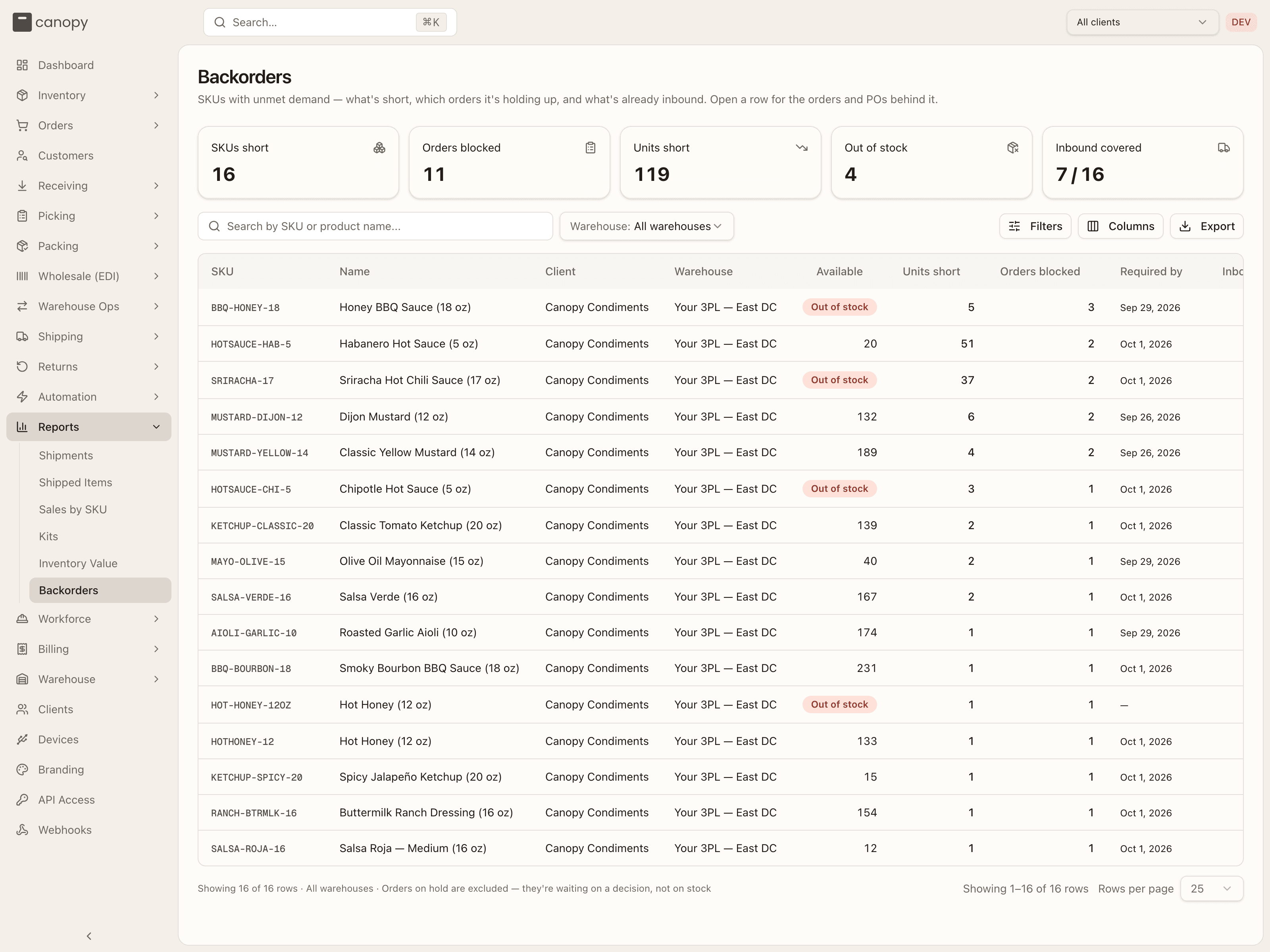
Three columns tell you what kind of stockout each row is:
- Available at Out of stock with "N on hand unsellable" beneath it — units exist but the allocator cannot use them (quarantined bins; expired, held or short-dated lots).
- Inbound green means an open PO clears the whole shortfall; plain means it only dents it; "—" means nothing is on the way.
- Covered by PO (add it from Columns) is how many of the short units the brand knowingly sold ahead. It reads "—" for a brand that does not sell ahead.
A SKU whose stock is all in sellable overstock does not appear here at all — its orders reserved that stock and rest in Replenish. "N on hand unsellable" means exactly what it says: non-sellable or inactive bins, Quarantine zones, and expired, held or short-dated lots.
Use the Warehouse selector to see where it bites, and the Filters popover to keep only Out of stock only rows or those Not covered by a PO — the ones that still need a decision. Rows sort worst-first. Everything on this page is described under Backorders.
Open the row and read the blocked orders
Click the row. The detail sheet repeats the shortfall — Units short, Available, Inbound with its ETA, Covered by PO — and lists two tables.
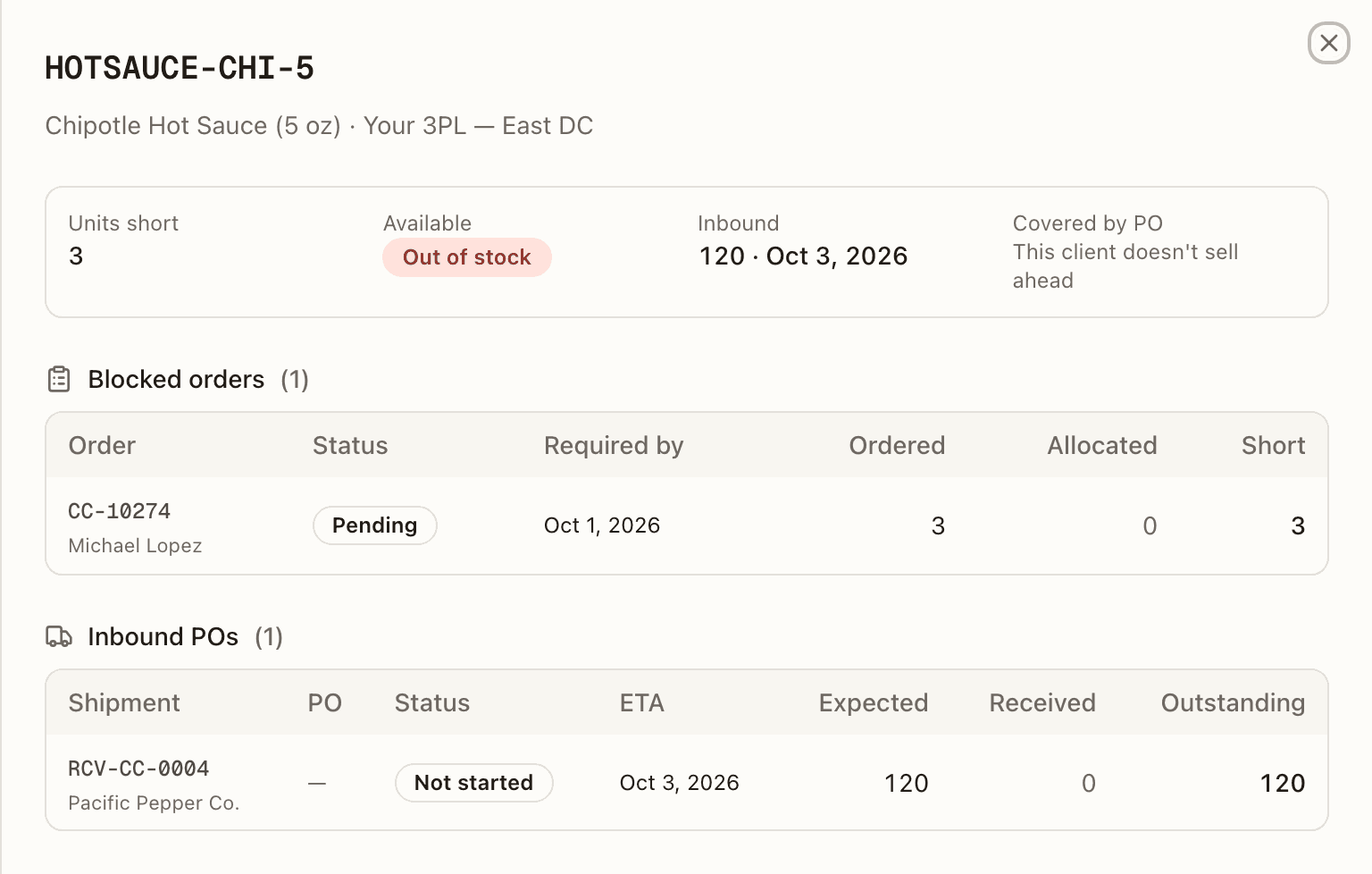
Blocked orders is the list you will work through in the steps below. Each row links into Manage Orders and shows Required by, Ordered, Allocated and Short — a row that is partly allocated is holding some stock already and only needs the difference. Inbound POs shows each open PO's Outstanding units, with "N sold ahead" beneath when part of that PO is already promised. When it reads "Nothing on the way. Raise a PO to clear these orders.", you know step 11 is coming.
If you would rather chase these in a spreadsheet, Export on the report writes the whole filtered set with one row per blocked order and one per open PO under each SKU.
Decide: pick face, lot, or true stockout
Open Inventory → Item Locations for the SKU — from the dashboard's Bins link, or by searching. This shows every bin holding it, with Zone, Qty, whether the bin is Pickable, and the Lot and Expiry (a red Expired or amber Short-dated badge when the lot is unsellable).
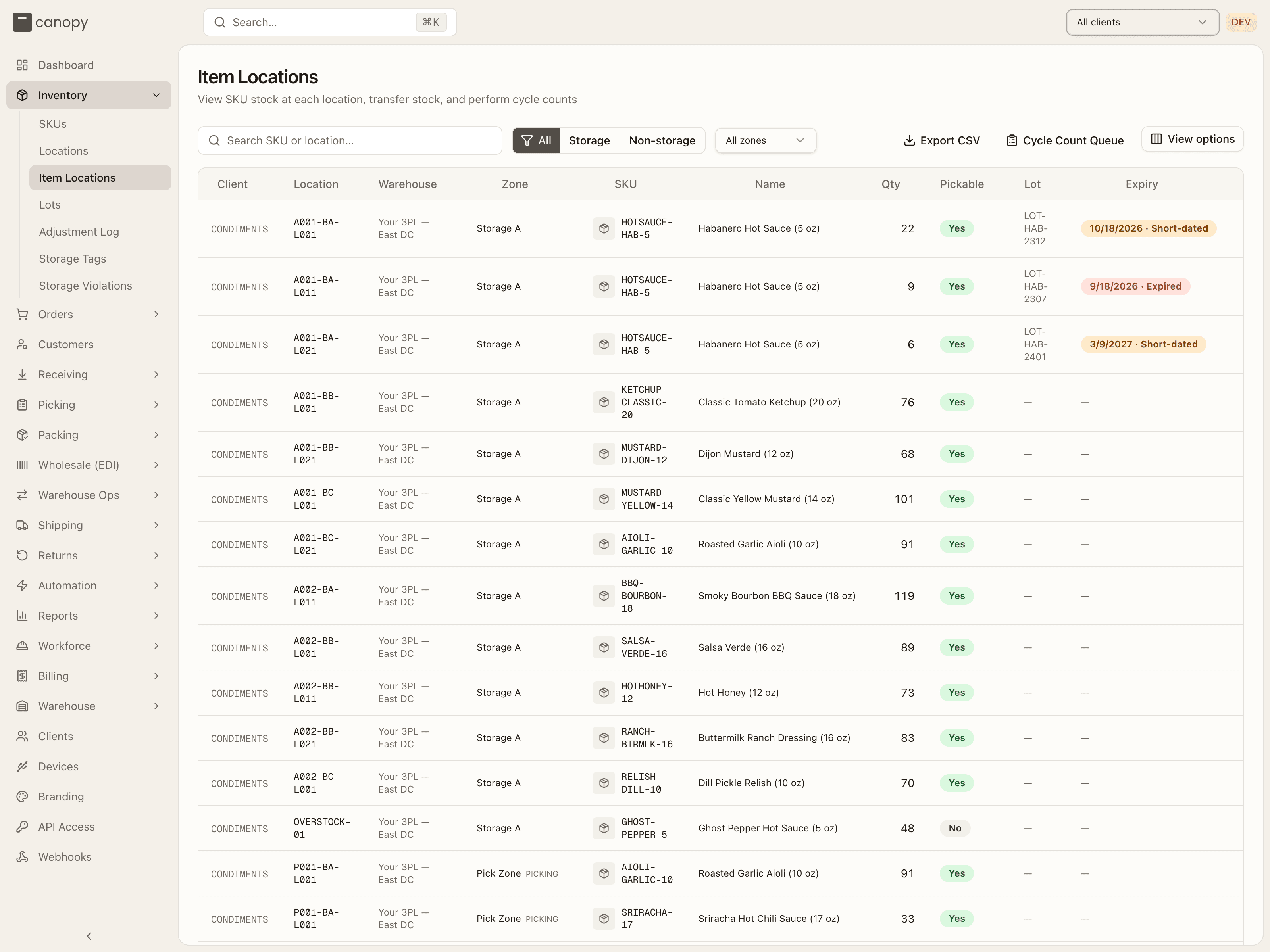
Read it against the rule from Before you start and decide which of three things you have:
| What you see | What it is | Go to |
|---|---|---|
| Units in a bin that is not pickable (a reserve or storage bin) | A pick-face problem — the stock is reserved, but the order rests in Replenish until it reaches a face. These orders are on the dashboard's Orders to replenish row, not on the Backorders report. | Step 6, then Step 8 |
| Units in a pickable bin but the lot wears an Expired or Short-dated badge, or is on hold | A lot problem — the stock is here but the system will not sell it. | Step 6, then Lots |
| No rows, or only rows already reserved by other orders | A true stockout. | Steps 7, 9 and 10 |
The Storage / Non-storage toggle splits reserve from everything else (receiving, returns, quarantine and pick faces), which is a quick way to see whether there is reserve to pull from. The page is described under Item Locations.
Top up the pick face
For a pick-face problem, open Warehouse Ops → Replenishment. The Replenishment needs tab lists every SKU whose pick face needs topping up, driven by its rule's level or by open demand, whichever is larger (an order merged into another is no demand of its own — its units are reserved on the order it ships in). A Pick stock short badge on the SKU means reserved units need replenishment before normal picking — the Replenish orders from step 1's Orders to replenish row. Read In pickable bins against In non-pickable bins: the second column is what you can move. It counts only reserve a move could use: active, sellable bins outside a Quarantine zone.
The tab opens on Can replenish now: the SKUs short at the face that also have reserve to pull from, or a task already out. A SKU with nothing in reserve is not on it. It waits under Needs replenishing, and it needs a receipt (step 11), not a move. The full rules for the worklist are under Replenishment needs.
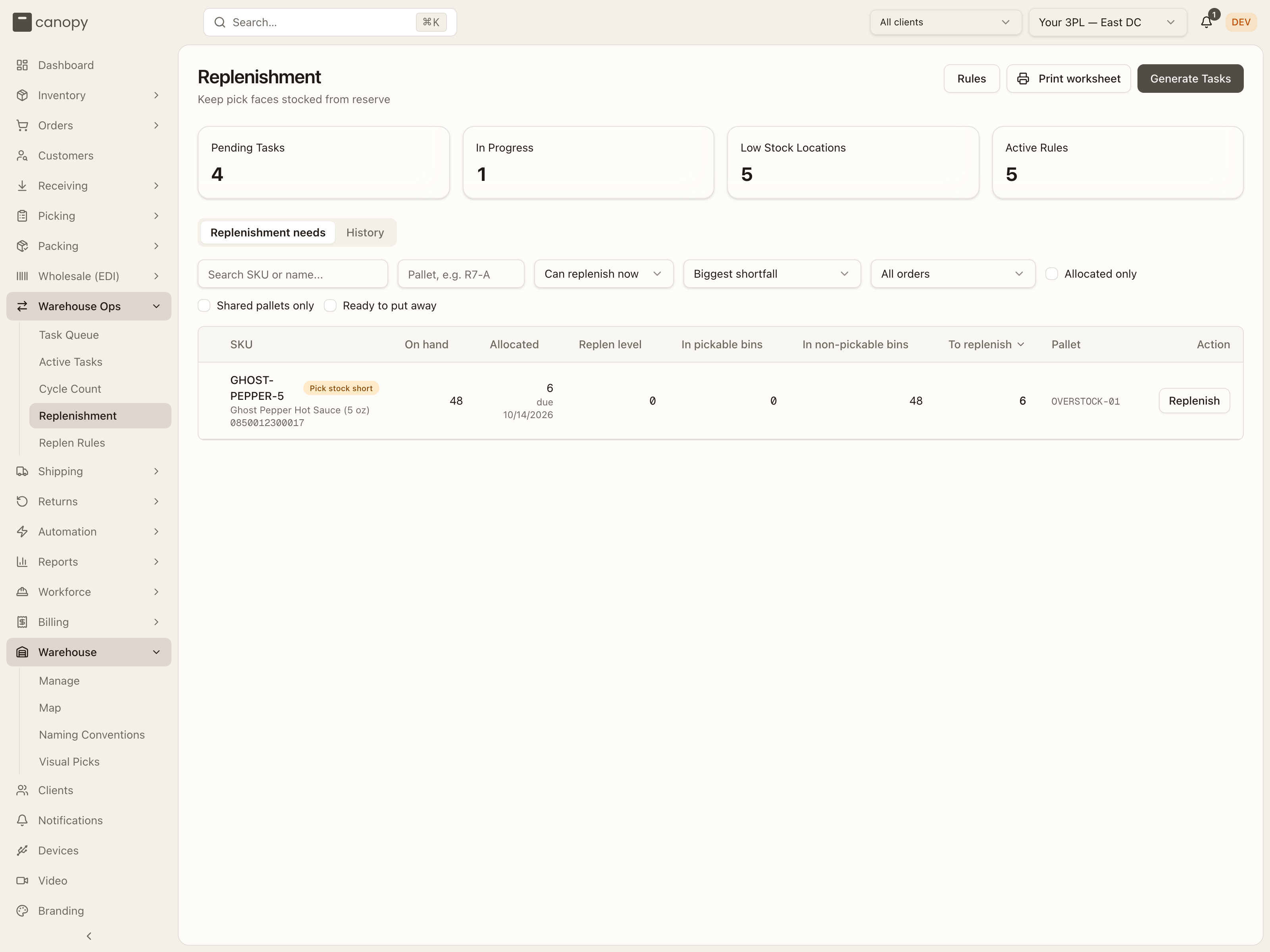
The row's button depends on whether the SKU has a replenishment rule:
- Raise task, on a SKU with a rule, raises a replenishment task for this SKU alone. If it refuses, the toast says why: "No task raised — the pick face is at or above its rule minimum, already has a task open, or there is no sellable reserve to pull from." (Generate Tasks in the header does the same for every active rule at once.) The task then runs like any other: Start opens the guided flow at Pick Up, and once the units are on a cart the row shows a Picked N pill and a Drop off button. When several short SKUs sit on the same reserve pallet, click the pallet chip and use Gather pallet to pull them in one trip.
- Replenish, on a SKU with no rule, opens a Pull from menu of the reserve bins holding it. Pick one. Active Tasks opens in replenishment mode with that bin scanned and the SKU picked, and the quantity starts at the shortfall. Choose the pick face under Suggested Destinations (pick faces only, including faces the SKU held recently) and press Confirm Putaway. The move lands at once as a finished replenishment, and Back to Replenishment returns you to the worklist.
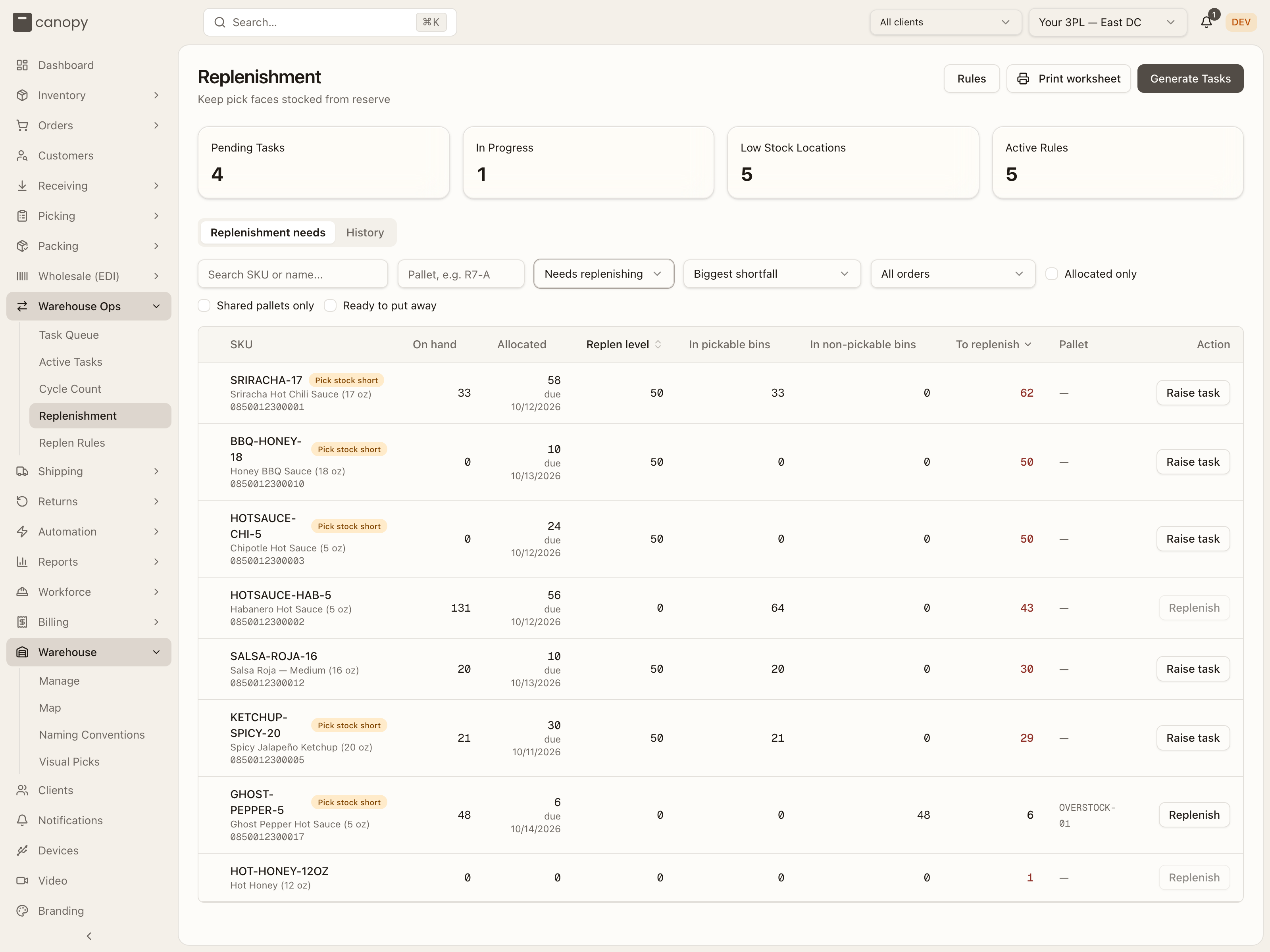
A red To replenish figure needs a receipt, not a move
When To replenish is red there is not enough sellable reserve to cover it. Raise or move what you can, then treat the rest as a true stockout (step 11). A SKU with no reserve at all never reaches Can replenish now. Switch the rows-to-show picker to Needs replenishing to see it. That is where HOTSAUCE-CHI-5 sits, red: it has a rule, so its button is Raise task, and pressing it only brings the toast above. A SKU with no rule and no reserve gets a greyed-out Replenish instead: "No sellable reserve to pull from — this needs a receipt, not a move."
For a one-off move without a task, Transfer on the Item Locations row opens Transfer Contents — pick a destination bin that is pickable and the effect is the same. Either way, the moment the units land in a pickable bin the allocator is told (see the next step). The worklist, pallets and task controls are described under Replenishment needs.
Let the allocator release the orders
You do not have to re-allocate by hand after a replenishment or a receipt. Every stock event on a SKU queues a reconciliation for it in that warehouse: a receipt of a PO line, a manual adjustment in either direction, a stock transfer (which is what a replenishment drop-off is), any cycle-count correction, a work-order assembly, a hold placed with Release reserved stock ticked (or lifted), a bin's Pickable or Sellable flag changing, a SKU merge, and a reship being wound back. The job waits about five seconds so a burst of receipts is handled once. It pulls back reservations the shelf can no longer back, re-sorts the rest between Allocated and Replenish, and only then walks the waiting orders — highest priority first, then oldest first — allocating each until the SKU's pool is exhausted in that warehouse. An order that gets everything flips to Allocated, or to Replenish when the units it holds are in overstock rather than on a face; one that gets only part stays Backordered but keeps what it reserved.
When the client ships from more than one warehouse and routes by stock, the same event does one more thing. With what the warehouse's own waiting orders left, routing runs again on the client's orders that could use it — highest priority first, then oldest. A Backordered order waiting at another warehouse moves when its routing rule chooses by First that can fill or Most units with Re-route backorders on, and the warehouse the rule now picks can fill all of it while the one it waits at can't. An order the rule held for review is released where it waits once the rule picks that warehouse. An order whose warehouse was named on it, or chosen by an operator, never moves this way. See When routing runs again on its own.
An order split across warehouses doesn't move as a whole either. Each of its orders waits for its own warehouse's stock. The one exception is a rule that splits orders (Each SKU, or Split) with Re-route backorders on: it can move just the line that is waiting.
Sometimes Shopify refuses to move an order's fulfillment orders to the warehouse the rule picked. The order then stays put, and its sheet gets an amber card titled Not placed where routing chose. The card wears Note, not Holds the order: nothing is paused. But until someone presses Acknowledge on it, or a later move lands, stock arriving leaves that order alone. The card says what to do: move the fulfillment orders in Shopify, then re-apply the rules (or, for an order on routing's hold, release the hold).
As a backstop, a sweep runs every 15 minutes and re-queues any waiting order whose stock is already reachable — in its own warehouse or, for the re-routes above, in another — so if a queue event is lost, an order waits at most that long. Give it a moment, then refresh the Backorders report: the row shrinks or disappears as orders release.
What does not trigger it
Nothing is queued when a lot is put on hold or expires — that only ever removes stock. What catches that is the other timer: every 10 minutes a reconcile compares each SKU's sellable stock with what is reserved against it, releases the reservations the shelf can no longer back — newest orders first, each moved to Backordered with "Auto-backordered: sellable stock for this SKU fell below reserved" on its timeline — and re-sorts the rest between Allocated and Replenish. And an order sitting in Pending with no stock behind it is not healed by the sweep; it waits for the next stock event on its SKU, or for you to press Allocate.
Clear the Replenish orders
An order that reserved its units from overstock rests in Replenish. Open Orders → Manage Orders filtered to that status — from the dashboard's Orders to replenish exception, or by choosing Replenish in Filters — and open one. An amber Replenish banner says what it needs: "Stock is available in overstock. Replenish picking locations or fulfill through Bulk Ship.", with Open replenishment and Open Bulk Ship beside it. An order that already has shipped units or an open repick reads "…Replenish picking locations to continue normal picking. Orders with shipped units or an open repick cannot use Bulk Ship." and gets no Bulk Ship button.
There is no Allocate on a Replenish order — the stock is already reserved. Either move it (step 6) and let the projection flip the order back to Allocated, or ship it as it stands from Bulk Ship. Trying to pick one from the list is refused with "Replenish picking locations first, or fulfill eligible Replenish orders through Bulk Ship."
Allocate the stragglers by hand
Open Orders → Manage Orders filtered to Backordered — from the dashboard's Backordered orders exception, from a blocked-order link on the report, or by choosing the status in Filters.
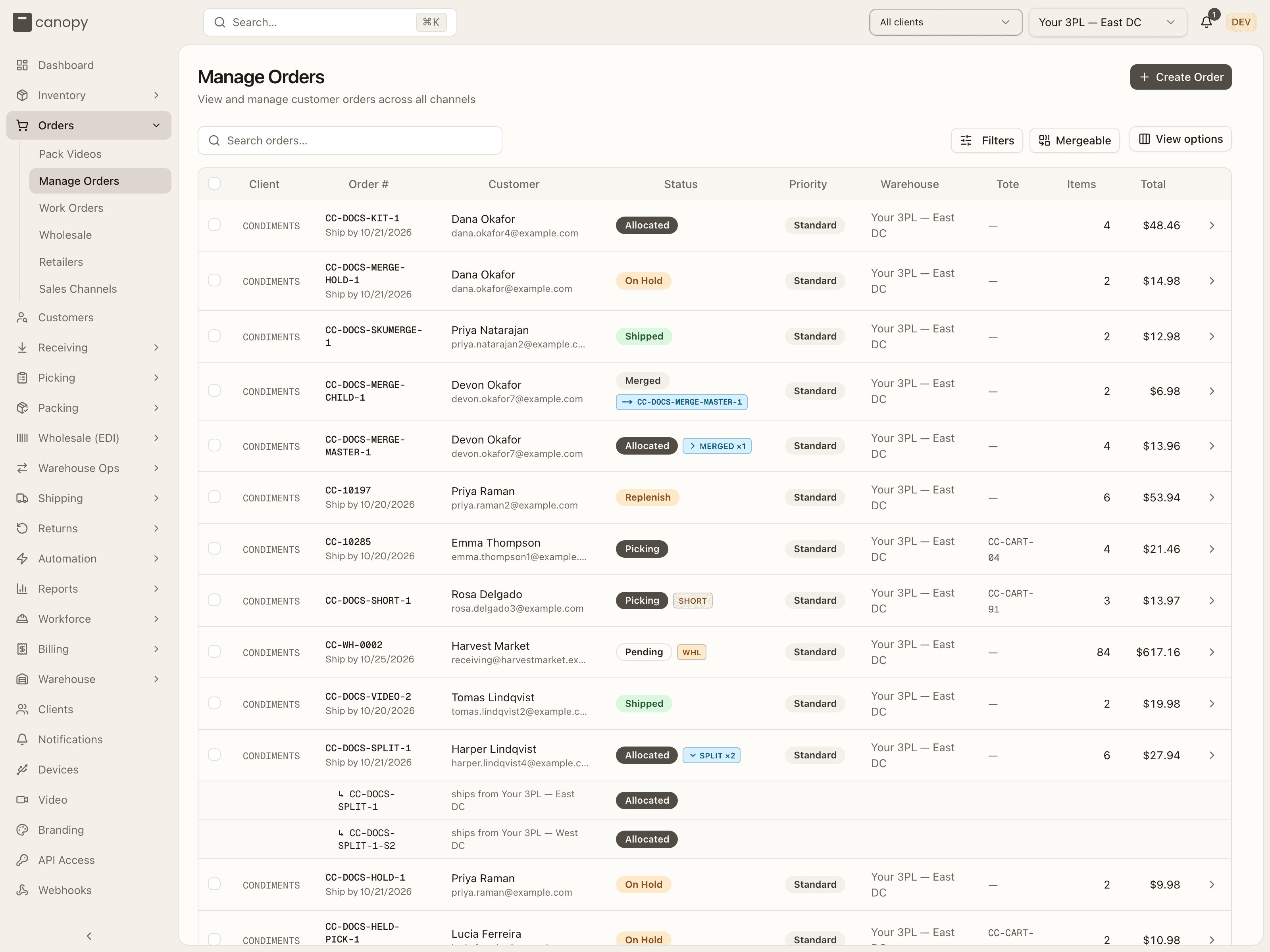
Open an order and press Allocate in the action bar: it reserves whatever is available now. Do this for an order the allocator has not picked up — one parked in Pending, or one you want re-checked after moving stock. For a batch, tick the rows and use More actions → Allocate; the result reads "N in full, N partial, N backordered". The order's line statuses show what each got — an Allocated line beside a Backordered one is a partially covered order.
Allocation only ever looks in the order's own warehouse. When the client ships from more than one and has warehouse routing rules, the stock may be in another: Reprocess Rules on the order first says where the rules would send it (Moves to …, or why it stays), and Re-apply rules runs them (the client's other order rules with them). A rule that picks the first warehouse that can fill the order, or the one that can fill most of it, moves it there — releasing what it held here and allocating at the new warehouse. When no warehouse can fill it, the order stays where it is and the toast says so. See Moving an order to another warehouse. With the rule's Re-route backorders on, a backorder moves by itself once another of its warehouses can fill all of it (step 7).
On an order split across warehouses, Re-apply rules decides for the whole customer order, whichever of its orders you press it on. A rule that picks one warehouse brings every part into it, and the other orders of the split are retired. It does this even for a split an operator made, whose orders read "Pinned — placed by hand; rules won't move it. Re-apply rules does." Once work starts on any part, the split stays as it is. See When routing runs again.
If an order simply cannot ship soon, Hold it and tick Release reserved stock (N units) in the hold dialog so its partial reservation goes to orders that can; it re-allocates when the hold lifts — the dialog says what to expect: "It may return as Allocated, Replenish, or Backordered." The action bar, statuses and bulk actions are in the Orders reference.
Prioritize the order that cannot wait
When a rush order is short while lower-priority orders sit on reserved stock for the same SKU, open the rush order and press Prioritize (operator-only). The dialog lists each short line with how much free stock covers it and how much must come from other orders, then a default set of donor orders per line. Swap donors, change quantities, or add one with + take from another order… — prefer draining a donor completely so one order waits rather than two.
Enter a Reason and press Take stock & allocate. The donors go to Backordered and re-allocate on their own when stock returns (the previous step's allocator handles them), and both sides get an audit entry. Donors can be Allocated, Replenish or Backordered orders, and each row wears its status. The toast names what the rush order landed on — "CC-…: Allocated. 2 orders moved to backorder", or "CC-…: Replenish. …" with "Stock is reserved. Replenish picking locations or fulfill through Bulk Ship." beneath, when the stock it took is in overstock. A line that is short even after taking from every eligible order says so — that one needs stock first. The dialog is described under Prioritize.
Cover the gap with a PO — and sell ahead if the brand can
For a true stockout, the report's Inbound and Inbound ETA columns tell you whether a PO already exists. If not, open Receiving → Create PO, pick the Client, the Vendor Name and an Expected Arrival Date (that date becomes the report's ETA — without it the row reads No ETA), and add a line for the SKU with the Qty you are bringing in. The PO arrives at the warehouse the top bar is on; with All warehouses selected on a multi-warehouse tenant the form adds a Warehouse field that starts at Client's default warehouse — pick the warehouse the Backorders row is for instead when they differ, since orders only take stock from their own warehouse.
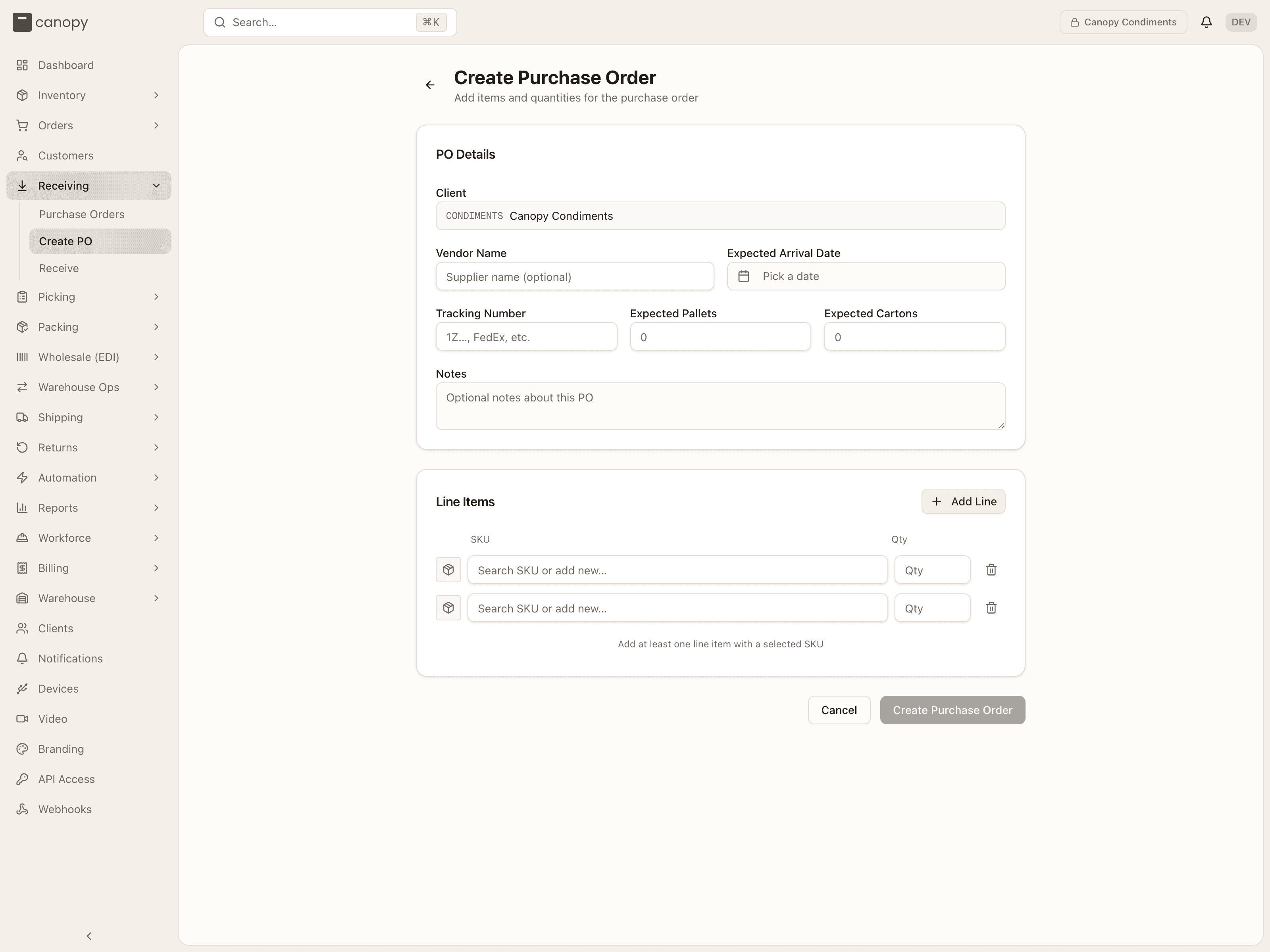
If the client's Sell ahead switch is on, each line has an extra Sell ahead column: the units the brand may advertise to its opted-in sales channels before the goods arrive, capped at the line's quantity. Orders for those units arrive as Backordered and wait for the receipt — the report shows them under Covered by PO in green, and its Not covered by a PO filter drops them so the list is left with the shortfall that still needs a buying decision. Press Create Purchase Order; the PO saves as Pending and the report's Inbound POs table picks it up immediately.
For a brand that does not sell ahead, or a PO that only dents the shortfall, the orders keep waiting — tell the brand what is coming and when. The form is described under Creating a PO; sell-ahead quantities can be changed later on the PO's Lines tab.
Receive it and watch the orders release
When the goods arrive, receive the PO as usual (Receiving stock). Each line you receive into a pickable bin queues the re-allocation from step 7 for that SKU, so the waiting orders start releasing while you are still scanning the rest of the shipment — priority first, oldest first, sold-ahead orders among them. Receive into a reserve bin instead and you are back at step 6: the units are on hand but not reachable until a replenishment moves them.
Refresh the Backorders report when you finish. A SKU with every order released drops off the report, and the tiles at the top fall with it.
Resolve the orders already short in picking
A stockout discovered during a pick — a picker who found the bin empty and shorted the line — does not show up as Backordered. That order is held in picking with a SHORT chip and lands on Picking → Short Picks, grouped by order with its tote on the put-aside shelf.
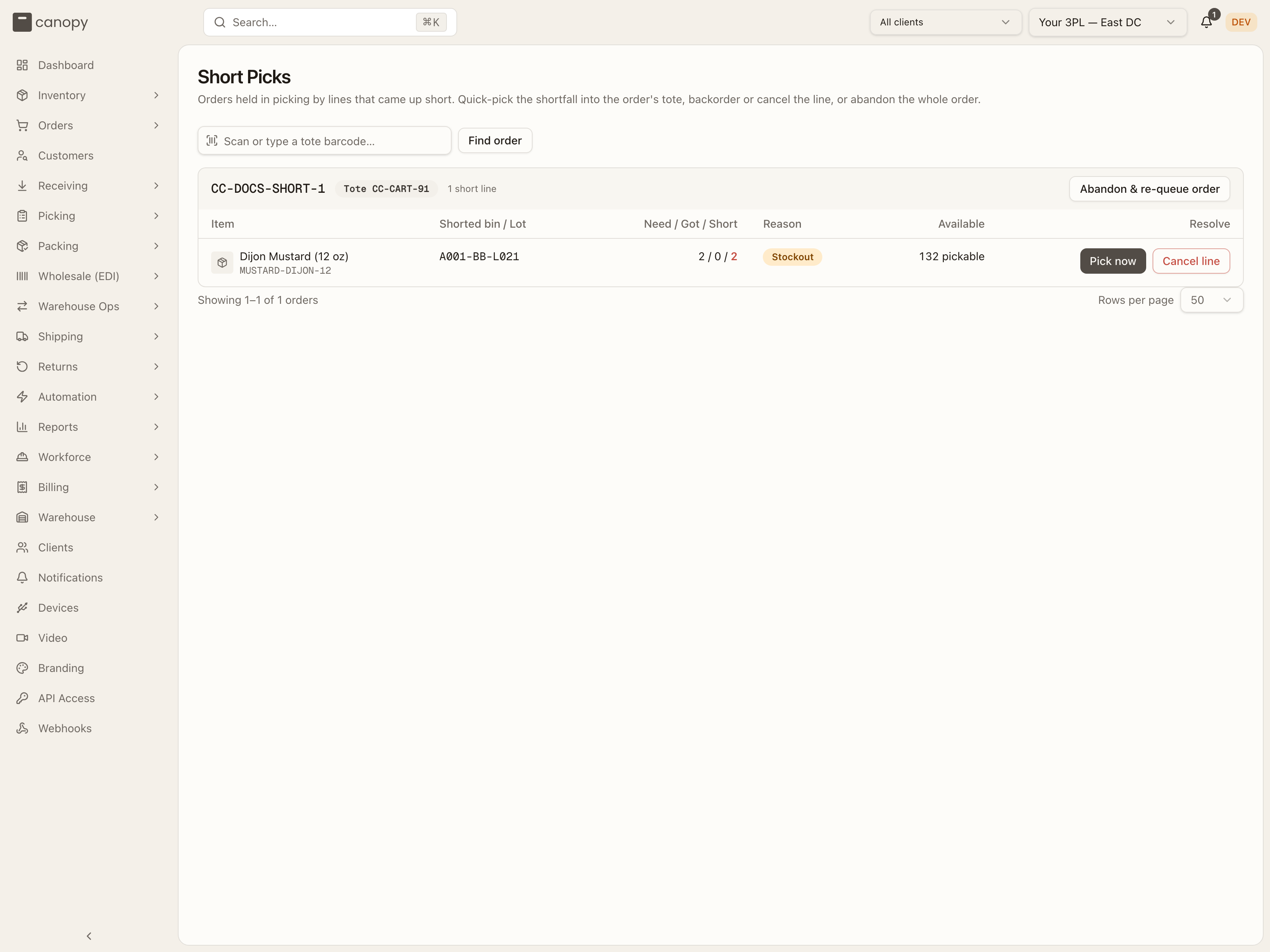
Once you have fixed the shelf (step 6) or received the PO (step 11), resolve each line:
- Pick now is the primary route: choose a bin with enough pickable stock and Confirm pick records the shortfall straight into the order's existing tote. It is disabled while no bin can cover it.
- Backorder rests the line to wait for stock. It is offered plainly when nothing on the order is picked yet; once units are in the tote it appears as "Backorder — ship the rest now", and only when the brand allows partial shipments, this line has no picked units of its own, and it is not a kit component. Otherwise the button is hidden so picked units are never stranded. Never on a reship's re-send, which ships whole; and on an order that may split it pins partial shipping on the order.
- Cancel line drops it from the order — never offered on a line merged in from another order (the row wears from CC-… and says it can't be cancelled on this order. Pick the shortfall now, or abandon & re-queue the order), and refused on a re-send. On an order that already shipped a parcel it lowers the line to what shipped instead, and can close the order. On a kit component the button reads Cancel kit instead: a kit cannot ship without the component, so the whole kit goes — the parent and every component — and the other components' picked units go back. The button says so before you press it: "A kit can't ship without this component — cancels the whole kit, and its components' picked units go back".
- Abandon & re-queue order on the group header returns the picked units to stock as a put-back task and sends the whole order back to be picked fresh once stock is right; the tote stays flagged for put-back while those units are staged.
A short declared at the Pack Station stays locked here until that pack session ships its partial parcel or is cancelled. Every resolution is described under Short Picks; the picker's side of the same moment is in When stock is not there.
If it keeps happening
A SKU that stocks out repeatedly usually has one of three settings missing.
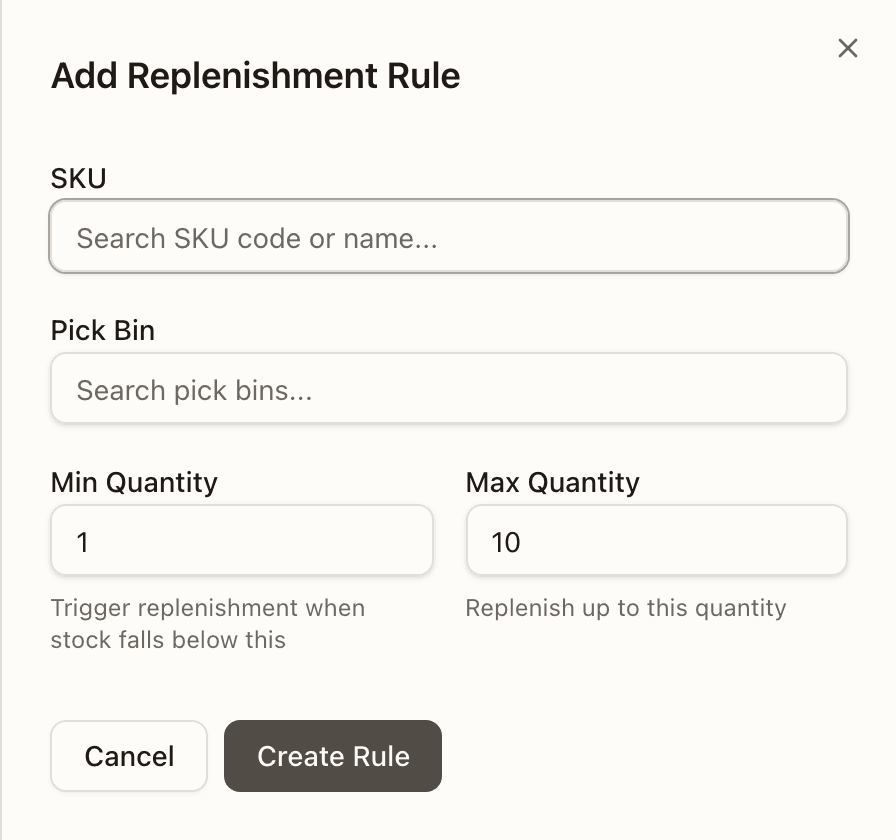
A replenishment rule. Without one, a pick face is only topped up when open demand already exceeds what is there — that is, after orders are waiting. The worklist then offers Replenish, a move you make yourself, rather than Raise task. Open Warehouse Ops → Replen Rules and press Add Rule: choose the SKU and its pick bin, then set Min Quantity (a task is raised when the pick face falls below it) and Max Quantity (how far to fill it). The rule shows its Current stock and Variance on the list, red while it is below target, and a Tag conflict badge if the bin's storage tags will not accept the SKU — fix that or every task the rule raises fails at execution.
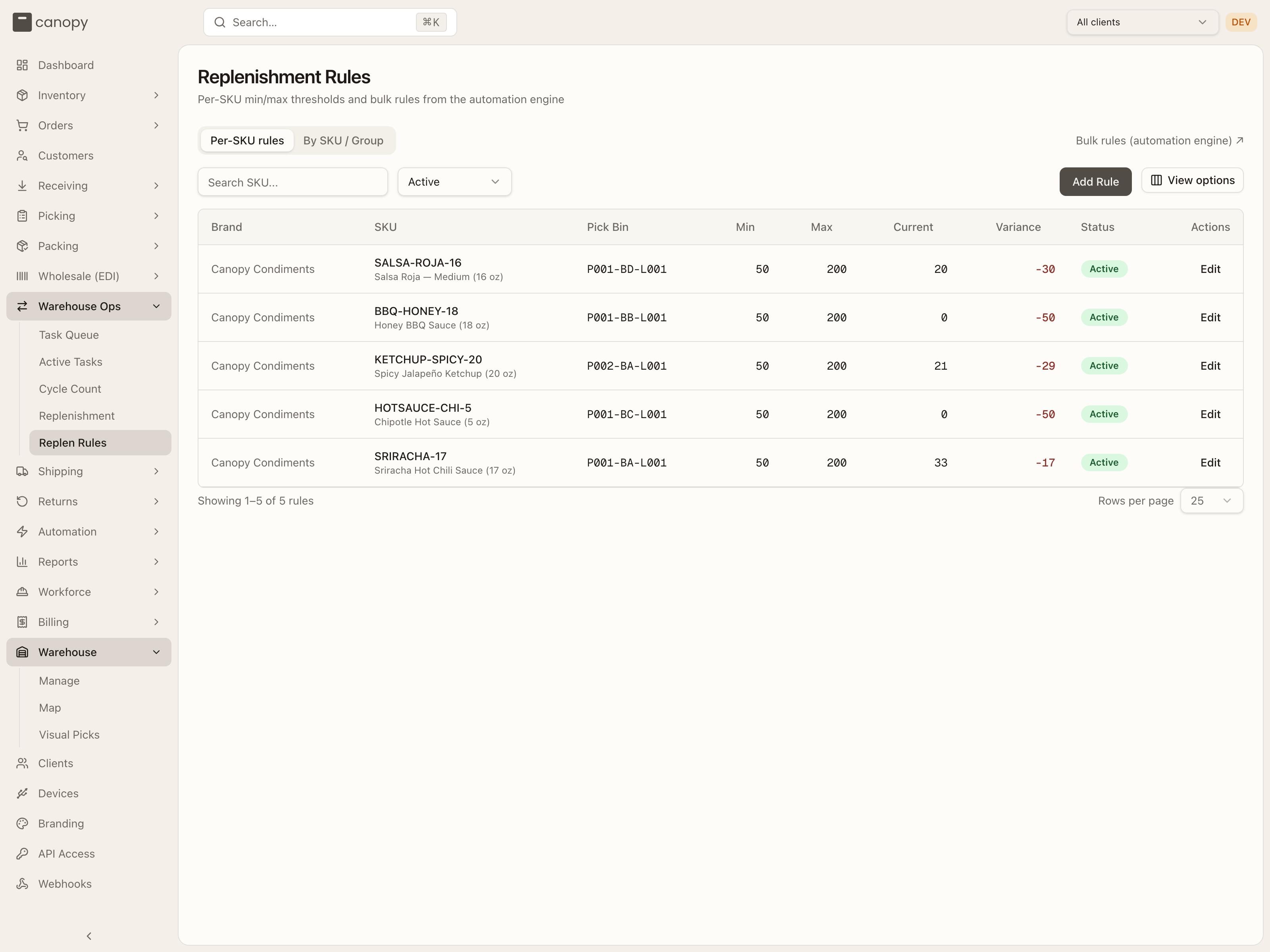
Bulk rules across a whole size category are authored in Automation; the By SKU / Group tab shows both kinds side by side. See Replenishment Rules.
A reorder point. Open the SKU's detail from the SKU list and set Reorder Point (and, for reference, Reorder Target) on the Details tab. Once set, the list flags the SKU with the Reorder badge and a red pill as soon as on-hand reaches that number, regardless of velocity, and the At Risk chip collects every such SKU — a buying list rather than a firefighting one. See SKU detail.
Minimum shelf life. For a lot-tracked SKU, Min Shelf Life on the same tab marks any lot expiring inside that many days unsellable — it stays on hand but leaves Available, days of cover and the allocator's pool all at once. A generous value set for one retailer will empty the pick face on paper while the shelf is full; check it whenever the Backorders report shows "N on hand unsellable" for a SKU with no hold or recall on its Lots.
After
- The report clears itself. A SKU leaves Backorders once every order that wanted it has been allocated; check the Orders blocked tile is back to where it should be (it counts customer orders, so an order split across two of your warehouses counts once), and that nothing is left under Not covered by a PO.
- The orders move on. Released orders show as Allocated on Manage Orders and are ready to batch and pick. Backordered ones still carry the status the brand sees in its own portal, so a brand user watching an order sees it change the moment it releases.
- The moves are on record. A replenishment shows under the Replenishment page's History tab with who pulled and who put away; a transfer, receipt or count adjustment is a row in the Adjustment Log.