

Rules
Every pricing rule across all clients in one list — card rules, shared rules, ad-hoc charge types and recurring charges — and the sheets that author them.
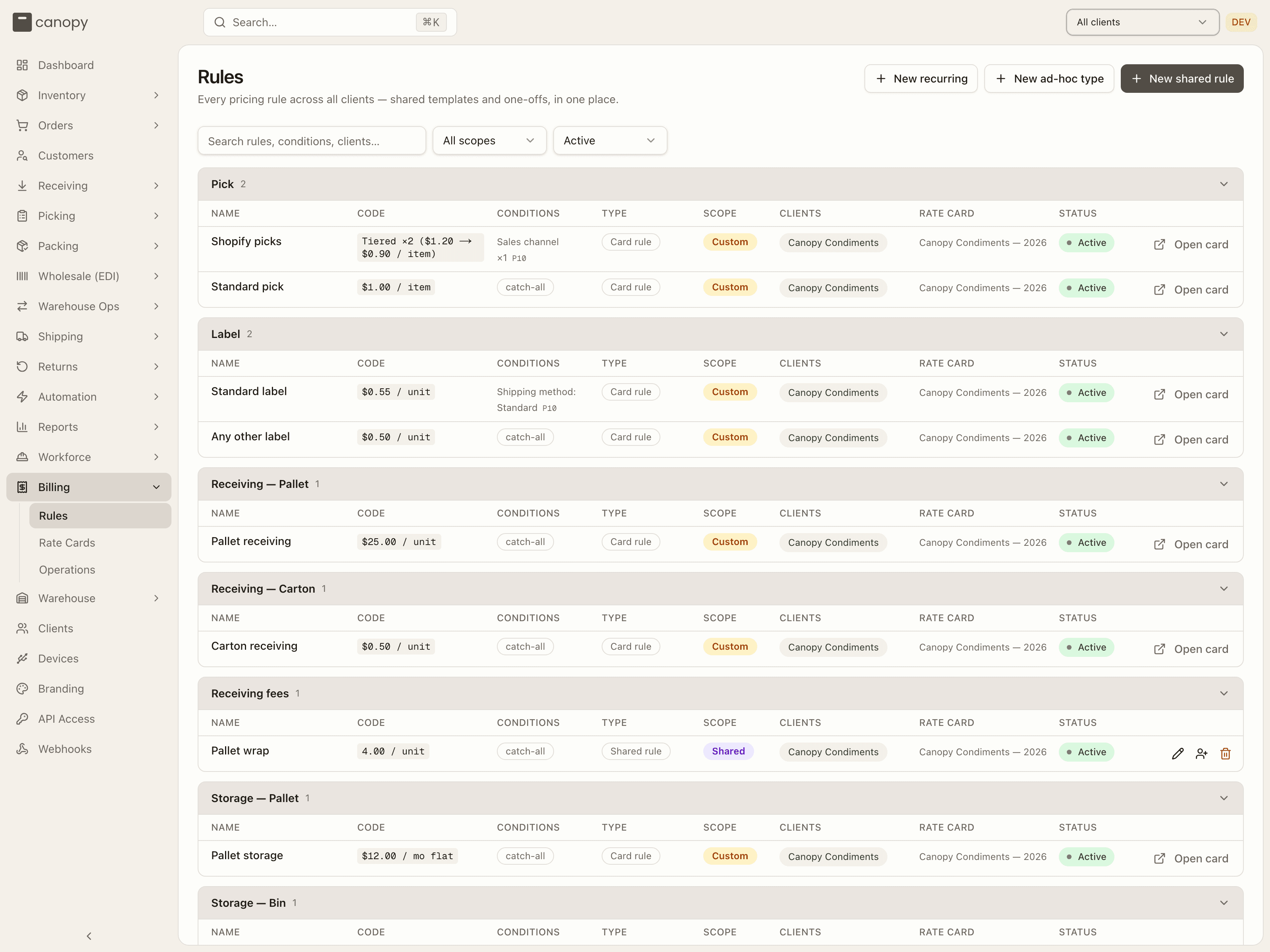
Billing → Rules (/billing/rules). One tenant-wide list of every pricing
rule, grouped by category and rendered in the same table the Rate Card view
uses, so a line item reads the same everywhere. Rate-card rules shown here
are the ones on each client's current card; shared templates, ad-hoc charge
types and recurring charges fold in as rule-like rows with their own sheets.
Reading versus authoring
Every write on this page — a rename, an edit, a new shared rule, ad-hoc type or recurring charge — is Tenant Admin only on the server, so for a Tenant Operator the three header buttons, the pencil-rename, the row click and the per-row Edit / Apply / Delete actions are all hidden; the rows stay readable.
The list
Above the table: Search rules, conditions, clients… (matches a rule's name, category, code, an ad-hoc type's code or group, its conditions and its clients), a scope select (All scopes, Shared, Custom) and a status select — Active (the default), Scheduled, Draft, Ended, Inactive, All statuses. A rule's status is its rate card's status; Inactive is for the rows that have no card lifecycle at all — switched-off ad-hoc types and recurring charges. When identical one-off rules exist for more than one client, an amber N duplicate group(s) — combine into shared rules below badge appears next to the filters. An empty result reads "No rules match — Adjust the filters, or author rules from the Rate Card view."
Rows are grouped into collapsible category sections — Pick, Label, Receiving — Pallet, Receiving — Carton, Receiving fees, Storage — Pallet, Storage — Bin, Return Processing, Return fees, Order fees, Ad-hoc, Shipping Reconciliation — plus a Recurring section at the end. Each header shows its row count (and a duplicates badge when it has any); click it to fold the section.
The columns:
- Name — click a name to rename it in place (Enter saves, Esc cancels); an unnamed rule reads Unnamed in italics. An ad-hoc type shows its machine code beneath and its group as a small chip. Renaming a duplicate group renames every member; renaming a shared rule renames the template (and, going forward, every client's invoice line).
- Code — the derived price summary:
$1.00 / item,Tiered ×2 ($1.20 → $0.90 / item),$12.00 / mo flat,$0.08 / day until last ship; an ad-hoc type shows$0.25 defaultorprice at authoring; a recurring charge1 × $150.00 · monthly. A shared template renders bare numbers, since its copies may span clients in different currencies. - Conditions — catch-all, or the condition summary (Sales channel ×1,
Shipping method: Standard, Order count in period 1–100) followed by the
rule's priority as a small
P10-style tag. - Type — Shared rule, Card rule, Manual preset, Auto · per order, Auto · per unit, Auto · per line, or Recurring.
- Scope — a violet Shared or amber Custom pill.
- Clients and Rate card — one aligned row per (client, card) the rule lives on; a template applied nowhere reads Not applied.
- Status — the card's lifecycle pill per placement (Active, Scheduled, Draft, Ended, Superseded), or a plain Active / Inactive for rows without a card. A duplicate row carries a Combine button here (disabled, with the reason, when its conditions reference client-specific data such as a SKU, sales channel or return reason).
- Actions — for a card rule, Open card (a link straight to the client's Rate Card view, or a per-client menu for a duplicate group); for a shared rule, Edit, Apply to clients and Delete; for an ad-hoc type or a recurring charge, Edit.
Clicking anywhere else on a row opens its sheet: the rule editor for a card rule, the shared-rule sheet for a template, the ad-hoc type sheet, or the recurring charge sheet. A duplicate group opens on its first member.
Combining duplicates into a shared rule
Combine opens Combine into a shared rule: name it, and the identical one-off rules on the listed clients are replaced by one shared rule, so future price edits propagate to all of them. The chain is ordered so no client is ever left without its pricing: the template is created, every copy is deactivated, the template is applied, and only then are the originals deleted; if any card refuses (its rules have finalized invoices) everything is put back and the toast says "Combine aborted… Nothing was changed." A group only counts as a duplicate across different clients — the same rule on one client's live card and its scheduled revision is versioning, not a duplicate.
Deleting a shared rule
The trash icon asks Delete "name"? — "Linked client rules are detached and kept as normal card rules. Nothing is removed from client rate cards."
The rule editor
Clicking a card rule (here, or Edit on the Rate Card view) opens the Edit rule sheet; Add rule on a card opens the same sheet titled Add rule. Pricing shape, conditions and priority mean exactly the same in both.
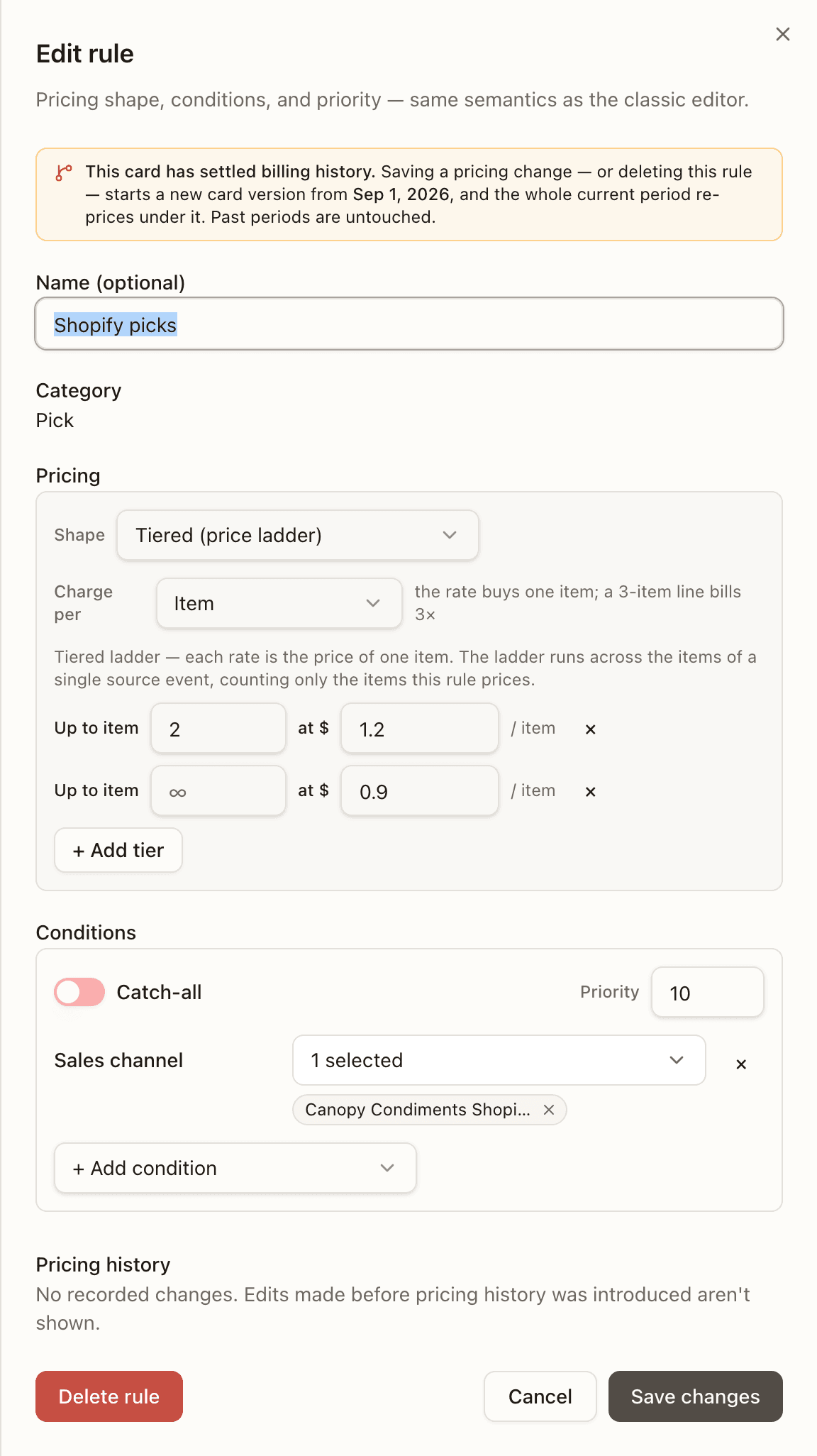
Top to bottom:
- Impact notice (edit only). On the ordinary card a pricing change re-prices the current period on save: "Saving a pricing change re-prices N charges totalling $X on the current period. Already-invoiced periods are unaffected. To change pricing from a date forward instead, revise the card." On a card with settled billing history an amber notice warns that saving — or deleting the rule — starts a new card version from a date and re-prices the whole current period under it. A frozen rule (its card stopped pricing before the current period began, or the client has no open period) says so in red and cannot change at all. Nothing renders when there is nothing at stake.
- Name — optional for a rate rule (e.g. Tier 1 picking); required for a fee — "Shown as the invoice line label — required for fees."
- Category — a select when adding (Ad-hoc is excluded: ad-hoc fees are charge types, not card rules); fixed when editing.
- Reuse an existing rule (add only) — take a rule in this category from any other card or client. Copy writes an independent rule here (the default, and what carrying pricing onto a revision wants); Share puts this card and the card you take it from under one shared rule. Each candidate shows its Shared / Custom scope and where it is used; a candidate the server would refuse is listed disabled with the reason — this card already prices these conditions, already on this card, that card has stopped pricing — copy it instead, not on any card yet — share it instead. A card that has stopped pricing can only copy.
- Pricing — see Pricing shapes.
- Conditions — see Conditions.
- Pricing history (edit only) — Created, Price changed (with the
$1.00 → $1.20delta), Removed, Detached from template; an entry made by a template edit carries a via shared rule badge; each names who and when. A rule authored before the log existed reads "No recorded changes. Edits made before pricing history was introduced aren't shown." - Delete rule, Cancel, Save changes / Add rule.
Two saves are stopped in the sheet itself: a fee with no name ("Fees need a name — it's used as the invoice line label.") and a rule carrying a condition its own pricing can no longer see (the flagged row names it — see Conditions). The server adds its own refusals: a selector that duplicates another active rule in the category (shown inline as Selector duplicates rule …), an identical fee already active on the card, a second catch-all in one category, and "This rule is managed by a shared rule and can't be edited here. Detach it from the shared rule first, or edit the shared rule to update every client."
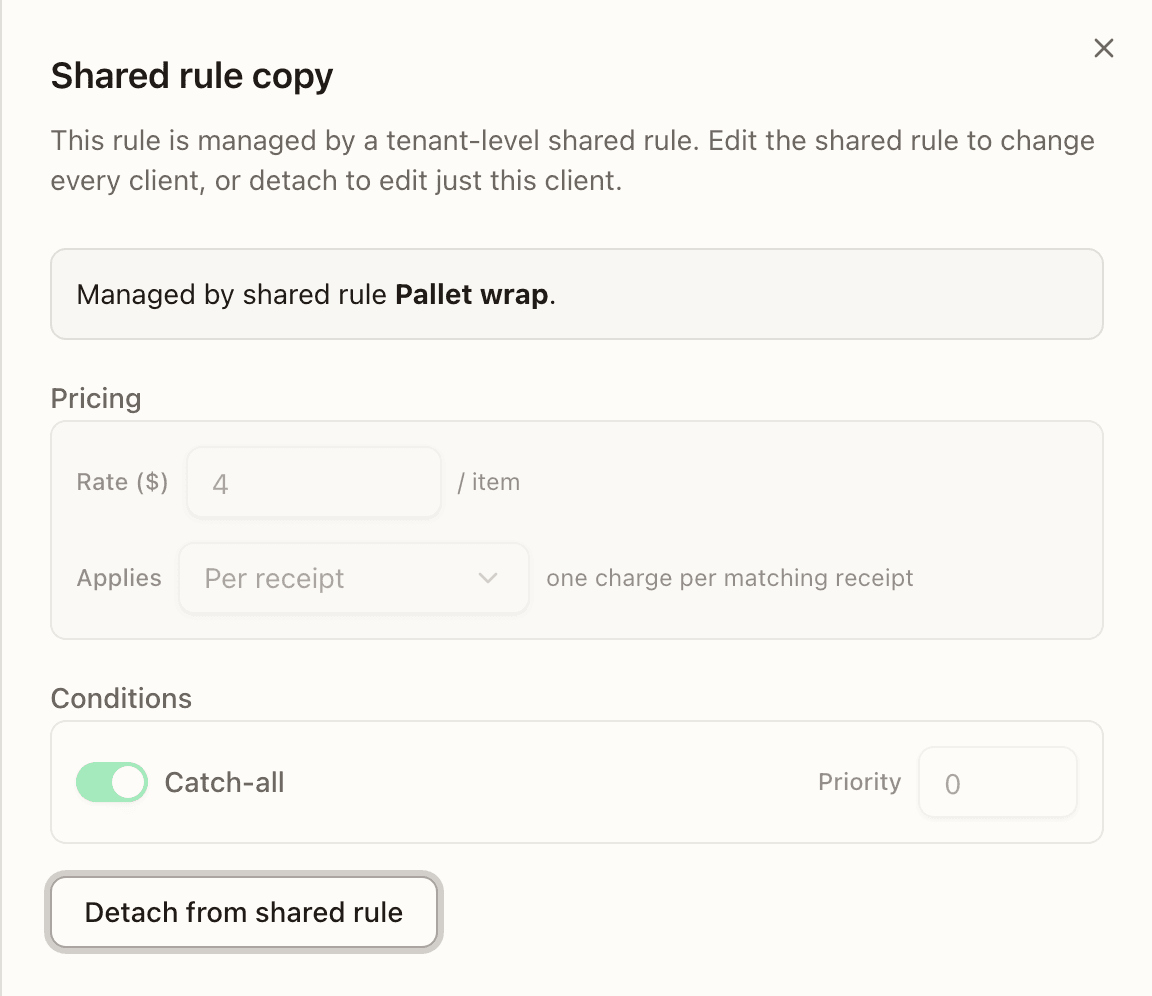
A shared rule's copy
A rule that is a shared rule's copy opens as Shared rule copy instead: "This rule is managed by a tenant-level shared rule. Edit the shared rule to change every client, or detach to edit just this client." — the pricing and conditions are shown locked, with a Detach from shared rule button that turns it into a one-off ("Detached from the shared rule — it's now a one-off.").
Pricing shapes
The Pricing box offers the shapes the category allows:
| Shape | Categories | Fields |
|---|---|---|
| Flat (per event) | every rate and fee category except storage | Rate ($) per item / line / order |
| Tiered (price ladder) | Pick, Label, Receiving, Return Processing, Ad-hoc, Shipping Reconciliation | one rung per row — Up to n at $ x; + Add tier inserts a bounded rung before the open-ended (∞) one, which must stay last, and bounds must be strictly ascending |
| Storage strategy | Storage — Pallet, Storage — Bin | Strategy — Flat monthly or Daily until last ship — and Rate per unit ($) |
A Pick rule also has Charge per — Item (the rate buys one item; a 3-item line bills 3×), Line (one charge per line, whatever its item count) or Order (one flat charge for the whole order; Flat only). A per-order Pick rule wins over every per-line and per-item Pick rule for the orders it matches, whatever their priority or specificity — including $0.00 per-SKU exemptions, and may only use order-level conditions. The ladder's description names the unit it walks: each rate is the price of one line; the ladder runs across the lines of a single source event, counting only the lines this rule prices.
A fee rule has Applies instead — Per order / Per receipt / Per return (one charge per matching event, according to the category), Per line (one charge per matching line) or Per unit (one per unit on a matching line).
Conditions
A rate rule is either a Catch-all (the switch; priority locks to 0) or a set of conditions with a Priority (100 by default — the highest wins when several rules match, then the more specific). Only one active catch-all per category is allowed, so the switch is disabled while the category already has one. A fee rule has neither switch nor priority: "Conditions (optional) — leave empty to apply this fee to every order."
+ Add condition lists the kinds that apply to this rule's category — Per-event kinds first, then the Period-aggregate ones — and hides the ones already added ("All applicable conditions added."). Each kind renders a real picker, so a value you author is one the matching engine can compare:
| Condition | Input | Available to |
|---|---|---|
| Warehouse | multi-select | every category |
| Sales channel, Order type, Order priority, Order tag | multi-select (tags accept a value not yet seen; the match is exact and case-sensitive) | Pick, Order fees; channel also Label; channel and type also ad-hoc types |
| Shipping method, Carrier | multi-select with free entry | Pick, Label, Order fees; also ad-hoc types |
| Label provider | multi-select | Label |
| SKU, SKU class | multi-select | Pick, Order fees, Receiving fees |
| Item weight ≤, Item dim-sum ≤, Item weight >, Item dim-sum > | a number in oz / in | Pick, Order fees |
| Bin type | multi-select | Storage — Bin |
| Return reason, Return type (Customer return / Returned to sender / Blind return), Return SKU count ≤, Return item quantity ≤ | multi-select / a count | Return Processing, Return fees |
| Return disposition (Restock, Quarantine, Dispose, Return to vendor) | multi-select | Return fees |
| Order count in period, Event count in period | from / to, or No upper bound | Pick, Label |
The menu narrows with the pricing: a whole-event fee and a per-order Pick rule only see event-level kinds — the order header for an order fee or a per-order Pick rule, the warehouse for a per-receipt fee, the return header (warehouse, reason, counts, type) for a per-return fee — because an item-level condition can never match them. A condition left behind by such a change is flagged on its row — "Not available for per-order pricing — it resolves per line, so the rule would never see it. Remove this condition, or change Charge per back to Item or Line." — and the save waits until it is removed.
Shared rules
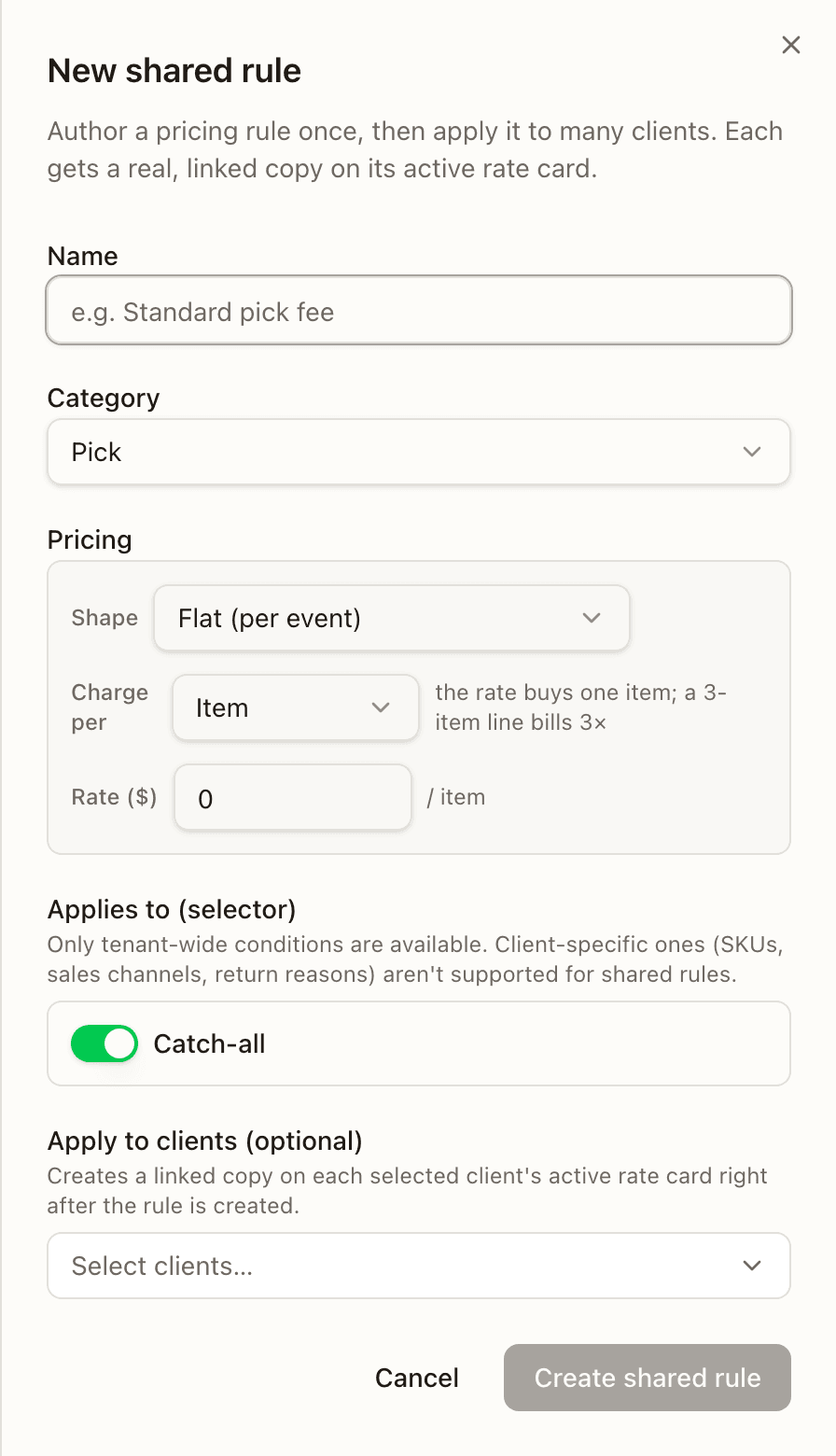
A shared rule is authored once at the tenant level and applied to many clients — each gets a real, linked copy on its active rate card, and price and active changes propagate live to every copy. Only tenant-wide conditions are allowed: a shared selector cannot name a SKU, a sales channel or a return reason, and the server rejects one that does.
New shared rule opens the sheet: Name, Category (any authorable category), Pricing, Applies to (selector) (the same builder, without a priority), and Apply to clients (optional) — "Creates a linked copy on each selected client's active rate card right after the rule is created."
Editing one shows its category and Applied to N clients, then Name, Pricing — "Changing the rule shape or selector isn't supported for shared rules. Only price and value changes propagate." — and an Active switch, with Save & propagate. A pricing change that would strand one of the template's own conditions (a Pick template flipped to per-order, a fee flipped to whole-event) is refused inline until you change it back.
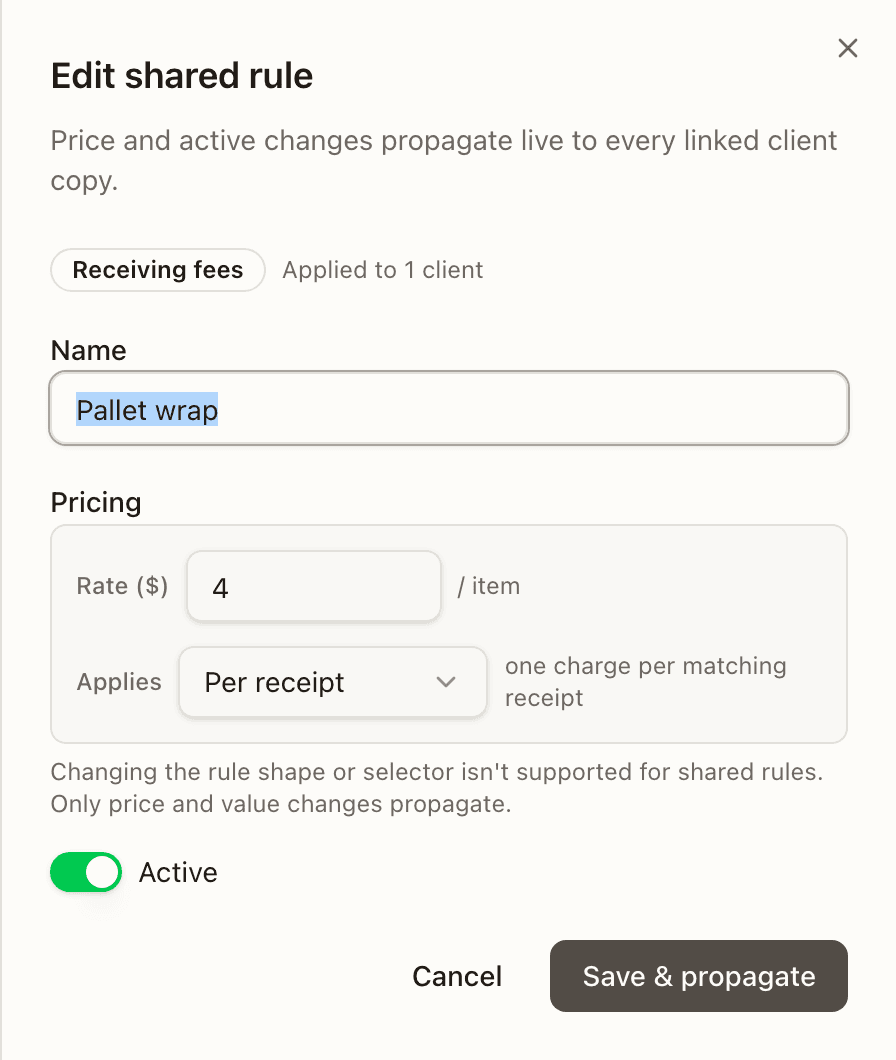
Before it saves, the sheet asks the server for a dry run and, whenever anything would change, shows the propagation preview: Propagate this price change? (or Deactivate / Reactivate / Rename for all linked clients?) with the plan in money and dates — "Re-prices Order fees for 3 clients, each from their own current period start. 340 charges totalling $680.00 will be re-priced on the next recompute. Periods already closed or invoiced are unaffected." — one line per client (in place, or new version from <date>, with the charges affected), the clients that will be skipped and why, and how many copies already match. Deactivate removes the accrued charges at the next recompute; Rename relabels every copy's invoice line going forward, prices unchanged. Confirm with Save & propagate (or Deactivate / Reactivate).
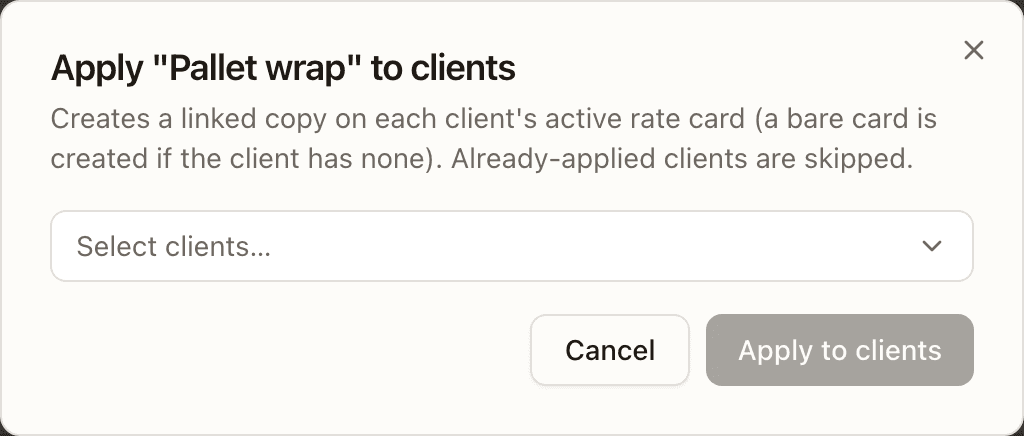
Apply to clients (the person-plus icon) opens Apply "name" to clients: "Creates a linked copy on each client's active rate card (a bare card is created if the client has none). Already-applied clients are skipped." Pick them and press Apply to N clients. The server refuses to apply an inactive shared rule, and a template already on a card is not applied twice.
Ad-hoc charge types
An ad-hoc charge type is a reusable named fee for one client. Manual types are picked by operators at the end of a workflow (receiving, picking, packing, bulk ship, returns, work orders); automatic types are applied to matching orders at pack time. They are not card rules and are not versioned with a card — see Ad-hoc charges on the Rate Card page for the per-client list.
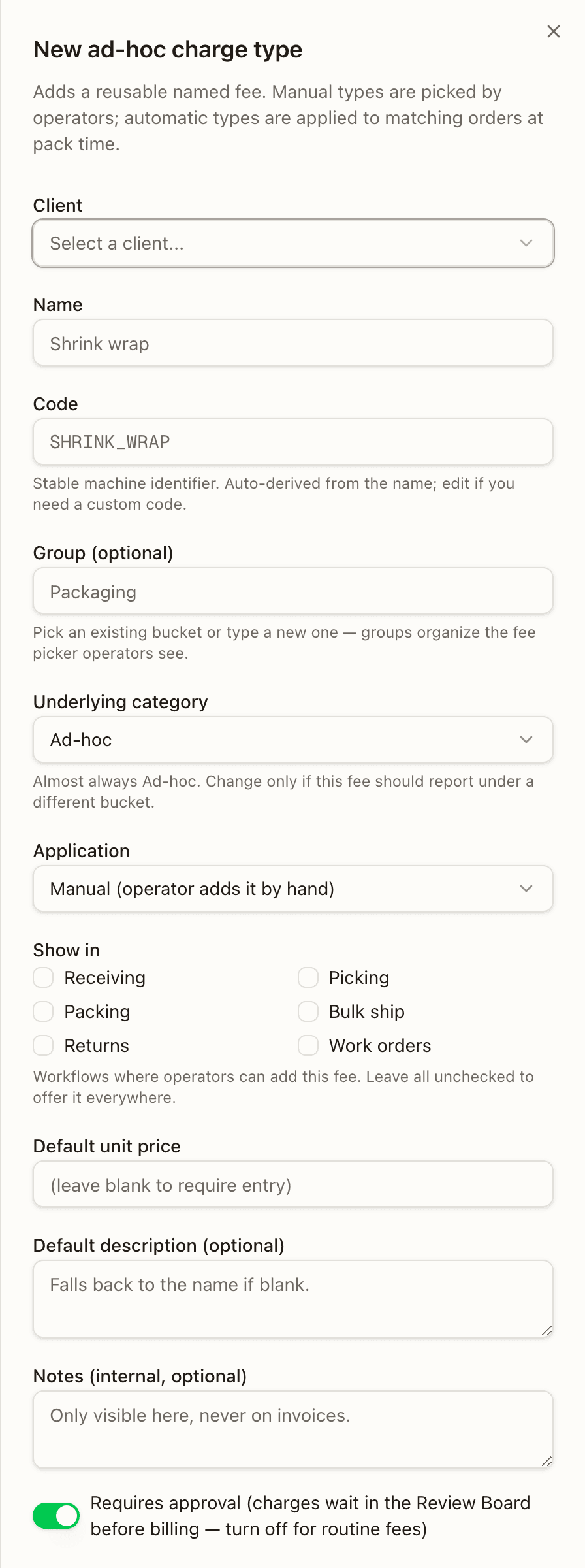
New ad-hoc type opens the sheet:
- Client — a picker when creating from here (fixed when editing, or when opened from a client's Rate Card page).
- Name, and Code — a stable machine identifier, auto-derived from the
name (
SHRINK_WRAP), uppercase letters, digits and underscores; immutable once created — "Deactivate and create a replacement to retire the integration identifier." - Group (optional) — a bucket that organizes the fee picker operators see; existing groups are suggested as you type.
- Underlying category — "Almost always Ad-hoc. Change only if this fee should report under a different bucket."
- Application — Manual (operator adds it by hand), Automatic, once per order, Automatic, per item (per unit), Automatic, per item (per line).
- Show in (manual types) — Receiving, Picking, Packing, Bulk ship, Returns, Work orders; "Leave all unchecked to offer it everywhere."
- Applies to (automatic types) — conditions, or Apply to all orders/items: warehouse, sales channel, order type, shipping method and carrier for a per-order type; plus SKU class, item weight ≤ and dim-sum ≤ for per-unit and per-line types.
- Default unit price — required for automatic types; leave blank on a manual one to make the operator enter the price.
- Default description (optional) — "Falls back to the name if blank." — and Notes (internal, optional) — "Only visible here, never on invoices."
- Requires approval — on by default: charges wait in the Review Board before billing — turn off for routine fees.
- Active (edit) — "turn off to hide from authoring surfaces".
Deactivating an automatic type that has already accrued charges asks first: "N accrued charges totalling $X will be removed from the current billing period at the next recompute… Charges in already-finalized periods are unaffected." — Deactivate and remove charges.
Recurring charges
A recurring charge is a standing fee that "materializes as a charge when each billing period opens." New recurring opens the sheet: Client, Category (Pick, Label, Receiving — Pallet / Carton, Return Processing, Ad-hoc, Shipping Reconciliation — never storage, which is computed from occupancy), Cadence (Daily (per day in period), Weekly (per week anniversary), Monthly (per month anniversary), Quarterly (every 3 months), Yearly (every 12 months)), Quantity, Unit price, Starts on (UTC), Ends on (optional) and Description. "Quantity times occurrences-in-period is billed per period (e.g. weekly with 4 weeks in May bills quantity times 4)."

When editing, Category, Cadence and Starts on are read-only ("To change them, stop this template and create a new one — void this period's charge first if the new one replaces it."); "Price changes apply from the next period.", and the sheet names this period's amount if it is already set. Active off stops future periods while this period's charge stays; Stop does the same after a confirm. Creating a second template in a category the open period already bills is allowed but confirmed first — Add another recurring charge this period? lists the existing charges and says nothing is replaced. The server refuses an end date on or before the start.
How to share one price across several clients
Open Rules and press New shared rule
On Billing → Rules, press New shared rule (top right; admins only).
Name it, pick the category, set the price and its conditions
Fill Name, choose the Category, set the Pricing shape and rate, and add any tenant-wide conditions — a warehouse, an order type, a shipping method. Client-specific kinds are not offered.
Choose the clients and create it
Under Apply to clients (optional) pick the brands that should carry it, then Create shared rule. Each selected client gets a linked copy on its active rate card right away; a client with no card gets a bare one.
Apply it to more clients later
From the rule's row, press Apply to clients, pick the additional brands, and Apply to N clients. Clients already carrying it are skipped.
Change the price once, for everyone
Click the row, change the Rate, and press Save & propagate. Read the preview — how many charges re-price, from which date, and who is skipped — then confirm. Every linked copy follows; a client that must not is detached from its Rate Card page first.
Billing
Price each client's warehouse work with rate cards, watch the charges accrue period by period, review the one-off fees, and issue the invoice.
Rate Cards
One client's pricing at a time — the card's rules by category, its draft / scheduled / active / ended lifecycle, its billing cadence, and the dialogs that create, revise, duplicate and version it.