

Settings
The three standalone settings pages at the bottom of the sidebar — Devices (USB scale and camera pairing), API Access (partner API credentials), and Webhooks (signed event endpoints).
The last entries in the sidebar are settings pages that stand on their own, with no module around them. Devices pairs the hardware on a packing workstation. API Access issues the credentials an outside system uses to call CanopyWMS. Webhooks registers the endpoints CanopyWMS pushes events to. Video sets the recording rules every camera bench follows. Notifications is where you choose which events reach you; it is covered on Notifications. (The sixth standalone entry, Branding, is covered under Administration.)
Who can do what
Devices is open to any warehouse login — it is hidden from client logins, but it makes no API calls at all, so there is nothing to gate: a packer setting up their own station is the intended user. API Access and Webhooks are admin-only. The sidebar hides them from operators, and an operator who opens the address directly sees only the page title and "Admin access required."; the server refuses every request from a non-admin the same way. Machine tokens (the API credentials themselves) can never manage credentials or webhooks — these two pages are only ever driven by a signed-in tenant admin. Video is for warehouse logins: any of them can read the rules, only a tenant admin can change them, and the sidebar shows the entry to admins only. An operator who opens the address sees the rules read-only. A client login cannot open it.
Devices
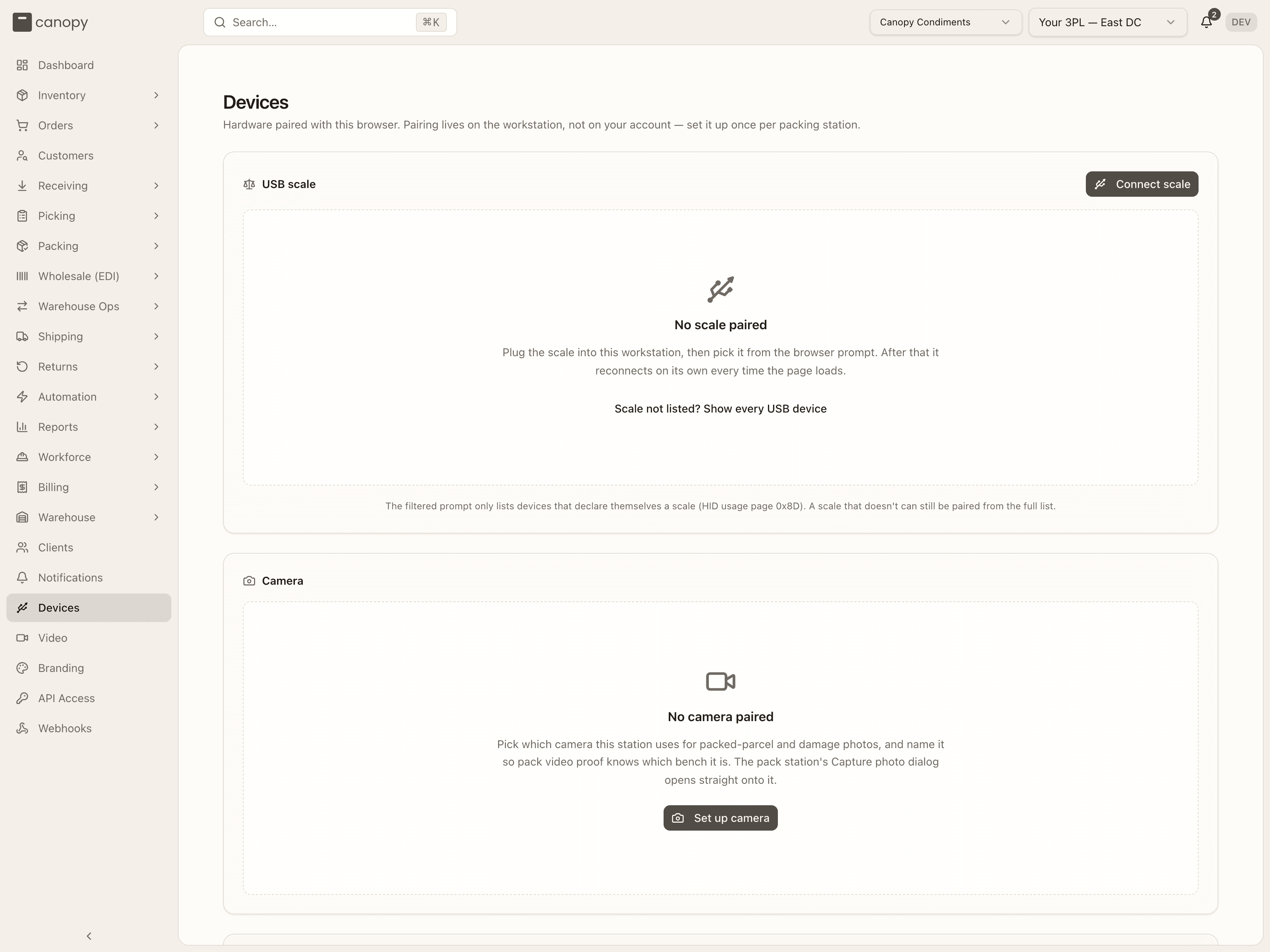
Devices → /settings/devices. Hardware paired with this browser. Pairing
lives on the workstation, not on your account — set it up once per packing
station, in Chrome or Edge, and it is there for whoever signs in at that bench.
The page has two panels, USB scale and Camera, and a note on where the
scale is used.
USB scale
Browser requirement. Talking to a USB scale uses WebHID, which ships in Chrome and Edge. In any other browser the panel shows a warning banner, "This browser can't talk to USB devices", and the Pack Station's weight field simply has to be typed (the scale control does not render there at all).
Pairing. With nothing paired the panel reads No scale paired. Plug the scale into the workstation and press Connect scale: the browser prompt lists the devices that declare themselves a scale, and you pick yours. After that the scale reconnects on its own every time the page loads, and again after an unplug and replug — no prompt. The common USB shipping scales (DYMO, Mettler Toledo PS-series, Fairbanks, Brecknell) all speak the same standard report, so there is no per-model driver to install.
If your scale is not in the prompt, press Scale not listed? Show every USB
device for the unfiltered list. The filtered prompt only shows devices that
declare the scale HID usage page (0x8D); a scale that doesn't can still be
paired from the full list.
If the connection fails, a red Scale error banner explains why. The most common message is "Another tab or app is holding the scale. Close it and try again." — the browser allows one open handle per device, so close the other tab (or the vendor's own utility) and retry.
Once connected, the panel shows a status pill and the device name, then the readings:
| Pill | Colour | What the scale is saying |
|---|---|---|
| Stable | green | The reading has settled — safe to use. |
| Stable at zero | green | Settled with nothing on the platter. |
| In motion | amber | The load is still moving; the number is provisional. |
| Under zero | amber | The reading is below zero. |
| Needs re-zeroing | amber | The scale wants to be zeroed. |
| Fault | red | The scale reports a fault. |
| Over capacity | red | Too heavy for this scale. |
| Needs calibration | red | The scale reports it needs calibrating. |
| Unknown | grey | Nothing decodable has arrived yet. |
- Settled weight — the large number, in pounds, with ounces and grams beside it and a line saying which unit the scale itself reports in. This is the last reading the scale called settled, so it holds still.
- Live — the instantaneous reading, marked "· moving" while the load is unstable, refreshed five times a second. It is there as proof the scale is responding, not as a number to use.
A scale that never raises its own "stable" flag still settles once the reading has held perfectly still for about three-quarters of a second. Dashes mean the scale has not sent anything yet — most scales only report when the load changes, so put something on the platter (the panel says as much in a hint).
If reports arrive but never decode, a warning banner says "The scale is sending data in a format we don't recognize." Open the raw frames (below) with a weight on the platter, press Copy diagnostics, and send the result to support so the model can be added.
Tare / Clear tare. Tare zeroes against whatever is on the platter right now — a software tare, applied to both readings. Clear tare removes it (disabled while there is nothing to clear). While tared, a hint shows the net figure and what was tared off which gross reading. This tare is local to the Devices page and is cleared on disconnect; the Pack Station has its own Tare in the scale menu.
Show raw frames. For debugging a scale that decodes wrong, not everyday setup. It expands a Raw frames · newest first table — Time, Rpt (report id), Bytes, Decoded (status, raw value × exponent, unit — or "Not a scale data report — could not decode"), and Gross (pounds) — of the last 25 reports, with consecutive identical reports collapsed into one row marked ×N. Copy diagnostics puts the device name, its vendor:product ids, the browser's user agent, the current tare, and every logged frame on the clipboard (the button reads Copied for a moment; if the browser refuses, a toast says "Could not write to the clipboard."). Clear empties the log; Hide collapses the table and clears it. The log only accumulates while it is open.
Disconnect (in the panel header) releases the scale and stops the automatic reconnect until you press Connect scale again. Unplugging the cable does not forget the pairing — plugging it back in picks the scale straight up.
Camera
The Camera panel pairs the station's camera the same way, for the photos a packer takes of a packed parcel or damage. It needs a browser with camera support on a secure (https) page; otherwise the panel shows "This browser can't use a camera", and the rest of the app carries on without it.
- No camera paired → press Set up camera. The browser asks for camera permission (once per site), and a live preview appears. With more than one camera attached, a dropdown lets you switch between them. Give the camera a Camera name (Camera 1) and pick its Warehouse. Both are required. The name is what the pack station and every pack video call this bench. Press Use this camera to save the choice, or Cancel to stop the preview.
- Paired → a green Paired pill and the camera's name (or "Saved camera — start a test preview to confirm it's still connected." when the browser has not named it yet). Under it, Named Camera 1 · Main Warehouse is what the server calls this camera; · video switched off means a tenant admin switched it off. Not named for video yet asks you to open Test / change camera and save with a name. Test / change camera re-opens the preview on the saved camera; Forget clears the pairing on this workstation, and the name stays on the server for when the camera is paired again.
Cameras the browser cannot name are not offered here. The choice is saved on the workstation, like the scale, and the Pack Station's Capture photo dialog opens straight onto it (switching cameras inside that dialog updates the same pairing). If the saved camera is unplugged, the dialog opens a plugged-in camera, else the device's own, instead of failing. The receiver's Photos on the Reject units form use the same camera.
The name goes to the server as well, for pack video. If that part fails, a yellow Camera saved for photos, but not named for video banner says so: the photos still work, and Test / change camera then Use this camera tries the name again. What the name is for is on Pack video.
Where the scale is used
Once paired, the Pack Station's weight field picks the scale up automatically. On Pack Station, the Weight (lb) field is prefilled from the SKUs' weights when the pack starts, and a revert button beside it restores that figure if you overwrite it. Next to the field sits the scale control:
- Not connected — a Scale button that opens the same browser prompt as the Devices page.
- Connected — a chip that reads Ready (grey; platter empty), Weighing… (amber; in motion), the weight (green; e.g. 2.78 lb, settled with a load), a red fault label (Fault, Over capacity), or Can't read scale (red; its tooltip points you back to Devices to copy diagnostics). Clicking the chip drops the settled weight into the field on demand.
- Auto-capture is on by default: every settled reading above a hair over zero lands in the field, rounded to the field's 0.01 lb step, and re-arms when the platter empties — so setting the same parcel down again refills a weight that was edited by hand in between. Capturing a weight voids any rate quote fetched for the old one, exactly as typing it would.
- The chevron beside the chip opens the scale menu: the device and its status, Turn off auto-capture / Turn on auto-capture (remembered per browser), Tare (zero with the box on), Clear tare (N lb) while tared, and Disconnect scale.
The field stays editable either way. The scale stops capturing while a label is being bought, and once one has been bought the field locks too — the label is the only lock.
Video
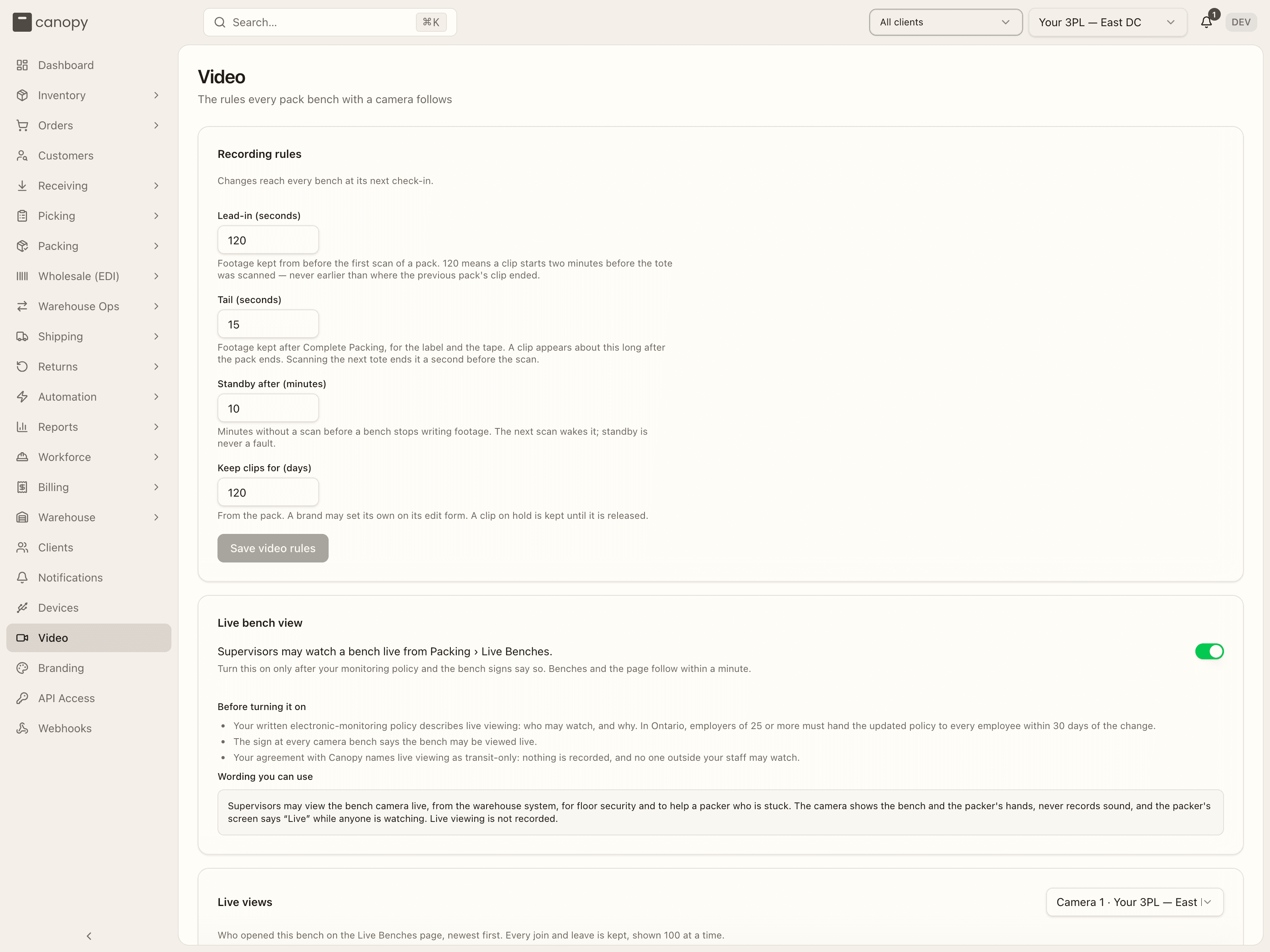
Video → /settings/video. The four rules every pack bench with a camera
follows. Any warehouse desk login can read them; a floor worker under a task
role is sent back to their own screen. Only a tenant admin can change
them, and the page tells an operator so: "Only a tenant admin can change
these." Client logins cannot open it. "Changes reach every bench at its next
check-in."
| Rule | What it does | Default |
|---|---|---|
| Lead-in (seconds) | Footage kept from before the first scan of a pack. 120 means a clip starts two minutes before the tote was scanned, but never earlier than where the previous pack's clip ended. 0 to 600. | 120 |
| Tail (seconds) | Footage kept after Complete Packing, for the label and the tape. A clip appears about this long after the pack ends. Scanning the next tote ends it a second before that scan. 0 to 600. | 15 |
| Standby after (minutes) | Minutes without a scan before a bench stops writing footage. The next scan wakes it. Standby is never a fault. 1 to 120. | 10 |
| Keep clips for (days) | Counted from the pack. A brand may set its own number on its client panel. A clip on hold is kept until it is released. 7 to 365. | 120 |
Press Save video rules. The button only lights up once a value changed and every value is in range. What the bench does with these rules is on Pack video.
Live bench view
Below the rules, a Live bench view panel holds your tenant's own switch for watching a bench live from Packing → Live Benches. It is off until a tenant admin turns it on, and the panel only appears where Canopy has turned the live view on for the environment. What the view is, and who can watch, is on Live Bench View.
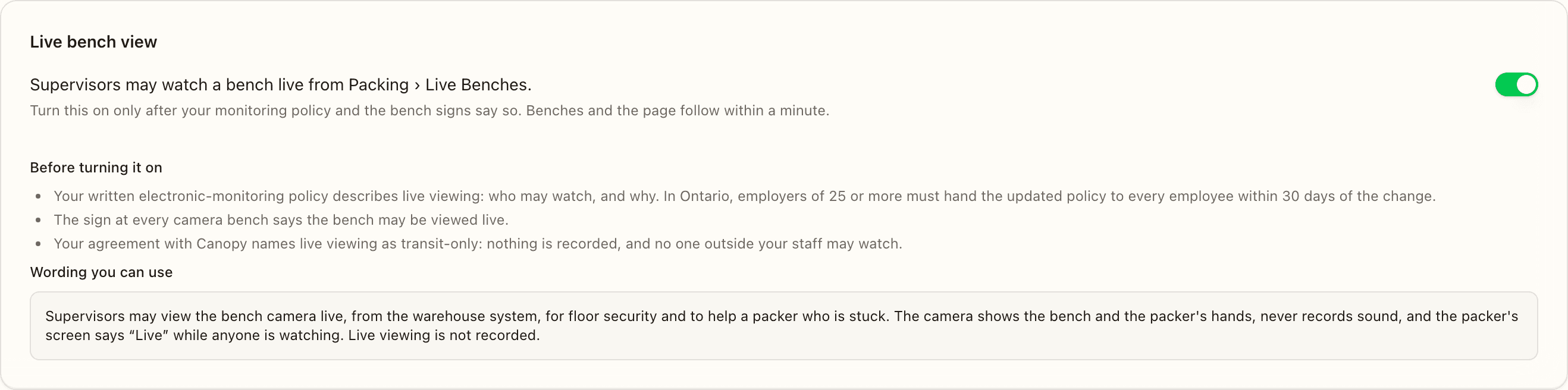
Any warehouse desk login can read the panel; a task-role login never reaches it. Only a tenant admin can flip the switch; for anyone else it is greyed and the panel says "Only a tenant admin can change this." For an admin it says "Turn this on only after your monitoring policy and the bench signs say so. Benches and the page follow within a minute." A toast confirms each change: Live bench view is on or Live bench view is off.
Before turning it on, the panel lists three things to have in place:
- Your written electronic-monitoring policy describes live viewing: who may watch, and why. In Ontario, employers of 25 or more must hand the updated policy to every employee within 30 days of the change.
- The sign at every camera bench says the bench may be viewed live.
- Your agreement with Canopy names live viewing as transit-only: nothing is recorded, and no one outside your staff may watch.
Under Wording you can use is a sentence to paste into your policy and onto the bench sign:
Supervisors may view the bench camera live, from the warehouse system, for floor security and to help a packer who is stuck. The camera shows the bench and the packer's hands, never records sound, and the packer's screen says “Live” while anyone is watching. Live viewing is not recorded.
Switching it off ends every one of the tenant's bench rooms on the media server at once. A bench being watched and its watchers are disconnected then, not when their passes next come up. Each side asks for a new pass, is told the view is off, and backs off for a minute.
Under the switch, a tenant admin also sees a Live views panel: who opened each bench on the Live Benches page, newest first, with Load older for the rest. Pick the camera in the panel's top right.
API Access
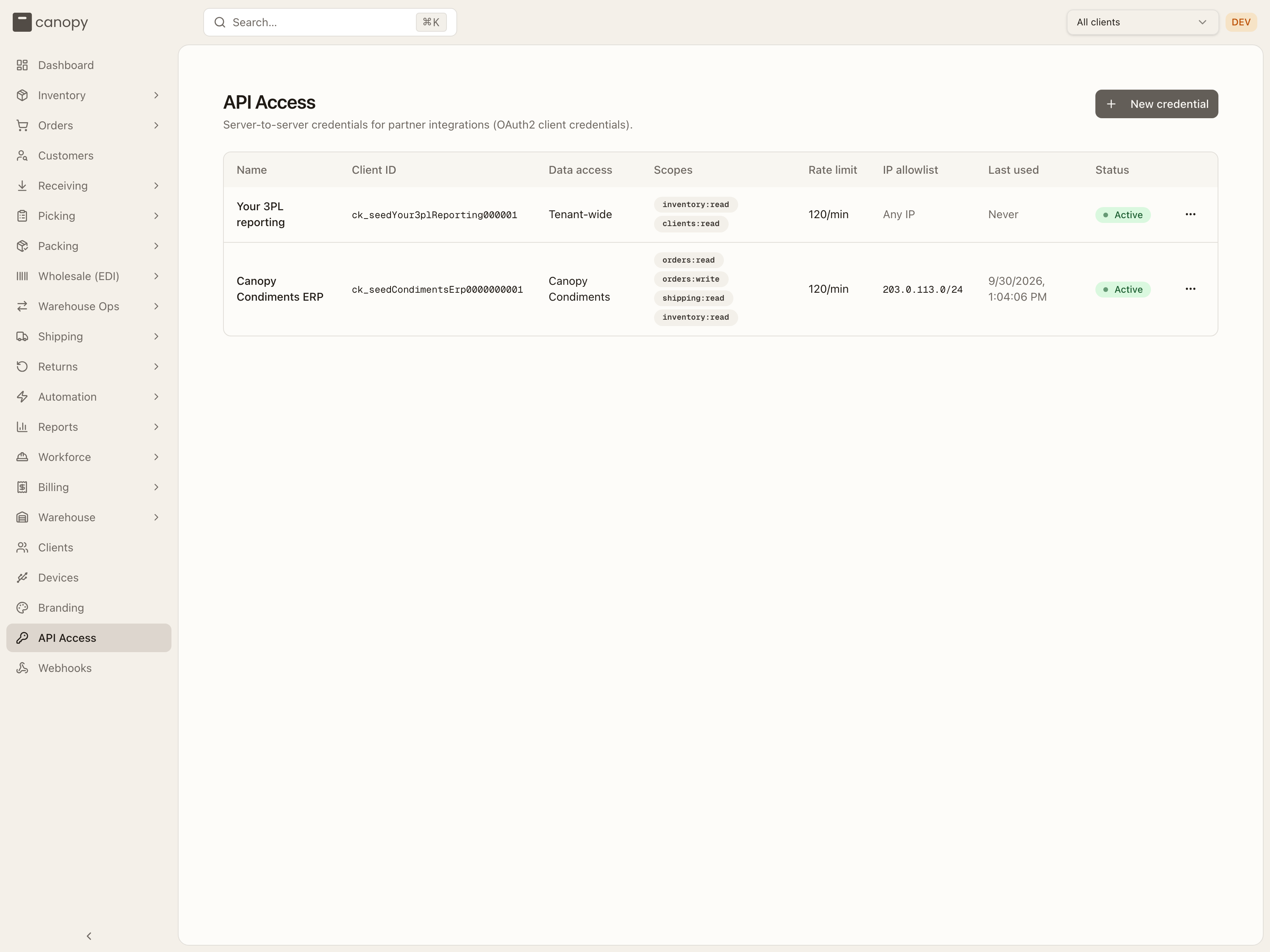
API Access → /settings/api-credentials. Server-to-server credentials for
partner integrations. A credential is what an outside system — an ERP, a
partner, an automated agent — presents to POST /oauth/token to mint a bearer
token good for one hour, then uses on every API call. This page is the admin's
side of that arrangement; the developer's side is
Authentication.
The credentials table
Every credential the tenant has ever issued, newest first. With none yet, the page reads "No API credentials yet — Create a credential to let an external system call the CanopyWMS API."
| Column | Shows |
|---|---|
| Name | The label you gave it — name it for the integration, not the person. |
| Client ID | The OAuth client id (ck_…) the integration sends to the token endpoint. Not a WMS client. |
| Data access | The brand the credential is pinned to, or Tenant-wide. |
| Scopes | Each scope granted, as a badge. |
| Rate limit | Requests per minute, e.g. 120/min. |
| IP allowlist | The allowed IPs / CIDR ranges, or Any IP. |
| Last used | When the integration last minted a token, or Never. |
| Status | Active (green) or Revoked (red). |
A revoked credential stays in the list, dimmed, and has no row menu. An active one has a ⋯ menu with Rotate secret and Revoke.
New credential
New credential (top right) opens the New API credential dialog:
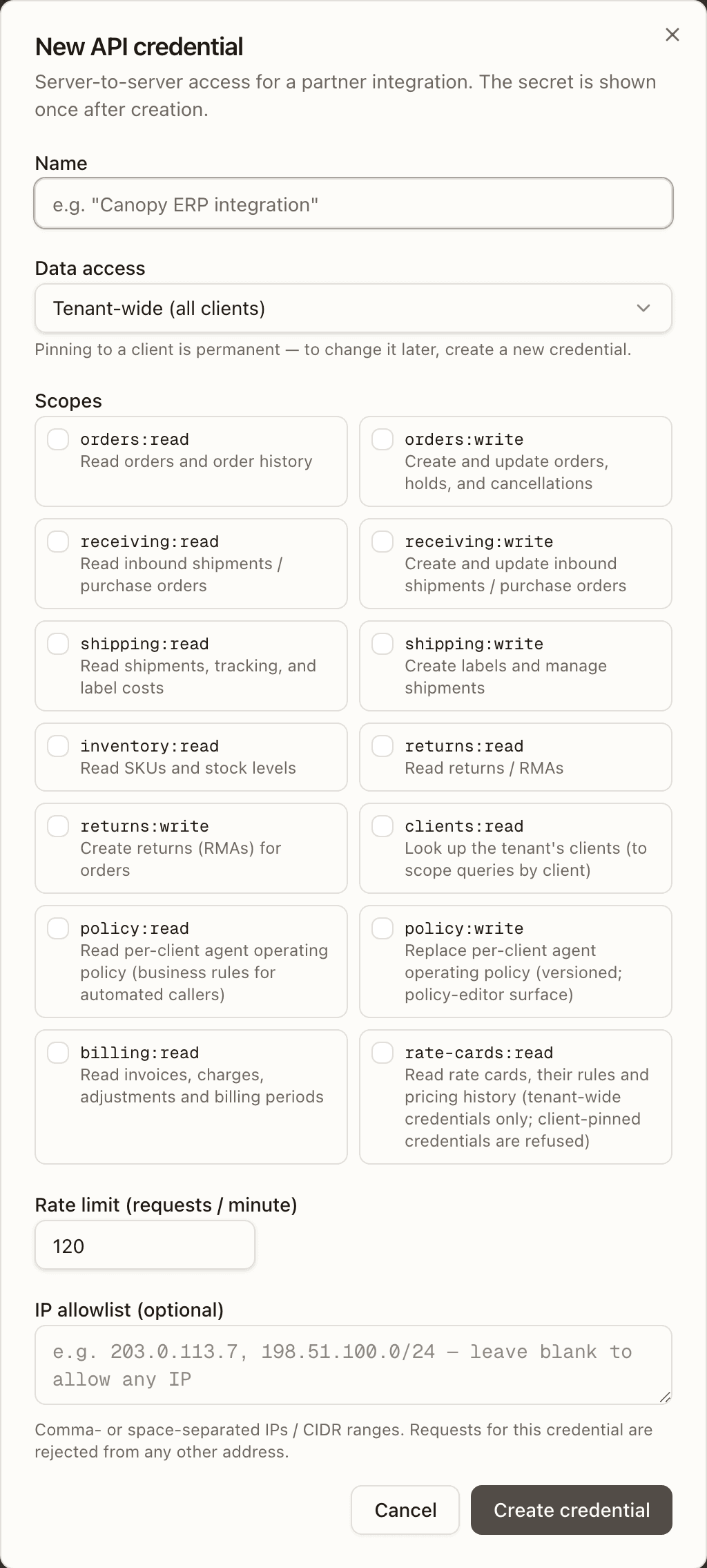
-
Name (required, up to 100 characters) — e.g. "Canopy ERP integration".
-
Data access — Tenant-wide (all clients), or one client. A tenant-wide credential can act across every brand you serve; a pinned one is confined to that brand's data. Pinning is permanent — to change it later, issue a new credential.
-
Scopes (at least one) — tick only what the integration actually calls:
Scope Grants orders:readRead orders and order history orders:writeCreate and update orders, holds, and cancellations receiving:readRead inbound shipments / purchase orders receiving:writeCreate and update inbound shipments / purchase orders shipping:readRead shipments, tracking, and label costs shipping:writeCreate labels and manage shipments inventory:readRead SKUs and stock levels returns:readRead returns / RMAs returns:writeCreate returns (RMAs) for orders clients:readLook up the tenant's clients (to scope queries by client) policy:readRead per-client agent operating policy (business rules for automated callers) policy:writeReplace per-client agent operating policy (versioned; policy-editor surface) billing:readRead invoices, charges, adjustments and billing periods rate-cards:readRead rate cards, their rules and pricing history (tenant-wide credentials only; client-pinned credentials are refused) What the two billing scopes return depends on the credential's Data access. Pinned to a client,
billing:readreturns that client's invoices, charges, adjustments and periods in the shape the client's own login would see, andrate-cards:readis refused outright; tenant-wide, both read across every brand. Neither writes anything. -
Rate limit (requests / minute) — 1 to 6000, default 120.
-
IP allowlist (optional) — comma-, space- or newline-separated IPs or CIDR ranges (
203.0.113.7,198.51.100.0/24). Leave blank to allow any address. When set, the credential can only mint tokens — and only call the API — from those addresses; an entry that isn't a valid IP or CIDR is refused with "Invalid IP/CIDR entry: …".
The dialog refuses to submit without a name, a scope, or a rate limit in range ("Name is required", "Select at least one scope", "Rate limit must be between 1 and 6000"). Cancel discards it; Create credential issues it.
API access is a Canopy entitlement
Credentials can only be issued once Canopy has enabled API access for your tenant, and within the tier they set: a cap on credentials (and, optionally, on client-pinned ones), the scopes you may grant, and a rate-limit ceiling. Going past any of these shows the reason in the dialog — "API access is not enabled for this tenant. Contact Canopy to enable it.", "API credential limit reached (N)…", "Client-scoped credential limit reached (N)…", "These scopes are not permitted by your API access tier: …", or "Rate limit N/min exceeds your API access tier ceiling of M/min." Revoked credentials don't count toward the cap. If the tier is later narrowed, tokens are clamped to it as they are minted, and if access is switched off no credential can mint a token at all.
The one-time secret
Creating a credential opens API credential ready, with the Client ID and
Client secret each beside a copy button, and a reminder that tokens are
minted at POST /oauth/token with grant_type=client_credentials. The secret
is shown only this once — CanopyWMS stores a hash of it, never the secret —
so copy it and hand both values to the integration owner over a secure channel
before pressing Done. Clicking outside the dialog does not close it, so a
stray click can't lose the one view you get. If the secret is lost, rotate the
credential for a new one.
Everything the integration does is attributed to a service account named after the credential ("Name (API)"), so audit trails show which integration acted.
Rotate secret and Revoke
- Rotate secret asks "Rotate secret for "Name"? The current secret stops working immediately for new tokens. Tokens already issued remain valid for up to 1 hour." Confirming shows the same API credential ready dialog with the unchanged Client ID and a new secret. Plan the hand-over with that hour of overlap in mind.
- Revoke asks "Revoke "Name"? The integration loses access permanently (in-flight tokens expire within 1 hour). This can't be undone — create a new credential to restore access." Confirming flips the row to Revoked and deactivates its service account. Nothing is deleted.
There is no edit action on this page. To change a credential's scopes, rate limit, allowlist, or data access, issue a new credential and revoke the old one.
Environments
Sandbox and production are fully separate. A credential issued in the staging
app (app.staging.canopywms.com) only works against
api.staging.canopywms.com; one issued in production only works against
api.canopywms.com. Issue a sandbox credential first so the integration can be
proven end to end, then a production one when it goes live.
Webhooks
Webhooks → /settings/webhooks. Signed, retried event notifications pushed
to your systems — or your client's — as things happen, instead of polling.
Register an endpoint URL, choose which events it gets, and CanopyWMS POSTs a
signed JSON body to it for each one. The developer's side (payloads, signature
verification, retry semantics) is Webhooks.
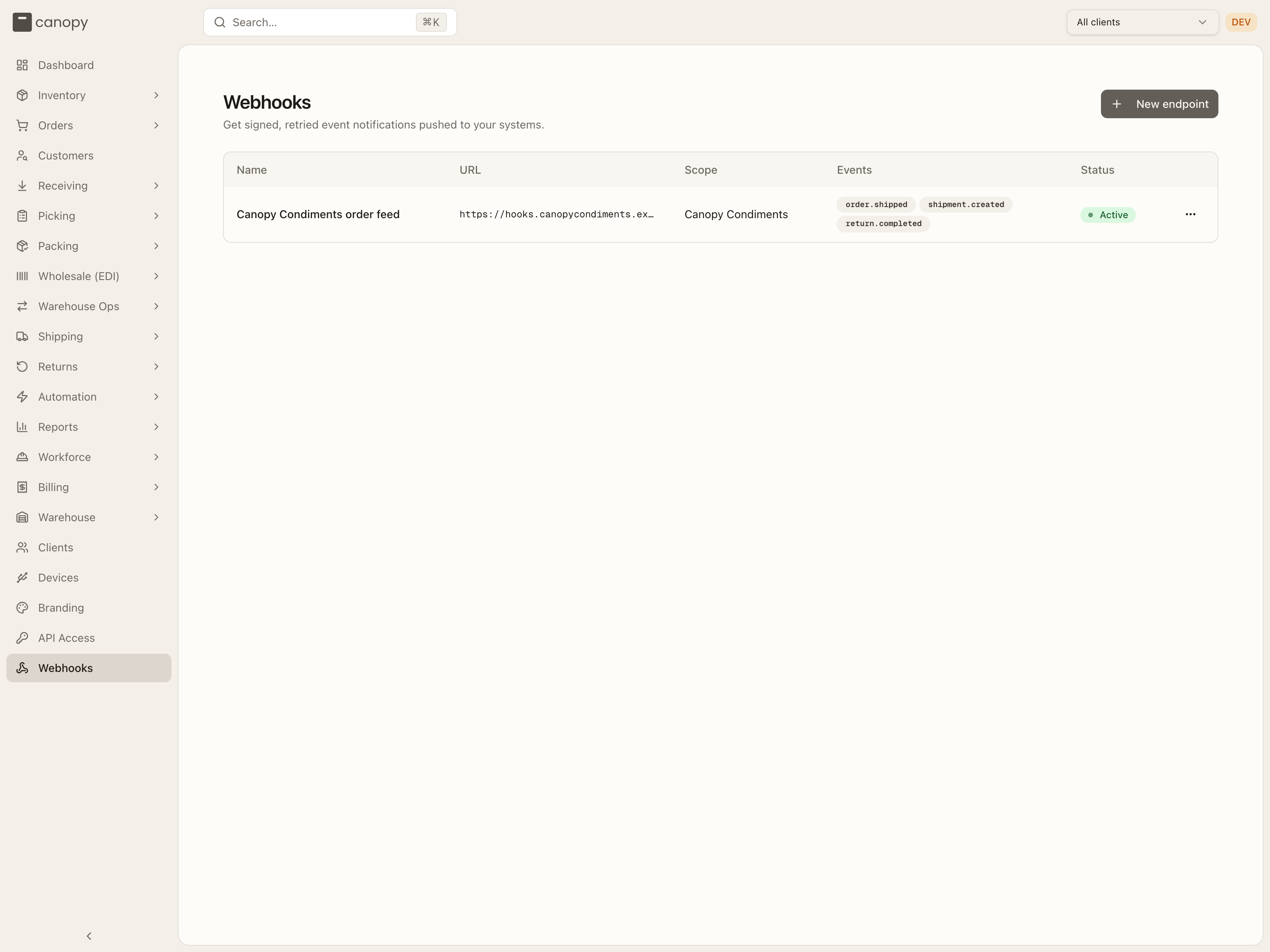
The endpoints table
Every endpoint, newest first. With none yet, the page reads "No webhook endpoints yet — Register an endpoint to receive event notifications from CanopyWMS."
| Column | Shows |
|---|---|
| Name | The label you gave it. |
| URL | The receiving address, truncated if long. |
| Scope | The brand it is pinned to, or Tenant-wide. |
| Events | Each subscribed event type, as a badge. |
| Status | Active (green) or Disabled (grey). |
Disabled rows are dimmed. Every row has a ⋯ menu: View deliveries, then — for an active endpoint — Rotate secret and Disable, or — for a disabled one — Enable.
New endpoint
New endpoint (top right) opens the New webhook endpoint dialog:
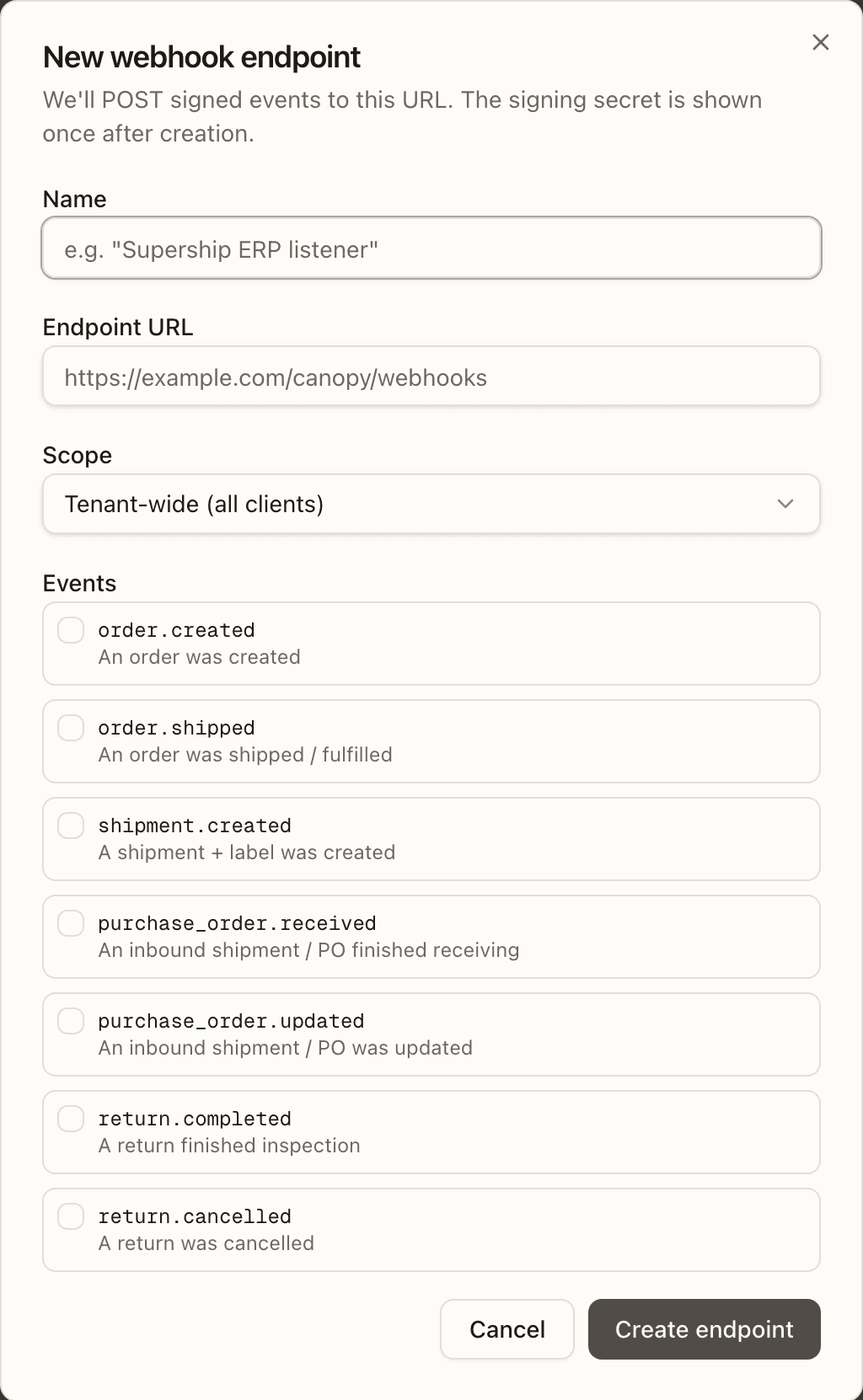
- Name (required, up to 100 characters) — e.g. "Supership ERP listener".
- Endpoint URL (required) — where to
POST. It must be https and must resolve to a public address. A URL that is not https, that carries a username or password, or whose host resolves to a private, loopback, link-local or cloud-metadata address is refused with "Webhook URL rejected (reason). Must be a public https URL." The same check runs again at every delivery, so an address that later starts resolving somewhere private stops receiving. - Scope — Tenant-wide (all clients) gets every brand's events; a client-pinned endpoint gets only that brand's. Each event is delivered once to every endpoint whose scope and subscription match.
- Events (at least one) — the catalog below.
The dialog refuses to submit without a name, a URL, or an event ("Name is required", "URL is required", "Subscribe to at least one event"). Two more limits are enforced when you press Create endpoint: a tenant may have at most 25 active endpoints ("Endpoint limit reached (25). Delete or disable one first."), and only one active endpoint per URL — the URL is matched exactly, so a trailing slash counts as a different address — otherwise "the active endpoint "Name" already delivers to this URL…".
The signing secret
Creating an endpoint opens Signing secret: the secret (whsec_…) beside a
copy button, and a warning that it is shown only this once — if it is lost,
rotate the endpoint for a new one. Clicking outside the dialog does not close
it. Give the secret to whoever runs the receiver: every delivery carries an
X-Canopy-Signature header (sha256=<base64>), an HMAC-SHA256 that the
receiver recomputes over the X-Canopy-Timestamp header and the raw request
body, using this secret — see
Verifying the signature for the
exact recipe. The secret is stored encrypted so the delivery worker can sign
with it, but it is never displayed again.
Row actions
- View deliveries opens the delivery log for that endpoint (next section).
- Rotate secret asks "Rotate secret for "Name"? The current signing secret stops working immediately. Update your receiver with the new secret shown next." Confirming shows the Signing secret dialog with the new value. Every delivery from then on — including retries of older events — is signed with the new secret, so update the receiver straight away.
- Disable asks "Disable "Name"? This endpoint stops receiving events immediately. Its delivery history is preserved and you can re-enable it later." While disabled, new events create no deliveries for it, and anything still queued for it fails with Endpoint inactive. Re-enabling does not replay what it missed — use Replay on individual deliveries for that.
- Enable re-activates a disabled endpoint immediately. It fails, with a toast, if another active endpoint has taken the same URL in the meantime.
There is no edit action on this page. To change an endpoint's URL or events, register a new endpoint and disable the old one.
Delivery log
View deliveries opens Recent deliveries — Name: the 50 most recent delivery attempts, newest first, or "No deliveries yet."
| Column | Shows |
|---|---|
| Event | The event type, e.g. order.shipped. |
| Status | PENDING (amber — queued, or waiting for its next retry), RUNNING (blue — being sent right now), SUCCEEDED (green — the receiver answered 2xx), or FAILED_PERMANENT (red — every attempt failed). |
| Attempts | How many times it has been sent. |
| HTTP | The receiver's last response status, or — if it never answered. |
| Error | A short reason for the last failure — HTTP 503, request_failed: timeout, request_failed: ECONNREFUSED, URL blocked: private_target, Endpoint inactive — or —. Hover for the full text. |
| When | When the delivery was queued — effectively when the event fired. |
Each delivery gets up to six attempts: the first, then retries after
1 min, 5 min, 30 min, 2 h and 6 h. Each attempt waits 10 seconds for a
response; any 2xx counts as success, anything else (or a timeout) schedules
the next retry, and the sixth failure marks the delivery FAILED_PERMANENT.
Replay (on every row, including successful ones) re-arms that delivery: it
goes back to PENDING with a fresh attempt count and is sent on the delivery
worker's next pass, with the same event id and body as the original — only the
timestamp and signature are recomputed. Use it once the receiver is fixed.
Delivery history is kept for 30 days. Older events and their deliveries are pruned automatically, but only once every delivery of that event has finished — a delivery still retrying is never cut.
Event catalog
| Event type | Fires when |
|---|---|
order.created | An order was created |
order.shipped | An order was shipped / fulfilled |
shipment.created | A shipment + label was created |
purchase_order.received | An inbound shipment / PO finished receiving |
purchase_order.updated | An inbound shipment / PO was updated |
return.completed | A return finished inspection |
return.cancelled | A return was cancelled |
Event names are a stable, additive contract — new types are added over time, existing ones are never renamed. What each payload carries is in the event catalog on the developer's page.
How to issue an API credential
Open API Access and press New credential
Sign in as a tenant admin and open API Access at the bottom of the sidebar. The list shows every credential already issued. Press New credential in the top right.
Describe the integration
Fill in the New API credential dialog. Name it for the system that will use it. Under Data access, pin it to the one brand it serves unless it genuinely needs every client — pinning cannot be changed later. Tick only the scopes it will call. Leave the rate limit at 120 unless the owner has asked for more, and put the integration's egress addresses in the IP allowlist if it has stable ones.
Press Create credential.
Copy the secret — you will not see it again
The API credential ready dialog shows the Client ID and the Client secret. Copy both with the copy buttons and pass them to the integration owner over a secure channel, together with the base URL for this environment. Only then press Done. If the secret is lost later, use Rotate secret on the row for a new one.
Confirm it is live
The new row shows Active, with Last used at Never. Once the integration mints its first token, Last used fills in — that is your confirmation the hand-over worked. If it can't mint a token, check the IP allowlist first, then the scopes.
How to add a webhook endpoint
Open Webhooks and press New endpoint
Sign in as a tenant admin and open Webhooks at the bottom of the sidebar. Press New endpoint in the top right.
Describe the receiver
Fill in the New webhook endpoint dialog: a Name, the receiver's Endpoint URL (https, on a public host), the Scope — one brand, or tenant-wide — and the Events it should get.
Press Create endpoint. If the URL is refused, the message says why — a non-https address, or a host that resolves to a private network.
Copy the signing secret
The Signing secret dialog shows the secret once. Copy it, hand it to whoever runs the receiver so they can verify each delivery's signature, then press Done.
Send a first event and check the log
Trigger one of the subscribed events — ship an order for that brand, say — then
open the row's ⋯ menu → View deliveries. A SUCCEEDED row with a 2xx
under HTTP means the receiver is answering. A failure shows the reason in
Error; fix the receiver and press Replay on that row rather than waiting
for the next retry.