

Cost to serve
What each brand cost your warehouse in labour, per order, per week and per stage, measured from task timestamps and set beside what you billed them.
Reports → Cost to Serve → /reports/cost-to-serve. This report shows what
each brand cost your warehouse in labour. The header reads "What each brand
cost in warehouse labour, from receiving to the sealed box". Every number on
it comes from the time your team spent on that brand's tasks. A job works the
figures out once a night, so the newest day you can see is yesterday.
The page answers three questions, in order. Which brands cost the most, and is any of them losing money? Is it getting worse? Where does one brand's time go, and is that normal? Below them sits a panel of what the figures assume.
Behind a launch switch
Cost to serve is switched on per environment, like billing. Until it is on for yours, the sidebar has no Cost to Serve entry and the page is a 404. The API refuses its routes on its own switch, and the nightly job does not run. Everything below describes the page where it is on.
Who can open it
Cost to serve is for warehouse staff only. It compares every brand against the others, so a brand never sees it. The sidebar hides the entry from client users. A client user who types the address sees "Access restricted" and "Cost to serve is available to warehouse staff only." The API refuses client users on every cost-to-serve route as well.
Both staff roles can read the page. Only a tenant admin can change the labour rate: the Change labour rate button shows for admins only, and the API answers anyone else with "Admin access required".
Where the numbers come from
The nightly job
Each active warehouse gets its own run, at 00:30 in that warehouse's timezone. A run works out one row per brand per day: its minutes by stage, its counts and its cost. It redoes the last 30 days every night, ending yesterday, because a late or voided charge changes a day's revenue. It also takes up to 90 days, newest first, that were priced at an earlier labour rate, and reprices them. Stale days among the last 30 count towards the 90.
A run has 60 seconds. Days it does not reach wait for the next night, and yesterday always goes first. A warehouse added after the API last started gets its run from the next restart.
What labour it counts
The job reads the time stamps on five kinds of task. It counts nothing after the box is sealed: shipping, carriers and returns are not in it.
| Stage | The task | Its minutes |
|---|---|---|
| Receive | A receipt on an inbound shipment | None. A receipt is a single moment, so it is counted but not timed. |
| Putaway | A putaway task | None today. Receiving puts stock straight into its bin, so there is no putaway task to time. Put-back tasks are not counted. |
| Replenish | A replenishment move | From start to finish. |
| Pick | A pick list | From start to finish. |
| Pack | A pack session, re-sends included | From start to finish. A session left open long after its label printed ends at the label instead. |
A task belongs to the day it finished, in the warehouse's timezone. A task under 5 seconds is counted but adds no minutes. A task over 4 hours counts as 4 hours, so a task someone forgot to close cannot invent a night of work.
How it is split per brand
Every pick list holds one brand's orders, and every pack session is one order. So each task's whole time goes to the one brand it was for. There is no sharing out to do.
How it is priced
Labour cost is the minutes counted, divided by 60, times the labour rate. The rate starts at 22.00 USD an hour, counting business days only, the first time the job runs for your tenant. Business days only leaves out work done on a day that is not one of the warehouse's business days, and counts every business day as a full 24 hours. Around the clock counts every minute.
Orders are the pack sessions finished that day. A re-send is not counted as another order. Its labour still counts, and the table shows it apart as Reship labour.
Revenue is what you billed the brand that day at that warehouse, when billing is switched on. It is every billable charge: handling, postage, storage, returns and ad-hoc fees. The handling share is the pick, order-fee and receiving charges. With billing off there is no revenue. Revenue stays in the currency it was billed in and is never converted.
Margin is revenue minus labour cost. Postage and other direct costs are not taken off. When labour and revenue are in different currencies, there is no margin.
The labour standard
For picking and packing, the job also learns a labour standard for each warehouse. It is a rule for how long a pick list or a pack session should take, given what is on it. It learns from the last 90 days of work and checks itself against the last 14. A standard is kept only when it predicts better than a simple average. The job learns it again every 7 days, or when what the model considers changes. Until a first standard is kept, it tries every night. A failed attempt leaves the standard already in use.
Each day is then scored against the standard. That gives the minutes the work should have taken, beside the minutes it took. Receiving, putaway and replenishment have no standard.
The page
Date range and filters
Choose the window across the top: Last 7 days, Last 30 days (the default), Last 90 days or Custom. Custom adds From and To dates. The API takes a window of up to 366 days.
The page has no brand or warehouse picker of its own. It follows the topbar client switcher and warehouse switcher. Chips on the right read the scope back: Range, Client (All clients until you pin one), Warehouse (All warehouses) and Revenue.
All revenue and Handling only switch what labour is set against. Handling only compares labour with the pick, order-fee and receiving charges alone, the work the minutes measure. Every revenue and margin figure on the page follows the switch.
Show detail brings back what the page hides by default: zero stages, the raw identifiers and a few footnotes. Hide detail puts them away.
Export downloads the table as a CSV named for the window, such as cost-to-serve-2026-09-18-to-2026-10-17.csv. The file adds the reship labour split, the currencies and each brand's cost per order against the average. The toast says how many clients went into it.
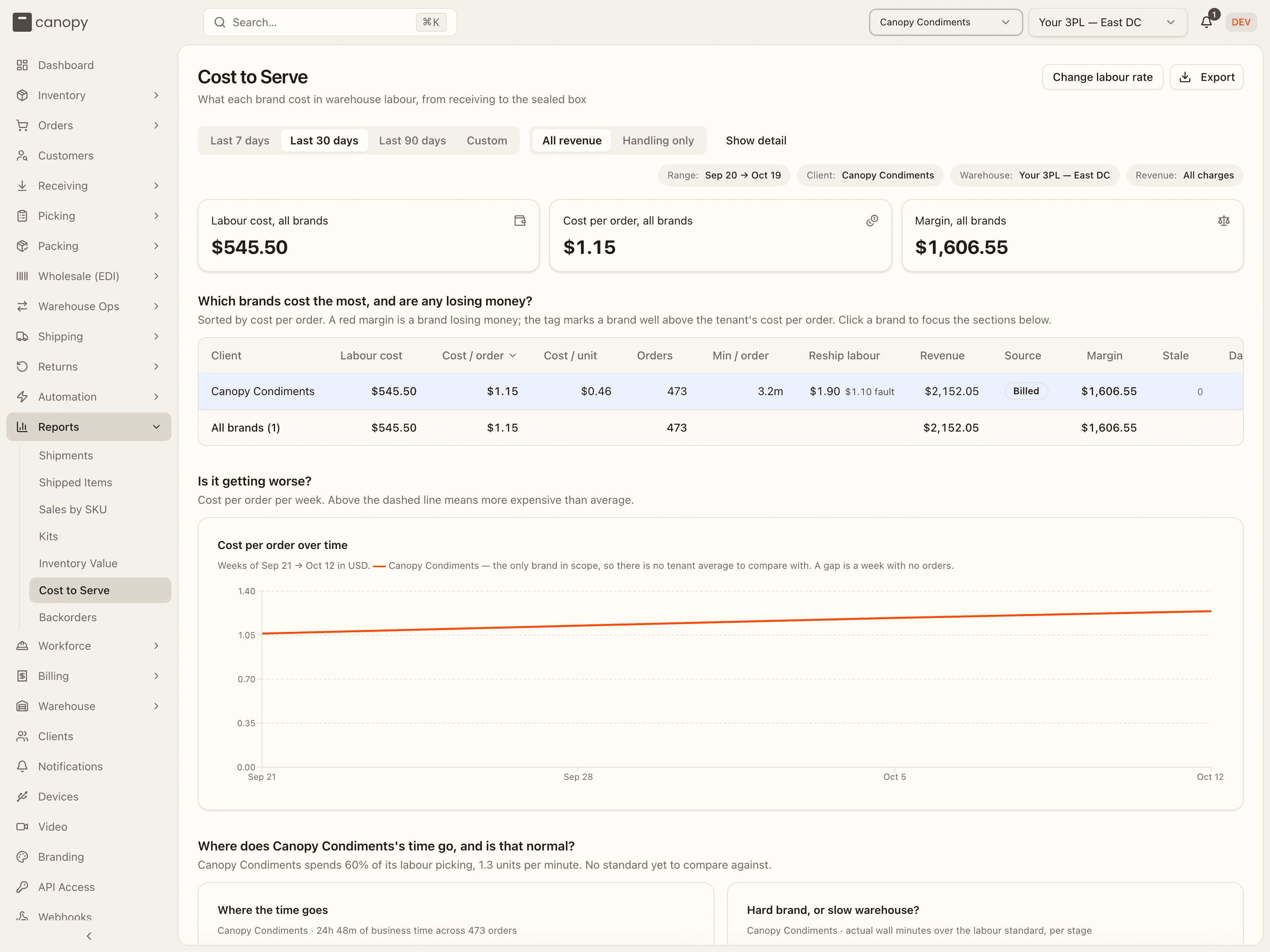
The tiles
Three tiles sit above the table: Labour cost, all brands, Cost per order, all brands and Margin, all brands. The margin turns red below zero. Under Handling only, the third tile reads Handling margin, all brands. A tile shows currency codes instead of a figure when the brands' money is in more than one currency. The margin tile reads no revenue when no day has a revenue figure, as with billing off.
Which brands cost the most
One row per brand, sorted by cost per order, dearest first. Click a header to sort by it, and again to flip the order. Blank figures sink to the bottom. Click a brand's row to focus the two sections below on it. The footer row, All brands (N), holds the totals.
| Column | What it shows |
|---|---|
| Client | The brand. |
| Labour cost | Its labour cost over the window. |
| Cost / order | Labour cost over orders. A tag such as 2.3× avg marks a brand at 1.5 times the all-brand cost per order or more. no orders when it packed none. |
| Cost / unit | Labour cost over units picked. |
| Orders | Pack sessions finished, re-sends left out. |
| Min / order | Business minutes across the five stages, per order. |
| Reship labour | Labour on re-sends, already inside labour cost. A red fault figure is the part spent re-sending wrong items. Hover for the split: warehouse fault, goodwill (the client asked), other. |
| Revenue | What you billed. Handling revenue under Handling only. no revenue when no day has a revenue figure, as with billing off. A day with nothing billed counts as zero. |
| Source | Billed, or Mixed currency when one day's charges were in two currencies. none without revenue. |
| Margin | Revenue minus labour cost, red when the brand is losing money. Handling margin under Handling only. |
| Stale | Days priced at an older labour rate, waiting for the nightly job. |
| Days | Days the job priced for the brand. It reads Warehouse-days when more than one warehouse is in the window, because each warehouse counts its own row. |
A money figure that would need adding across two currencies shows the codes, such as USD, CAD, never a wrong total.
Is it getting worse
The Cost per order over time panel draws one point a week, for weeks starting on Monday. The bold line is the focused brand. The dashed line is the average across every brand, so a point above it means that week cost more than average. With only one brand in scope there is no average line, and the caption says so. A gap in the line is a week with no orders. When no week has a cost per order to draw, the panel reads "No days in this window".
Where the time goes
The third section is about one brand: the pinned brand, else the row you clicked, else the dearest per order. Its heading asks "Where does <brand>'s time go, and is that normal?". A sentence under it sums the brand up: the share of its labour spent picking, its units per minute, and how it compares with the standard.
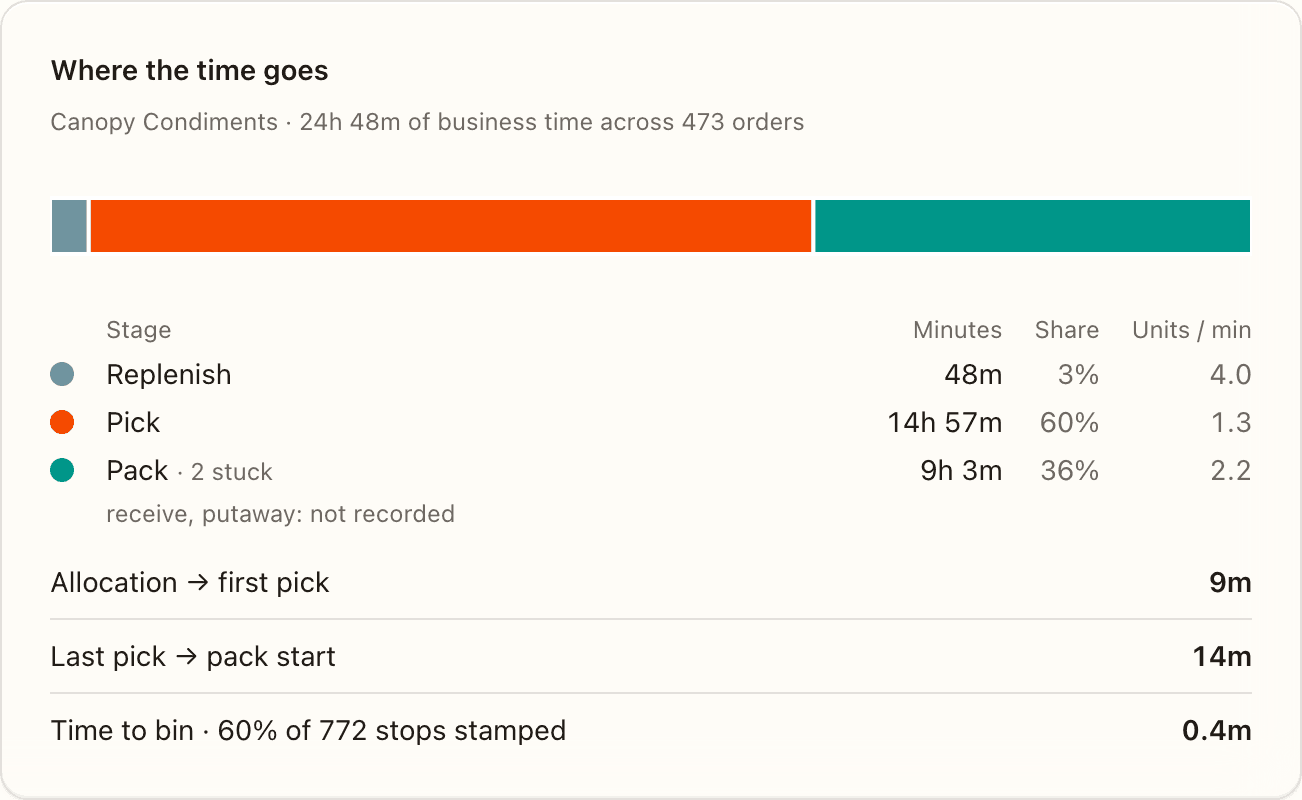
The Where the time goes panel is one bar of the brand's business minutes, split by stage: Receive, Putaway, Replenish, Pick and Pack. The list under it gives each stage's Minutes, Share and Units / min. Light stages with no minutes fold into one line, such as "receive, putaway: not recorded". A · N stuck note on Pack counts sessions left open long after their label; their wait is already left out.
Under the list, three waits appear when they have a value:
- Allocation → first pick: the average time from an order being allocated to the first pick list that started on it.
- Last pick → pack start: the average time from its last pick list finishing to its first pack session starting.
- Time to bin: the average walk between bins, from the last item placed in a tote at one stop to the scan at the next bin. Its label gives the share of the brand's bin stops it could time, as N% of M stops stamped. The arrival is stamped when the picker scans or confirms the bin (see Active Pick). Time to bin is shown for reference and does not change the cost.
With Show detail on, a note counts the waits that ran backwards and were left out of the averages.
Hard brand, or slow warehouse
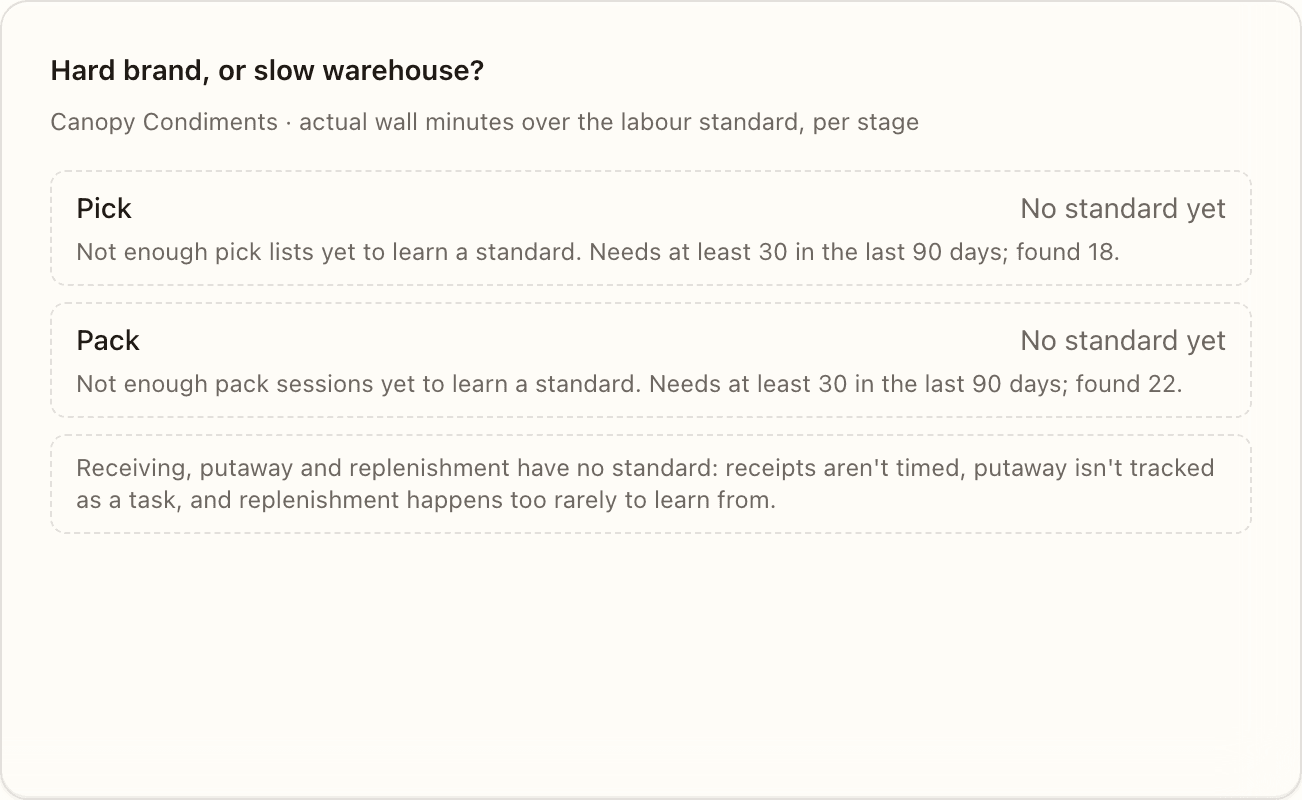
This panel tells a hard brand apart from a slow warehouse. For Pick and Pack it shows actual minutes over the standard's expected minutes, such as 1.50×. It is red above 1.1 and green below 0.9. Under the ratio sit Actual, Expected and how many of the brand's days were scored. When some days were not scored, a note says the ratio covers the scored days only.
The standard already allows for what was on each list, such as how many products and how many items of each. So a brand with big orders can cost a lot and still sit near 1.00×: it is a hard brand. A ratio well above 1 means the work ran slower than its size explains.
A stage with no standard reads No standard yet, with the reason for each warehouse. The reasons are plain sentences, for example "Not enough pick lists yet to learn a standard.", or that the new attempt was no better than a simple average. When a standard exists but no day in the window was scored against it, the line says the days were worked out before it existed.
When any day was scored for both pick and pack, two lines close the panel: Actual cost on the N scored days and Cost at standard, same days. The second prices pick and pack at the expected minutes.
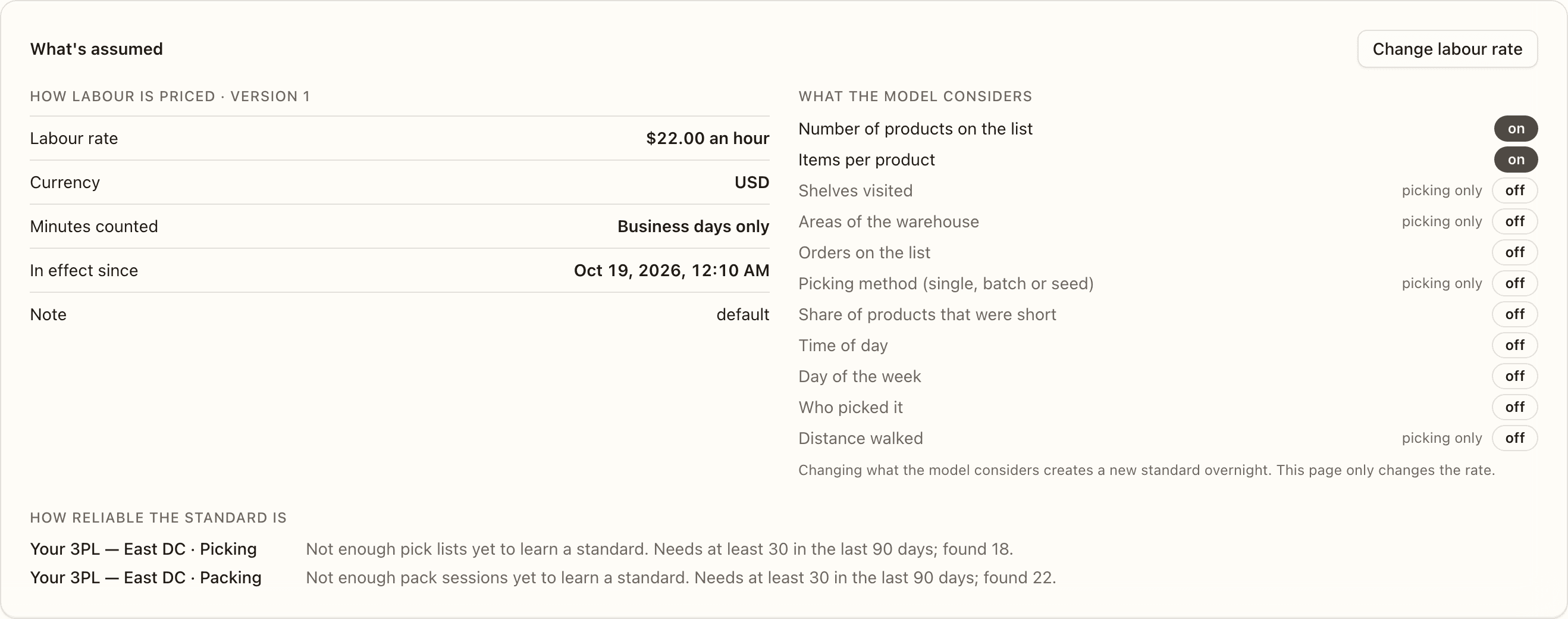
What's assumed
The last panel is reference: what every figure above rests on. It has three parts.
How labour is priced · version N lists the Labour rate (an hour), the Currency, Minutes counted (Business days only or Around the clock), In effect since and any Note. Earlier rates opens the older versions. When some days were priced at an older rate, a note says the figures will shift as the nightly job catches up. Show detail adds Days priced at an older rate.
What the model considers lists everything the labour standard could learn from, each marked on or off. Number of products on the list and Items per product are on to start with. Some are marked picking only. This page cannot change them. Its dialog changes only how labour is priced.
How reliable the standard is gives one sentence per warehouse for picking and for packing. After a successful attempt it says how many pick lists or pack sessions the standard learned from, and how close its predictions run. A refused attempt says why, and whether an older standard stays in use. "No attempt yet." means the job has not tried.
Before the job has run once, the panel reads "No labour rate set yet. The nightly job starts one at 22.00 USD an hour, counting business days only, the first time it runs."
When there is nothing to show
With no priced day in the window, the table and charts give way to "No priced days in this window". Widen the range, or check that the job has run for the warehouse. When the API returns an error, a red Could not load cost to serve banner says so. With the page switched on but the API's switch off, you see that banner over the empty state.
How to change the labour rate
Open Cost to Serve as a tenant admin
Open Reports → Cost to Serve. Press Change labour rate, at the top right or on the What's assumed panel. The button shows for a tenant admin only. Until the nightly job has set the first rate, it is missing at the top right and greyed out on the panel.
Fill in the new rate
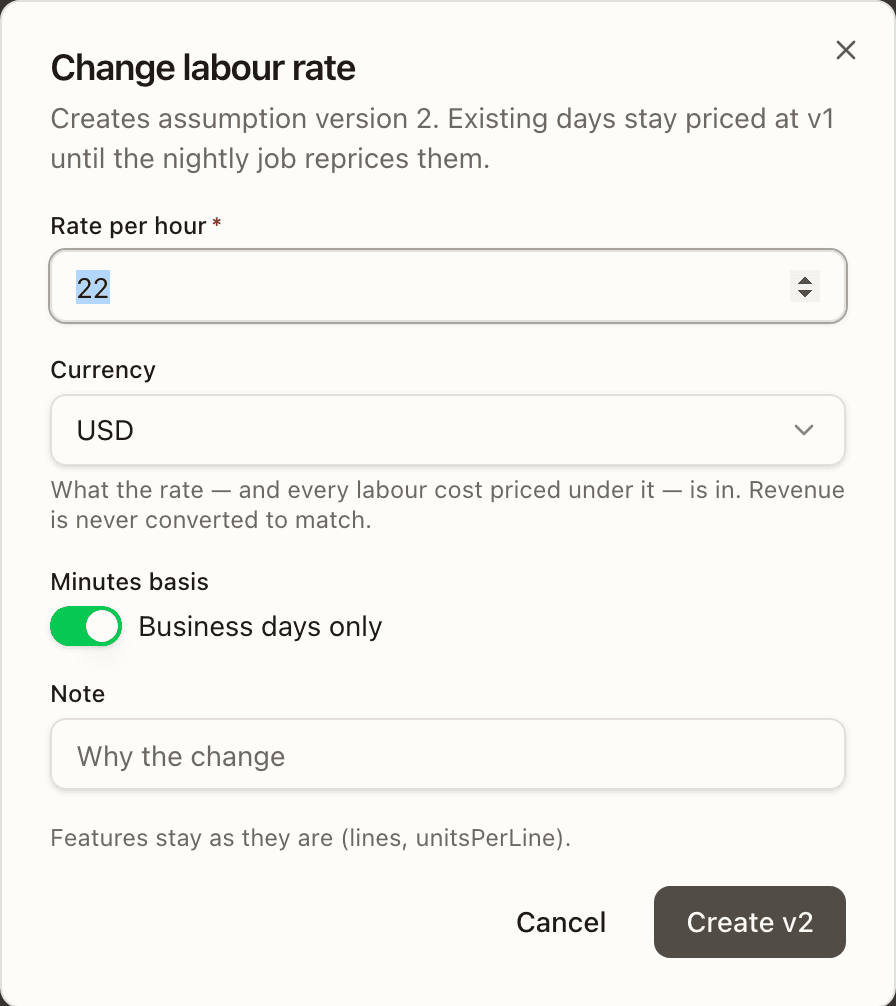
The Change labour rate dialog opens with the current values filled in. Its description says it "Creates assumption version N". Set the Rate per hour. Check the Currency: "What the rate — and every labour cost priced under it — is in. Revenue is never converted to match." Leave Minutes basis on Business days only, or switch it to Wall clock. Write why in the Note. What the model considers stays as it is.
Press Create
Press Create vN. A rate of zero is refused with "Rate must be above zero". On success the toast reads "Labour rate vN is active. Every priced day is now stale; the nightly job reprices up to 90 a run."
Let the nightly job reprice
The new version shows on What's assumed at once. The days already priced keep the old rate until the job reprices them, and the Stale column counts them until then. Each night, a warehouse's run redoes the last 30 days first, then the other stale days, newest first. It takes at most 90 stale days a night, the last 30 included. A currency change works the same way. While a window holds days in two currencies, the money figures show the codes instead of a total.