

Pack Video
A camera over a pack bench records every pack. Find the clip of any order by order number, tracking number or SKU, watch it with a tick per scan, and see why a pack has no clip.
Pack video gives you and your brands a video of every pack. A USB camera over the bench records the whole shift into a one-hour buffer on the bench laptop. When a packer scans a tote, the server notes that a clip is owed for that order. When the packer completes the pack, the laptop cuts out the stretch around that pack, uploads it, and the clip appears on the order. Every item scan is a mark on the clip's timeline. Nothing is installed on the laptop, there is no audio, and only the footage around a pack ever leaves the bench.
A clip runs from two minutes before the tote scan to fifteen seconds after Complete Packing. Those two numbers, and how long clips are kept, are the tenant's rules on Settings → Video.
Setting it up
Three things have to be true before a bench records.
- The camera is paired and named. On Settings → Devices, pair the camera, give it a name such as Camera 1, and pick its warehouse. The name is what the pack station and every clip call the bench.
- Video is on for the brand. It is on by default. A tenant admin switches it off per brand on the client's panel, under Pack video. The same panel has a second switch, Brand may share links, off by default. Off, the brand's users get no Clip & share button on their clips. Staff can always share. See Clip and share.
- The rules suit you. The defaults are 120 seconds of lead-in, a 15 second tail, standby after 10 minutes without a scan, and clips kept for 120 days. Change them on Settings → Video.
At the bench
Everything in this section is on the Pack Station. A bench with no camera sees none of it.
The strip above the session
When you open the station, the camera starts on its own. A grey line above the session reads "Starting the camera on Camera 1… scan when ready." You can scan straight away.
If something is wrong, the line becomes a yellow banner. Packs carry on, but without video, until it is fixed.
- Camera not detected — packs are not being recorded. Plug the camera in and it reconnects by itself. Or press Retry, Change camera (which opens Settings → Devices), or Pack without video.
- Recording ended — packs are not being recorded. The session ended: you logged out, another station took the camera over, video was switched off for this camera, the recorder failed, or Recording ended while the laptop was asleep and no camera could be opened when it woke. Press Retry to start again.
- Camera in use by a packer's name since a time. Another station holds this camera. Press Take over to use it here. That works once the other station has been quiet for a minute.
After the laptop sleeps
A bench that stops reporting is marked silent after a minute. After ten minutes of silence the server ends its session, and any pack that was still open on it is closed as Cut short. When the laptop wakes, because the lid opened, the tab came back, or the network returned, the station reports in at once. A session the server ended for silence starts recording again by itself. Nothing to press. Only a takeover, a sign-out, or a camera that could not be opened on waking leaves the yellow banner up. If the pack was still in progress, its next scan opens the rest of its video as a second part (see A pack in parts).
The badge
A pill in the station header says what the camera is doing. Hover it for the camera's name, the frame rate and how many minutes are buffered.
| Badge | Meaning |
|---|---|
| Recording · 720p | Recording. 480p means the laptop could not keep up and dropped to the lighter profile. |
| Standby | No scan for a while, so the bench stopped writing footage. The next scan wakes it. Standby is never a fault. |
| Camera down or Disk full | The camera stopped sending video, or the laptop has no room left. See When the camera goes down. |
| Video ended | The session ended. The strip says why and offers Retry. |
| No camera | The camera could not be opened. |
On every other page, the same pill sits in the topbar and reads Recording · Camera 1, Standby, Camera down or No camera. Click it to get back to the station. The camera keeps recording while you move around.
A second pill can sit beside it. While someone on your team watches this bench live, the topbar says Live, on every page. It never names who is watching. Hover it for what it means. Who can watch, and when, is on Live Bench View.
A bench that is not recording but still has clips to send, say the last shift's, shows Uploading 2 clips instead. A paired laptop sends them from whatever page you are on once you are signed in. The pill goes when the last one is up.
A diagnostics panel in the header lists the clips still on this laptop, with a link to each order's Video tab, and the recorder's own numbers: frames per second, minutes buffered, files written.
When the camera goes down
Between packs, a dialog opens that you cannot close by hand. It names the problem (Camera unplugged, Camera stopped sending video, Camera taken by another app, or The laptop's disk is full) and the fix, and counts how long recording has been stopped. The bench tries again every few seconds. When the camera is back, the dialog closes on its own.
During a pack, nothing blocks. A red strip reads Recording stopped 0:42 ago and the pack finishes without video. Its clip is marked Partial. The dialog opens once the pack is done.
Packing without video
Each of the banners, and the dialog, has a Pack without video button (the dialog's reads Keep packing without video). Type why first, for example camera broken, IT told. The button stays off until there is a reason, and only a click presses it, so a scanner's Enter cannot press it by mistake. From then until a camera is back, every pack at the bench gets a Not recorded row with your name and your reason on it.
Finding a clip
Open Orders → Pack Videos. Type an order number, a tracking number, or a SKU code or barcode, and press Search. Narrow the list with Warehouse, Camera, Packer (a name or email), From, To and Status. Results come newest first. Load more fetches the next page.
A filter applies as soon as you change it. Search is for the text box, and Packer applies when you leave the field or press Enter. Status offers Ready, Partial, Cut short, Held for review, Recording or waiting, Uploading, Missing, Not recorded and Expired. Each is its own choice: Ready lists whole clips only, never a Partial or a Cut short one.
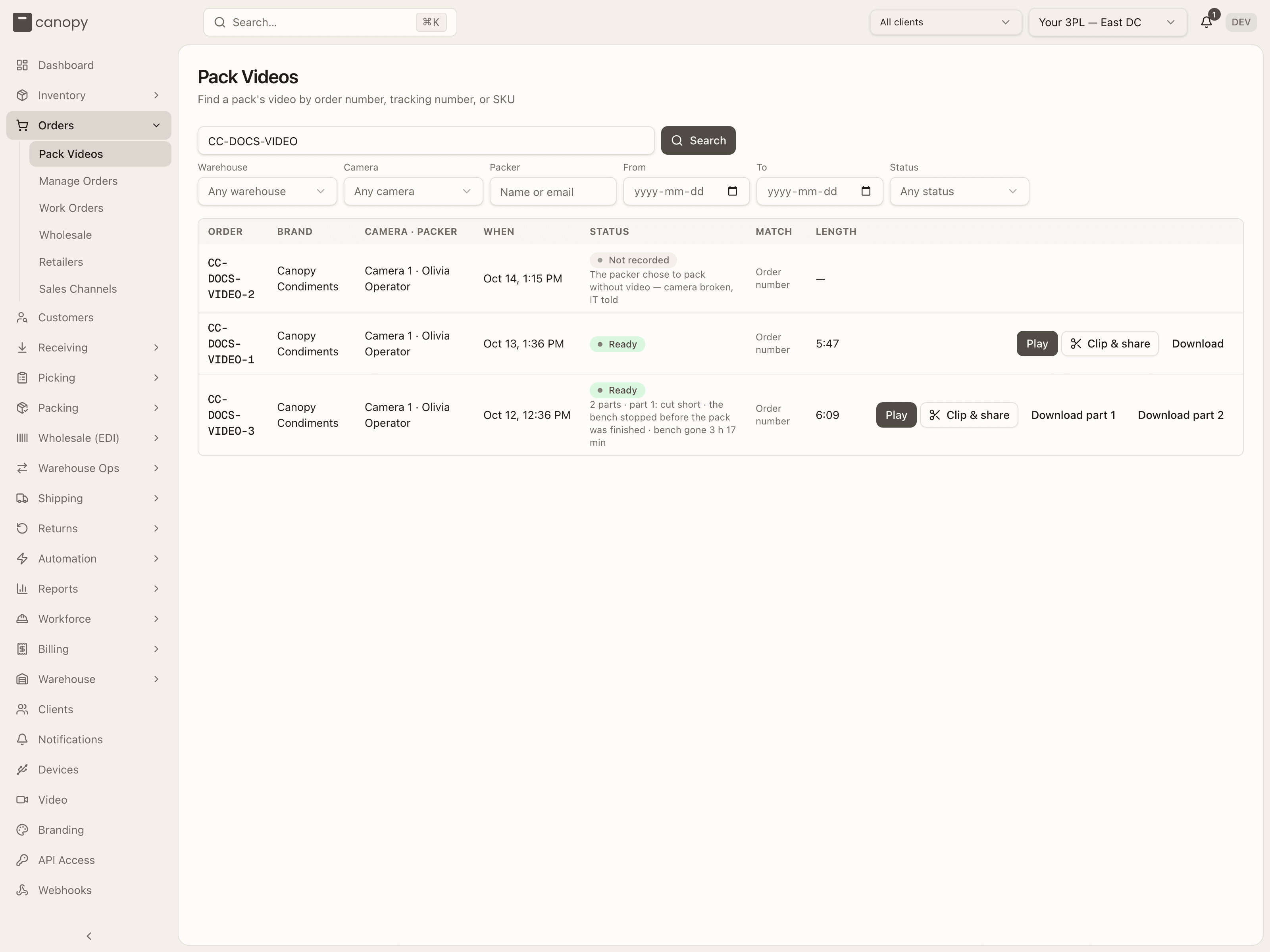
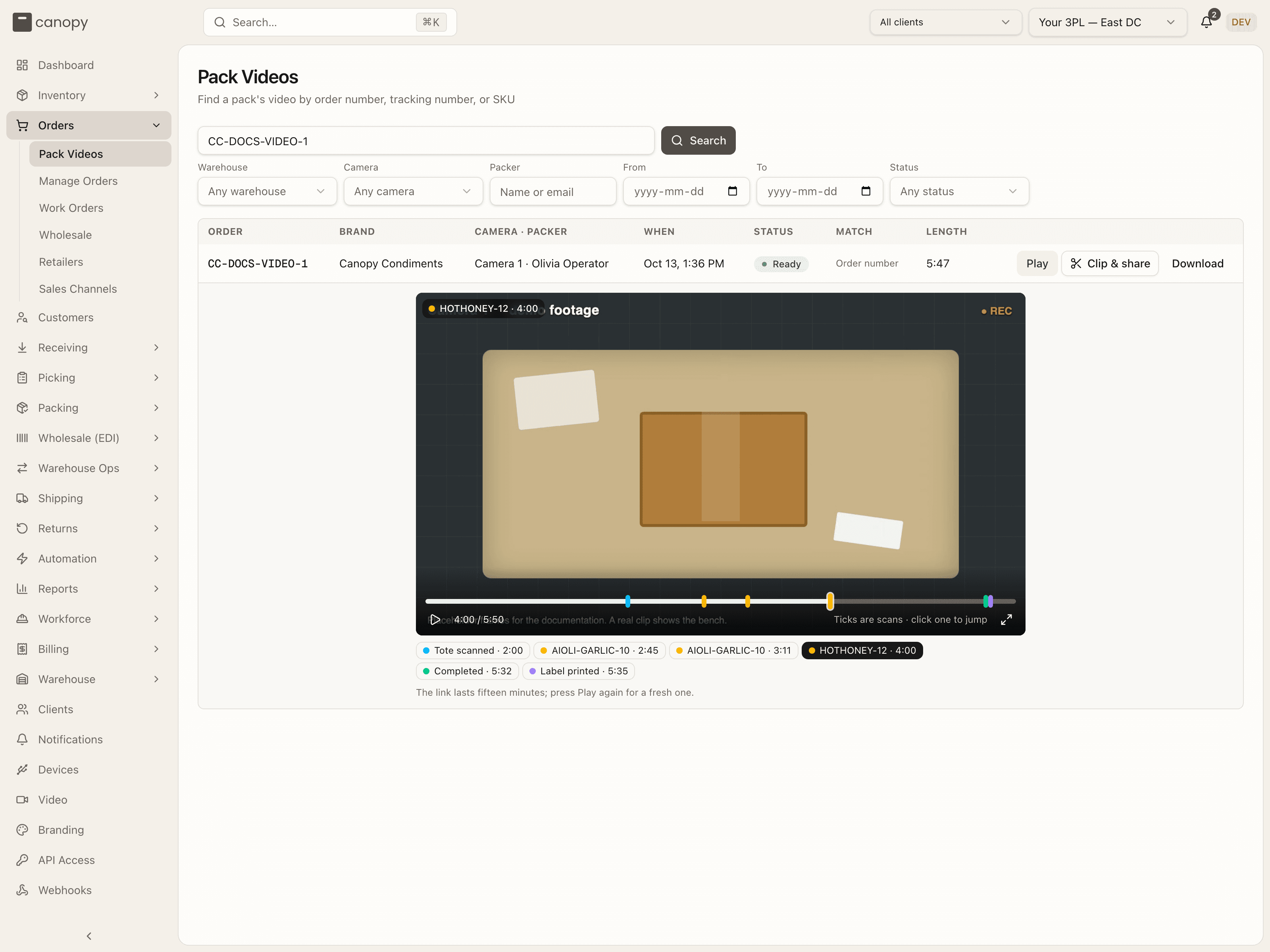
Each row shows the order (a link to its Video tab), the brand, the camera and the packer, when the pack started, the status, what matched, and the clip's length. A pack filmed in parts is one row (see A pack in parts). A SKU match says the second that item was scanned, and Play starts there. Press Play again to close the player. Clip & share (hover: Pick a stretch to share, or share the whole video) makes a public link (see Clip and share). Download saves the file; a pack in parts has a Download part 1, Download part 2 button per part.
The dashboard's Packs without video today line, in its Exceptions panel, opens this page filtered to today's Not recorded packs. See Packs without video.
The order's Video tab
Open any order and click the Video tab. Clips sit under the parcel their pack went into, oldest parcel first, each group with an Open shipment link. A pack with no label yet sits under Pack in progress. A cancelled pack sits under Cancelled pack; its footage is kept.
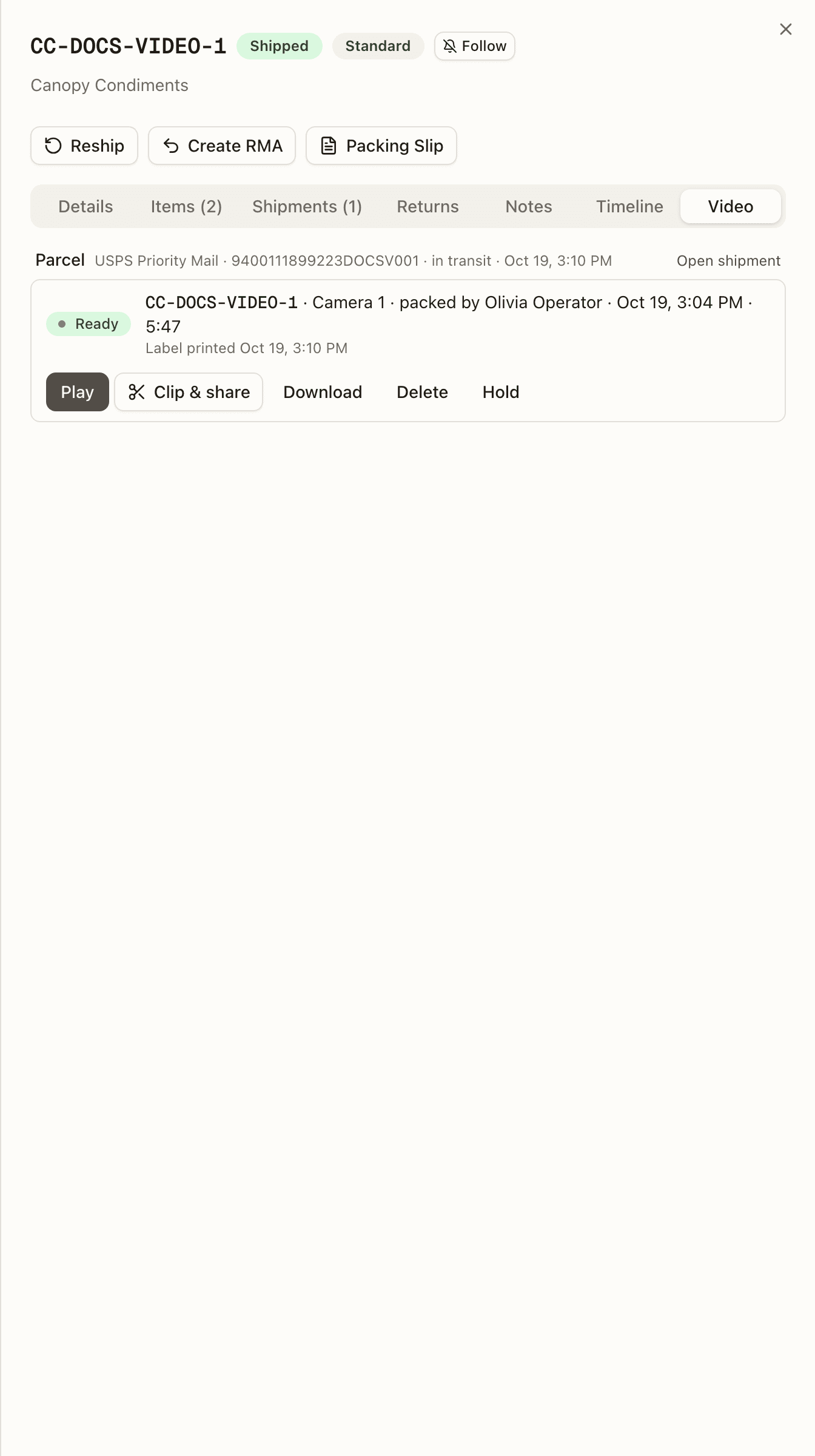
A row reads: the status, the order number, then Camera 1 · packed by Olivia Operator · the time · the length, and under it the reason when there is one. A Reship pill marks a reshipped pack. A Held pill marks a clip on legal hold. Once the shipping label has been printed, a third line reads Label printed with the time, and · 3 prints when it came out more than once.
A pack in parts
A pack whose bench stopped part-way, because the laptop slept, the packer signed out, or the pack moved to another bench, is filmed in parts: one file up to the stop, and another from the first scan after the camera is back. The Video tab and Pack Videos show the pack as one row. Its status is the last part's, its length is every part added up, and the line under it names the earlier parts and the gap, for example 2 parts · part 1: cut short · the bench stopped before the pack was finished · bench gone 2 h 13 min. Under the row, one line per part reads Part 1 · Cut short · 1:20, with · held on a part on legal hold. Each part is its own file and its own record, so it has its own Download part 1, Hold and Delete.
What each status means
| Status | What it means | What a brand sees |
|---|---|---|
| Ready | The clip is uploaded and checked. Play and Download work. | Ready |
| Partial | The clip is there, but part of the window has no frames. The reason is under the row. | Partial |
| Cut short | The system closed the window before the pack was finished, so the footage stops early. The reason is under the row (see below). Play works. Never reads Ready, whatever the file holds. | Cut short, with the reason |
| Recording | The pack is still open. | Recording |
| Waiting for upload | The pack is done. The laptop has not sent the file yet. A window the system closed carries its Cut short reason here already. | Waiting for upload |
| Uploading | The file is on its way. | Uploading |
| Held for review | The file arrived but did not match what was expected. Staff can still play it. | Not available |
| Waiting for the bench | A clip was owed and the bench stopped reporting. The laptop still holds the footage and sends it when it is back on. Under the row: the laptop stopped reporting; the clip uploads when it is back on. | Waiting for the bench, with no reason |
| Missing | A clip was owed and never arrived while the bench was still reporting. The reason is under the row. | Not recorded |
| Not recorded | The bench had no camera, the camera was down, the packer chose to pack without video, or the camera was still starting. The reason is under the row, with the packer's own note. | Not recorded, with no reason |
| Expired | Past its keep-for date. The file is gone. | Expired |
| Deleted | Deleted by a tenant admin. Undo within seven days. | Not shown |
A Cut short reason is one of: the bench stopped before the pack was finished, the packer signed out before the pack was finished, another station took the camera before the pack was finished, another pack started at this bench before this one was finished, the pack moved to another bench before it was finished, or the pack was ended outside the station. The rest of the pack, once the camera is back, is a second part.
The player
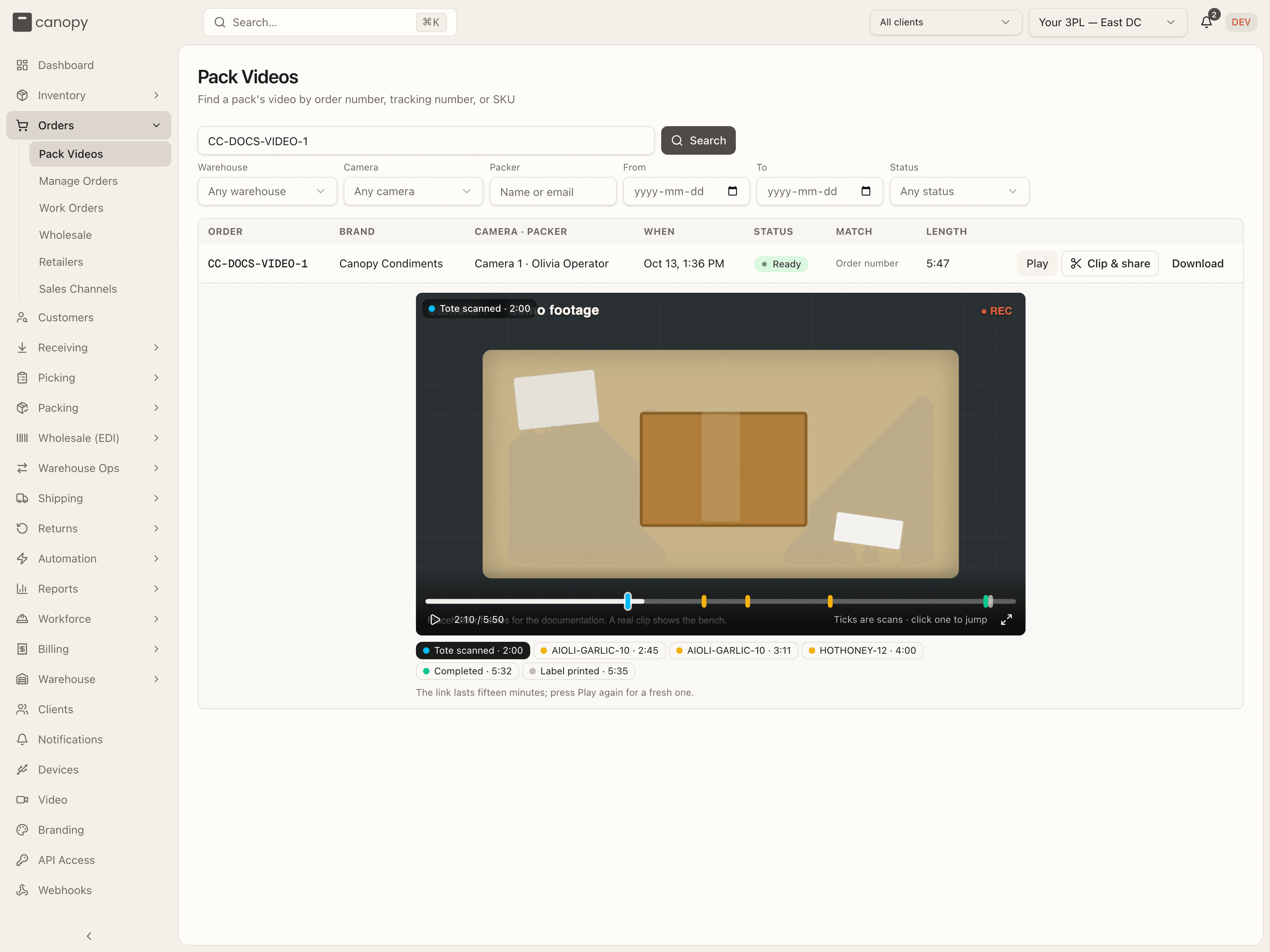
Press Play and the clip opens under the row. Ticks on the bar are scans: blue for the tote scan, amber for each item, green for Completed, violet for the label print, red for a cancel, a short, or an item unscanned. Hover a tick for its label. Click it to jump there. The same scans sit as buttons under the player, and the corner of the video names the last scan passed. Where the camera cut out, a red band marks the gap, with a Video cut tick where it starts and a Video back tick where it ends. The arrow keys skip five seconds and Space pauses. The play link lasts fifteen minutes; press Play again for a fresh one. Press Play a second time to fold the player away.
The Label printed tick lands where the shipping label came out of the printer, at the station or in the classic flow. A later print is Label reprinted (2). A print right after Complete Packing lands in the tail. A reprint from the Shipping page counts on the row's print count but adds no tick, since it is not made at the bench.
A pack in parts plays as one video. The parts sit in order on one bar, and between them a dark band of fixed width reads Bench stopped · 2 h 13 min. Click the band to skip to the Video resumes tick, or let the video run: the next part follows on by itself. The counter reads 1:05 / 3:47 · part 1 of 2, counting footage only, and the line under the player says 2 parts of one pack, played as one; the dark band is where the bench stopped. The hint in the player's corner reads 2 parts of one pack · the dark band is where the bench stopped. A part reached after its fifteen-minute link ran out is fetched again on its own.
Clip and share
A share link is a public address for a pack's video. Anyone who has it can watch, without signing in, until the link expires or you revoke it. There is no PIN: the link is the key. Make one with Clip & share on a row of the Video tab or of Pack Videos. The button is there for staff on any clip that has a Ready part, and for a brand user on their own clips while the brand's Brand may share links switch is on. A clip that is only Held for review gets no button.
The window
Clip & share · CC-DOCS-VIDEO-1 opens with the video on top and the link form
under it. Drag the handles to pick a stretch, or leave them at the ends to
share the whole video. The two handles are brackets on the bar, [ and
], and the slice between them is tinted amber. The player's corner hint
reads Drag the handles to pick a stretch. Drag a handle, or focus it
and use the arrow keys (one second a step, five with Shift, Home and End for
the ends). The line under the bar reads The whole video · 3:47 while the
handles sit at the ends, or Cut 1:05 – 2:10 · 1:05 once one has moved. The
form says The whole video goes with this link. until a handle moves. A cut
must be at least a second long and at most three minutes; past that the form
says A cut can be at most 3:00. Move a handle in, or share the whole video.
and Create link stays off. A cut starts at the key frame before its first
second, up to two seconds earlier, and the window says so.
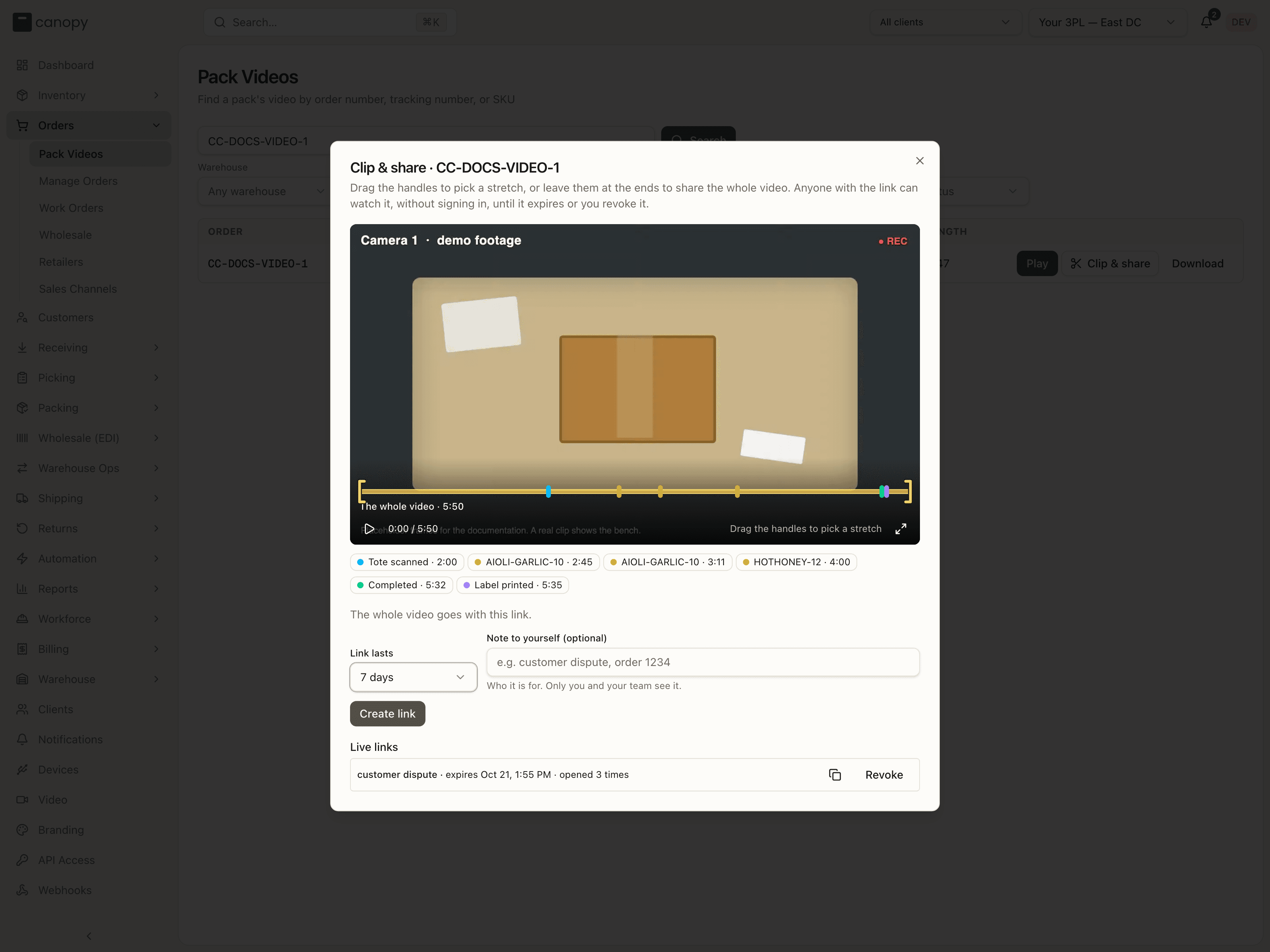
Link lasts is 1 day, 7 days (the default), 15 days or 30 days, and never past the clip's keep-for date: a link to a clip that expires in three days lasts three days. Note to yourself (optional) is a label only you and your team see, for example customer dispute, order 1234. Press Create link. Your link is ready shows the address with a copy button and Expires the date, led by A cut of 1:05 (1:05 – 2:10) when it is a cut; Make another clears the form. Under it, Live links lists every link to this pack that has not expired or been revoked (None yet. until there is one): its note, cut 1:05 when it is a cut, when it expires, how many times it was opened, and by a colleague's name when it is not yours. Each has a copy button and, for its maker or a tenant admin, Revoke. A revoked link stops working at once.
A cut is copied on the server: one trimmed file per part the stretch touches, named by the link. The copy is deleted when the link expires, is revoked, or its footage is deleted. A whole-video link makes no copy. A cut that cannot be made answers The video could not be cut right now. Try again in a minute.
The public page
The link opens /share/video/<token> on the app's own address, with no
sign-in. The page shows the 3PL's name and logo, Pack video · CC-DOCS-VIDEO-1,
Packed the date · this link expires the date, and the video with its
ticks; under it, Ticks are the scans during the pack. No packer's or staff
name appears. A pack in parts plays as one video
with the dark band. A part that is Cut short or Partial gets a yellow line
under the player, Part 2: Cut short · the bench stopped before the pack was
finished. An expired or revoked link reads This link has expired with
Ask the person who sent it for a new one; a wrong address reads This link
does not exist, Check the address you were sent; a cut whose copy is not
up yet reads The video is not ready yet, Try again in a few minutes. One
link opened more than thirty times in a minute from one address answers This
link was opened too many times in a minute. Wait a moment and reload.
Every open counts on the link and is written to the clip's access log with no user and the link's id, as a play through that link.
Hold, delete and undo
A tenant admin sees three more buttons on a Ready or Held for review clip. Hold keeps the clip past its keep-for date, for a dispute, and marks it Held. Release hold lets it expire again. Delete removes the clip, and Undo delete brings it back within seven days; after that the file is gone for good. A clip on hold cannot be deleted. Operators and packers cannot delete a clip, not even one of their own packs. On a pack in parts the three buttons sit on each part's line, since each part is its own record.
Who sees what
Warehouse staff see every clip in the tenant, across every brand and warehouse. A brand user sees only their own brand's clips, and only while video is on for that brand. They never see why a clip is missing, held or not recorded, cannot download, and cannot delete or hold. They can make share links to their own clips while the brand's sharing switch is on, and revoke their own. Every play, download, hold, delete, share link made and share link revoked is written down with who did it and when; an open through a share link is written down with no user and the link's id.
How to find the video of a pack
-
Open Orders → Pack Videos.
-
Type the order number, the tracking number or the SKU, and press Search.
-
Press Play on the row. The player opens under it. The ticks on the bar are the scans, the corner names the last one passed, and the same scans are buttons under the video. For a SKU match, the clip starts at the second that item was scanned.
-
Click a tick, or a button under the player, to jump to another scan. Here the clip jumped to the second HOTHONEY-12 was scanned. Press Download to keep the file.
To send the video to someone outside the app, go on from the same row:
- Press Clip & share. The window opens with the video and two handles at its ends. Leave them there to share the whole video, or drag them in around the stretch you want to show.
- Pick how long the link lasts, add a note for yourself if you like, and press Create link. Copy the address from Your link is ready and send it. The person opens it in a browser, with no sign-in.
- To end the link early, open Clip & share on the row again and press Revoke beside it under Live links.
The frames in these two pictures are a placeholder. A real clip shows the bench.
Boxes to Pull
Find the box behind a change that landed after its label was bought or its freight was booked, and answer whether it's still here.
Live Bench View
Watch a pack bench's camera as it happens from the Live Benches wall. One card per camera, a Watch dialog that joins the bench only while it is open, and the plain Live pill the packer sees.