

Workforce
See who's on the floor and what each flow still has to clear, limit an operator to one task, and manage every login in your organization.
Workforce is the people side of the warehouse: how much each person and team
got done, who is on what right now, which single floor task an operator is
limited to, and every login in your organization. It's operator-only end to
end — the sidebar hides the group from brand accounts, the whole route tree
answers a client user with "Access restricted — The workforce area is
available to warehouse staff only," and the /api/workforce module refuses
client users outright.
The group has four pages under the Workforce sidebar entry:
Overview
Labor productivity by team and person — live today, or any date range.
Workload
The live board: who's working which flow, and how deep each queue is.
Assign Task
Restrict an operator to one floor task, and set which moves between tasks are blocked.
Users
Everyone with a login — invite, edit, set shifts, deactivate.
Who can do what
Overview and Workload are open to every member of staff (admins and operators). Assign Task and Users are admin-only: the sidebar and the ⌘K palette hide them from operators, and an operator who types the URL sees "Admin access required to assign task roles" / "Admin access required to manage users" instead of the page. Server-side the same line holds — the associate directory, shift and task-role writes, the conflict matrix write, and all user management need a Tenant Admin. Every page follows the top bar's client and warehouse selectors, except the Users list, which is always tenant-wide.
Overview
Overview → /workforce. "Labor productivity by team and user. Live today,
or pick a range to report." Four range buttons head the page — Today,
Last 7 days, Last 30 days, and Custom, which reveals a from /
to date pair (the end date can't be after today). On Today the header shows a
green Live dot and the page re-polls every 30 seconds; either way it shows
Updated <time>, a Refresh button, and Export CSV (disabled until
someone has activity in the range).
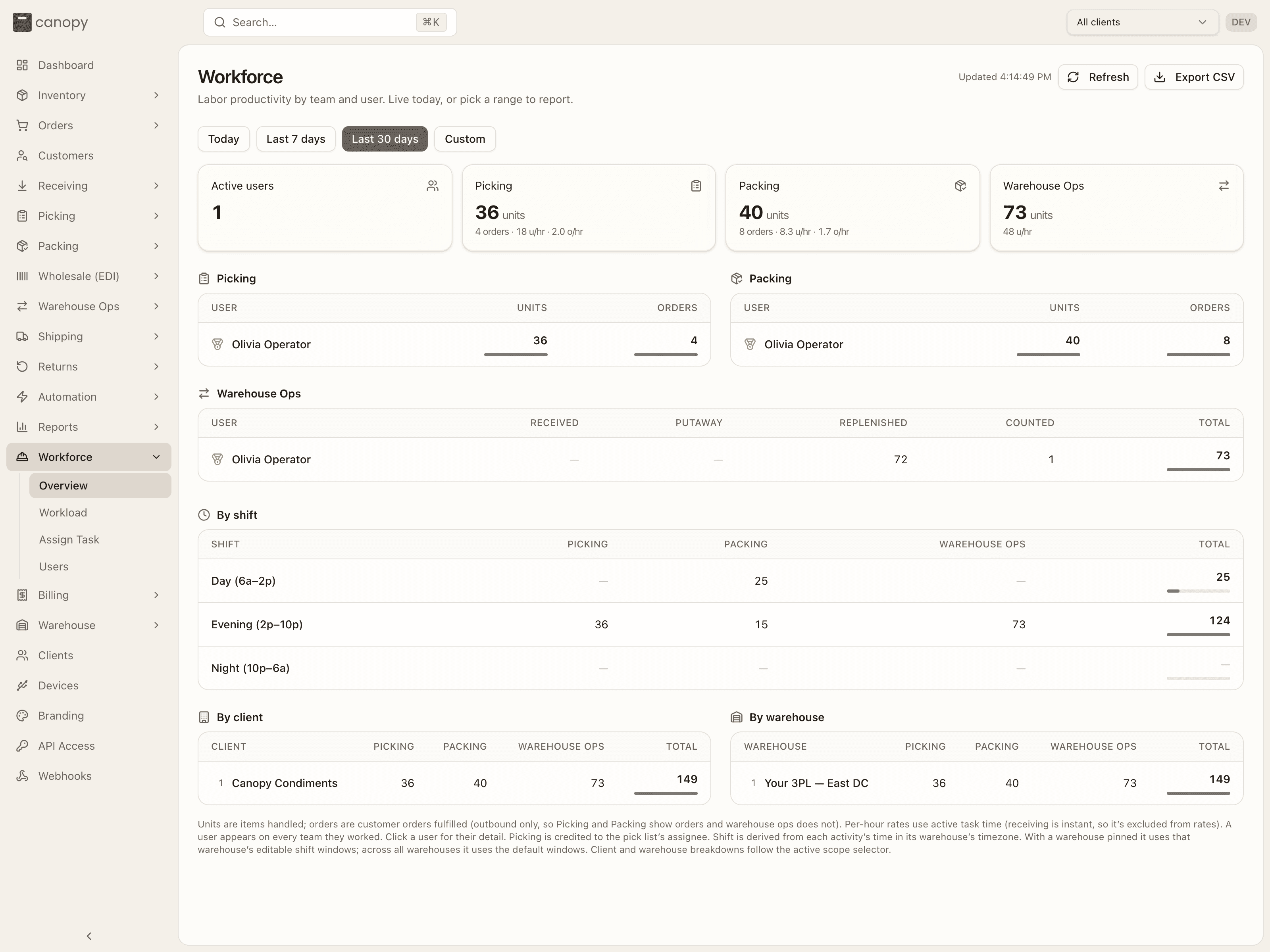
Summary tiles. Active users (people with any activity in the range), then one tile per team: Picking and Packing show units, with N orders · X u/hr · Y o/hr beneath; Warehouse Ops shows units and X u/hr.
Leaderboards. Three ranked tables, each listing only the people who did that kind of work in the range:
| Table | Columns | Ranked by |
|---|---|---|
| Picking | Units, Orders | Units |
| Packing | Units, Orders | Units |
| Warehouse Ops | Received, Putaway, Replenished, Counted, Total | Total |
The top three rows carry gold, silver and bronze medal icons; everyone else gets a rank number. Ranked columns draw a proportional bar, and a zero renders as a dash. An empty table reads "No picking activity in this range.", "No packing activity in this range.", or "No warehouse-ops activity in this range."
Breakdowns. Below the leaderboards, the same numbers cut three ways, each with Picking / Packing / Warehouse Ops / Total columns: By shift (every configured shift window is listed, even at zero), By client, and By warehouse (both ranked). An empty breakdown reads "No activity in this range."
A person's detail. If you're a Tenant Admin, every leaderboard row is clickable and opens a side panel titled with their name and Performance · Today (or the range's dates). It holds one card per team they worked — Units, Units / hr, and for Picking and Packing also Orders and Orders / hr; the Warehouse Ops card adds a Received · Putaway · Replenished · Counted line — or "No recorded activity in this range." when there's nothing. Beneath it sits the same Shift assignment card described under Users. Operators see the tables read-only, with no row click.
What counts
Every number is derived from work records, not timesheets. A pick list credits its assignee when it's completed (units picked; orders = the orders on the list). A pack record credits the packer (verified items; one order each). A receipt credits the receiver (units received — instant, so it never feeds an hourly rate). A putaway or replenishment task credits whoever completed it (units moved). A cycle count credits the counter one line per SKU counted. Units are items handled; orders are customer orders fulfilled, which is why only Picking and Packing show them. Per-hour rates use active task time, and a person appears on every team they worked. Shift is derived from each activity's time in its warehouse's timezone — with a warehouse pinned it uses that warehouse's own windows, across all warehouses the built-in defaults (see Shift assignment).
Export CSV downloads workforce_<from>_<to>.csv with one row per person:
User, Picked units, Picked orders, Packed units, Packed orders, Received units,
Putaway units, Replenished units, Counted lines, Total units. (There's no total
orders column — an order that was both picked and packed would be counted
twice.) If the data can't be loaded the page says so — "Couldn't load
workforce data for the current scope and range." — with a Retry now
button.
Workload
Workload → /workforce/workload. "Live labor board — who's on what right
now, and what each flow still has to clear." Always live: a green Live dot,
Updated <time>, a Refresh button, and a 30-second poll.
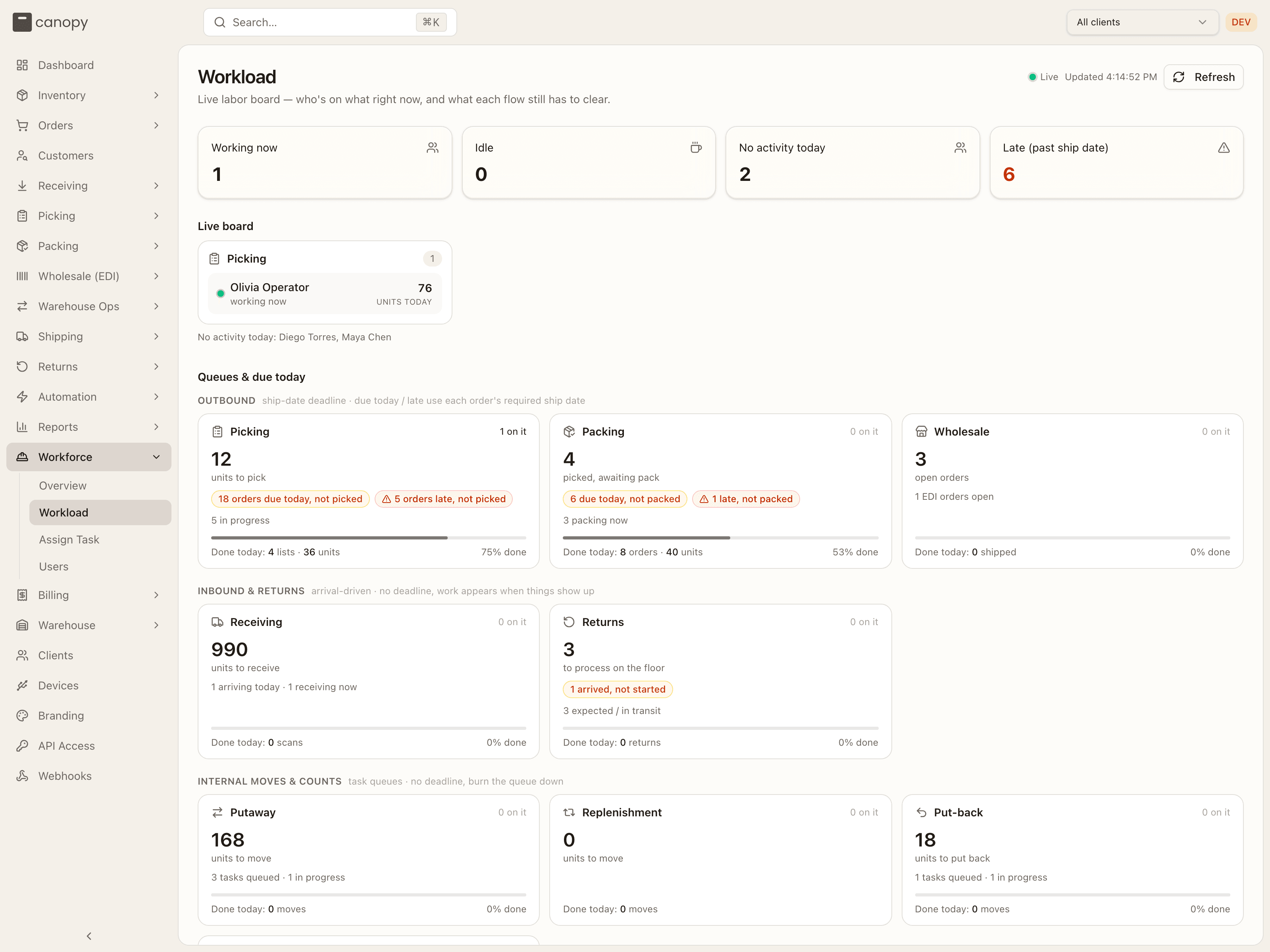
Counters. Working now (people with a task in progress or one finished in the last 45 minutes), Idle, No activity today, and Late (past ship date) — the sum of late outbound work, shown in red when it's above zero.
Live board. One bucket per flow — Picking, Packing, Receiving, Putaway, Replenishment, Put-back, Returns, Wholesale, Cycle Count — shown only when someone is in it, each with a count pill. A person's chip shows a pulsing green dot and working now while they have a task open; otherwise a grey dot with how long ago they last finished something (just now, 12m ago, 1h 5m ago), their shift label if they have one, and N units today when it's above zero. People with nothing new in 45 minutes drop into a faded Idle (no task in 45m) bucket; people with no activity at all are listed below the board as No activity today: …. Before anyone has done anything the board reads "No floor activity yet today. People appear here the moment they start or finish a task."
Queues & due today. Nine cards in three bands, each band saying how its work is measured:
| Band | Cards | Measured by |
|---|---|---|
| Outbound | Picking, Packing, Wholesale | ship-date deadline · due today / late use each order's required ship date |
| Inbound & returns | Receiving, Returns | arrival-driven · no deadline, work appears when things show up |
| Internal moves & counts | Putaway, Replenishment, Put-back, Cycle Count | task queues · no deadline, burn the queue down |
Each card leads with the number to triage by and its caption — units to pick, picked, awaiting pack, open orders, units to receive, to process on the floor, units to move, units to put back, bins owed a count — plus N on it (people active in that flow). Alerts appear as chips only when non-zero: red with a warning triangle for late (N orders late, not picked, N late, not packed, N past ship date), amber for a warning (N orders due today, not picked, N due today, not packed, N unassigned, N past ETA, not received, N arrived, not started, N never counted, N due to ship today). Any other non-zero metric — N pick lists queued, N in progress, N EDI orders open and the like — folds into one quiet line, and a thin bar shows how much of today's known work is done, with Done today: N lists / orders / shipped / scans / returns / moves / lines · N units beneath.
The board is inferred, not assigned. An open task places a person immediately; otherwise their most recently finished task today does, and they move the moment they complete work in another flow. Returns, wholesale and put-back have no assignment records, so people land there from receive scans, order-status events and completions — wholesale in particular only registers at status changes, not every carton touch. A cycle count is submitted in one shot, so a counter shows as recently active and then idle, never working now. VAS work orders live in their own module and don't yet capture per-person labor. The scope follows the top bar's client and warehouse selectors (EDI wholesale has no warehouse and ignores that filter). If the board can't load you'll see "Couldn't load the board for the current client/warehouse scope. It retries automatically." with a Retry now button.
Assign Task
Assign Task → /workforce/assign-task. Admin-only. A task role narrows a
Tenant Operator down to one floor workflow — receiving, putaway, picking or
packing — so a scanner-in-hand associate sees only the screens for their job.
It's purely subtractive: it only ever removes access the person's role already
allows, never grants any, and nobody has one until you assign it here. Two tabs,
Board and Conflicts.
The board
"Drag an operator onto a task to limit them to that task's modules. Columns they can't be moved to are greyed out while you drag." Only Tenant Operators appear — admins are exempt from task roles (the server refuses to write one to an admin, or to yourself: "You cannot assign a task role to yourself"). Search by name or email above the board.
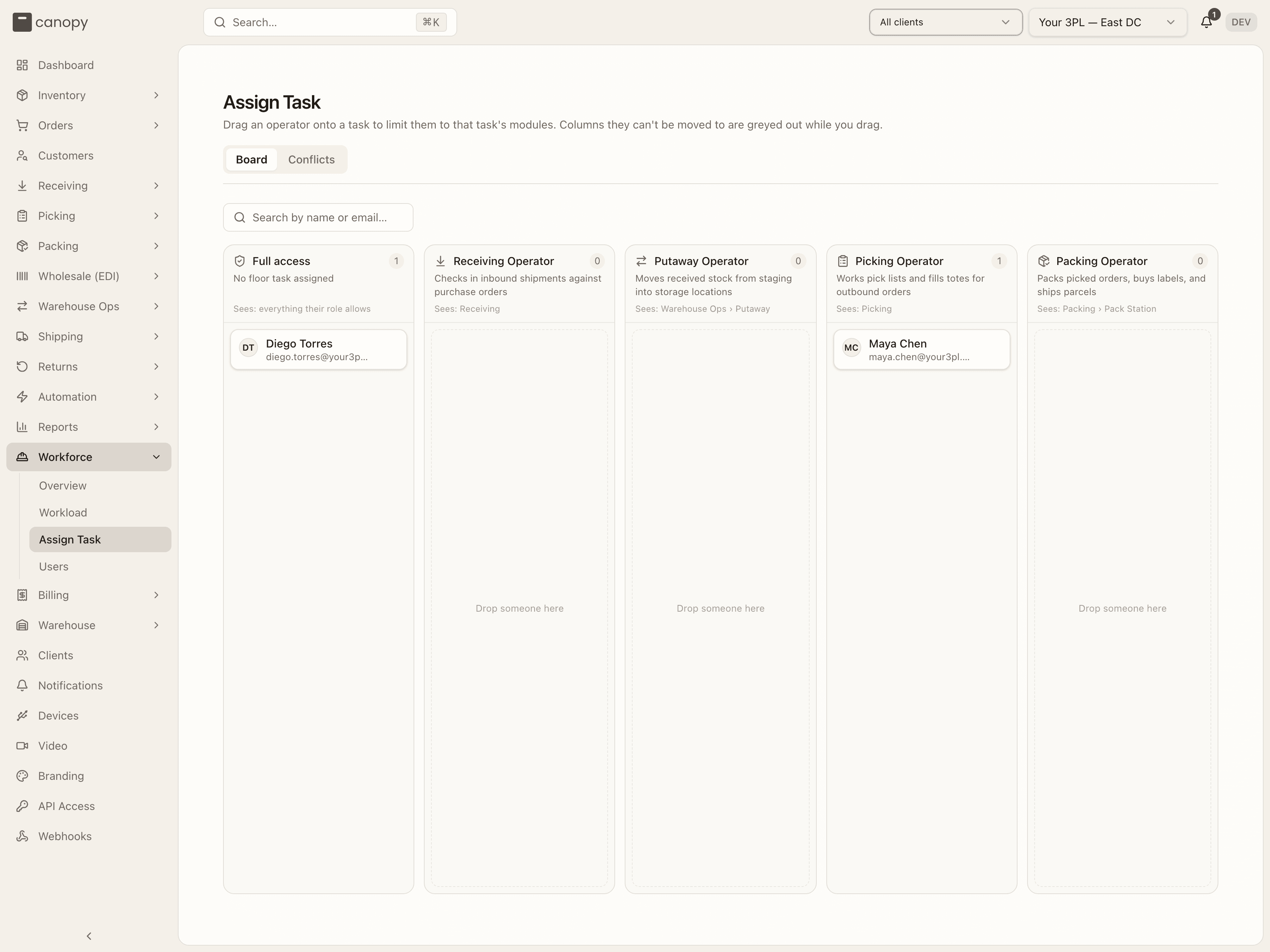
Five columns, each with a count pill and "Drop someone here" when empty:
| Column | Description on the column | Sees |
|---|---|---|
| Full access | No floor task assigned | everything their role allows |
| Receiving Operator | Checks in inbound shipments against purchase orders | Receiving |
| Putaway Operator | Moves received stock from staging into storage locations | Warehouse Ops › Putaway |
| Picking Operator | Works pick lists and fills totes for outbound orders | Picking |
| Packing Operator | Packs picked orders, buys labels, and ships parcels | Packing › Pack Station |
Each card is a person (avatar, name, email) and the whole card is the drag handle; it also works by keyboard. Hover a card for its ••• menu, which offers the same five destinations with a check on the current one — useful on a tablet, and it refuses the same moves as a drag, so it can't be used to route around a conflict. While you drag, any column the person can't be moved to greys out with "Can't move from <their task>"; dropping there anyway shows "<From> to <To> is blocked by a task conflict." A successful move toasts "<Name> → Picking Operator" (or "→ Full access") and takes effect on the operator's very next request. The server re-checks the matrix, so if another admin turned a rule on while your board was open the move fails with the same message.
With no operators yet the board reads "No warehouse operators — Task roles apply to warehouse operators. Invite one from Workforce › Users." (or "No operator matches that search.").
What a task role changes
| Task role | Sidebar and ⌘K keep | After sign-in they land on |
|---|---|---|
| Receiving Operator | Receiving | /receiving/active |
| Putaway Operator | Warehouse Ops › Task Queue and Active Tasks | /warehouse-ops/putaway |
| Picking Operator | Pick Lists, Active Pick, Short Picks, Totes, Discrepancies, and the floor app's guided pick | /fulfillment/pick-lists |
| Packing Operator | Pack Station only — not Pack Order, Bulk Ship, Box Sizes, Stations or Shipping | /fulfillment/packing/station |
- Sidebar and ⌘K. Both read the same allow-list, so a page hidden from the sidebar can't be found by search either. A parent group stays visible if any of its children is allowed.
- API. Every request outside the role's surface is refused with "Your <Task role> assignment does not include this area." The shell endpoints every role needs — your own profile, clients, warehouses, tenant settings, inventory lookups, and ad-hoc charge capture at the end of a floor workflow — stay open.
- The "/" redirect. The dashboard aggregates the whole tenant, which is
exactly what a task role is meant not to see. A restricted operator who lands
on
/(where sign-in drops you), a bookmark, or the browser back button is sent to their task's home page in the table above. The floor app launcher (/m) always opens, but its tiles narrow to the role's flows — today that's guided pick for a Picking Operator; other roles read "Your floor task isn't in the app yet — use the full app for now." - Only operators are gated. A task role is enforced on a Tenant Operator and nobody else, so promoting someone to Tenant Admin (or converting them to a Client User) lifts the restriction even though the stored value survives the role change.
Conflicts
"Moves between tasks that aren't allowed. These rules are what grey out columns on the board." This is separation of duties: as the tab puts it, a receiver who then puts away their own pallet is never recounted by anyone, which is how a short receipt goes unnoticed.
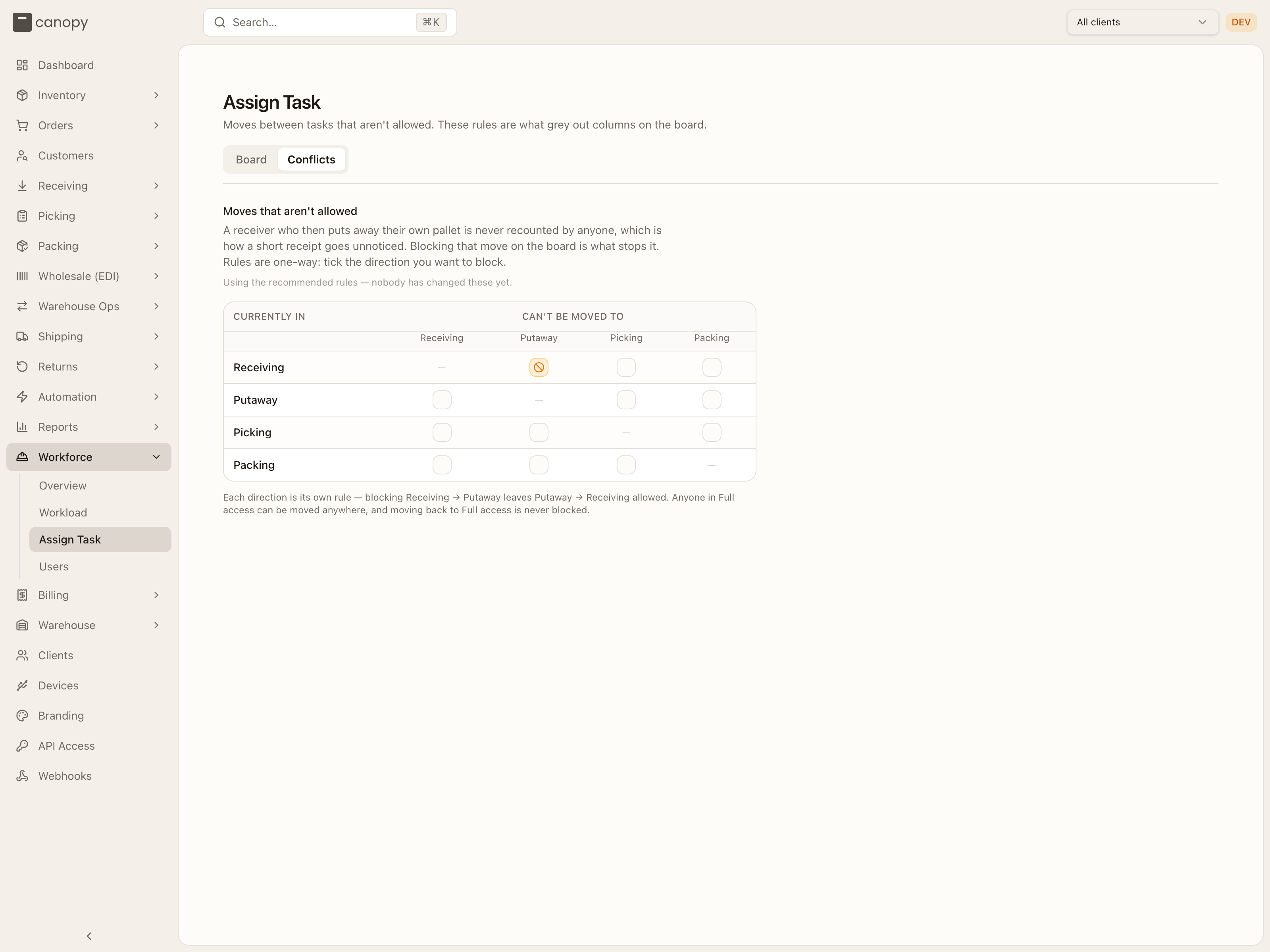
The matrix reads as a sentence: the row is where someone is currently in, the column is where they can't be moved to (Receiving, Putaway, Picking, Packing; the diagonal is a dash). Click a cell to toggle it — an amber ban icon means blocked. Rules are one-way: blocking Receiving → Putaway leaves Putaway → Receiving allowed, and each direction is its own rule. Anyone in Full access can be moved anywhere, and moving back to Full access is never blocked.
Out of the box one rule is on — Receiving → Putaway — and the tab notes "Using the recommended rules — nobody has changed these yet." Once you change anything a Recommended button appears to restore that default ("Restored the recommended rules"). Turn everything off and it says "No rules are on, so every column accepts everyone." The matrix is saved per tenant and enforced in all three places at once — the drag, the ••• menu, and the server.
Users
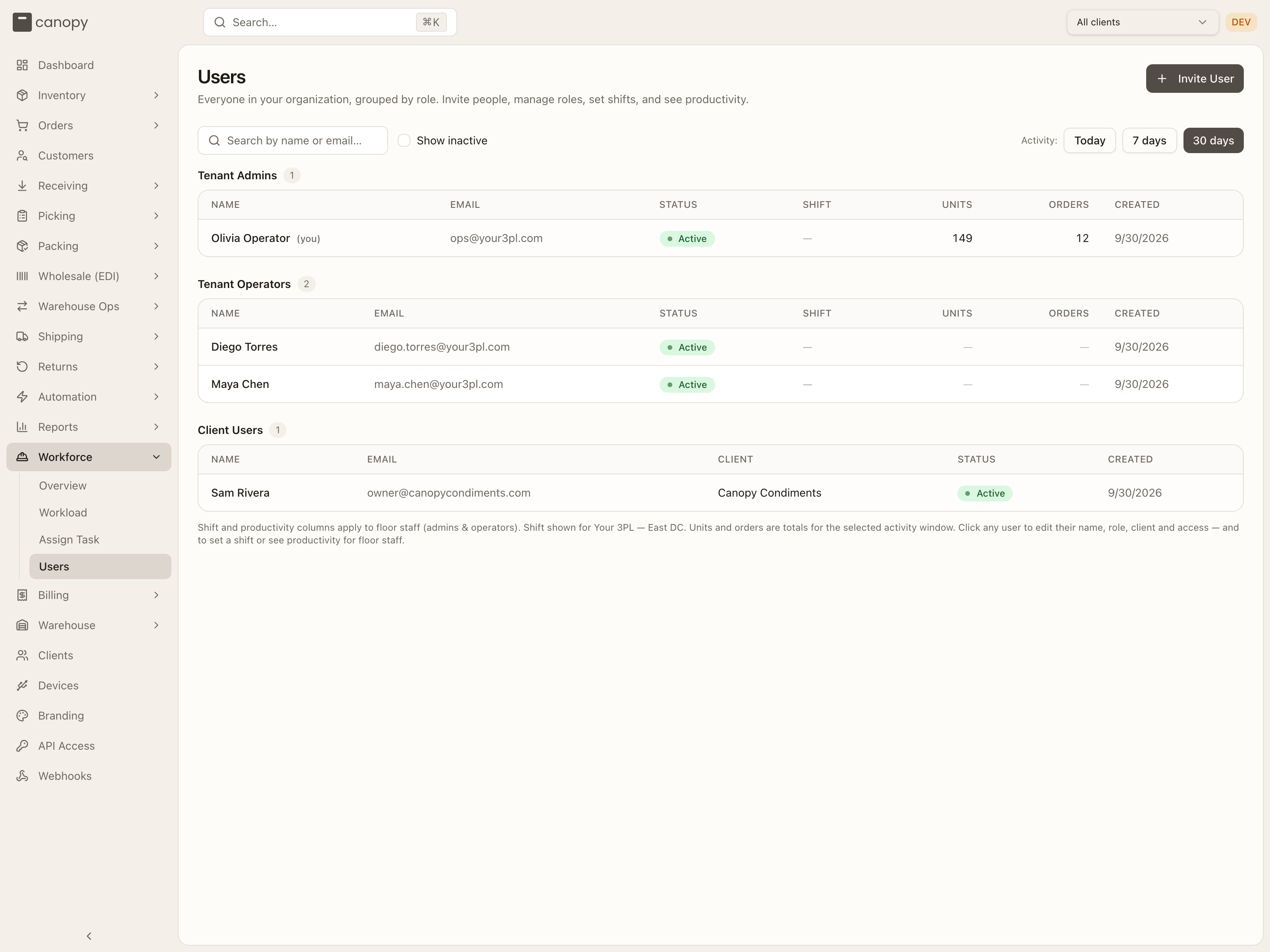
Users → /workforce/users. Admin-only. "Everyone in your organization,
grouped by role. Invite people, manage roles, set shifts, and see
productivity." This is the one list of every login — your warehouse staff and
your clients' brand-portal accounts alike. (The old /users address redirects
here.)
The list
Invite User (top right) opens the invitation form — see How to invite a user. The toolbar has:
- Search by name or email.
- Show inactive — include deactivated accounts, which are otherwise hidden.
- Client — All clients or one client, listed only when your tenant has more than one. Picking a client shows that brand's users and drops the staff tables entirely (staff aren't pinned to a client). The top bar's client switcher does not narrow this list — it's always tenant-wide.
- Activity: Today / 7 days / 30 days (default) — the window behind the Units and Orders columns and the Performance block in a person's detail.
People are grouped into one table per role, each with a count; a role with nobody in it isn't shown, and "No users found." appears when nothing matches.
| Table | Role | Who it's for |
|---|---|---|
| Tenant Admins | Tenant Admin | Full access. Can manage users, clients, and settings. |
| Tenant Operators | Tenant Operator | Warehouse staff. Can switch between clients but not manage users. |
| Client Users | Client User | Locked to one client. Sees only that client's data — the Brand Portal. |
| Canopy Support | Canopy Support | Canopy's own staff. Platform-managed — you can't invite one or change their role here. |
Every table shows Name (with (you) on your own row), Email, Status, and Created. The Client Users table adds a Client column; the two staff tables add Shift, Units and Orders (a dash for none). Rows sort by name. Status is one of:
- Active (green) — a working login.
- Pending (amber) — an invitation that hasn't been accepted yet. The row shows the email and, for a client invite, the client; there's no name yet and nothing to open. See Pending invites.
- Inactive (grey) — deactivated; only visible with Show inactive.
Beneath the tables: "Shift and productivity columns apply to floor staff (admins & operators). Shift shown for <warehouse>." — or, with the top bar on all warehouses, "Pick a warehouse in the top bar to see and assign shifts."
User detail
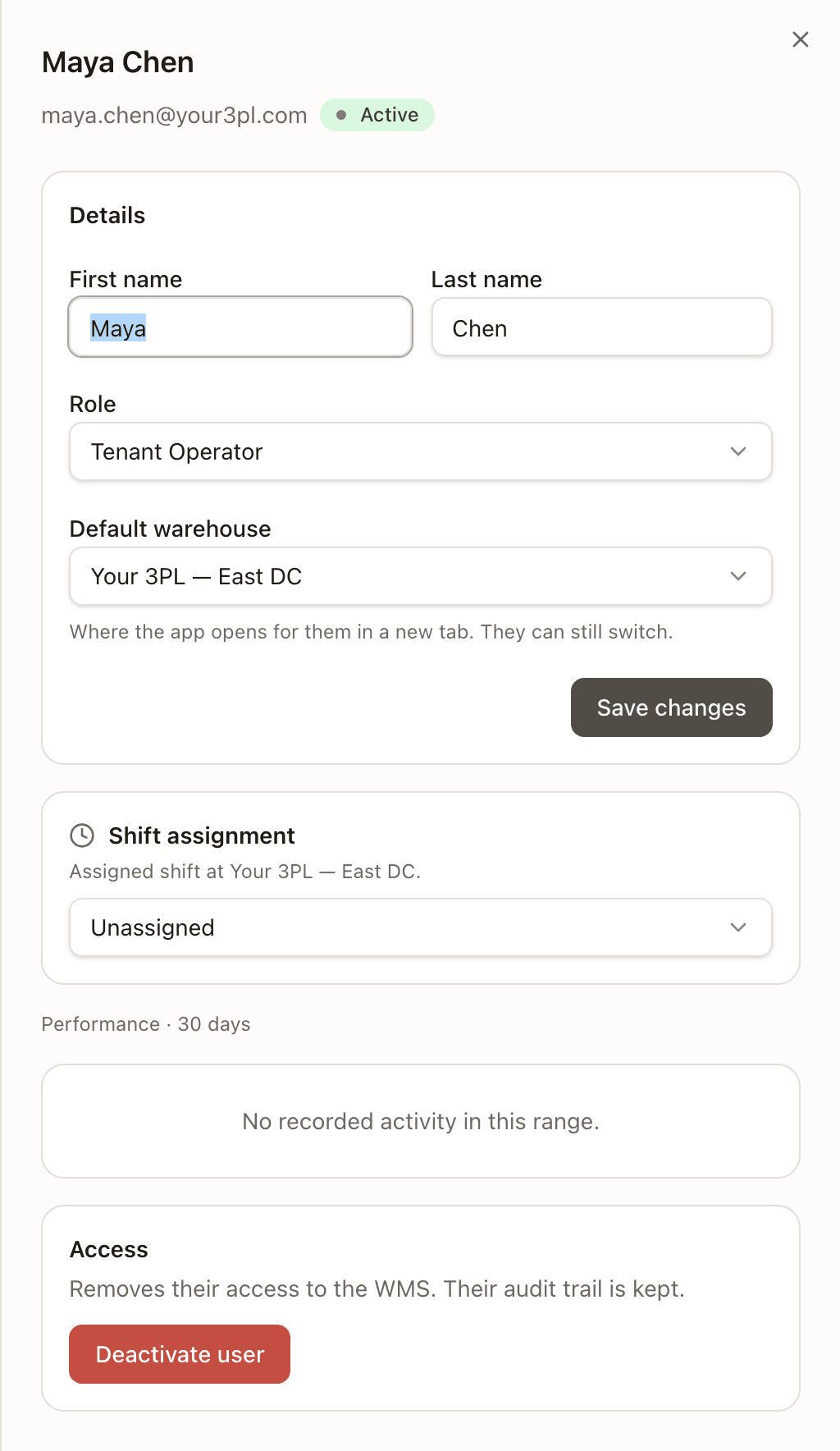
Click any Active or Inactive row to open the person's panel: their name (and (you)), email and status pill, then four blocks.
Details
First name, Last name, Role (Tenant Admin / Tenant Operator / Client User) and — for a Client User — a required Pinned client. Save changes confirms with Saved. Names set here belong to the WMS and stick (clearing one falls back to the email); a role or client change is mirrored to the sign-in provider as well. Two rows are locked: on your own, role and client are disabled — "You can't change your own role or client. Ask another admin." — and a Canopy Support row says "Canopy Support accounts are platform-managed; their role and client can't be changed here." Switching someone to Client User without picking a client fails with "Client User requires a client to pin to."
A Tenant Admin or Tenant Operator row also has Default warehouse — "Where the app opens for them in a new tab. They can still switch." Choose None or one of your active warehouses; you can set your own, too. When they open a new tab or sign in again, the top bar's warehouse switcher starts there. With None — or a default that has since been deactivated, which the picker shows blank — it starts at the last choice made in any tab of that browser, else the first warehouse. A switch holds for that tab, through reloads. With only one warehouse it changes nothing. Client Users have none: they open on All warehouses, so the field disappears when you switch someone's role to Client User, and saving clears it.
Shift assignment
Staff rows only. Shifts are per warehouse, so this card needs a warehouse pinned in the top bar: "Assigned shift at <warehouse>." with a picker of Unassigned plus the warehouse's shift windows — the built-in Day (6a–2p), Evening (2p–10p) and Night (10p–6a) unless the warehouse has its own windows set in its detail panel. On all warehouses it reads "Shifts are per warehouse. Pick a specific warehouse in the top bar to assign this user to a shift." Picking a value saves at once ("Couldn't save the shift. Try again." if it doesn't). The assignment shows in the list's Shift column and on a person's Workload chip — it's a label for the roster; the Overview's By shift breakdown buckets by when the work actually happened.
Performance
Performance · <activity window> — the same team cards as the Overview's detail panel (Units, Units / hr, Orders, Orders / hr per team, and the Warehouse Ops line), or "No recorded activity in this range." Staff rows only.
Access
- For an active user: "Removes their access to the WMS. Their audit trail is kept." and a red Deactivate user button. A confirmation asks "Deactivate <name>?" — "They will lose access to the WMS but their audit trail will be preserved." On Deactivate they're removed from the organization at the sign-in provider and marked inactive; the row leaves the list until you tick Show inactive. Nobody is ever hard-deleted, and inviting the same email again is refused — "…was previously deactivated in this tenant — reactivate them instead of recreating."
- On your own row: "You can't deactivate your own account."
- For an inactive user: "This user is deactivated and can't sign in." and Reactivate user, which toasts "<name> reactivated." — or "<name> was recreated in Clerk and reactivated." when their sign-in account had been deleted in the meantime and was rebuilt from what the WMS still holds.
Pending invites
An invitation lives at the sign-in provider until it's accepted, so a pending person has no account yet: the list shows them from the provider's pending invitations (email, role, and the pinned client's name for a client invite), dimmed and not clickable. The moment they accept and sign up, the account is created and the row becomes a normal Active user. If the provider can't be reached the list still loads — just without the pending rows — so refresh if an invite you just sent isn't showing.
How to assign a task role
You need to be a Tenant Admin, and the person must be a Tenant Operator.
Open Workforce → Assign Task. The board opens on the Board tab with every operator in a column — Full access for anyone without a task.
Find the operator. Type their name or email into Search by name or email… above the board.
Drag their card onto the task column — Receiving, Putaway, Picking or Packing Operator. If a column greys out as you drag, a conflict rule blocks that move; drop them on Full access first, then onto the task. On a tablet or by keyboard, use the card's ••• menu instead.
Check the toast — "<Name> → Picking Operator". From their next page load
the operator's sidebar shrinks to that task's screens, the rest of the API
refuses them, and opening / sends them to the task's home page. To lift the
restriction, drag them back to Full access.
How to invite a user
You need to be a Tenant Admin. The person receives an email with a sign-up link; they can sign in with email (magic link) or any OAuth provider you have enabled.
Open Workforce → Users and click Invite User. The Invite User form slides in.
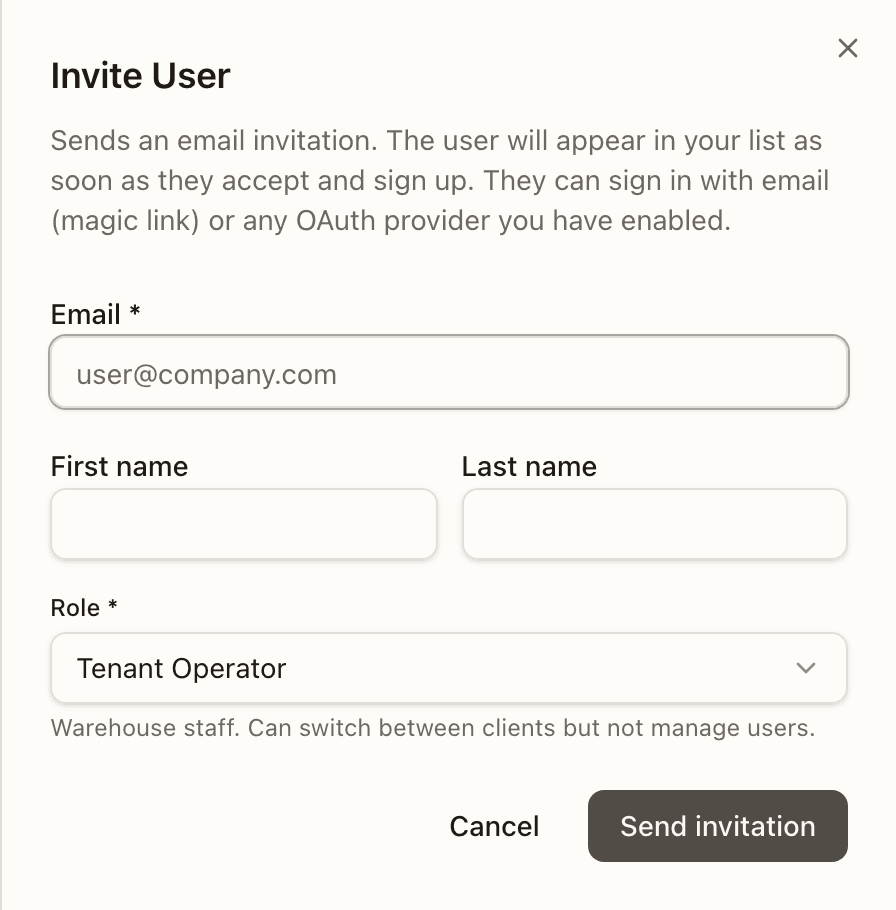
Enter their email. The first and last name fields are optional — the account takes the name the person enters when they sign up, and you can correct it afterwards in their Details.
Choose the role. The picker defaults to Tenant Operator; the helper text under it explains each role. For a brand's own login choose Client User, which adds a required Pinned client — the one client they'll ever see.
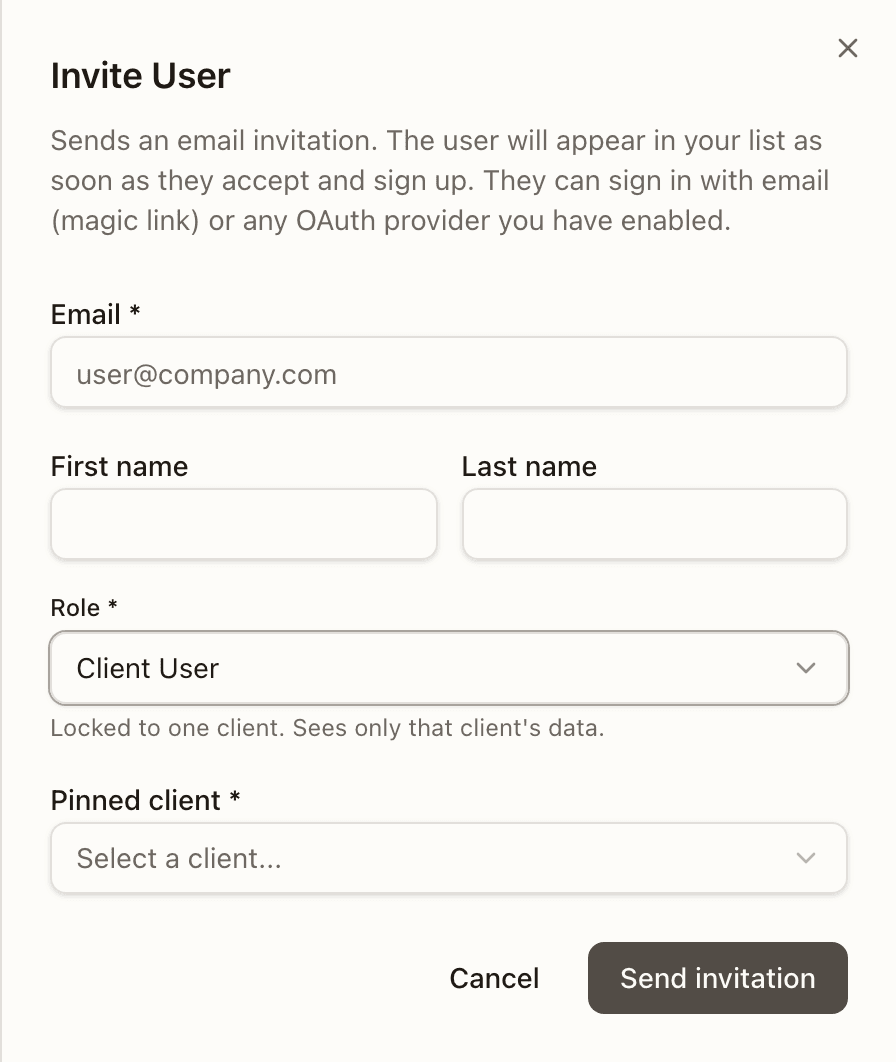
Send invitation. The form closes and a toast confirms "Invitation sent to <email>. They'll appear in the user list once they accept and sign up." Until then they show as a Pending row. If the email already has a login you'll see "User <email> already exists"; if it was deactivated, reactivate that account instead; any refusal from the sign-in provider (an address that's already been invited, say) is shown inline as "Failed to send invitation: …".
Cost to serve
What each brand cost your warehouse in labour, per order, per week and per stage, measured from task timestamps and set beside what you billed them.
Wholesale (EDI)
Retailer EDI orders — 850 in, SSCC cartons, the routing-guide ship-confirm gate and the 856 ASN out — plus the simpler non-EDI wholesale orders and retailers that live under Orders.