

Notifications
The bell, the feed, and the subscriptions behind them — how warehouse staff get told that an order went on hold, a PO came in short, or a parcel stopped moving.
Notifications tell you that something happened to a record without you having to open it. They are for warehouse staff at a desk: a brand user signed in to the client portal, and floor staff working under a task role (receiving, putaway, picking or packing), have no bell, no feed, and no settings page for them.
Nothing is on by default. Until you choose what you want to hear about, the bell stays empty.
The bell and the feed
The bell sits in the top bar and carries a count of what you have not read, across both of its tabs. It checks for new items every half-minute, so an event recorded by the warehouse shows up within about a minute of it happening. Anything that arrives while you are looking at another page raises a short toast; several on one tab at once are grouped into one, and history you have never seen does not toast when you first sign in.
The bell, open
Click the bell and the latest items drop down, newest first, under two tabs: Activity and System (see Activity and System below). Each names the record and what happened to it. A blue dot marks the ones you have not read.
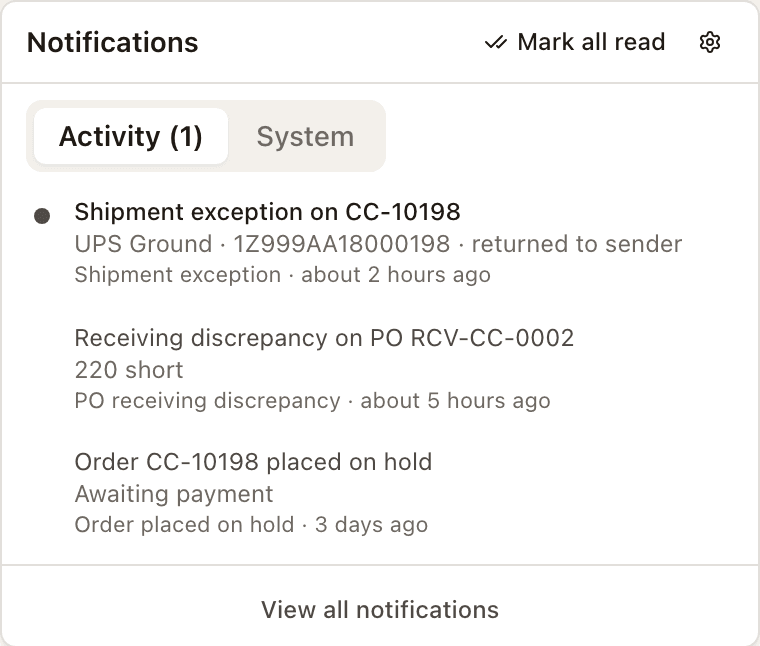
Each tab of the bell holds its eight most recent, and its label carries its own unread count, as Activity (1). View all notifications at the bottom of it opens the feed — the full list, newest first — on the tab you were looking at, and so does Open feed on the settings page. The feed has no sidebar entry of its own: the Notifications entry near the bottom of the sidebar opens the settings page below, not the feed.
Each item in the feed names the record it is about and links straight to it — an order opens its detail sheet, a PO its receiving page, a return its own page. Opening an item marks it read, and Mark all read clears the tab you are looking at without opening anything.
The feed
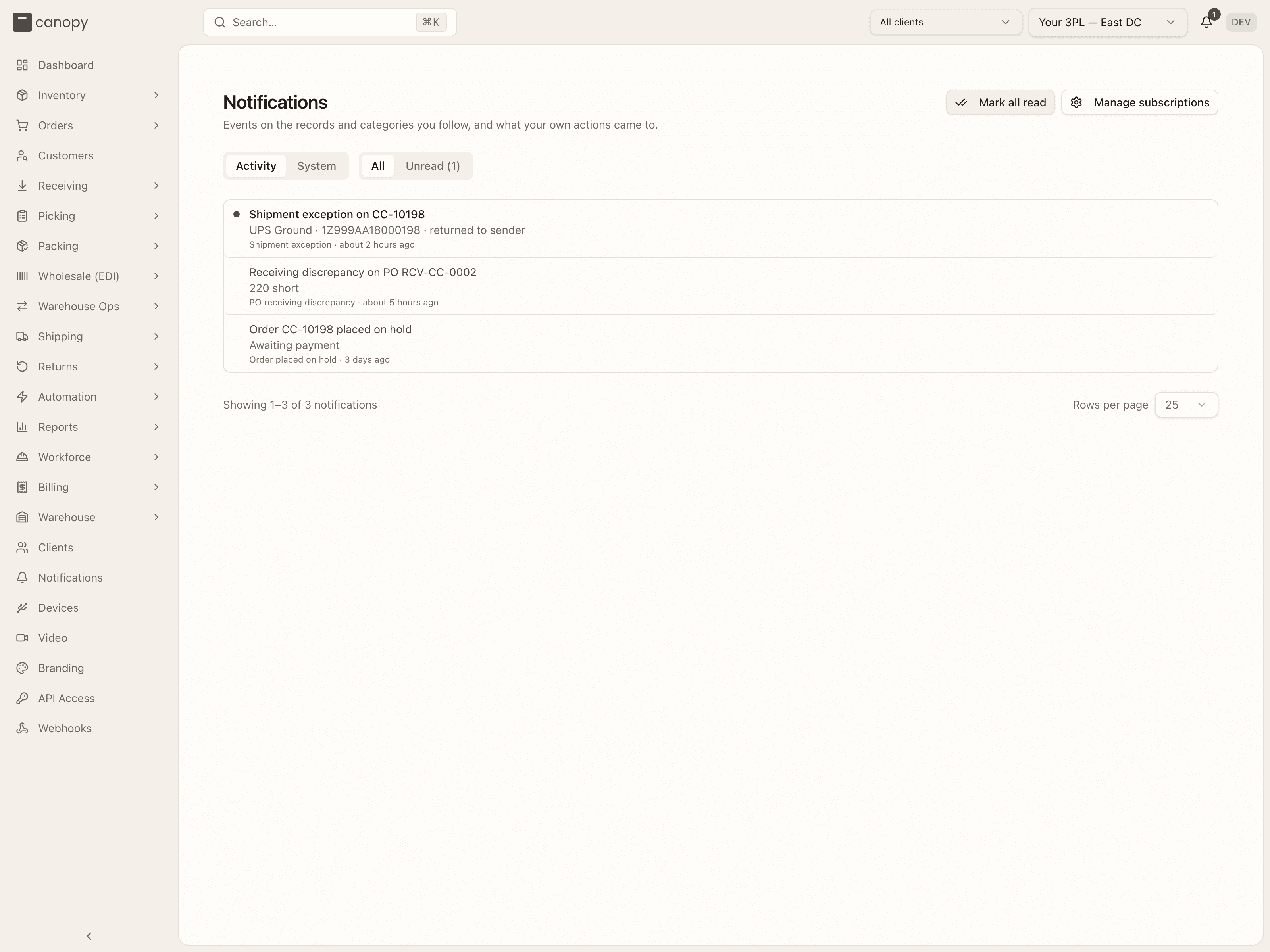
The feed is the same list with no limit, with the same Activity and
System tabs. Its subtitle reads Events on the records and categories you
follow, and what your own actions came to. All and Unread switch
between everything on the tab and what you have not read yet; Unread
carries the tab's count, as Unread (1). Mark all read clears the tab
you are on. An empty Activity tab reads No notifications yet, Follow an
order, PO or return from its page, or subscribe to event categories in
settings.; an empty System tab reads What your own actions come to — an
invoice sent, a sync finished, a confirmation you saw — lands here. With
Unread on and nothing left, the tab reads You're all caught up. The
page's address names the tab, so /notifications?kind=system opens it on
System.
Choosing what you hear about
The settings page
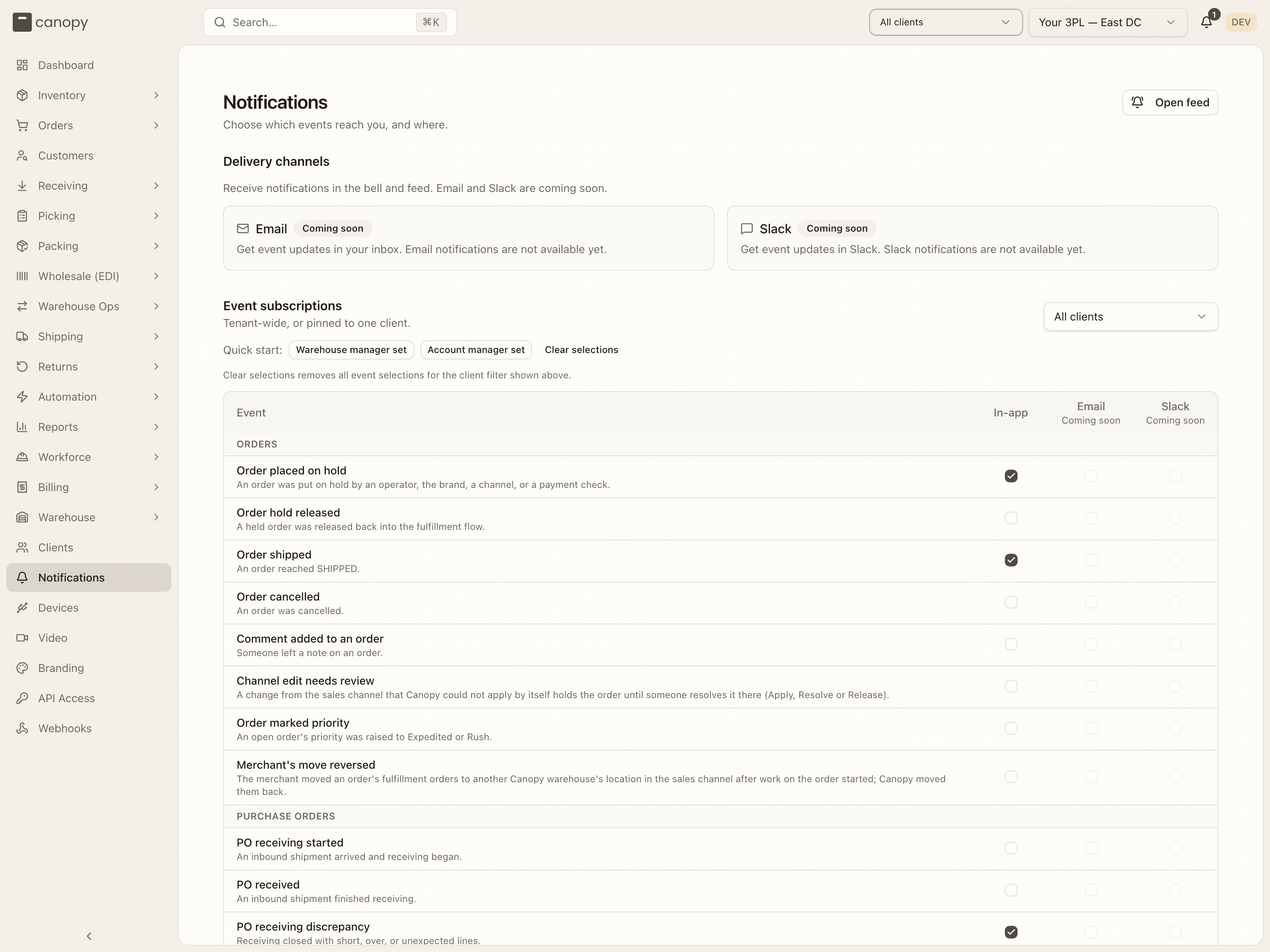
Settings → Notifications is where you pick: the delivery channels at the top, then every event with a tick box per channel, then the records you follow.
There are two ways to choose:
By event. The table lists every event, grouped by the part of the warehouse it comes from, with a tick box per delivery channel. Tick In-app on a row and that event reaches your bell from then on. The Quick start buttons tick a sensible set for a role in one go — a warehouse manager hears about physical problems, an account manager about the things a brand asks about. Clear selections removes every event selection shown, which respects the client filter above it.
By record. Orders, purchase orders and returns each carry a Follow button, in the header of the order's detail panel, the PO page and the RMA page. It reads Following once you do; press it again to stop. Following one record tells you about everything that happens to it, whatever your event selections say — useful for the order a customer is chasing, without subscribing to every order in the warehouse.
The client filter at the top of the settings page narrows an event selection to one brand. Left on All clients, a selection covers every brand you work with.
What you can be told about
| Group | Events |
|---|---|
| Orders | Placed on hold, hold released, shipped, cancelled, comment added, channel edit needs review, marked priority, merchant's move reversed |
| Purchase orders | Receiving started, received, receiving discrepancy, cancelled, comment added |
| Returns | Received, inspected, cancelled, comment added |
| Shipments | Delayed, carrier exception |
| Warehouse | Tote flagged, location discrepancy, replenishment needed |
Three of those come from a sweep or a channel sync rather than from someone pressing a button. Shipment delayed means a parcel has had no carrier movement past the threshold the Shipments page uses for its attention row — either no first scan, or nothing new while in transit. Carrier exception covers a reported exception and a parcel the carrier sent back. A parcel that is both quiet and coming home is told to you once, as the exception — as long as the return scan reaches us before the parcel has been reported delayed. If it had already been called delayed, the return scan adds the exception beside that earlier alert rather than replacing it. Merchant's move reversed fires when a channel sync finds that the merchant moved an order's fulfillment to another of Canopy's warehouses in the sales channel after work on it had already started, and Canopy moves it back.
Activity never shows your own work: an event you caused does not come back to you there. Your own work has a tab of its own.
Activity and System
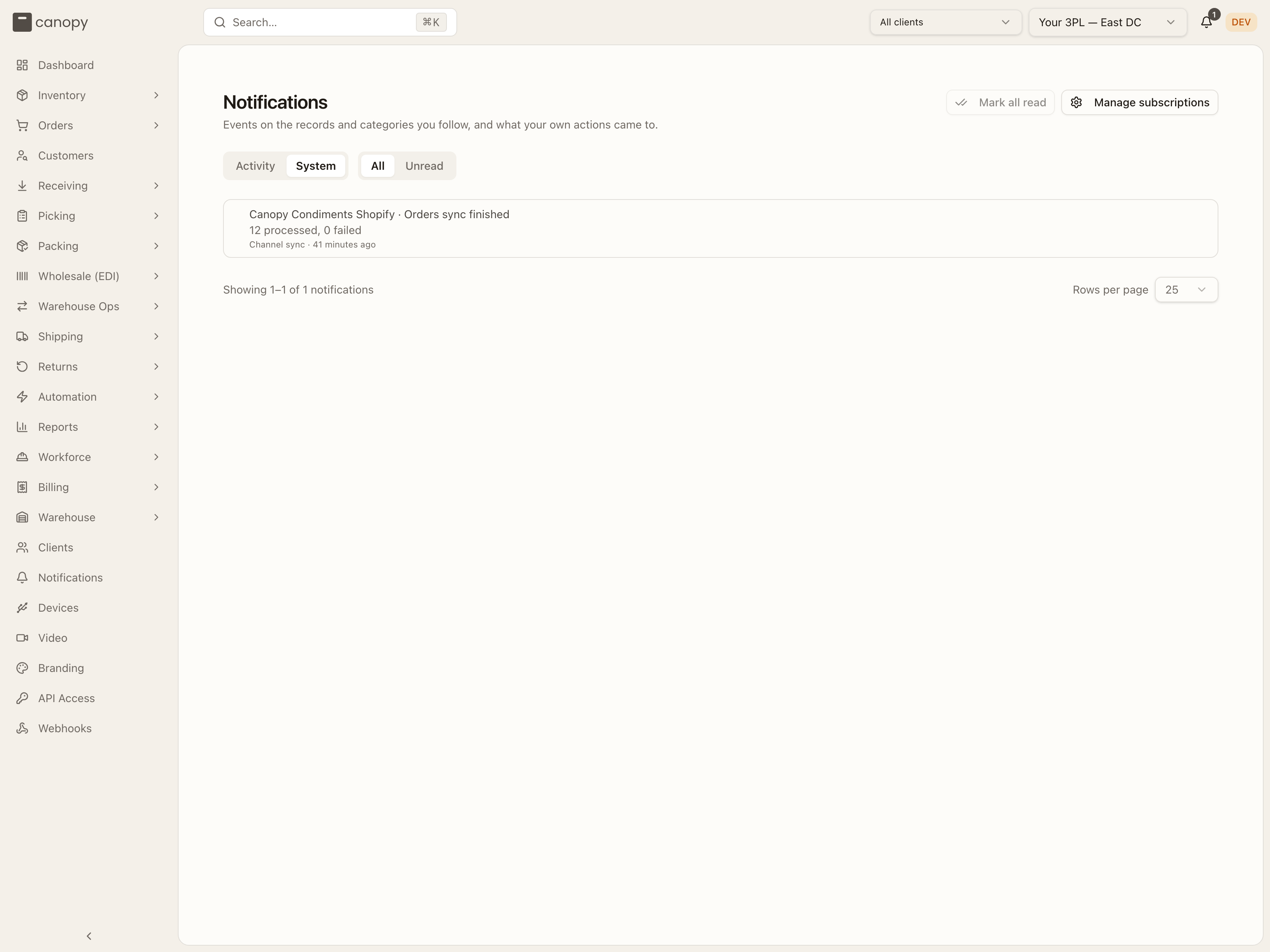
The bell and the feed each have two tabs. Activity is everything above: other people's work on the records and categories you chose, and the sweeps. System is your own work — nothing to subscribe to, in-app only, never emailed — and it holds two sorts of item:
- Results of work that finished after you clicked. Sending an invoice queues the email; when it goes out, or finally cannot, the System tab says so, with the reason, and links to the invoice. A Sync from the channel list, or Import unfulfilled orders on a channel's page, is told the same way when it finishes or fails. These count as unread and raise a toast like an Activity item.
- The confirmations and errors you already saw. A success or error toast is kept on the System tab, already read, with a link to the page it appeared on, so what you did an hour ago can be found again. These never count as unread and never toast. Trivial ones are not kept — a toast that says something was copied, for instance. A toast repeated within a minute is kept once, and so is the same toast from two browser tabs at once.
A System row reads like any other: a title such as Canopy Condiments Shopify · Orders sync finished, a line under it such as 12 processed, 0 failed, and the sort of item it is: Invoice delivery, Channel sync, Confirmed or Error. Opening it goes to the invoice, the channel's settings page, or the page the toast appeared on. When a result arrives while you are elsewhere, its toast's View opens that page, or the feed on System for several at once. Until anything of yours has finished, the tab reads Nothing yet. and What your own actions come to — an invoice sent, a sync finished — lands here.
Scheduled syncs tell no one, and neither does the rest of the warehouse's background work. The System tab is only about what you yourself set in motion. It is also only for the people who have a bell: a brand user, a service account, or floor staff under a task role get no System row for their actions.
Email and Slack
Slack is not available yet. Its card on the settings page and its column in the event table both say Coming soon, and its tick boxes are inactive.
Email is switched on per deployment. Where it is, the Email card on the settings page shows your email address, an on/off switch, and a Send test email button that sends a test message to that address. The event table gains an Email column beside In-app. The two are separate: tick Email on a row to have that event emailed to you, In-app to have it reach the bell, or both. The switch turns all of your email off at once without clearing those ticks; turn it back on and they apply again.
Until email is switched on, the Email card and the Email column both show Coming soon, the Email tick boxes are inactive, and everything arrives in the bell and the feed. If the card says email is switched on but no email provider is configured, the deployment is only half set up — tell whoever runs it.
How to choose what you are told about
Open Notifications in the sidebar
Press Notifications near the bottom of the sidebar. It opens the settings page at /settings/notifications, titled Notifications, Choose which events reach you, and where. The page is for warehouse staff at a desk: a brand's user, Canopy support, or floor staff under a task role see Access restricted, Notifications are available to warehouse staff only. instead.
Choose the brands a selection covers
Under Event subscriptions, Tenant-wide, or pinned to one client., the select on the right starts on All clients: a tick made there covers every brand you work with. Pick one brand to make ticks for that brand only. The table then shows that brand's own ticks, which are separate from the tenant-wide ones.
Tick the events you want
The table lists every event under Orders, Purchase orders, Returns, Shipments and Warehouse, each with a line saying what it means. Tick In-app on a row and that event reaches your bell from then on. Each tick saves on its own as you press it; there is no save button.
Or start from a preset
Beside Quick start: press Warehouse manager set or Account manager set to tick In-app on every event meant for that role in one go; it only adds ticks, nothing already ticked is removed. Clear selections unticks everything shown, and only that: Clear selections removes all event selections for the client filter shown above.
Turn on email where it is offered
Delivery channels at the top holds an Email card and a Slack card. Where this deployment has email switched on, the Email card shows your address, an On / Off switch and Send test email, and the table's Email column opens up: tick it on a row to have that event emailed as well as, or instead of, reaching the bell. The switch turns all your email off at once and keeps the ticks for when you turn it back on. Otherwise the card and the column read Coming soon and only In-app can be ticked. Slack is Coming soon everywhere.
Follow one record for everything on it
For a single order a customer is chasing, open it and press Follow in its header; the button reads Following once it is on. The PO page and the RMA page have the same button. A followed record tells you about everything that happens to it, whatever your ticks say. It appears under Followed records at the bottom of the settings page, where the bin icon (Unfollow) stops it, or press Following on the record again.