

Customers
Look up anyone who's ordered, with their full order and return history and lifetime spend.
The Customers section is a lookup of everyone who's bought from you, built automatically from your orders and returns — there's nothing to import or maintain.
Searching
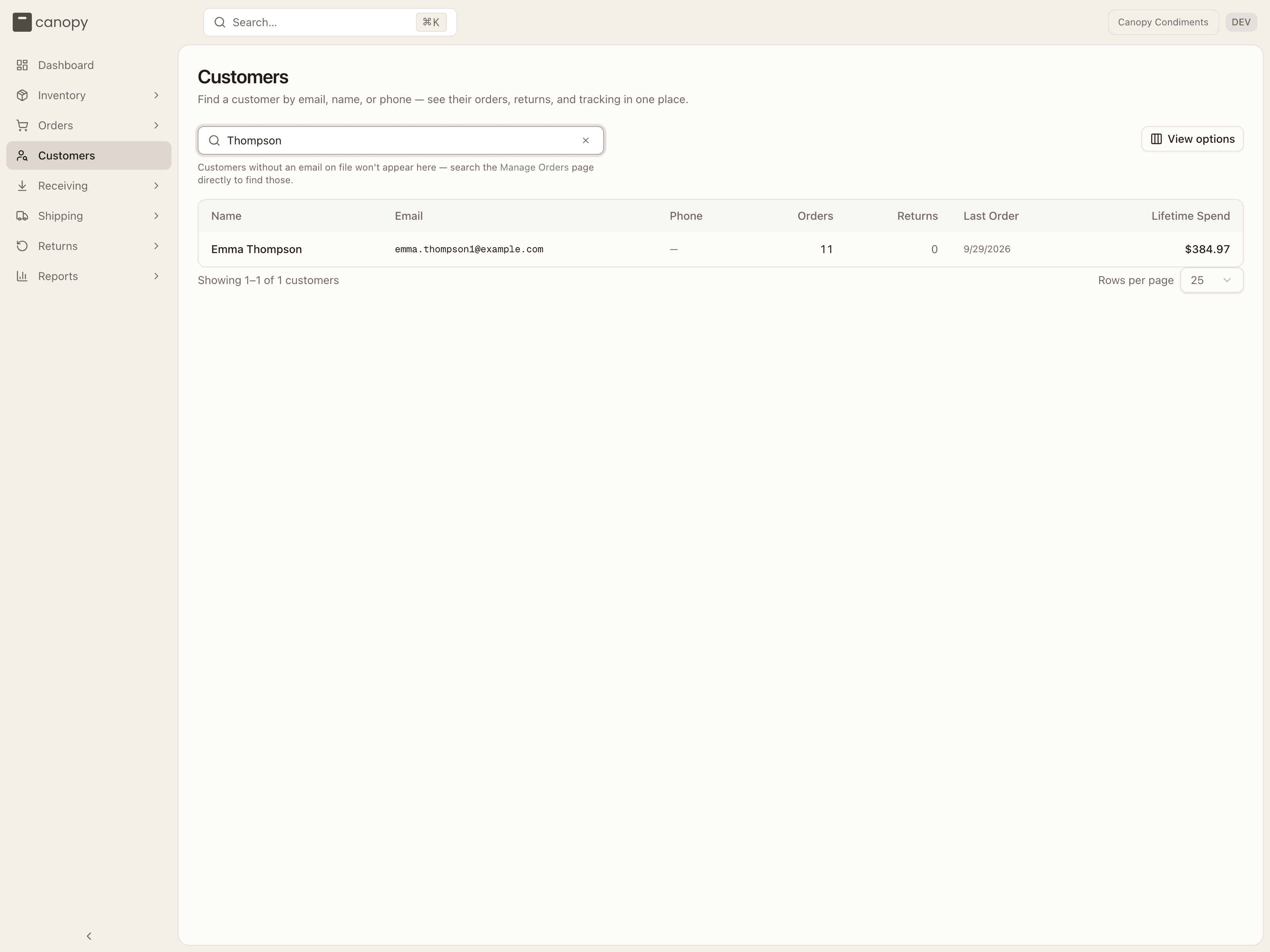
The list is search-first: start typing to find a customer by email, name, or phone. Until you search, you'll see a prompt to start typing; a search with no hits reads "No customers match that search".
Each result shows:
- Name (or "No name on file" when an order had none), email, and phone.
- Orders and Returns counts — the returns count is highlighted in amber when it's above zero — and the last order date.
- Lifetime spend — total across their orders (in their most-recent currency), excluding cancelled ones. An order others were merged into counts its own lines only, here and in the Orders tab's total.
View options shows or hides columns, and the footer pages through results at 25 / 50 / 100 / 250 rows per page.
Customers are derived from order and return data, keyed by email address — so the same shopper's orders group together automatically, even across multiple sales channels. A shopper whose orders carry no email won't appear; the note under the search box points you to Manage Orders for those. The returns count includes your customers' own returns — a blind return your 3PL recorded under their email counts too — but not parcels a carrier returned to sender.
Customer detail
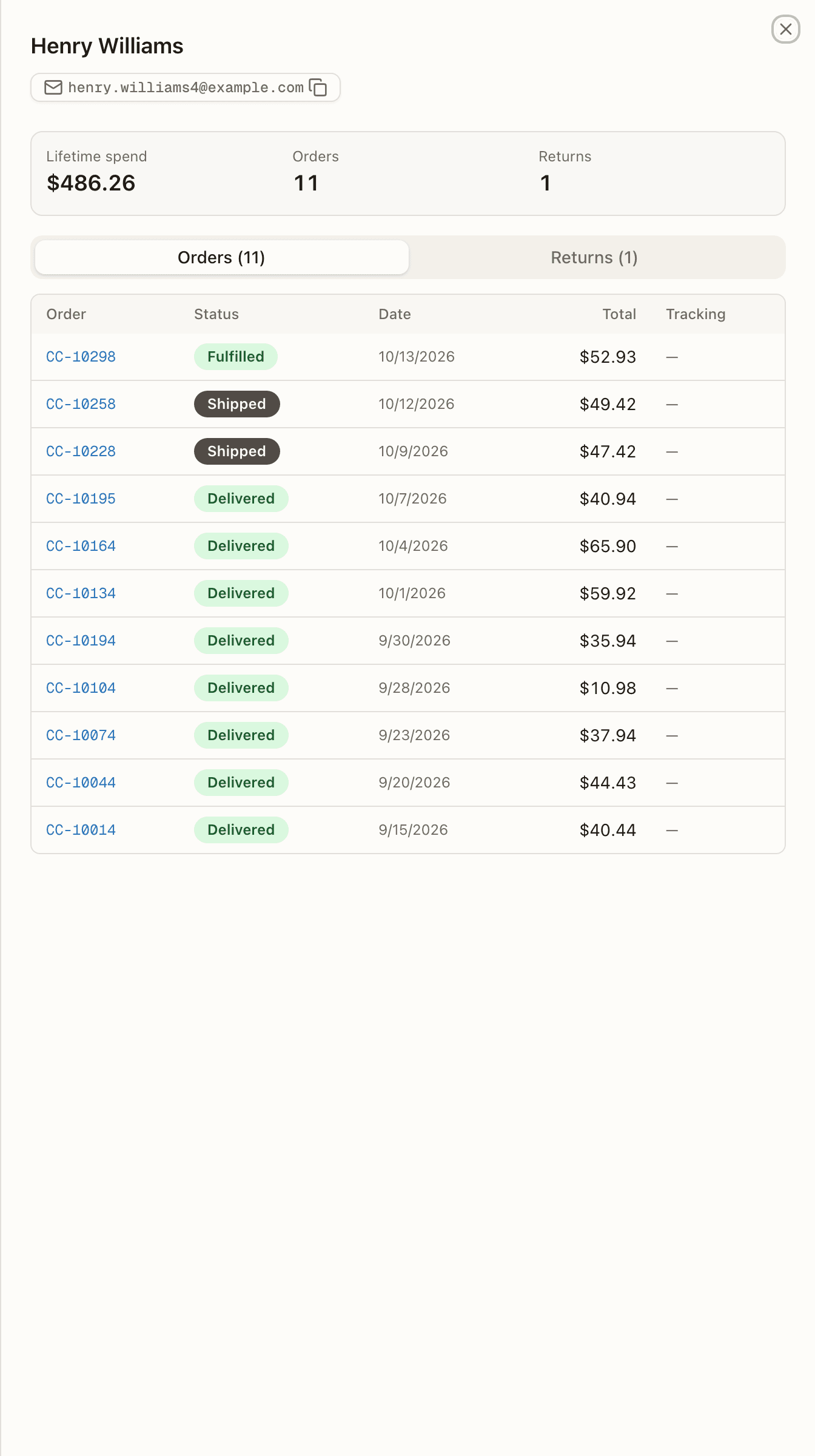
Click a customer to open their profile — three summary tiles (lifetime spend, orders, returns) above two tabs, each with its count in the tab label. The email and phone in the header are click-to-copy chips.
Orders
Every order they've placed (the most recent 200), each with its status, date,
total, and tracking number. The status badge uses the same friendly labels as
Manage Orders — Shipped, Backordered, Partially Shipped (the Returns
tab still shows raw values like IN TRANSIT, so the two tabs read
differently). Cancelled orders are shown but
dimmed and excluded from lifetime spend. An order your 3PL
split across warehouses
counts once in the tiles, as in your store, and its spend drops out only when
every warehouse's order of it is cancelled; the tab still lists each
warehouse's order, the others wearing the split chip that names your order and
opens it. The tracking number is the latest
shipment's and is a link to the carrier's tracking page (it opens in a new
tab); it's plain text when no carrier link is known. Click an order number to
jump straight to it in Manage Orders.
Returns
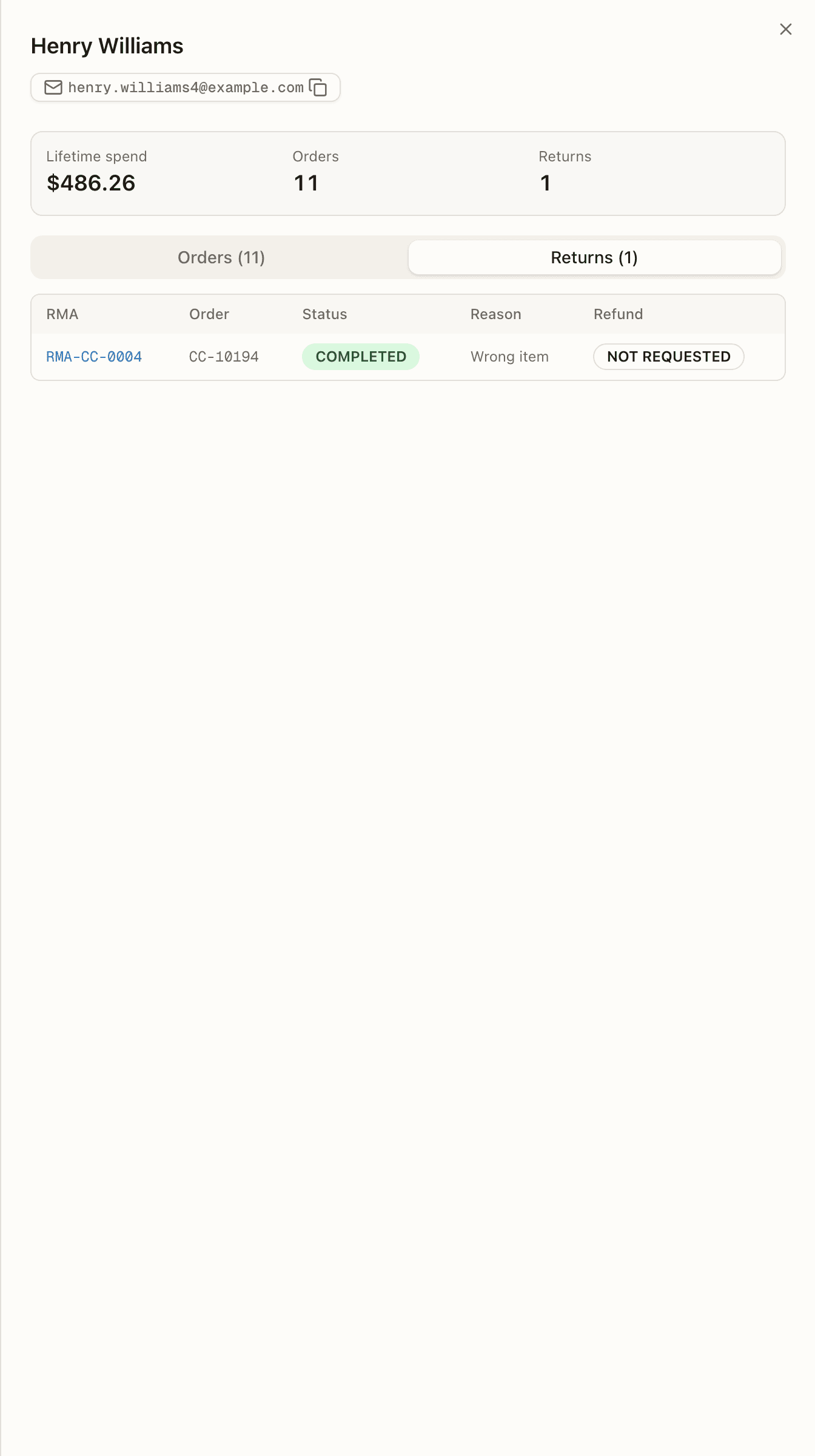
Their RMAs (the most recent 200), each with the related order, status, return
reason code, and a refund badge. The status is the raw value — PENDING,
IN TRANSIT, RECEIVED, INSPECTING, COMPLETED, or CANCELLED — so an RMA
the Returns list shows as Voided reads
CANCELLED here. The refund badge is one of NOT REQUESTED (the default),
READY, ISSUING (a refund attempt is in flight or its outcome is still
unconfirmed), ISSUED, or FAILED. A blind return shows no order and no
refund badge — nothing is refunded on one. Click an RMA number to open the
full return.
This is the view to reach for when a shopper emails asking "where's my order?" or "did my refund go through?" — you get their whole history on one screen.