

Manage Orders
Read every order's status, find what's urgent, create a manual order, and open the full detail — lines, shipments, returns, notes, and a timeline.
Orders → Manage Orders is where every order your brand sends to the warehouse shows up — from the moment it arrives off a sales channel to the moment it's delivered.
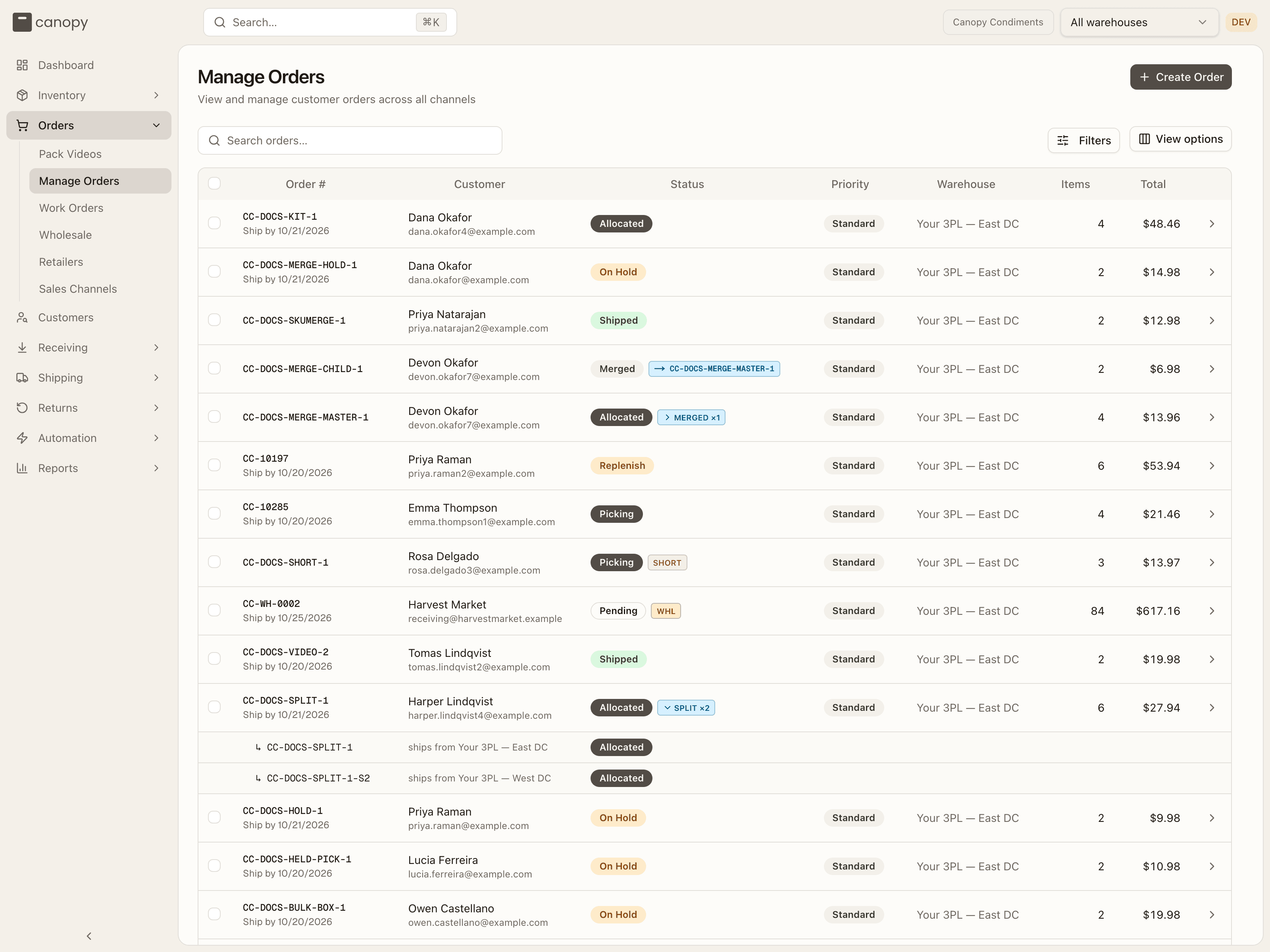
Reading the list
Each row is one order:
| Column | What you're looking at |
|---|---|
| Order # | Your order number, with a "Ship by" date underneath when one is set. |
| Customer | Name and email. |
| Status | Where the order is in fulfillment (see below), plus the chips described under it. |
| Priority | Standard, Expedited, or Rush. |
| Warehouse | The warehouse the order ships from. Shown only when your 3PL runs more than one. |
| Items / Total | Unit count and order value. |
Every column header sorts the whole list, not just the page you're on. View options lets you hide columns you don't need (Show all columns brings them back). The list shows 25 orders per page; the control at the bottom offers 25, 50, 100, or 250.
Order statuses
The status badge tells you exactly where an order sits:
| Badge | Meaning |
|---|---|
| Pending | Received, not yet allocated to stock. |
| Allocated | Stock reserved — ready to pick. |
| Replenish | Stock is reserved for you, but it's in overstock rather than in a pickable location. The warehouse tops up its pick faces, or ships the order straight from overstock. |
| Picking → Picked → Packing | Moving through the warehouse floor. |
| Fulfilled | Packed and labeled — handed off. |
| Partially Shipped | Part of the order has shipped; the rest is still owed and ships when stock arrives. |
| Shipped → Delivered | In the carrier network, then delivered. |
| On Hold | Paused — e.g. payment or address verification. |
| Backordered | Waiting on stock that ran out. |
| Cancelled | Cancelled; no longer fulfilling. |
| Unfulfillable | Can't be fulfilled as-is — needs attention. |
| Merged | Combined into another of your orders going to the same person: its items ship in that order's box, and it reads Shipped when that order ships. See merged orders. |
| Ext. Fulfilled | Fulfilled outside this warehouse. |
Small chips can sit next to the badge:
- WHL marks a wholesale order.
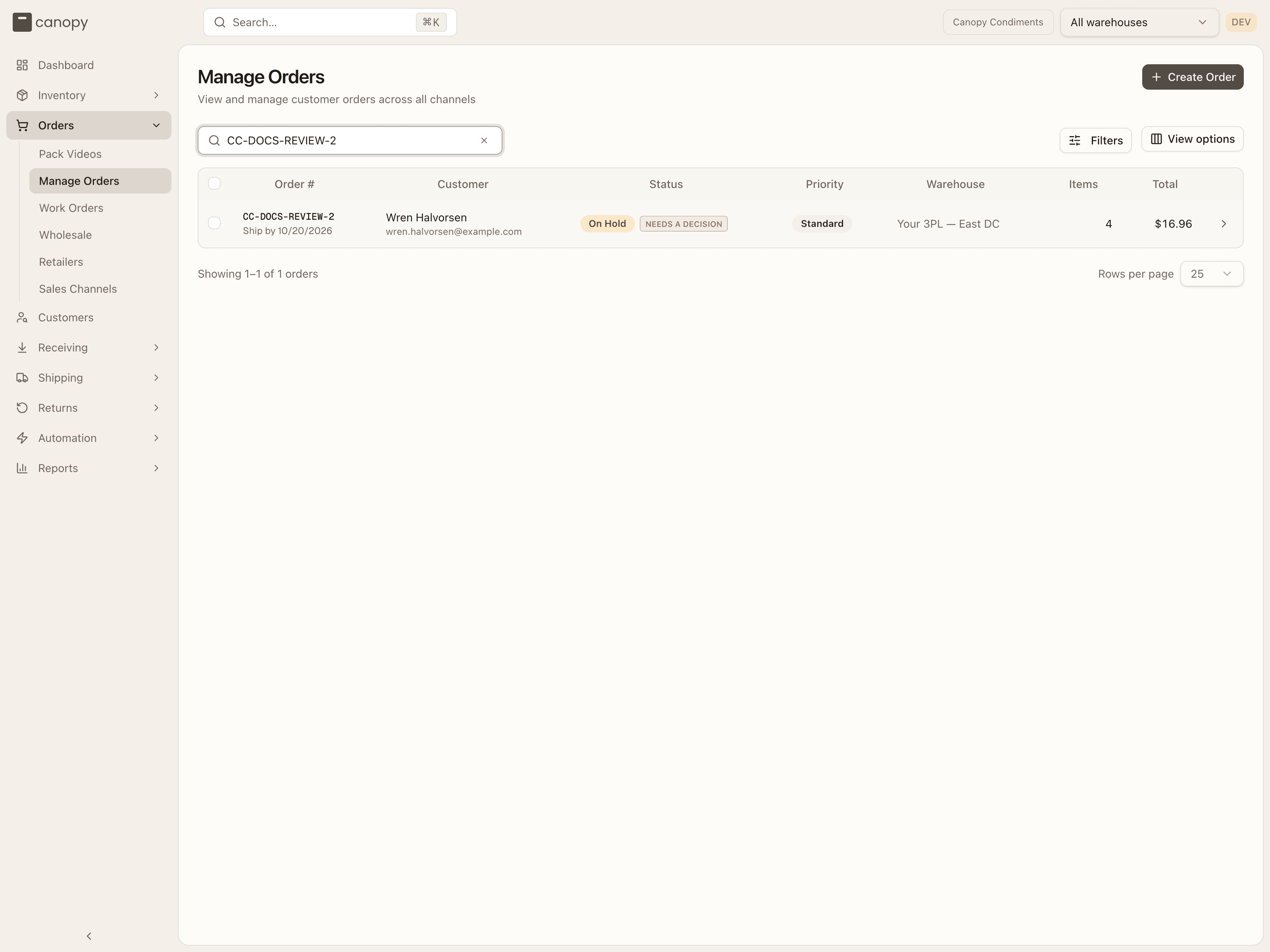
- Needs a decision, in red, means your store changed the order in a way Canopy could not apply by itself, and the change holds the order until someone decides. When every such change is only a note to read, the chip is amber and names the newest note's kind instead, for example Manual postage moved or Routing move refused. Hover the chip to see the kind of each change it stands for. The order's own review cards say what each one is.
- SHORT means picking came up short on one or more lines and the warehouse is resolving it before the order can move on.
- PARTIAL marks an order shipping what's allocated now while the rest waits — hover it for the backordered lines ("2 of 5 lines backordered: SKU ×qty"). See split orders. Once everything has gone the chip stays, in grey: "Shipped in more than one shipment. Nothing outstanding."
- PARTIAL HELD marks a backordered order that may split but is waiting whole for now, because the part in stock is under your 3PL's minimum or the order hasn't been short long enough — hover it for which.
- PARTLY ELSEWHERE means your store assigned some of the order's units to a location the warehouse doesn't run — those units aren't Canopy's to ship. See units at another location.
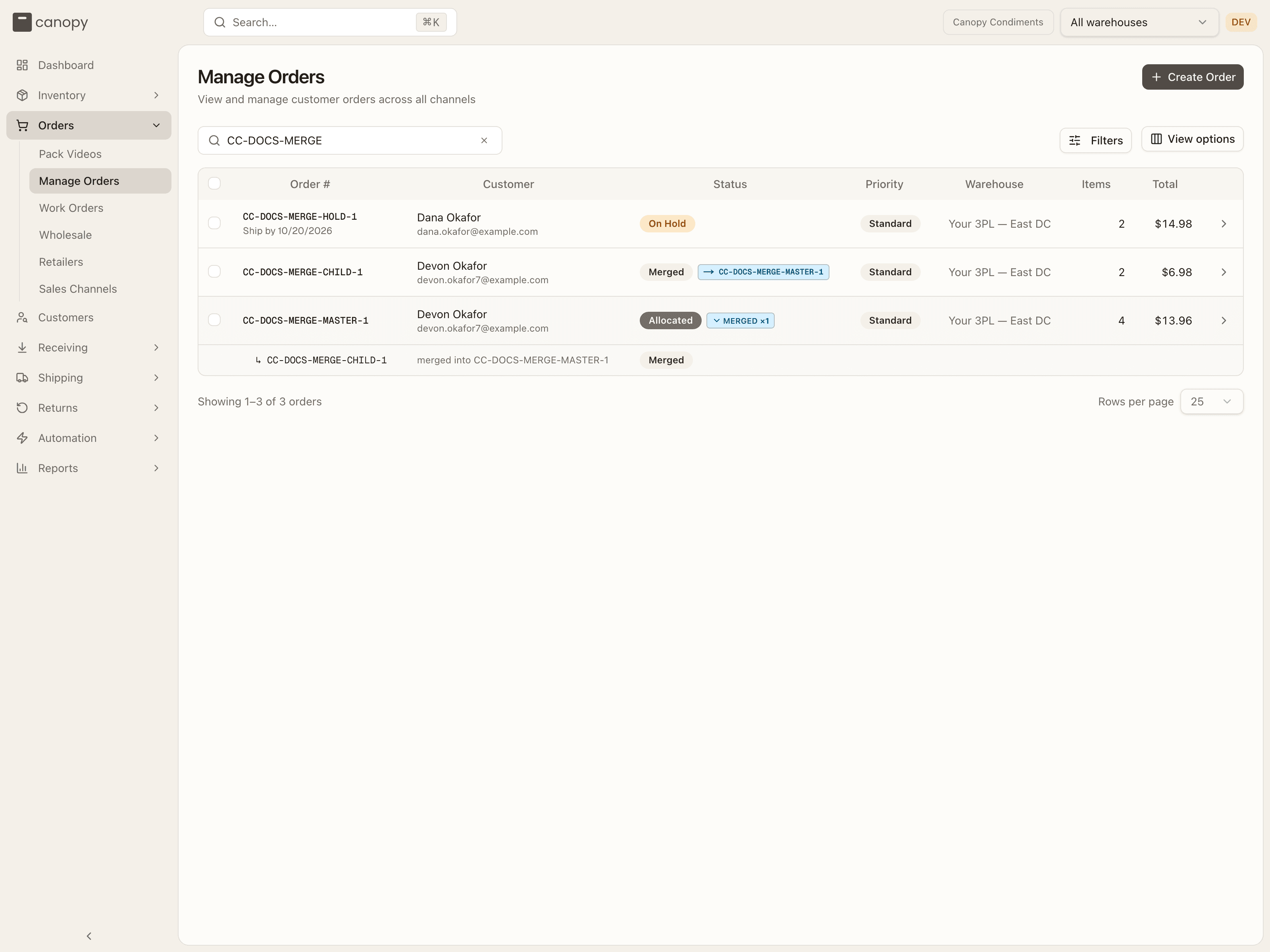
- MERGED ×N marks an order that N of your other orders were combined into, and → CC-… marks an order that was combined into the named one.
- CC-… with a split icon marks one warehouse's part of an order your 3PL split across warehouses. The chip names your order ("Part of CC-…, split across warehouses — open it") and opens it.
Needs a decision in the list
An order held by a change from your store wears the red Needs a decision chip beside its status. Open the order to see the change on its review card.
Merged orders in the list
When two of your orders go to the same person at the same address, the warehouse can combine them into one parcel. The order that ships wears MERGED ×N; press the chip and the orders combined into it unfold under the row — ↳ CC-… · merged into CC-…, each with its own status. The combined order's own row wears → CC-…, which opens the order it ships with.
Finding orders fast
Search by order number, customer, or email sits inline. Everything else is in the Filters popover — its button shows how many filters are narrowing the list, and Clear all resets them:
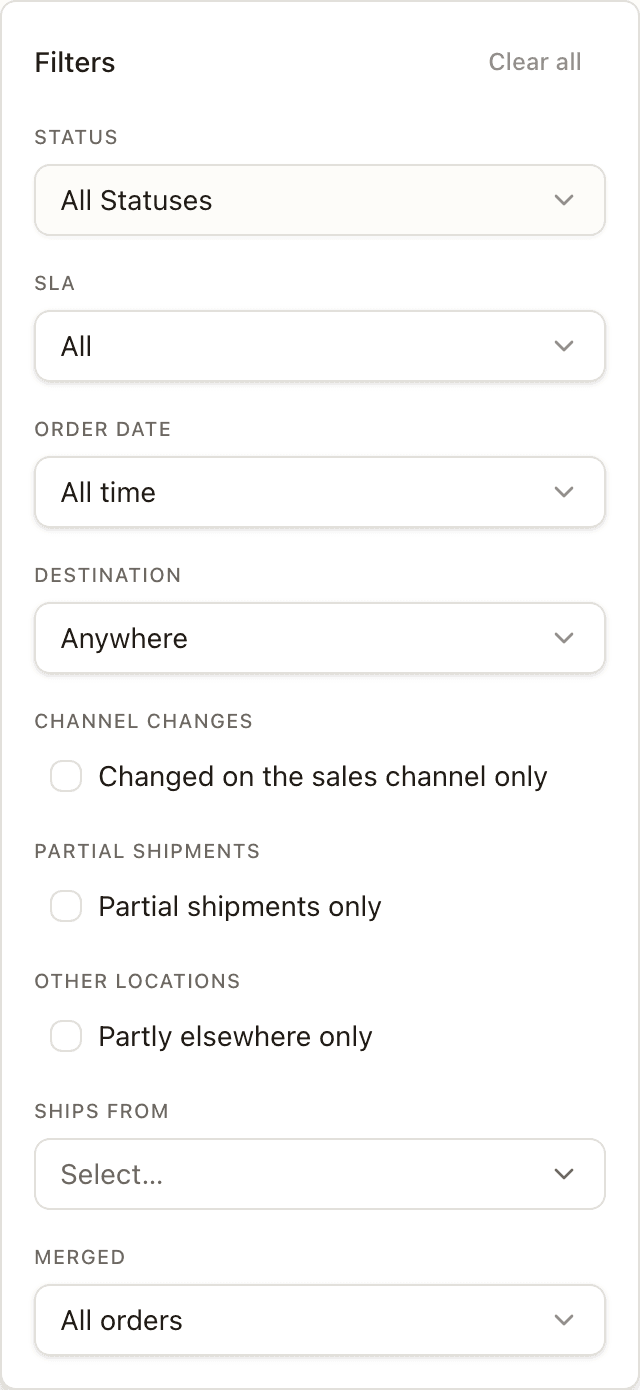
| Filter | Options |
|---|---|
| Status | One or more statuses. |
| SLA | Due to ship today, Past SLA, Due after today, No ship date, Due today or overdue, On schedule (not overdue) — the quickest way to find what's urgent, and the same bands the dashboard's pace bar links to. |
| Order date | Today, Yesterday, Month to date, Last 30 days, or a Custom range… with From / To dates. |
| Destination | Domestic, International, or Countries… to pick specific countries. |
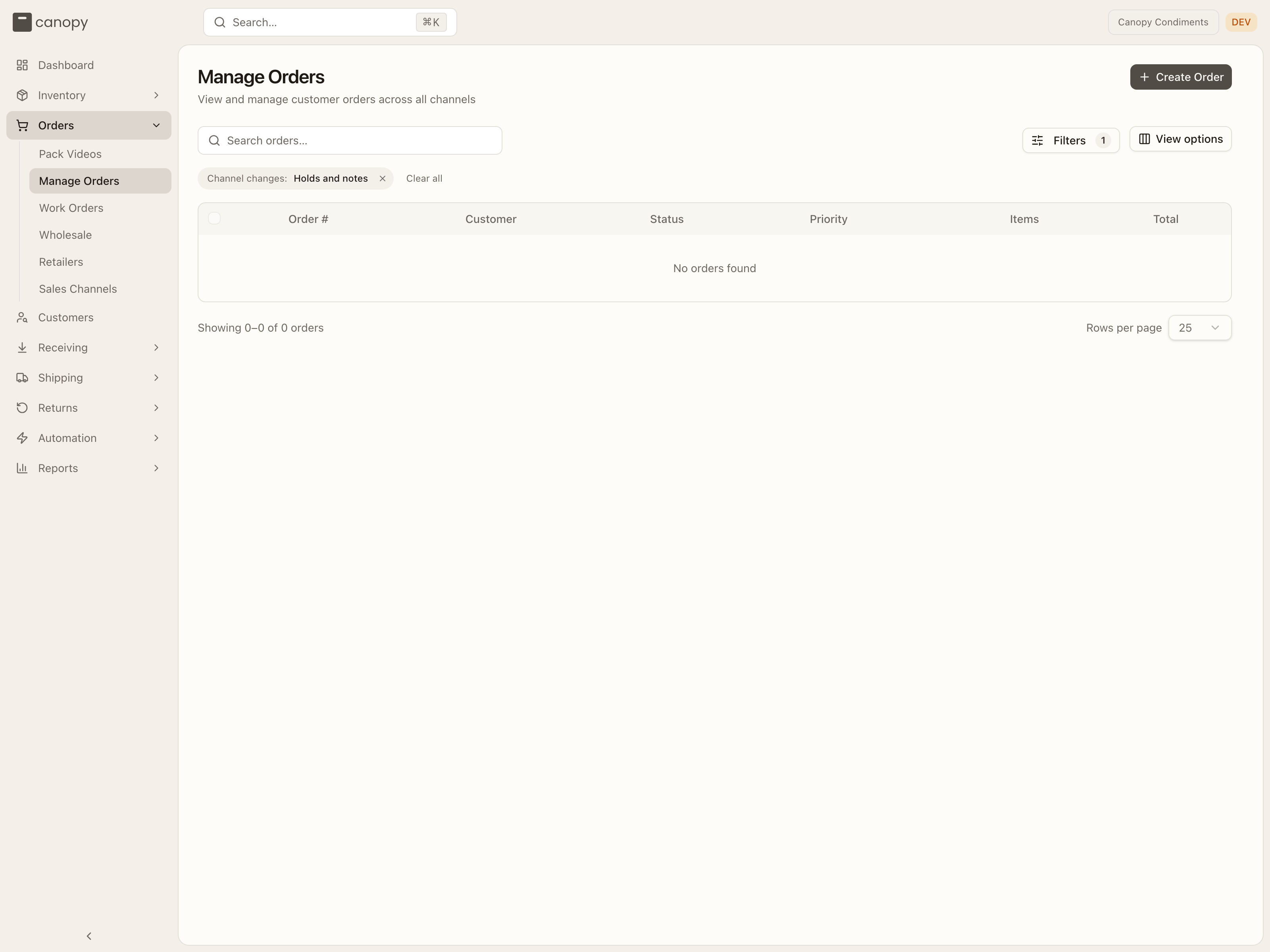
| Channel changes | Changed on the sales channel only: orders with an open change from your store, whether it wears Needs a decision or carries only a note to check. |
| Partial shipments | Partial shipments only — orders shipping part of their lines now with the rest backordered; the chip above the table reads Partial. |
| Other locations | Partly elsewhere only — orders with units your store assigned to another location; the chip reads Partly elsewhere: Units at another location. Offered when your store reports units by location. |
| Ships from | One or more warehouses — only orders shipping from them. Offered when your 3PL runs more than one warehouse; while it's set, it replaces the warehouse picked in the top bar for this list. |
| Merged | All orders, Orders others were merged into, Orders merged into another, or Either. Offered while your 3PL has order merging switched on. |
Every active filter shows as a chip above the table so you can see what's applied and remove it in one click.
Holds and notes
Once the filter is on, its chip reads Holds and notes: a change on your sales channel can either hold the order for your 3PL to act on, or just leave a note to read. Open the order to see which one applies.
Holding and releasing orders in bulk
Tick the checkbox on one or more orders and a toolbar appears. Hold Selected pauses the ones that can be held (Pending, Allocated, Replenish, Picking, Picked, Packing, Fulfilled, Backordered, Unfulfillable, or Partially Shipped — the button shows the count) with a reason and a duration, and More actions → Release hold lifts the hold on any that are On Hold — and because lifting one hold can leave an order on another waiting behind it, the result says so rather than giving a flat count: "N now waiting for payment (channel)", "N still held by their sales channel". Select all N matching orders extends the selection to every order the current filters match, across pages; an action that reaches orders off the visible page asks you to confirm first. Anything can be ticked — the counts tell you what each action will actually touch.
Creating an order
Use Create Order (top right) to enter an order manually — handy for a phone or wholesale order that didn't come through a connected channel.
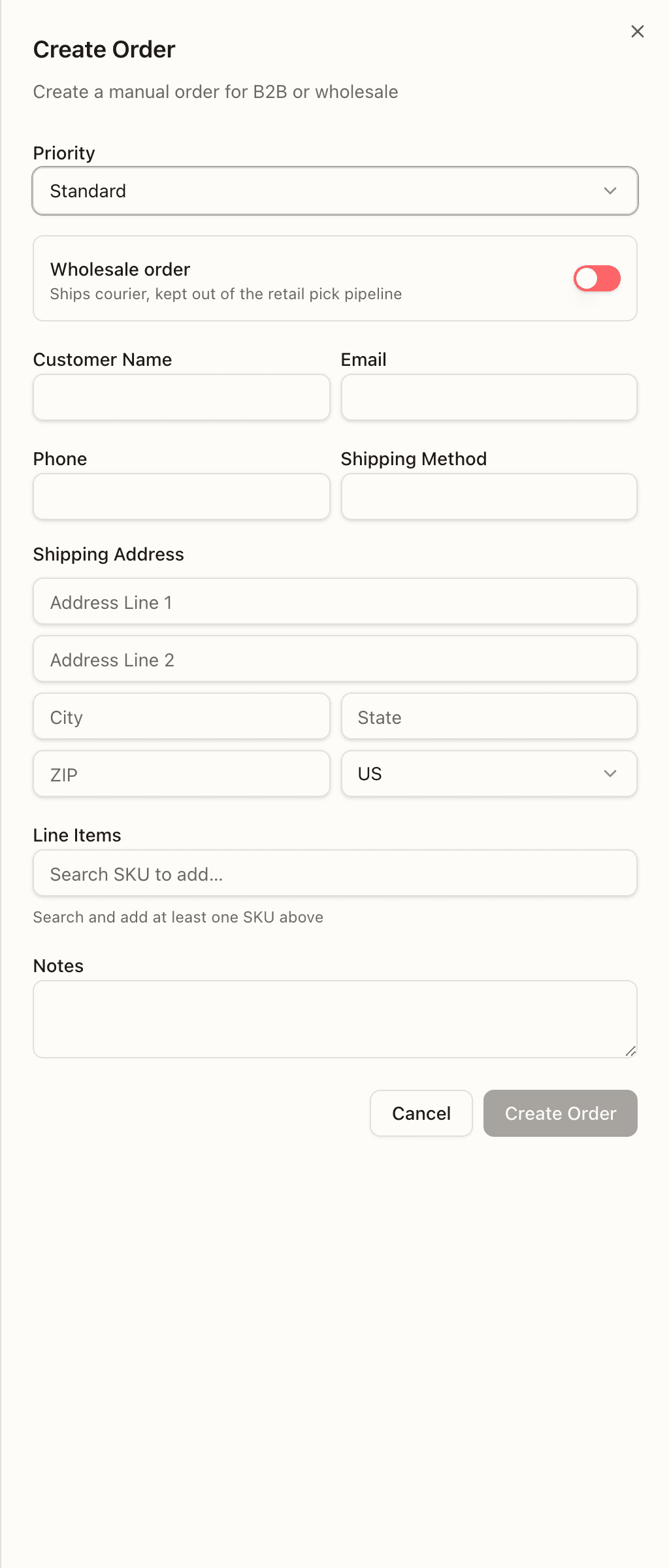
Set the Priority, the customer's name, email, and phone, a Shipping Method, and the Shipping Address (country is a dropdown), then search your catalogue in Line Items to add each SKU with a quantity and optional unit price, and add any Notes. The Create Order button stays disabled until at least one line is added.
You don't choose a warehouse: the order goes where your 3PL's routing rules send it, or else to your default warehouse. If your 3PL runs more than one warehouse and neither names one, the form refuses with "Cannot create order: no warehouse could be resolved. Set the client's default warehouse (Clients → client settings), or include warehouseId on the order." — ask your 3PL to set your default warehouse.
Flip Wholesale order for an order going to a retailer: the block expands to a Retailer picker, a Shipping method of Courier or Freight, a required Ship by date, and Retailer instructions that print on the packing slip. Wholesale orders are kept out of the retail pick pipeline and fulfilled by the warehouse's carton flow.
Order detail
Click any row to open the order detail panel. The header shows the order number, status, and priority, and which channel it came from; a WHL chip marks a wholesale order. The panel is organized into seven tabs.
Above the tabs you'll find the actions open to you on that order — Hold and Release, Re-queue Order on an unfulfillable one, Edit, Cancel, Packing Slip (the 6×4in invoice-style slip; on an order others were merged into it lists them under Combined with), and, once the order has shipped, Send again — see sending an order again.
Release only lifts a hold you placed yourself, or a plain note. A hold placed for your 3PL to decide — a brand's addition waiting for the warehouse's pick, or a change held after packing started — releases only there; trying to lift it yourself is refused. Release shows only while the order's newest hold is one your side placed. A hold the warehouse, your store or a payment check placed has no Release for you, and bulk Release hold or an API key pinned to your brand gets this answer for it: "The warehouse decides this hold — contact your 3PL to release it".
An address change behind a live label
If you change the shipping address after your 3PL has already bought a label for the order, the address isn't written right away — the label still shows the old one. The order holds instead, with a note that says so and asks your 3PL to check whether the box is still at the warehouse. An order shipping as part of a Bulk Ship batch holds the same way behind its own label; your 3PL's note there tells them that pulling the box back also takes the order out of the batch, so it can ship on its own to the new address.
If the box is still there, your 3PL relabels it in place to the new address and the hold clears on its own. If it has already left, you get a note that the box shipped with the old address, and you'll need to correct it with the carrier. Either way, going back to your original address before your 3PL answers cancels the hold — nothing was ever changed.
Warehouse-side actions such as allocating stock, picking, recovering a cancelled order, creating an RMA, and the warehouse's own reships belong to your 3PL and don't appear. A Merged order offers none of the actions above except the packing slip: everything that happens to it now happens on the order it ships with. Cancelling an order that others were combined into first returns them to being their own orders — the confirm says so: "CC-…, merged into this order, goes back to being its own order — with its own lines and reserved stock — and is not cancelled." — and is refused once the warehouse has started on the box. It's also refused when another warehouse's open re-send is taking units off this order's box — the confirm names that order's re-send: "CC-…'s re-send is taking units off this order's box 1Z… — cancel that re-send on its order first, or let it go out." It's refused the same way when the order's box was packed and labelled in a completed Bulk Ship batch — its label is live, and the box can't be unpacked to reach it: "its box 1042 #1 was packed and labelled in Bulk Ship batch #42, and its label is live: void its label first (Shipments), then cancel; if the box has left, let it ship." And once your 3PL has answered that the box has left, a later Cancel is never applied — the order keeps shipping as packed, and your 3PL leaves a note instead that it was cancelled after the box left, so you're owed a refund or a return for what already went out.
Hold, Release, and Cancel on a split order
When your order ships from more than one of your 3PL's warehouses (see split orders), Hold, Release, and Cancel act on the whole order, not just the warehouse part you opened. Holding one part holds every part that can still be held, under one shared hold; releasing lifts that shared hold on every part at once. A part held or changed for its own reason — a routing hold, a short pick — keeps that too.
Cancel cancels every warehouse part at once, unless one of them has already shipped — then it's refused: "… is split across warehouses and … shipped — cancelling it would leave those units with the carrier. Cancel the remainder instead: every warehouse order not yet shipped is cancelled, and the open rest of a partly shipped one." Ask your 3PL about cancelling the remainder in that case.
If one warehouse part can't take the action at the exact moment another part of the same order is being split or changed, you're told how many parts went through and that what's done stays done — try the action again to finish the rest.
Adding, changing, or removing a line on a split order
When your order ships from more than one of your 3PL's warehouses, Add item, Reduce qty, and the trash icon on the Items tab write the customer order as a whole. Your 3PL's system carries the new quantity on every warehouse part at once, not just the part you're viewing. A reduction can't go below what the customer order already shipped from any of its warehouses, or shipped or is open outside Canopy. Cancel the remainder instead once everything owed is either shipped or down to what's already gone.
If the change can only land on a warehouse part your 3PL's warehouse is already working on, nothing changes right away. Every part that can still be held is held instead, with a note on the order explaining which warehouse part is in the way. The warehouse decides: release the hold to keep the order as it is, or wait for that work to finish and make the change again.
Once your 3PL has started packing the order, Cancel doesn't cancel it right away — it holds the order for your 3PL to decide, the same Apply-or-Keep choice as reducing or removing a line once picking has started: Apply cancels it, closing the pack session first; Keep ships the order as packed and leaves you a note to refund or take a return for it.
Details
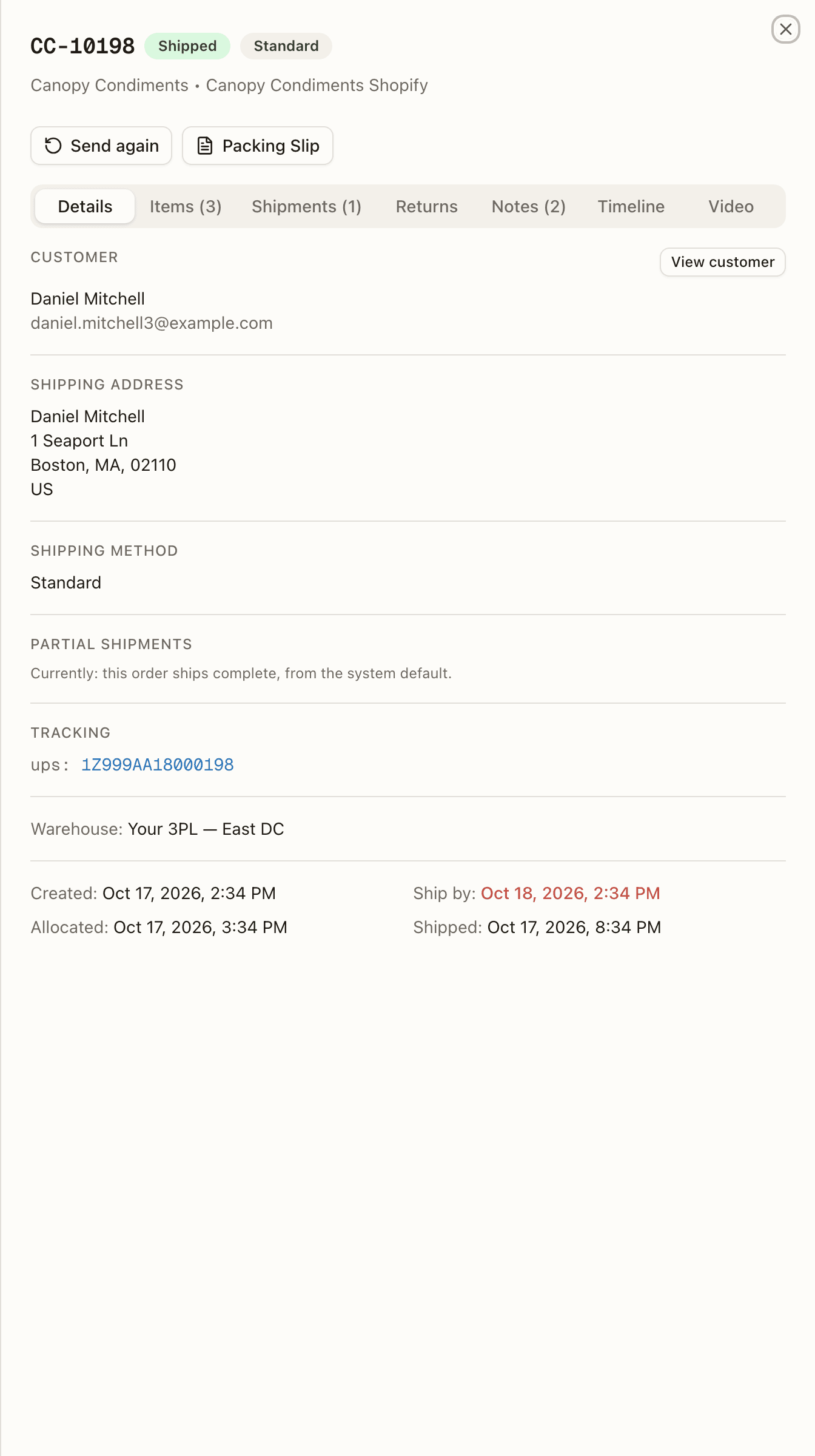
Customer (with a View customer button that opens their profile over the order), shipping address and method, tags, notes, a separate Gift Note when the order has one (on a Shopify order, the gift message your store's own gift field collected lands here), and any holds, listed under Hold Reason (see holds on your order). When a split sends part of a held order to a new order at another warehouse, the new order keeps the same hold, and its reason names the order it came from: "<reason> — carried from order CC-…, whose units this order ships". Your 3PL's own routing hold ("No warehouse can fill this order — rule '…'") is the one hold that releases by itself, once a warehouse can fill the order. When your 3PL's automation also holds that order, when it comes in or when your 3PL re-applies its rules, the reason you see is the rule's reason, then the routing reason. From then on the hold is the rule's. Stock arriving no longer releases the order. If the rule held it as it came in, the rule's hold is a row of its own: on the rule's release date that row lifts, and the order is back on the routing hold, which stock can release again. If your 3PL re-applied its rules, the order waits for your 3PL to release it.
Near the bottom, Warehouse names the warehouse the order ships from (see where it ships from), and under it the order's dates: Created, Ship by (red once it's past), Allocated, and Shipped. Once the order ships its tracking shows too.
An order sitting at Replenish opens with a warning banner above the tabs: "Stock is available in overstock. Replenish picking locations or fulfill through Bulk Ship." Your stock is reserved; it's the warehouse's move to get it into a pickable location or ship it from overstock. The buttons underneath are your 3PL's.
Five more banners can open above the tabs:
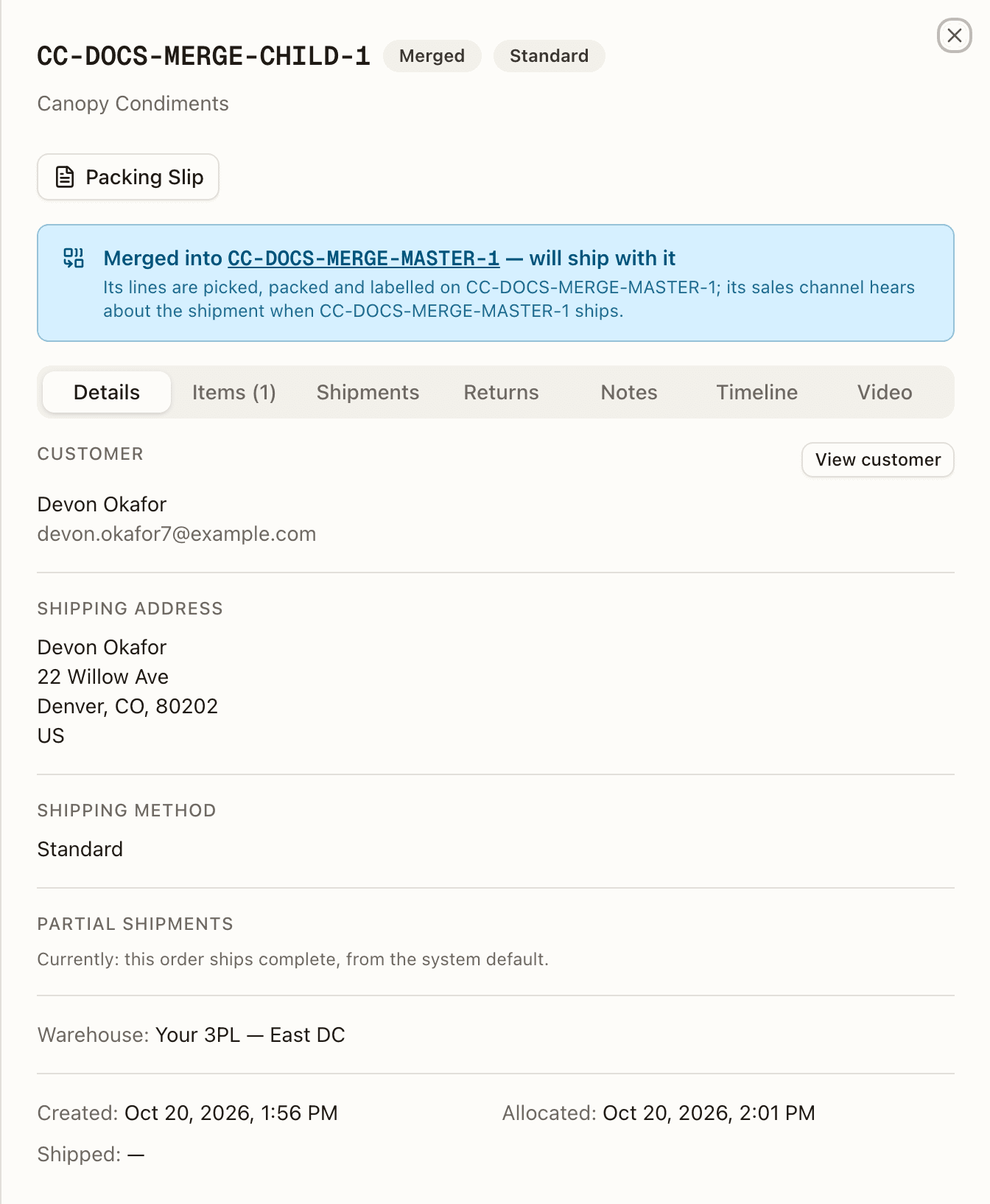
- Merged into CC-… — will ship with it — this order was combined into another of yours: "Its lines are picked, packed and labelled on CC-…; its sales channel hears about the shipment when CC-… ships." Once that order has gone the banner turns green, Shipped with CC-…, with the tracking number. Taking an order out of a merge is your 3PL's to do.
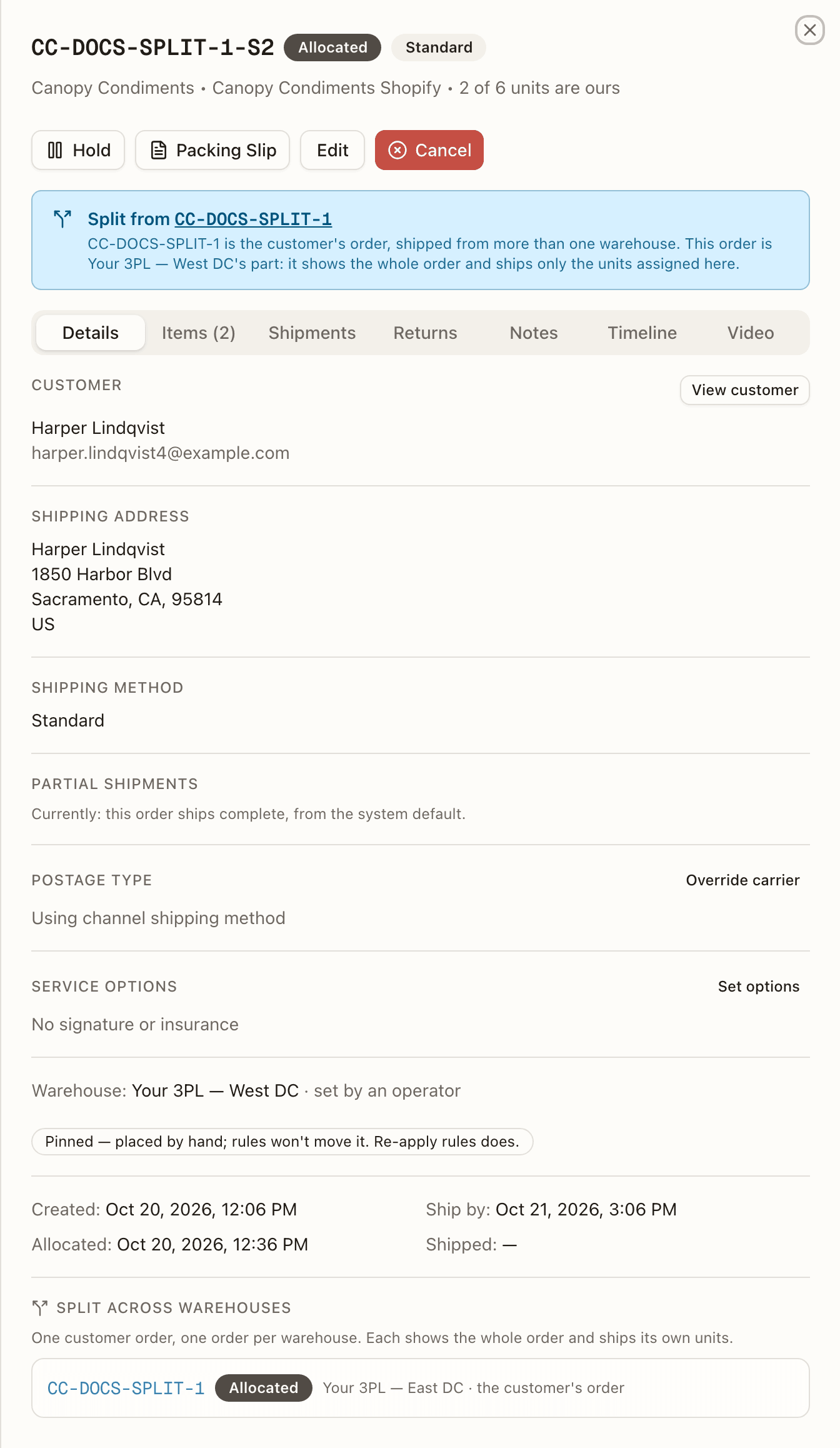
- Split from CC-… — this order is one warehouse's part of an order your 3PL split across warehouses: "CC-… is the customer's order, shipped from more than one warehouse. This order is Buffalo's part: it shows the whole order and ships only the units assigned here." The number opens your order.
- An order merged into this one changed on its sales channel — on an order others were combined into, one block per change your store made to a combined order (cancelled, edited, put on hold, a balance outstanding, units shipped or refunded elsewhere), with the line diff and when it was detected. When your 3PL's rules hold the label on such a change the banner is red — Label on hold — and the parcel waits until the warehouse acknowledges the change or takes that order out of the merge. Each block names where that order stands now: "CC-…, which shipped in this order's box, …" once it has gone, "CC-… (no longer in this merge) …" once the warehouse took it back out. A change your store makes to this order — the one others were combined into — appears here too, opening "This order …"; when it is a new ship-to, the block says the box still carries the address the combined orders share, and that sending this order to its new address means taking the whole merge apart. That is your 3PL's to do, so talk to them — unless the box is already packed out, when the block says so plainly: "This order is packed out and can't be taken apart any more — ship as packed."
This also holds once the order is paused by a hold placed after it was already packed out — being On Hold doesn't undo the pack, so the block still reads the packed-out text rather than the "talk to your 3PL" one.
- Charge waiting on <location> — the channel is set to charge the customer when the order ships, but only once every location has shipped, and that location still has part of this order to send. The banner gives the reason; the charge goes through once that location ships, or 24 hours before the payment authorization expires, whichever comes first.
- Archive waiting on another location — your store's archive-on-ship was refused because another location still holds units of this order.
Taking a child out waits on its box first
Taking one of the orders merged into this one out of the merge isn't always instant: your 3PL may have to pull this order's own box back first, and only once that's done does the child actually leave. While it's waiting, the block reads "Taking CC-… out waits on this order's box — pull it at Boxes to pull (its label and an empty tote) and CC-… comes out; if it has left, mark it gone and CC-… ships in it." There's nothing for you to do here — pulling the box and taking the order out are both your 3PL's work.
A change your store made that Canopy could not apply by itself is a review card above the tabs, one card per change. A card titled Order changed in sales channel can also say that your store moved units between locations and Canopy could not follow — "Nothing was changed on this order — decide with the merchant who ships them" — or that your store cancelled a return after the warehouse had already received items on it: the RMA stands, its received units are in stock. Two more say that who ships the units changed rather than the units themselves, so they carry no line diff: your store cancelled a fulfillment Canopy had recorded as made at another of your locations and Canopy left those units as they were for your 3PL to decide — your 3PL can Reship these items on the line to take them back, or acknowledge and leave them as shipped elsewhere — and your store took the very units an open re-send was sending, leaving the re-send standing.
On an order your 3PL split across warehouses, a line change made in your store is applied to every warehouse's order at once when Canopy can tell whose units it changes: on a Shopify store where your 3PL imports only the items assigned to their locations, or on a channel that has no fulfillment orders at all, where a fixed rule decides. Anywhere else, and for a line whose change touches a warehouse's order already being worked, each warehouse's order shows a card with the same diff ("… split-order-edit: the channel changed the lines of an order split across warehouses — change each warehouse's order by hand"), and your 3PL makes the change on each.
A card can instead be a note for your 3PL, under a title of its own, such as these two. Check the manual postage: the order moved to another of your 3PL's warehouses and kept a postage choice made by hand for the old one, which your 3PL checks still fits. Not placed where routing chose: your store wouldn't move the order's fulfillment orders to the warehouse your 3PL's routing chose, so it ships as it stands — moving it in your store and having your 3PL re-apply its rules changes that. The same note appears when routing, run again after an edit or as stock frees up, couldn't move the order — or release routing's hold on it — because your store refused to move its fulfillment orders. When your store simply gives no answer instead — down, timed out, or throttled — nothing is noted and no flag is raised: Canopy asks again on the next stock change or sync without you seeing anything about it.
While the note stands, stock freeing up no longer re-checks the order; a later move that takes the fulfillment orders along clears it. Both notes are amber cards wearing Note, so you can Acknowledge them yourself.
Two more sections describe how the label will be bought. Postage Type reads Using channel shipping method unless your 3PL forced a carrier (Manual override) or an automation rule set one. Service Options shows whether signature confirmation or insurance will be added. Both carry an Override carrier / Set options button, but changing them is warehouse work — a client account's save is refused with "This action is restricted to warehouse staff"; ask your 3PL. What the first button opens is under The Override Carrier dialog.
A Partial shipments section sits between the shipping method and Postage Type on orders that aren't wholesale. It states whether this order may ship what's in stock first and where that came from: your channel or client default, or a setting on the order itself. You can change it for this order yourself: while the order is Pending, On Hold, Backordered, Replenish, Unfulfillable or Partially Shipped, a select offers Inherit — allows partial shipments (…) (or … ships complete), Allow partial shipments and Ship complete, and saves as soon as you choose. The line under it reads "Currently: this order allows partial shipments, from …". The minimum size and the wait before a short order splits stay your 3PL's, as do your channel and client defaults. On an order others were merged into, the line adds "This order leads a merge — a merged order never ships in parts. Unmerge it to change this." An order the warehouse holds mid-pick or mid-pack reads "Locked while this order is being worked — release the hold and unpick it to change this." While a short order is held whole, the line adds why — "Partial held: 2 of 3 units minimum. The order waits whole until more of it is in stock, or the minimum is lowered.", or "Partial held: splits after <date>. Until then the order waits whole; if the rest of its stock lands first, it ships complete."
A wholesale order adds a Wholesale section — retailer, ship mode, and instructions — with Print packing slip for the wholesale slip.
A Reship history section lists every time the warehouse re-sent part of the order — or you did, with Send again — with the reason (Client asked for a re-send for yours), what it cost (Billed as a new order for a re-send; nothing for the warehouse's own), the lines, who did it ((client) when it was you), and the old and new tracking. A re-send the warehouse is sending through a Bulk Ship batch also carries In Bulk Ship batch #N; the batch page it opens is warehouse staff's. Your own open re-send carries Cancel re-send — see sending an order again.
The Override Carrier dialog
Override carrier opens Override Carrier — CC-…, the dialog your 3PL uses to force the postage type. You can open it and read it. Its one field, Postage type, starts on No override (use automation / channel default). Open the list and the services are grouped by carrier account: one heading per account your orders can ship on, the account a label is bought on by default first, each listing the services that account offers. An account whose services are only known from a live quote has no heading, and Generic Label sits under its own Canopy heading. The choice your 3PL saves is the service and the account together, so the label is bought on that account. An account headed … — needs reconnecting is greyed out until your 3PL reconnects it. Save is refused for a client account ("This action is restricted to warehouse staff"); ask your 3PL to set the carrier and the account.
Where it ships from
The Warehouse line names the warehouse the order ships from, then what put it there: rule '…' when one of your 3PL's routing rules chose it, explicit when the order named its warehouse, channel location when the location your store gave it maps there, channel default or client default for your sales channel's or your account's default warehouse, only warehouse when your 3PL runs just one, set by an operator when your 3PL moved it, or, on an older order only, moved in Shopify. Canopy no longer gives any order that value: now only an order your store placed in the first place follows a move you make there yourself (see below). An order from before Canopy kept this record shows the name alone.
On a Shopify order whose store locations your 3PL has mapped to its warehouses, the defaults come before the location. When none of your 3PL's routing rules decides, the order goes to your sales channel's default warehouse, else your account's, as long as your 3PL can ship from it on that channel. Canopy moves the order's fulfillment orders in your store to that warehouse before the order lands, and its Warehouse line reads channel default or client default. If your store won't move them, the order ships from where your store put it. An order your store split between locations arrives on hold instead (see split across warehouses). Only when neither default can be used does the location your store gave it decide (channel location).
If your 3PL ships from more than one warehouse, an order that isn't wholesale and hasn't been picked yet can move to another of them on its own, because your 3PL's routing rules run on it again. An order your 3PL split across warehouses is routed as one order instead: the rules decide for all its warehouses together (see a split order moves as one order). Otherwise, it moves:
- when its shipping address, tags, or items change — whether you, your store, or your 3PL made the change — or when you or your 3PL change its shipping method or priority in Canopy (your store's edits never change those two);
- when stock frees up at another warehouse for a Backordered order — only under a rule your 3PL set to re-route backorders, and only if that warehouse can fill the whole order, once its own waiting orders are covered, while the one it waits at can't, except under a routing rule that splits orders across warehouses, where one line alone can move once stock covers just that line, leaving the rest of the order where it is;
- when your 3PL's routing rule places each SKU of the order at whichever of its warehouses has stock for it, splitting your order across more than one warehouse instead of choosing a single one. This can happen when the order is created, when your 3PL re-applies its rules, or when it is edited. Each warehouse then picks, packs, and ships its own part, and you see every parcel on the order's Shipments tab with the warehouse it left from;
- when your store hands units to a location Canopy runs that feeds another warehouse — see units at another location.
- when you move the order's fulfillment orders in your store to a location that feeds a different warehouse than the order's. Only an order your store placed in the first place follows you there before it's picked: one whose Warehouse line reads channel location, or rule '…' for a rule still set to follow your store. Any other order, named explicitly, moved by your 3PL, sent to a default warehouse, or placed by a different rule, stays where it is, and Canopy moves its fulfillment orders back to match instead. Only your store's report of the very move does this; once picking has started, an order that follows stays, and Canopy moves its fulfillment orders back when it ships. If the fulfillment order moves again before Canopy reads your store, the later move decides, and the order never moves back.
- when a split order's customer order ends up with nothing of its own left in your store: it follows whichever of its parts still has units, taking over that part's warehouse. Its Warehouse line keeps showing whatever already put it there (a rule, explicit, or however it was placed), since it's the same order, just moved. If nothing is left anywhere, the whole order rests Ext. Fulfilled instead.
After an edit, or when stock frees up, an order a routing rule held because none of its warehouses could fill it — On Hold (System) with the reason No warehouse can fill this order — rule "…" — is released once one of them can: where it already is, or by moving there (when stock frees up, only under a rule your 3PL set to re-route backorders). None of this moves a pinned order: one whose warehouse was named when it was created (explicit) or that your 3PL moved (set by an operator). Each move adds a row to the Timeline saying why.
A split order moves as one order
When the rules run again on an order your 3PL split across warehouses, they decide for your whole order at once, not for each warehouse's part. That happens after the same edits as above, and when your 3PL re-applies its rules on any of the order's parts, until any warehouse starts work on its part. What happens depends on the rule that matches your order:
- A rule that picks one warehouse brings the whole order together there. Your order keeps its number and ships everything from that warehouse. The other warehouses' orders are retired and read Cancelled.
- With no rule matching, your sales channel's default warehouse, else your account's, takes the whole order the same way, as long as your 3PL can ship from it on that channel.
- A Follow channel rule keeps the split as your store has it.
- A rule that places each SKU spreads the order across warehouses as it plans.
- A rule that would hold the order, or no warehouse able to fill it, leaves the order where it is.
When stock frees up, each warehouse's order of a split order waits for its own stock. Only a rule that places each SKU, with re-routing of backorders on, can move a waiting line.
Pinned to its warehouse
Under the Warehouse line, an order can wear a badge that reads "Pinned — placed by hand; rules won't move it. Re-apply rules does." It shows when the order's warehouse was named when it was created (explicit) or chosen by your 3PL (set by an operator), or, on an older order, moved in Shopify. On a split order it shows when any of its parts was placed that way. A split your 3PL makes by hand always is, so every part of it wears the badge.
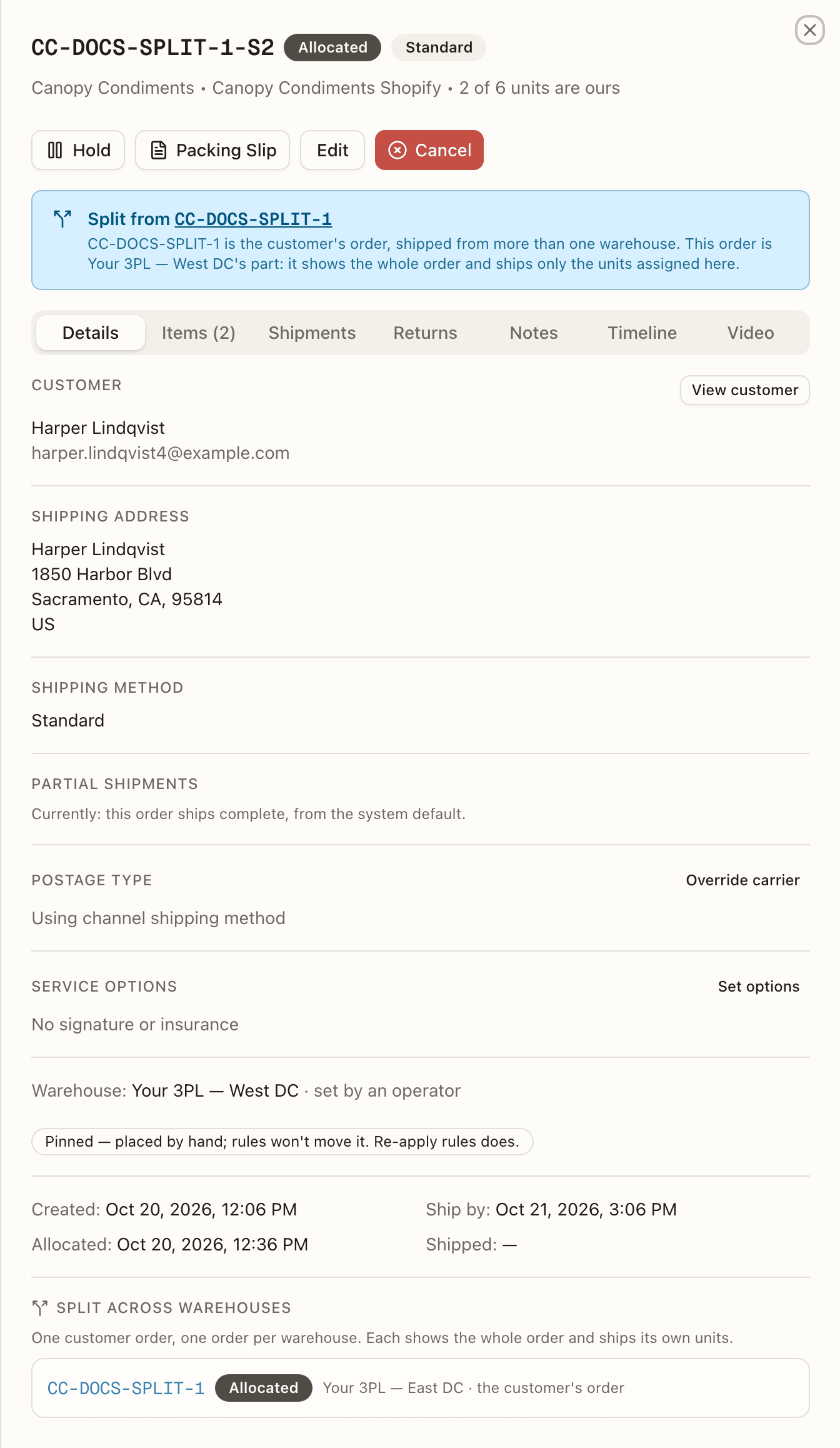
Edits and stock freeing up never move a pinned order. Only your 3PL's Re-apply rules does. On a split order, the parts it places then count as placed by the rules, and the badge goes. Units your store adds to a pinned split order are the exception: those units alone go where the rules say, and the rest stay where your 3PL put them.
Review cards
Some changes your store makes can't be applied by Canopy on its own: a line changed after picking started, an item Canopy doesn't know, a refund on an order not yet shipped. Each one becomes a card above the tabs, newest first. An order with two open changes shows two cards.
Each card has a title, then the change's kind and a badge. Holds the order, on a red card, means the order waits until someone decides. Note, on an amber card, means nothing is paused; it is there to read. Under that the card says what happened, lists the line changes (for example + 2 × SKU), and says when Canopy saw it: Detected ….
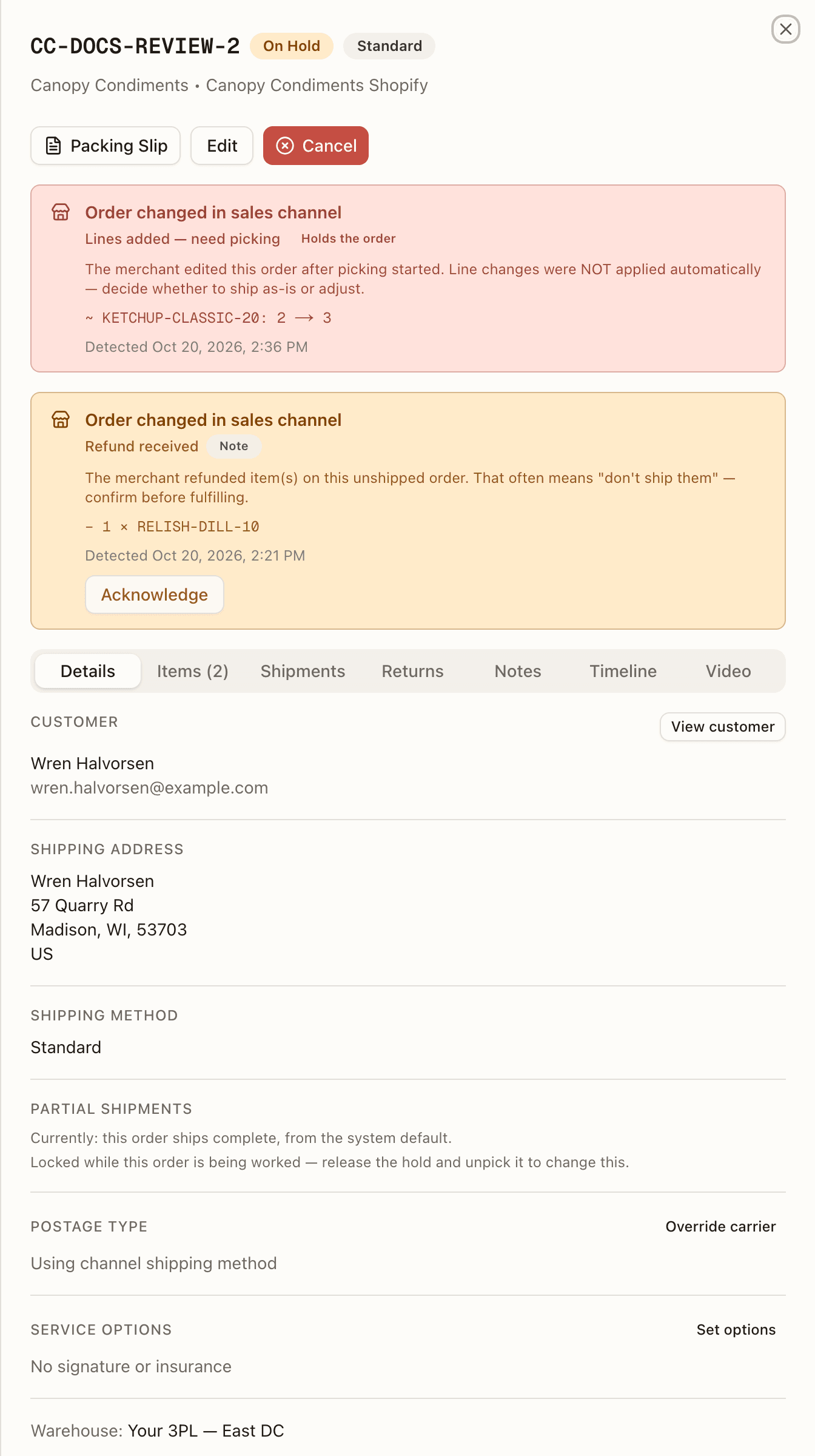
You can clear a note yourself. Press Acknowledge on its card and the message reads "Note acknowledged". A card that holds the order has no button for you: your 3PL decides it, by applying your store's change, picking the added units, keeping the order as it is, or releasing the hold. While only such cards hold the order, Release isn't offered either.
Holds on your order
Every other hold and note open on your order is listed on the Details tab, newest first, under Hold Reason (Hold Reasons when more than one hold is open). A hold pauses the order: it reads On Hold until every hold is lifted. A note pauses nothing; it is there for you to read.
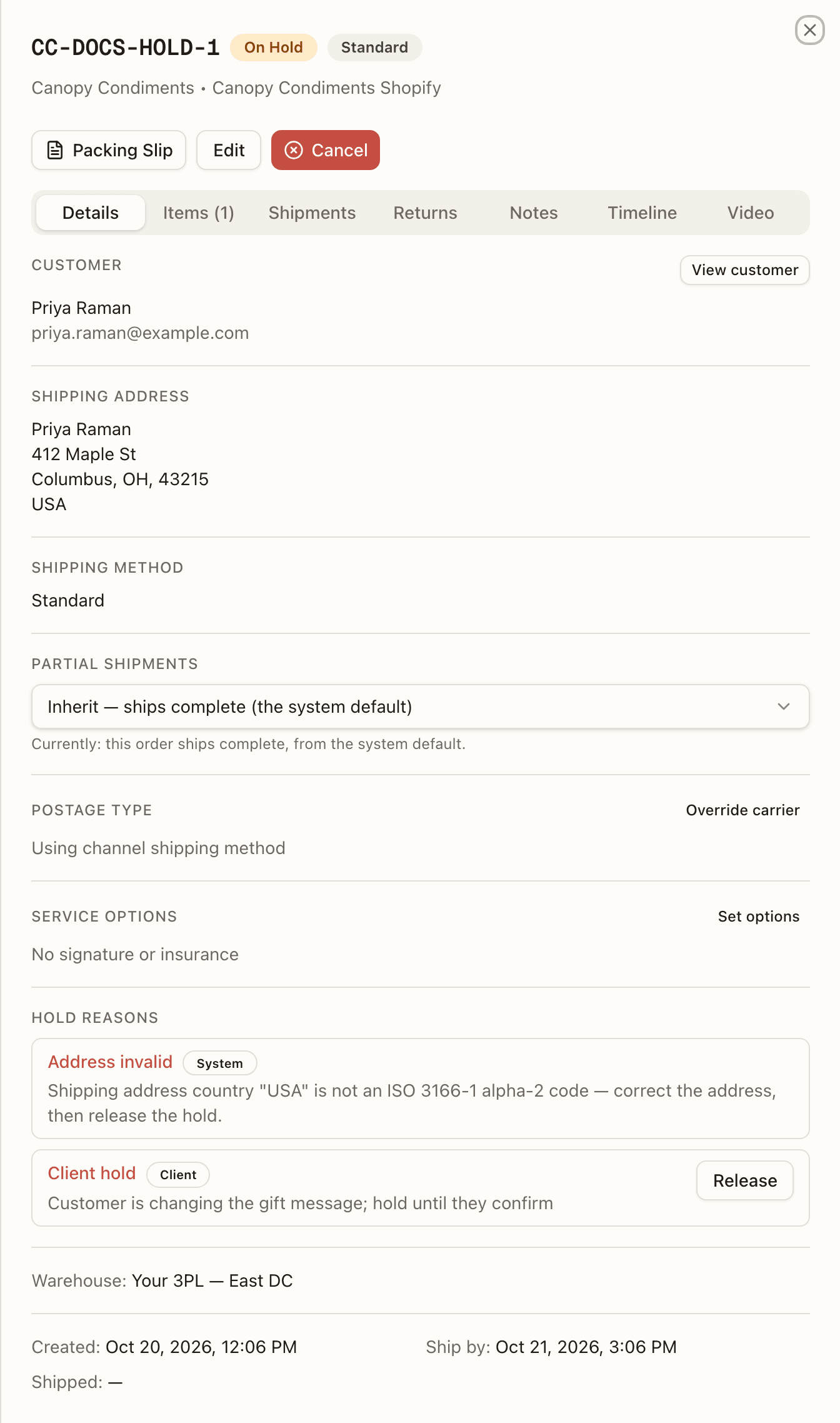
Each row names what it is (Client hold for one you placed, Operator hold for your 3PL's, Channel hold, Awaiting payment, and others), who placed it (Warehouse, Client, Sales channel, Awaiting payment or System), its reason, and, on a timed hold, when it releases. A note also wears a Note badge.
You get a button on a hold your side placed, and on any note: Release on your own hold, Acknowledge on a note. Release lifts that one hold. If your 3PL or your store holds the order too, it stays On Hold, and the message says what is left, for example "Hold released — still held: 1 other reason (Address invalid)". A hold your 3PL, your store or a payment check placed has no button for you; ask your 3PL to release it.
Merged orders
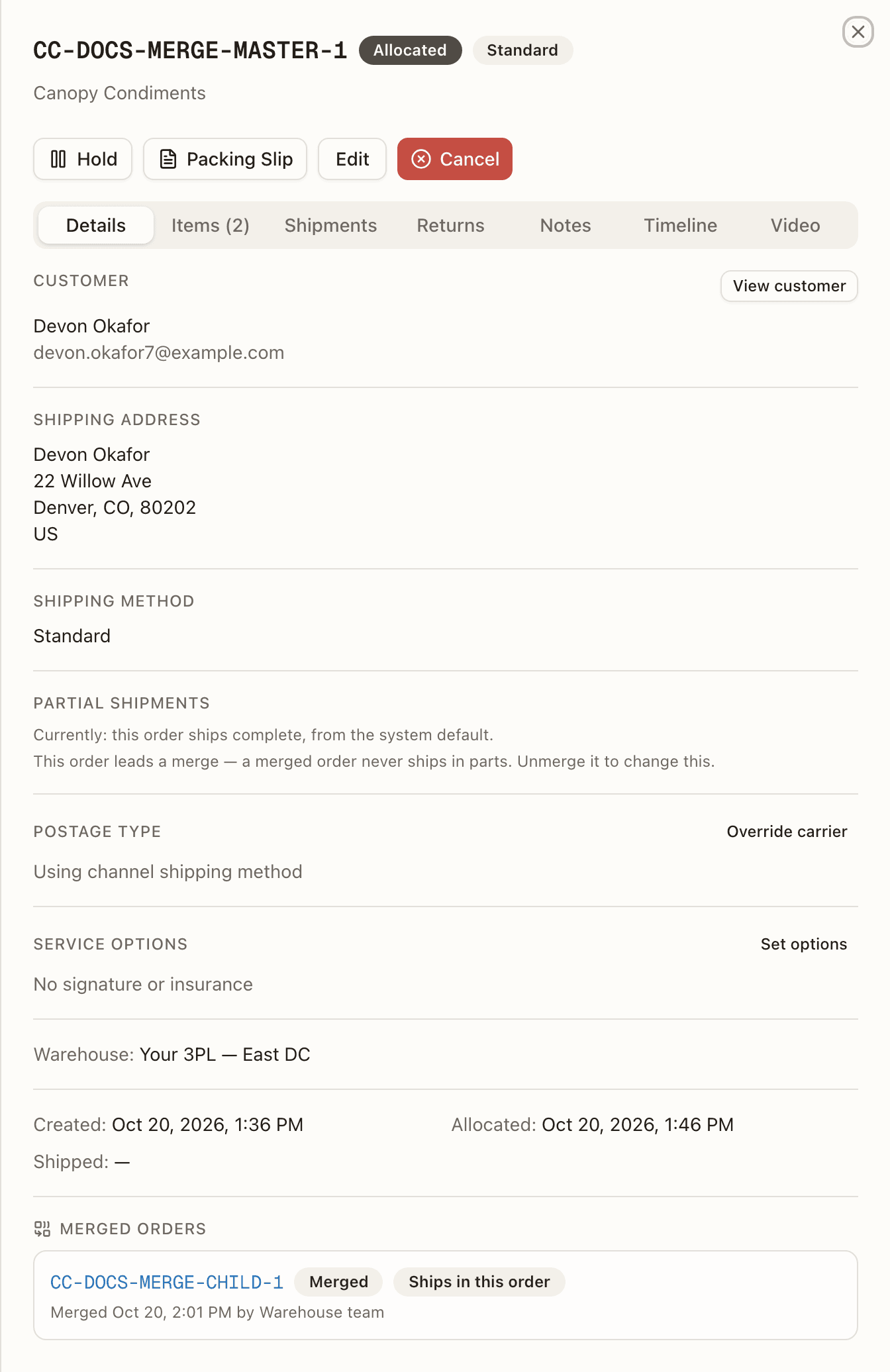
An order that others were combined into ends its Details tab with Merged orders: each combined order's number, status, and Ships in this order (Shipped together once it has gone, Taken out if the warehouse took it back out), with when and by whom it was merged. The gift note lists each order's on its own line, CC-…: note. Combining and separating orders is warehouse work, so the section is read-only for you. A change your store makes to that order's own tags, notes or gift note keeps what the merge added — the combined orders' tags, note lines and gift notes stay.
The combined order's own sheet opens on the Merged into CC-… — will ship with it banner, with only the packing slip in its action row.
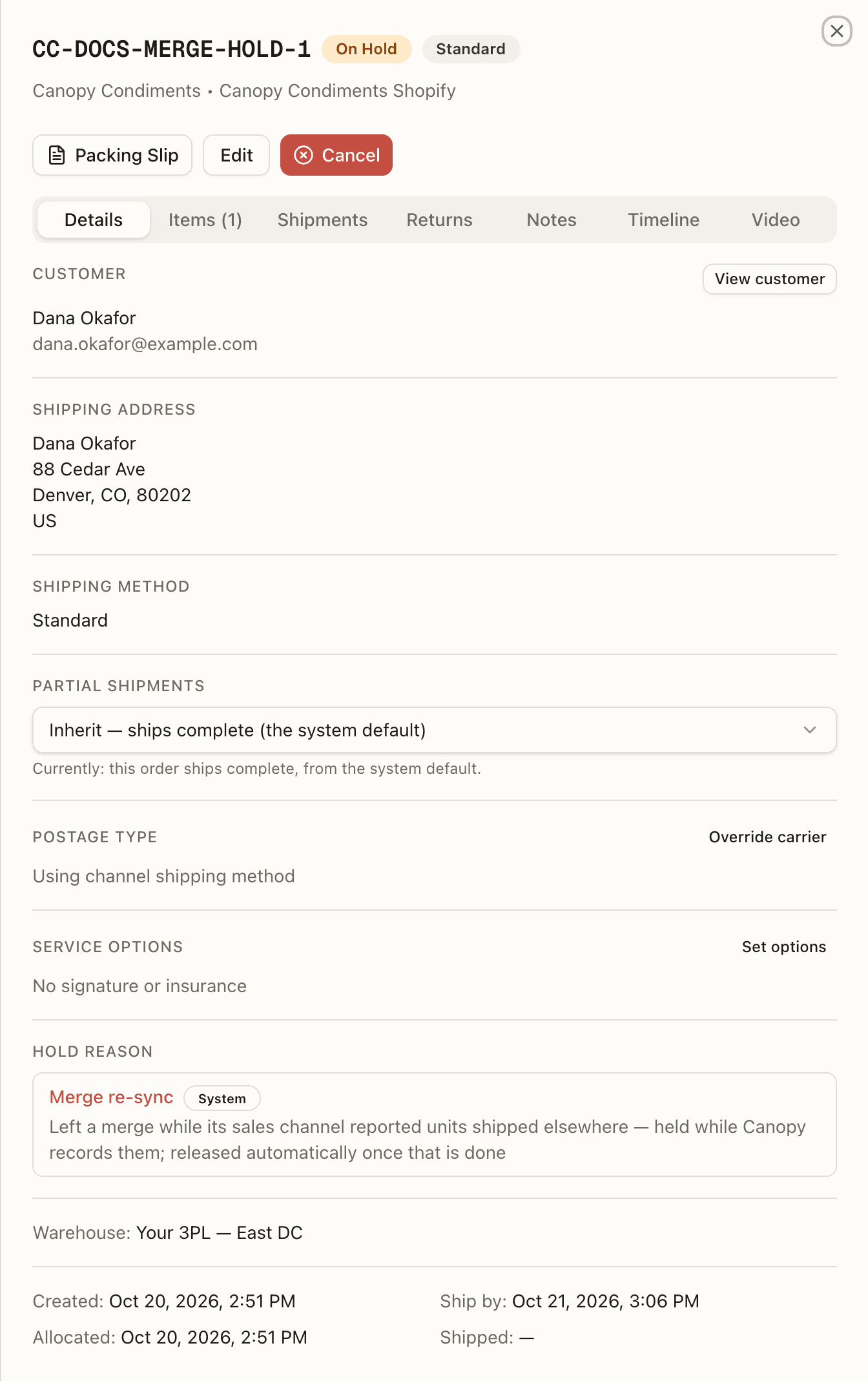
An order the warehouse takes back out of a merge while your store had reported units shipped elsewhere lands On Hold (System) with the reason "Left a merge while its sales channel reported units shipped elsewhere — held while Canopy records them; released automatically once that is done" — and the hold lifts on its own once they are recorded.
If this order's own units were already fulfilled elsewhere while it led the merge, taking out the last combined order leaves it nothing of its own to ship. It closes as Ext. Fulfilled instead of going back to work.
Split across warehouses
When your 3PL ships from more than one warehouse, it can split one of your orders before it is picked: part of the units go to another warehouse, which ships them on an order of its own. Your store still sees one order. In Canopy you see one order per warehouse: the first keeps your order number, and each other warehouse's order is numbered after it (CC-10196-S2), wears the split chip in the list, and opens on the Split from CC-… banner. Every one of them lists your whole order at full quantity and ships only its own units. The Details tab of each ends with Split across warehouses. It opens with "One customer order, one order per warehouse. Each shows the whole order and ships its own units." and lists one row per other order: its number, status and warehouse, with · the customer's order on the one that keeps your number. Splitting, and undoing a split, is your 3PL's to do; nothing here is yours to press.
A split can also come from your store. When your store splits an order between two locations at checkout, your 3PL can keep the split: the order arrives in Canopy already split, one order per warehouse, each shipping the part your store sent to that location. That takes routing that follows your store's locations, on a sales channel your 3PL set to import only the items assigned to its locations. If your store already held one location's part when the order came in, only that warehouse's order is on hold, with a Channel hold row in its hold list. A hold on the whole order, such as awaiting payment, holds every one of them. When the split isn't kept, Canopy brings the order together in one warehouse and moves its fulfillment orders there in your store first. If your store won't move them, the order arrives On Hold (System) until your 3PL brings them together.
While it is split, the orders move together. Cancelling in your store cancels every warehouse's order; a hold placed in your store holds each of them; a line change made in your store reaches all of them at once where Canopy can tell whose units it changes, and otherwise waits for your 3PL to make it on each (see review cards). None of them moves warehouse apart from the others (see a split order moves as one order), none of them is merged with another order, and only one re-send is open at a time across all of them. Your store is told as each warehouse's parcel ships, except on a channel that confirms an order once (Amazon, eBay, Walmart, WooCommerce, Squarespace, TikTok Shop), which hears once, when the last warehouse has shipped; until then the earlier parcel's Channel sync badge reads Waiting for other warehouse. The dashboard counts a split order once, as your order, and so does billing: the work each warehouse did bills at that warehouse, and anything charged per order is charged once.
Items
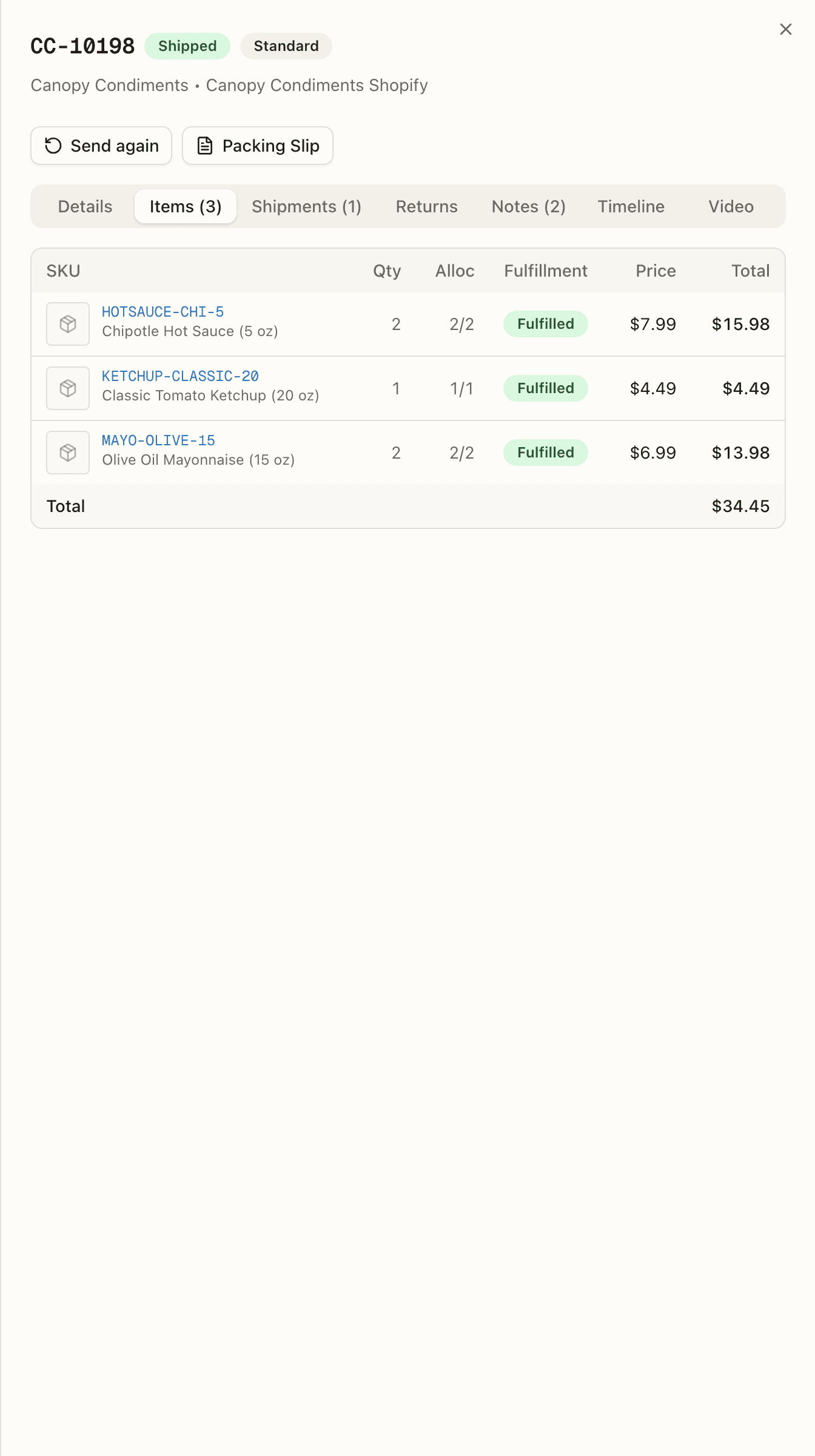
Each product on the order with its own line status. A line can read Partial when only some units are fulfilled, show kit parents with their components indented beneath, and display lot badges (including On-Hold or Recalled) when stock came from a tracked lot. Once picked, a line also shows the bins its units were picked from. The footer totals the order, breaking out discount, tax, and shipping when there are any. On an order others were combined into, a line that came from a combined order wears from CC-…, and a box under the table, Lines of orders taken out of this merge, keeps the cancelled copies of any order the warehouse took back out — "for their pick and pack history — they ship on their own order now".
On an order your 3PL split across warehouses, every line keeps your order's full quantity; the units another warehouse's order ships are recorded on the line as fulfilled elsewhere, so the line's status covers only the units this warehouse ships.
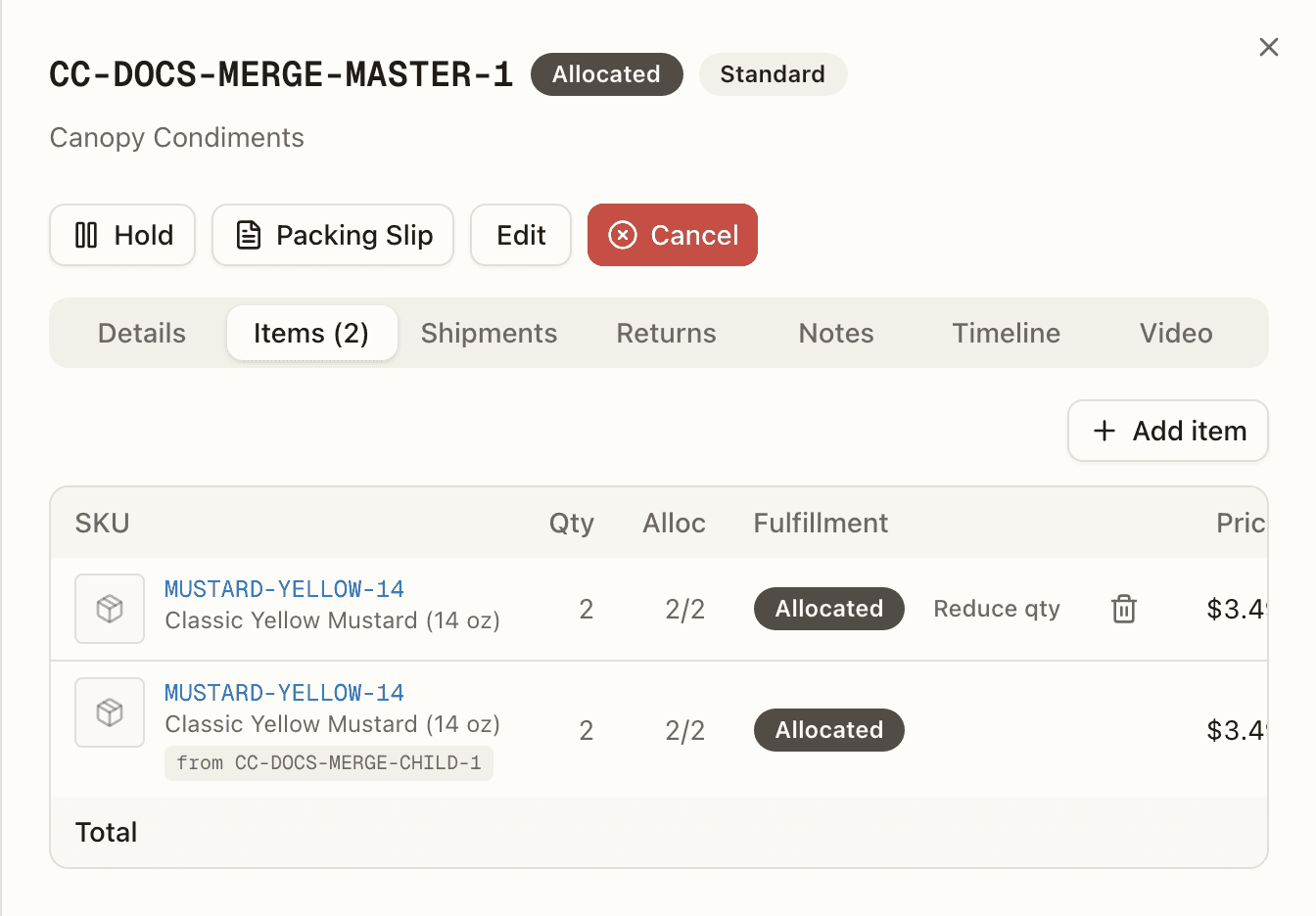
Add item searches your catalogue for a SKU, quantity, and optional price. It's offered while the order is Pending, On Hold, Allocated, Replenish, Backordered, Unfulfillable, or Partially Shipped — once the warehouse starts working the order, adding units is your 3PL's to do. A line your sales channel adds after that isn't refused outright: it holds the order (the EDIT chip) until your 3PL deals with it — picks it into the tote on a retail order, or plans it at a bin for the desk to pick on a wholesale order — or keeps the order as it is and leaves you a note that the addition wasn't made.
The trash icon on a line removes it (only lines with nothing fulfilled yet — a kit line with some kits already fulfilled at another location is lowered to those kits instead; kit components go with their parent). Removing a line keeps working all the way through Picking and Picked, not just before: any pick work for the dropped units is retired and anything already picked is staged for put-back automatically — you don't need to ask your 3PL for it. Once the order reaches Packing, a removal doesn't apply straight away — see Reducing or removing a line once picking has started below, which it shares its rule with. Neither Add item nor the trash icon is offered on a line that came from a combined order.
These are local changes — they are not sent back to your store, and removing a line that came from the store means later store edits to that order will need your 3PL's review. If your 3PL ships from more than one warehouse, a line change can also move the order — see where it ships from.
Reduce qty
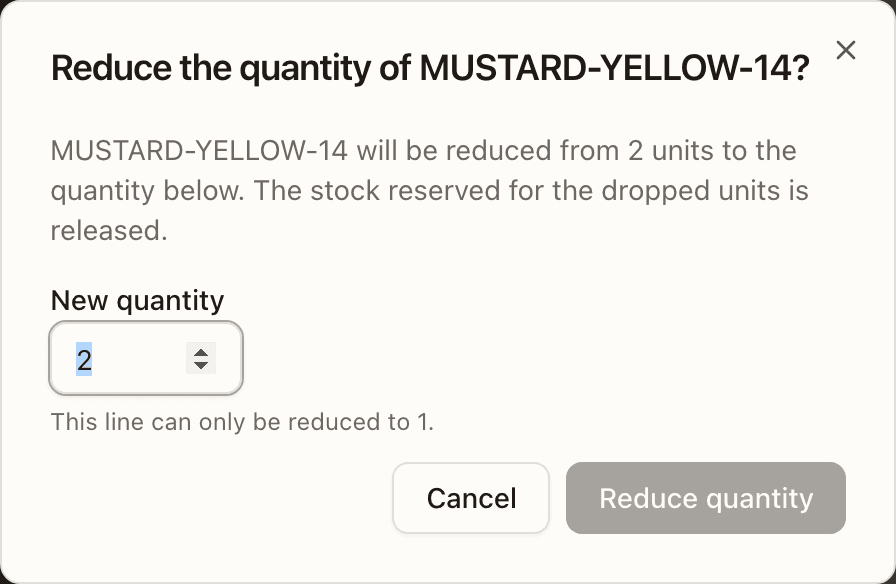
While the order is Allocated, a line with more than one unit also offers Reduce qty: lower the quantity without removing the line. The dialog — "Reduce the quantity of SKU?" — tells you "The stock reserved for the dropped units is released.", asks for the New quantity (or New number of kits on a kit), and warns when the item came from your store that the store keeps the original quantity, so later store edits to the order will need your 3PL's review.
Reducing or removing a line once picking has started
Reduce qty and the trash icon both keep working once the order is Picking or Picked — the units you drop are staged for put-back and any pick work for them is retired, the same as if your 3PL had made the change. Once the order reaches Packing, the change doesn't land right away: the order holds instead, and your 3PL decides it — Apply closes the pack session and sends the tote back for put-back before making the change; Keep ships the order as it was already packed, and a note is added naming the item and the change that wasn't made, so you know to refund or take a return for the difference. A line that is being sent again for a re-send can't be reduced or removed until the re-send has gone out ("This line is being re-sent for a reship, and a re-send ships whole — let it go out…").
On a wholesale order, cancelling it or changing one of its lines after its carton labels were bought, or after its freight was booked, holds the order the same way — behind its box. Your 3PL scans every carton's label, or answers that the freight is still on the dock, to make the change; if the carrier already has it, the order ships as it stands and you're left a note to refund or take a return for the difference.
Units at another location
If your store assigned some of an order's units to a location the warehouse doesn't run, those units import as fulfilled elsewhere: the line wears "<Location> · not ours" (with ×N when only part of the line is there), the order's header says "N of M units are ours", and the row wears PARTLY ELSEWHERE. The Partial n/m count and the · ext suffix count only units that really went out. The Timeline records each move of ownership as your store makes it.
If your store later moves those units to a location Canopy runs, Canopy takes them on where it can. When that location feeds another of your 3PL's warehouses and the order hasn't been picked yet, your 3PL's routing rules run again over the whole order, those units included, and the order can move — with no rule, to the warehouse that location feeds, where its Warehouse line reads channel location. In that case, if Canopy can't take them on — the order's warehouse was named or set by your 3PL, it's on hold, picking has started, or it's still part of a live Bulk Ship batch, for example — nothing changes, and a review card titled Order changed in sales channel says why.
A kit fulfilled outside Canopy
A kit is one unit of work. Your store addresses only the kit line, never its components, so when a kit is fulfilled somewhere else — your store fulfilling it at another location, or your 3PL or one of its rules marking it — the whole kit goes together: the kit line and every component beneath it are marked in the same step, and a component is never marked on its own. A kit line's status normally reads —, because it has nothing of its own to ship; once the kit is fulfilled elsewhere it shows a status like any other line, with the · ext suffix, and each component follows it. Any units of the kit the warehouse had already picked come back out of the tote and are staged for put-back — a task the warehouse works — rather than shipped.
Shipments
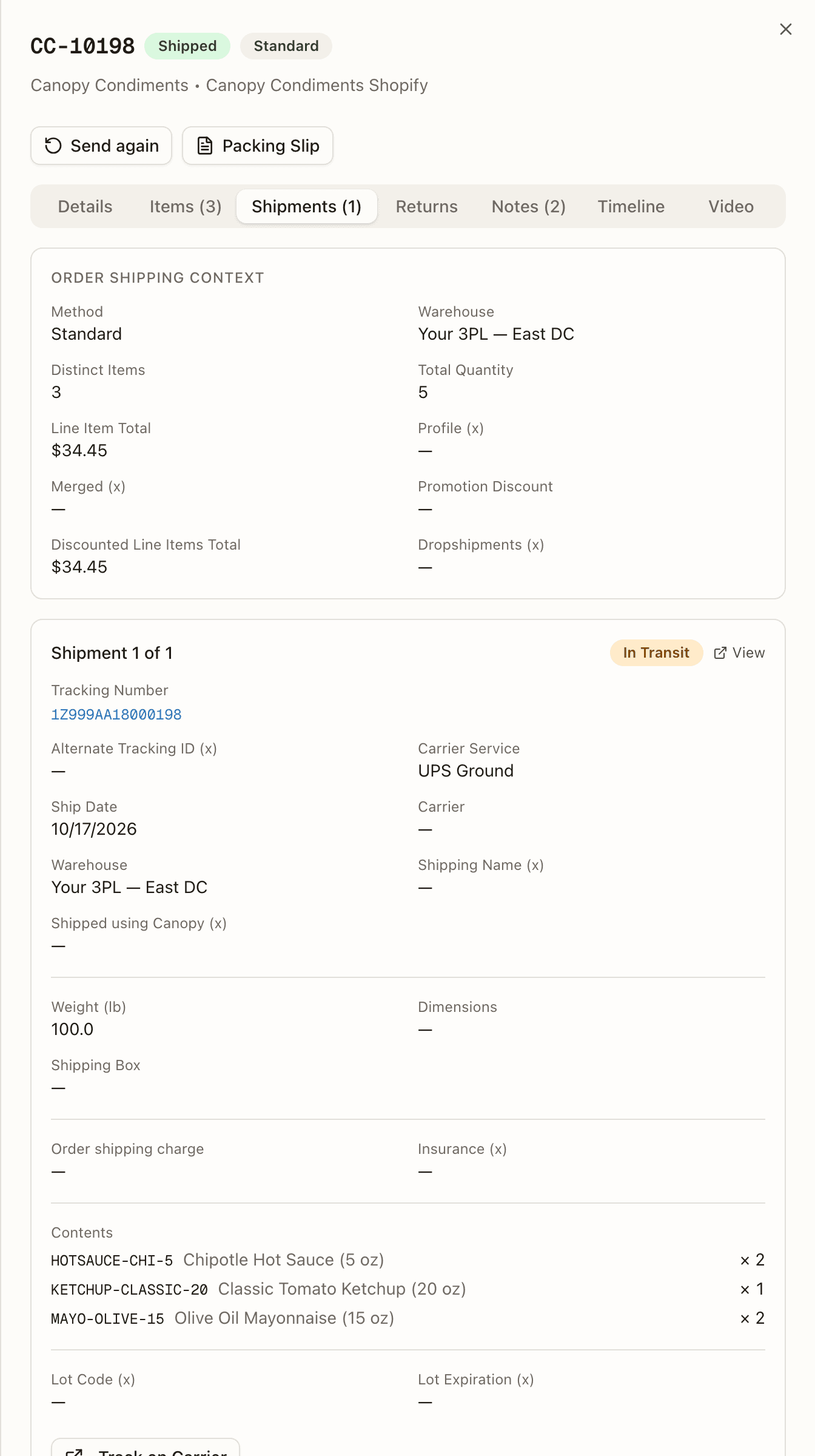
An Order Shipping Context summary — method, warehouse, item counts and totals — then a card per shipment, or "No shipments yet" until a label is generated during packing.
An order that was combined into another has no parcel of its own, so its tab shows a Ships in CC-…'s box panel instead — "This order is merged into CC-…: its lines are packed and labelled there, so its label is bought on CC-…" — which turns into Shipped in CC-…'s box once that order has gone ("… its lines went out in CC-…'s parcel, so it has no parcel of its own. A reship or a return-to-sender goes through CC-…"), lists the parcels of that order that carried this one's goods with their tracking, and links Open CC-…'s shipments.
Each card is "Shipment 1 of 2" with its tracking number and status (Label Created, In Transit, Delivered, Exception, Voided), the Packer, carrier and service, ship date, weight, dimensions, and box, the label costs, and a Contents list of exactly what that box carried (a parcel bought before contents were tracked reads "Not recorded for this parcel"; a line reads "× N · n re-sent" when a later re-send took units from that box). View opens it on the Shipments page, and the buttons open the shipping label or track on the carrier. On an order others were combined into, the parcel card adds Tracking sent to the merged orders' sales channels — one line per combined order with Confirmed to channel, Channel sync pending, or Channel sync failed.
The parcel's warehouse
Each card also names the Warehouse that box shipped from. It stays the same even if the rest of your order later ships from another warehouse.
 On an order that shipped in parts, Drives order status marks the parcel
whose scans the order now follows, and a Channel sync badge shows
whether that parcel's tracking reached your store: Confirmed to channel,
Channel sync pending, or Channel sync failed. On an order your 3PL
split across warehouses whose channel confirms
an order once, the first warehouse's parcel reads Waiting for other
warehouse until the last warehouse ships; it is a wait, not a failure. A
run that succeeded but pushed nothing reads Not pushed — partial re-send
or Not pushed — channel can't update tracking: either way the channel
keeps the original box's tracking, so share the new number with your
customer yourself.
On an order that shipped in parts, Drives order status marks the parcel
whose scans the order now follows, and a Channel sync badge shows
whether that parcel's tracking reached your store: Confirmed to channel,
Channel sync pending, or Channel sync failed. On an order your 3PL
split across warehouses whose channel confirms
an order once, the first warehouse's parcel reads Waiting for other
warehouse until the last warehouse ships; it is a wait, not a failure. A
run that succeeded but pushed nothing reads Not pushed — partial re-send
or Not pushed — channel can't update tracking: either way the channel
keeps the original box's tracking, so share the new number with your
customer yourself.
Returns
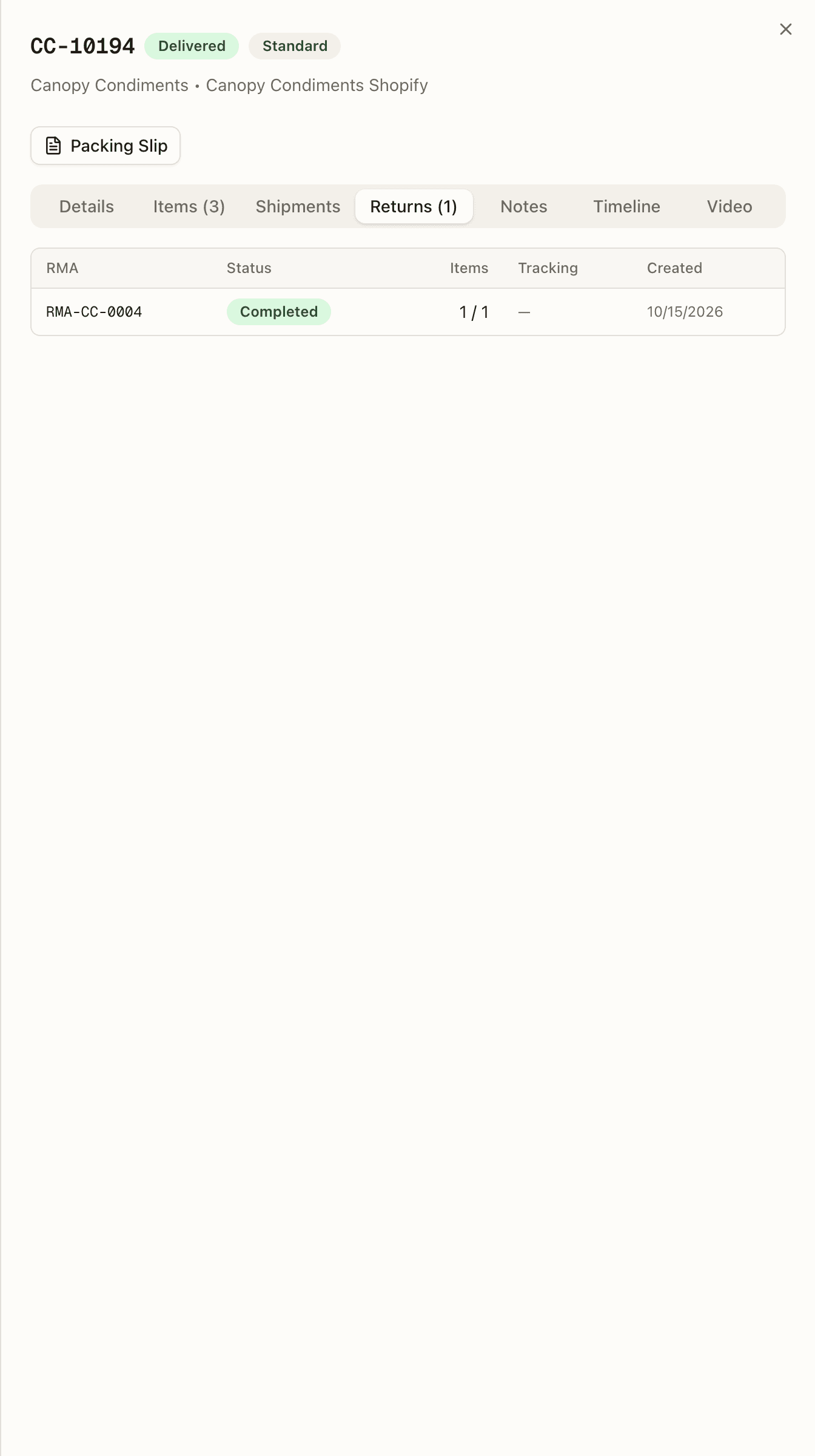
Any RMA linked back to this order — its number, status, items received, and created date. Click through to the full return.
Notes
Comments on the order, shared with your 3PL. Post note adds one (you can edit your own afterwards), and Attachments below it holds files on the order. Use it to flag a delivery instruction or ask a question without leaving the order — the warehouse team sees the same thread. The count on the tab is notes plus attachments.
Timeline
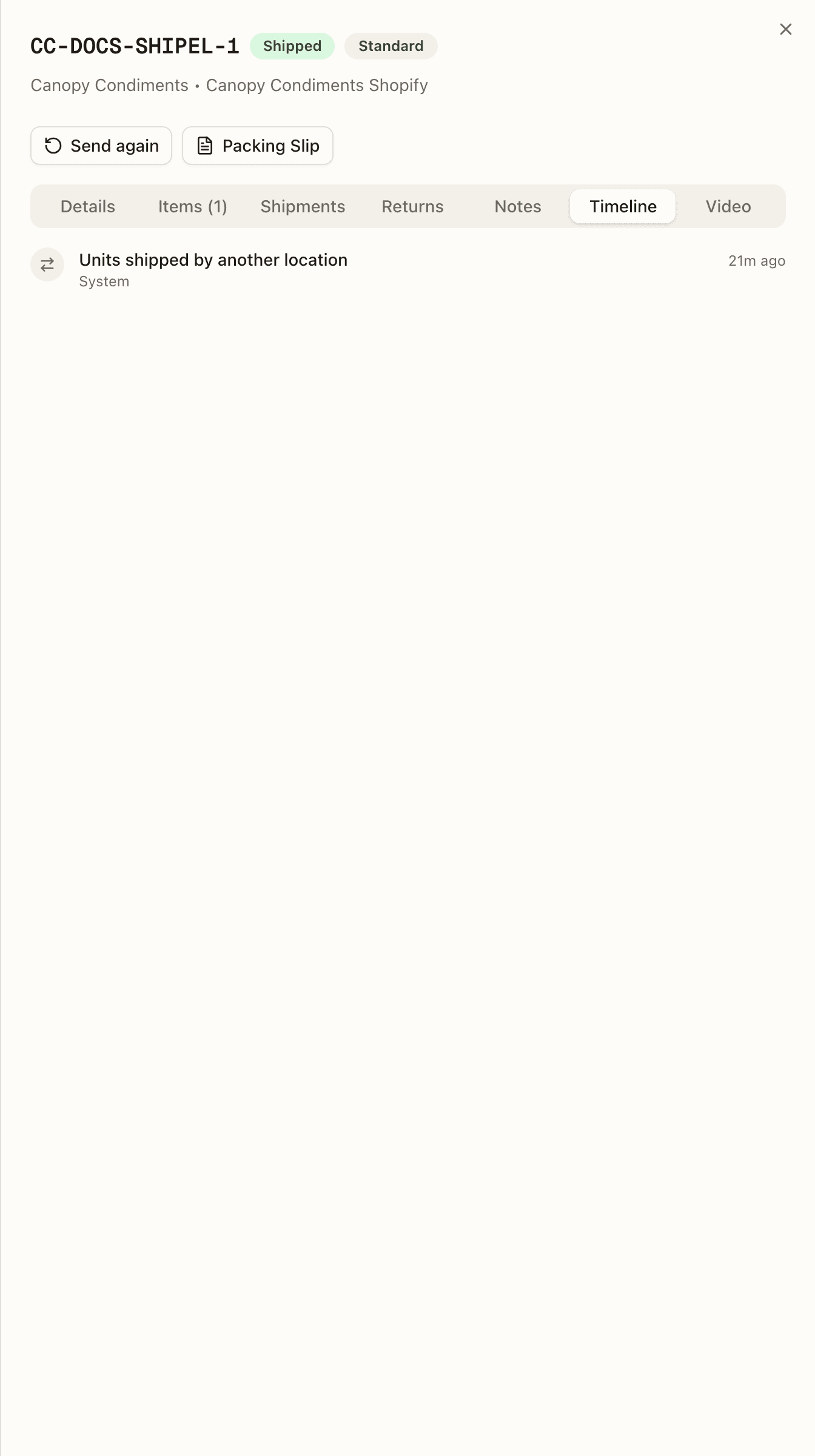
A full audit trail: created, allocated, status changes, holds placed and released, edits, notes, and carrier tracking events — each with who did it and when. It also records merges (Orders merged into this one, Merged into another order, Merge undone), re-sends (Reship), a SKU merge that moved a line, and who ships what when your store assigns units by location — Units assigned to another location, Units moved to Canopy, Units moved to another location, Units shipped by another location — including a move Canopy could not follow, Channel moved units — not applied, needs review. A fulfillment your store cancelled reads Fulfillment cancelled on the channel, or, when Canopy left those units as they were for your 3PL to decide, Channel fulfillment cancelled — not applied, needs review. An order the warehouse took back out of a merge after voiding the combined box's label carries a note that your store still shows it fulfilled under that number — and that the next label bought for its goods replaces it there, or, on a store Canopy can't update, that the tracking needs correcting in the store itself. When a store edit adds units of an item your 3PL's rules fulfil elsewhere, the rule marks just those units, with the row Automation rule marked SKU externally fulfilled on the units a channel edit added (removed from pick/pack). A split across warehouses writes a row on both orders: Split: 2 × SKU sent to Buffalo (order CC-10196-S2) on the order the units left, and Split: 2 × SKU from order CC-10196 at Mississauga as the first row of the new one. An undone split ends the retired order's timeline with Split undone: every unit is back with another warehouse's order — this one is retired.
Each review card leaves rows here too. A change that holds the order reads Held for a decision: … with its kind, and a note reads Channel change noted: …, each with its line changes. Clearing one reads Channel change acknowledged: … or Channel change settled: …. On an older order, Review moved to the order's hold list marks when Canopy moved its earlier review over. When a split order is brought together in one warehouse, each part it retires gets an Order updated row with its status changing to CANCELLED.
When your 3PL's routing rules place an order, or move it to another warehouse, an Automation rule applied row says so — Routed to warehouse by rule "…", or Moved from "…" to "…" by routing rule "…" followed by why it moved: rules re-applied, its shipping address changed (or whichever of its tags, shipping method, priority or lines changed), re-routed from a backorder — this warehouse can fill it now, held for review until a warehouse could fill it; this one can now, or units were handed to Canopy at <location> on the channel. A move no rule made — units your store handed to Canopy — is an Order updated row reading Moved from "…" to "…": units were handed to Canopy at <location> on the channel. And a return made in your store that includes items another location shipped reads Channel return not imported — "Return of N × SKU shipped from <location> not imported — that location receives it" — when your 3PL has set that channel to receive only the returns of items it shipped.
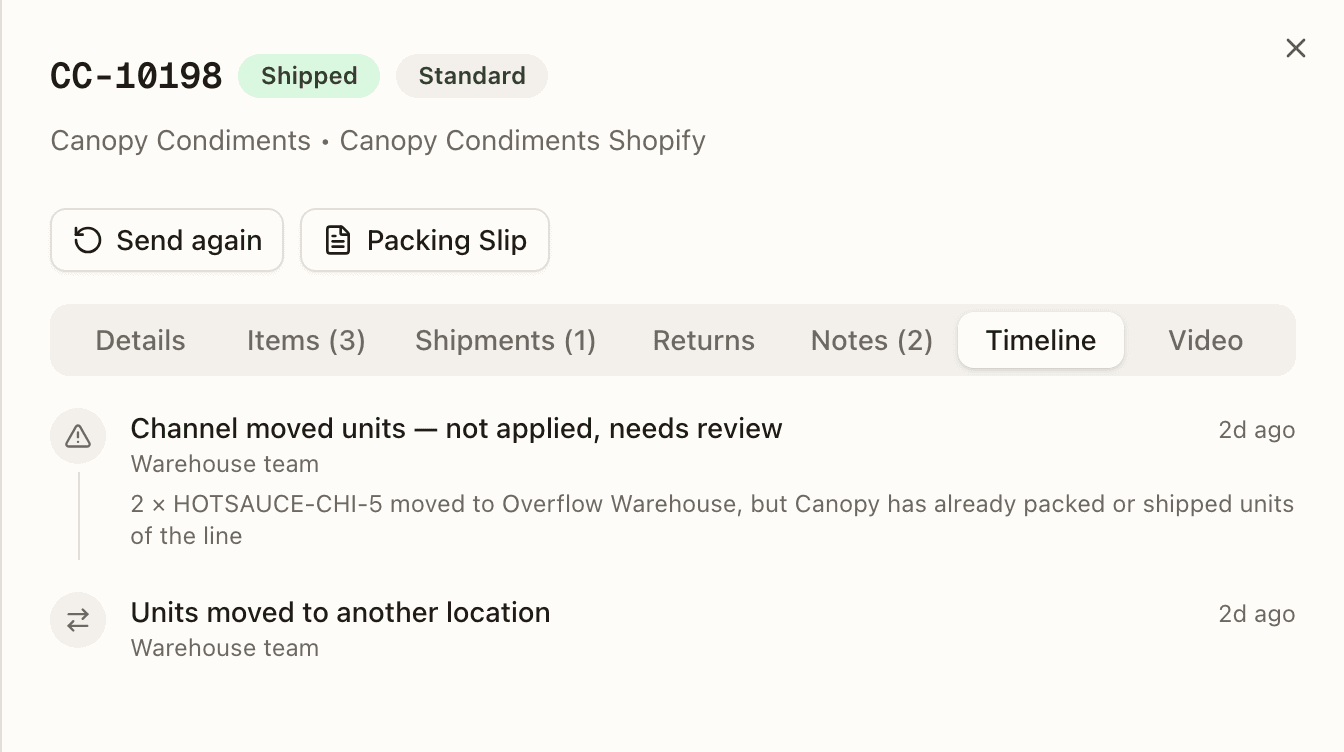
Units shipped by another location is the one that fires after Canopy has shipped — another of your locations fulfilled units your store had assigned to it — and names that location and the units.
Line statuses mirror the order's journey — Pending → Allocated → Picked → Packed → Fulfilled — with Cancelled and Backordered for the exceptions. Cancelled lines are hidden from the line list by default.
Video
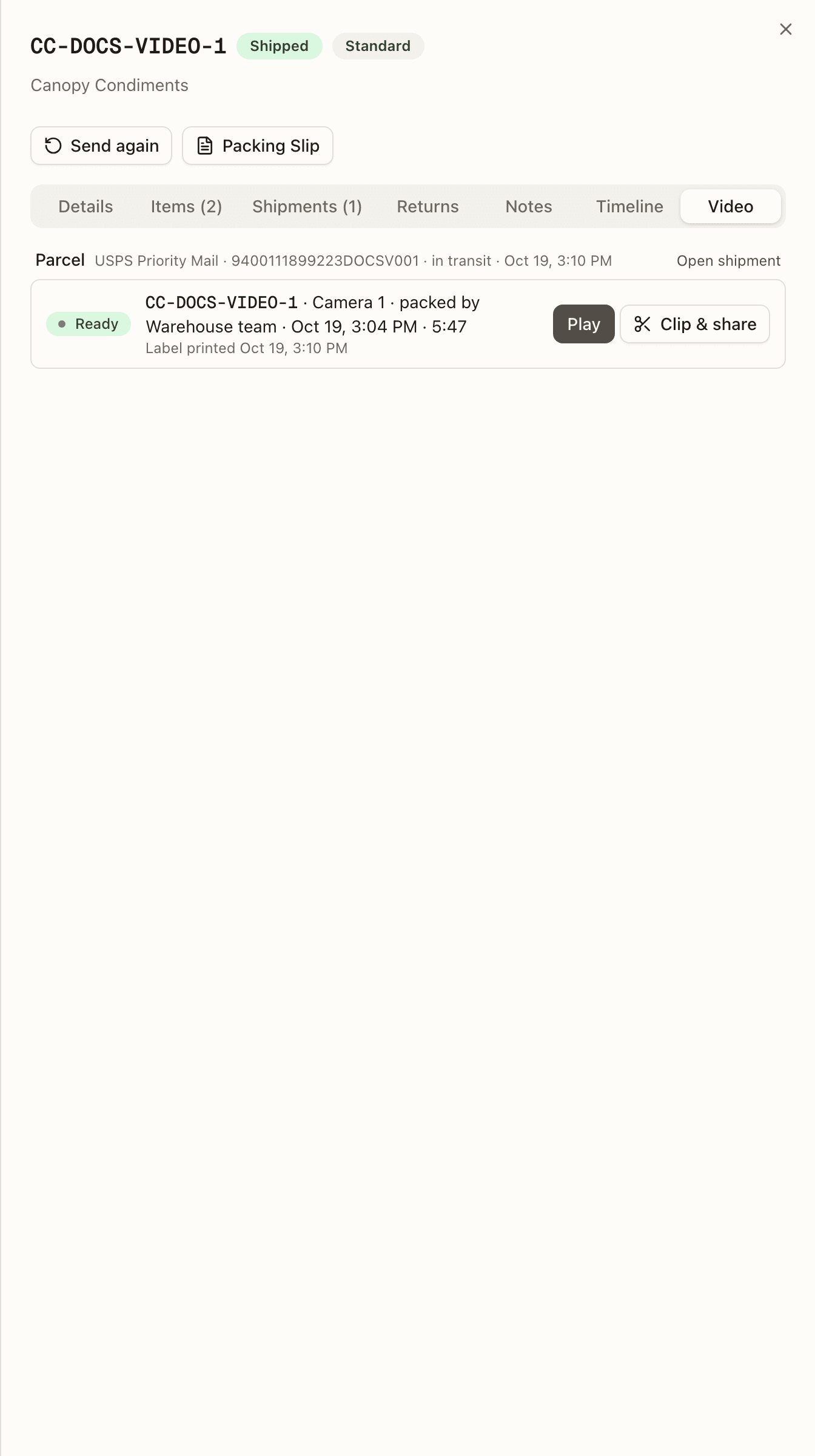
The video of each pack, where your 3PL records its benches. One row per pack, under the parcel it went into. Press Play and the clip opens right there, with a tick for every item scan. A pack with no video reads Not recorded. How to read the rows, and how to find a clip from anywhere, is on Pack Videos.
Sending an order again
Once an order has shipped — or is delivered, when some of its units went out — Send again lets you re-send units to the customer at your own request: nothing is written off, the customer keeps what they have, and the fresh units are picked and shipped as a new order billed to you ("Billed to you as a new order: the label, the pick and pack, and any order fees."). It isn't offered on a wholesale order, or on an order that shipped inside another order's box — send that order again instead.
The dialog first checks what can go ("Checking what can be sent again…"), then offers Everything that can be sent again — N units, Everything in box <tracking> with that box's contents, or Choose items — a checkbox and a count per line, and, when the order shipped in several boxes, which box the units come from. Units that shipped another way — from another location, or marked shipped by hand — are counted underneath and can't be sent again here; on an order others were combined into, a line that came from a combined order reads SKU from CC-… (on the receipt too), so you can tell whose store hears about the re-send. Continue shows what will be sent and how it's billed; Send again commits, and the dialog ends on "Your re-send is with the warehouse." If you already have a re-send open on the order, the units are added to it instead ("Add to your re-send"). The re-send ships from the warehouse those units shipped from, when it has them, and otherwise from the order's own warehouse. On an order split across more than one warehouse, you can choose which warehouse sends each unit instead; see sending a split order again. While the warehouse already has a re-send open for part of the order, the dialog reads "The warehouse is already re-sending part of this order. Contact your warehouse if you need it changed."
Sending a split order again
On an order your 3PL split across warehouses, the dialog offers two choices. Everything that can be sent again — N units, each from the warehouse that shipped it sends every unit back out from where it left. Choose items and warehouses says "Choose how many of each item to send again, and which warehouse sends them." Under each SKU, one row per warehouse reads from <warehouse> (<order>), with a count and its limit (of N). There is no box to pick: Canopy decides which box the units come from.
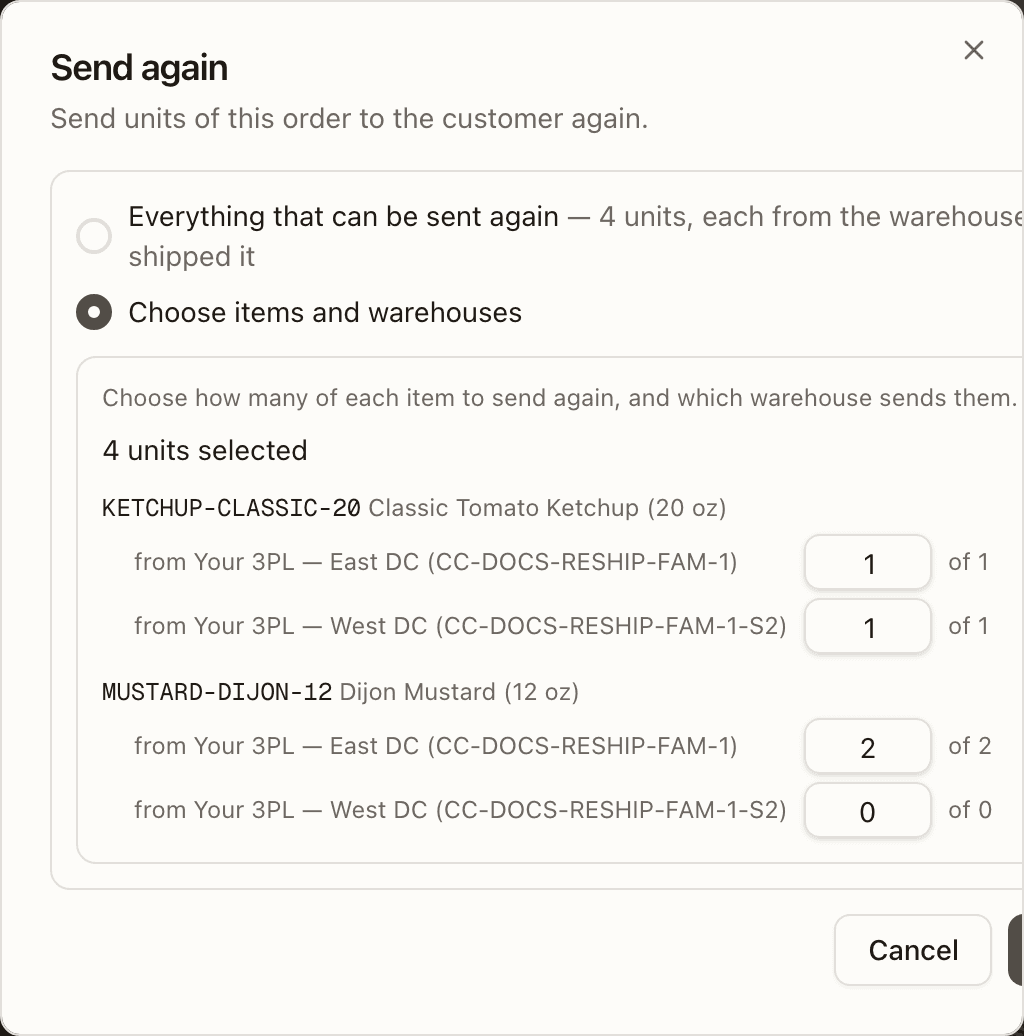
When you are adding to a re-send you already have open, a row whose item the re-send already carries says how many, for example 2 in your re-send. What you choose now is only what gets added.
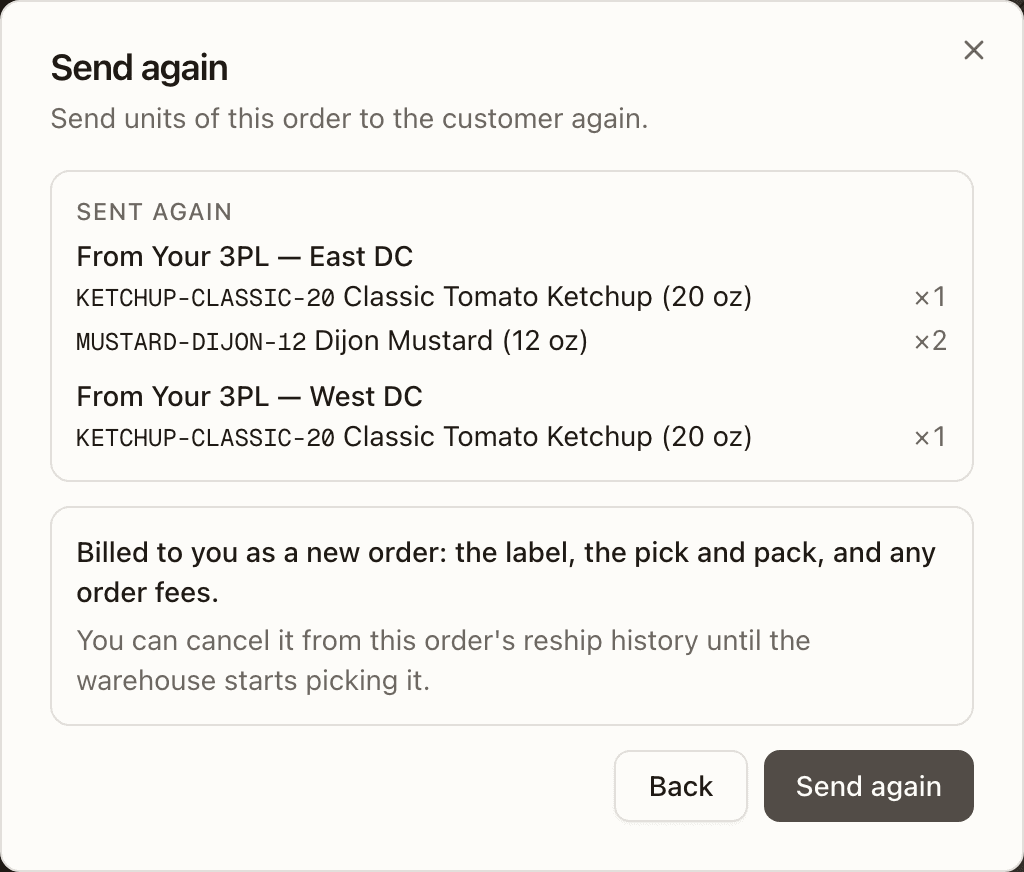
Continue then lists what goes out under Sent again, one block per warehouse, each headed From <warehouse> with its SKUs and counts.
Sharing tracking yourself
When the re-send takes units from a box whose tracking your store already keeps under an earlier number, the confirm screen tells you to pass on the new number by hand: "Your store keeps the earlier tracking for these items — share the new tracking number with your customer once it ships."
You can cancel it from the order's Reship history with Cancel re-send until the warehouse starts picking it — "Nothing is sent and nothing is billed for it." After that the button is disabled with the reason: "The warehouse has started on this re-send, so it can't be cancelled here. Contact your warehouse if you need it changed."
A relabel done through Send again replaces the box's label outright, so it never waits on the "is the box still here?" question above — your 3PL buys the new label straight away.
If your order shipped from more than one of your 3PL's warehouses, your warehouse can also adjust an open re-send's plan on their side — giving back units a warehouse no longer needs to re-send, or dropping a warehouse's part of it altogether. Either shows up as its own line in your Reship history: a give-back names the units and says they're on your order's parcel again, and a dropped warehouse's part reads as that warehouse's re-send being cancelled. Nothing is sent and nothing is billed for the units involved.
A re-send from more than one warehouse
When one re-send goes out from more than one warehouse, its row in Reship history gets a box headed One re-send from N warehouses. It lists each warehouse's part on its own line: Order CC-… — <warehouse>, then its status (open, label bought or cancelled), with (this order) on the part you are looking at.
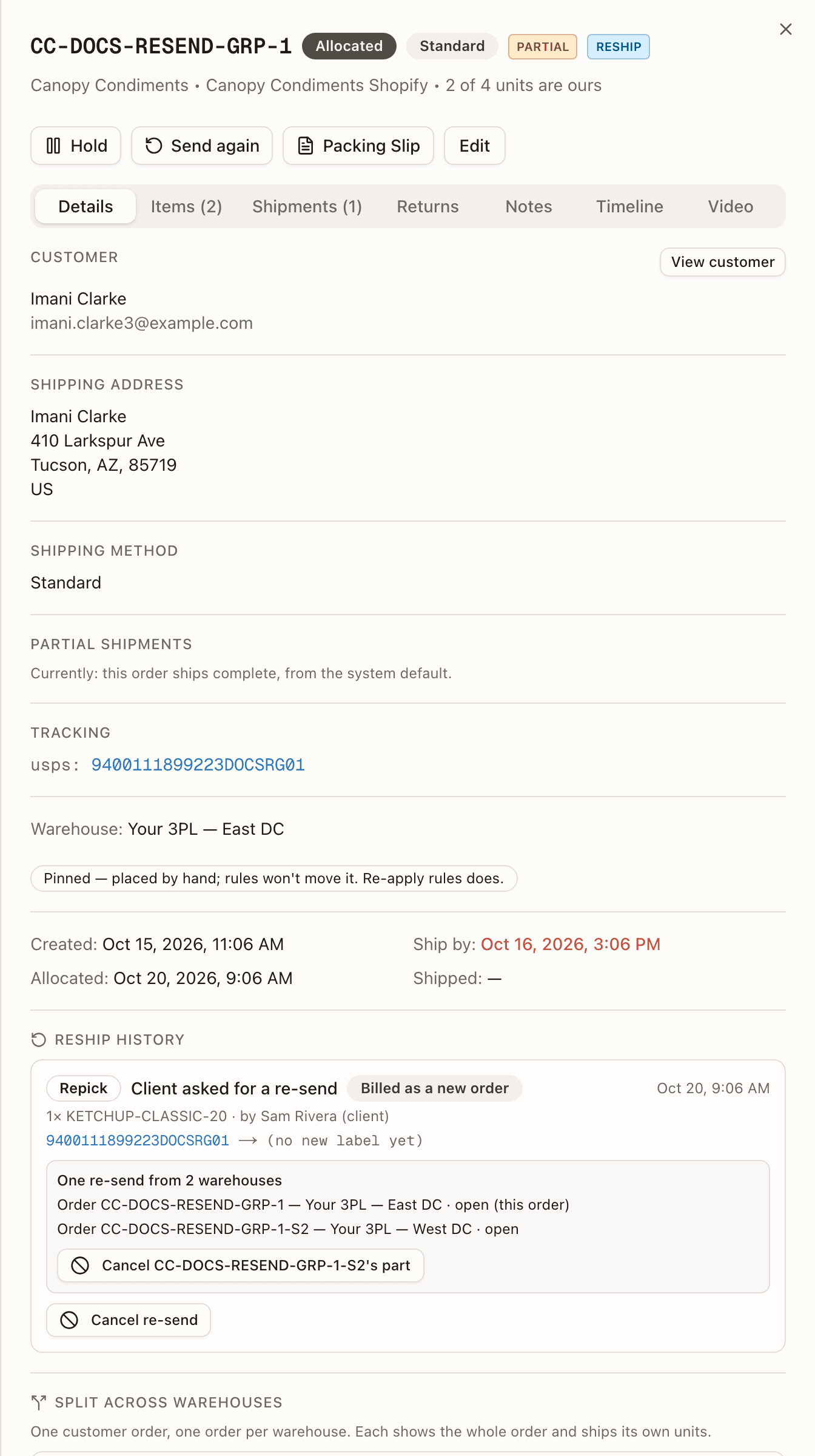
You cancel your re-send one warehouse at a time. Your own part keeps its Cancel re-send button on the row. Another warehouse's open part has its own button, Cancel CC-…'s part, which opens the same "Cancel this re-send?" confirm. The whole re-send closes once no part of it is open any more: each has its label bought or is cancelled.
Editing an order
From the detail panel, Edit opens a form. What it offers shrinks as the order advances: priority, customer contact details, shipping method, address, and notes while the order is still pending, replenish, backordered, or unfulfillable; priority, contact details, address, and notes once stock is allocated; and only the address and notes while it's being picked and packed. An order on hold follows the stage underneath the hold, not just the word "held": paused before any work started, it keeps that wider set; paused partway through being picked or packed, it keeps only what that stage allows, the same as if it weren't on hold at all.
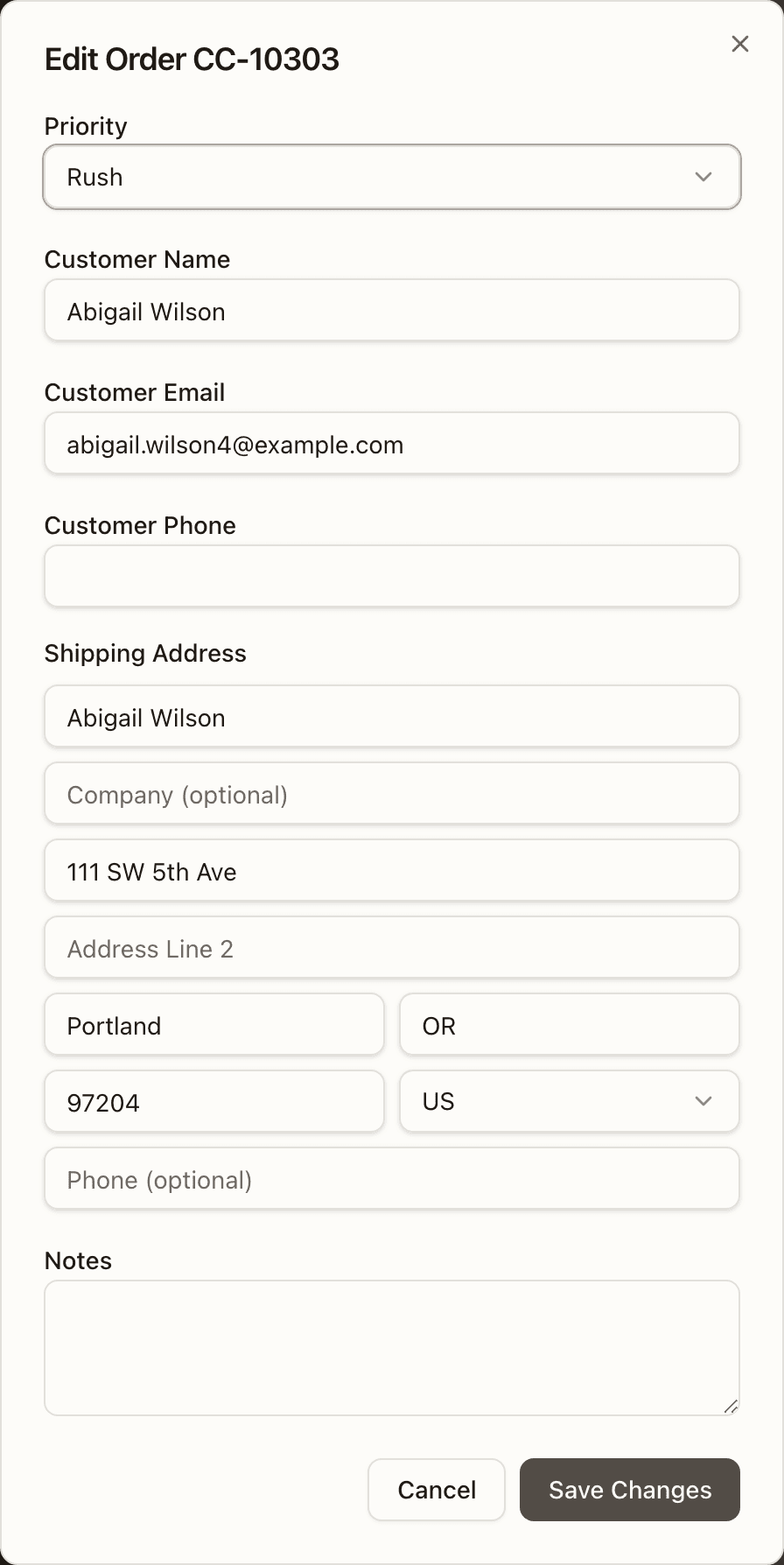
A Merged order can't be edited here at all; edit the order it ships with, or ask your 3PL to take it out of the merge.
The shipping address stays editable right up until the order ships, so a bad address can be fixed even while the order is on the packing bench — the label is always generated against the address on the order at that moment. The form also carries Partial shipments (Inherit, Allow partial shipments, Ship complete) while the order is pending, held, backordered, replenish, unfulfillable or partially shipped, the same choice as on the Details tab.
If your 3PL ships from more than one warehouse, saving a new shipping address, shipping method, or priority on an order that hasn't been picked yet runs its routing rules again, and can move the order to another warehouse — see where it ships from.
Editing the shipping address stops address sync from the store
Orders imported from a connected channel normally keep their shipping address in sync with the store. Once the address is edited manually — here or by warehouse staff during packing — that order's address is treated as authoritative and later address changes from the store no longer apply to it. This protects a deliberate correction from being overwritten by the store echoing its older copy.
If the customer genuinely changes their address in the store afterwards, it won't flow through on its own — re-enter the new address on the order. Other synced fields (tags, notes, customer info) keep updating as usual, and every address change is recorded in the order's Timeline.
How to create an order
Open Manage Orders and press Create Order
Open Orders → Manage Orders and press Create Order in the top right. The Create Order panel slides in, headed "Create a manual order for B2B or wholesale". You do not pick a client or a warehouse: the order is created for your brand, and your 3PL's routing rules or your default warehouse decide where it ships from.
Set the Priority
Pick a Priority: Standard (the default), Expedited or Rush.
Flip Wholesale order if it goes to a retailer
Leave Wholesale order off for an order to a shopper. For an order to a retailer, flip it on: the block shows a Retailer (optional) picker, a Shipping method of Courier or Freight, a required Ship by date, and Retailer instructions that print on the packing slip, and the Shipping Method box further down goes away. Picking a retailer adopts its saved shipping method, and its packing instructions if you have not typed any.
Enter the customer
Type the Customer Name, Email and Phone, and the Shipping Method the order should go out with. The name and phone are also put on the shipping address, so the carrier label carries them.
Enter the Shipping Address
Under Shipping Address, fill in Address Line 1, Address Line 2, City, State and ZIP, and pick the Country from the dropdown (it starts on US). An address needs a valid country before the order can be created.
Add the Line Items
Under Line Items, type in Search SKU to add… and press a SKU in the list to add it. Each line shows the SKU code, a quantity box (1 to start) and an optional Price per unit; the trash icon removes the line. Until a line is added the form reads "Search and add at least one SKU above".
Press Create Order
Add any Notes for the warehouse, then press Create Order. The button stays disabled until at least one line is added (and, on a wholesale order, until the ship-by date is set). It reads Creating…, then the panel closes and the order appears in the list. If the order is refused, the reason shows under the form; the one a brand is likely to meet begins "Cannot create order: no warehouse could be resolved", which your 3PL fixes by setting your default warehouse.
How to edit an order
Open the order and press Edit
Click the order's row in Manage Orders to open its detail panel, then press Edit in the row of buttons under the header. Edit is offered while the order is Pending, On Hold, Backordered, Replenish, Allocated, Picking, Picked, Packing, Fulfilled, Unfulfillable or Partially Shipped. It is not offered once the order has shipped, on a cancelled order, or on a Merged order; edit the order a merged one ships with instead.
Change the details the form offers
The Edit Order dialog (titled with the order number) shows only the fields the order's status still allows. While the order is Pending, On Hold, Backordered, Replenish, Unfulfillable or Partially Shipped: Priority, Customer Name, Customer Email, Customer Phone, Shipping Method, the address, Partial shipments and Notes. Once stock is Allocated, the shipping method and Partial shipments go. While it is Picking, Picked, Packing or Fulfilled, only the address and Notes remain.
Fix the Shipping Address
Under Shipping Address, change Recipient Name, Company (optional), Address Line 1, Address Line 2, City, State, ZIP, the Country dropdown, and Phone (optional). The label is printed from the address on the order at that moment, so this works right up to the packing bench. Once you edit the address by hand, later address changes from the store no longer apply to this order.
Choose Partial shipments if offered
Partial shipments appears while the order is Pending, On Hold, Backordered, Replenish, Unfulfillable or Partially Shipped. Pick Inherit (the option names what your account's default does), Allow partial shipments, or Ship complete. The line under the dropdown says what the order will do.
Press Save Changes
Press Save Changes. The button reads Saving…, then the dialog closes and the panel shows the new values; an address change is recorded on the order's Timeline. Only the fields you changed are sent, and if nothing changed the dialog simply closes. A refused save shows its reason under the form. If your 3PL ships from more than one warehouse, a new address, shipping method or priority on an order not yet picked can move it to another warehouse.
How to send an order again
Open the shipped order and press Send again
Click the order's row in Manage Orders and press Send again in the row of buttons under the header. The button appears on a brand account when your 3PL has switched re-sends on, on an order that is Fulfilled or Shipped, or Delivered with units that went out. Your 3PL's staff see Reship there instead.
Wait for the check
The Send again dialog opens ("Send units of this order to the customer again.") and reads "Checking what can be sent again…" while the warehouse's answer loads. If nothing on the order can go, a banner says why, for example "Wholesale orders can't be sent again from here. Contact your warehouse if you need it changed.", and the only button is Close.
Choose what to send again
Pick Everything that can be sent again (the unit count sits beside it; offered when the order went out in more than one box), Everything in box followed by a box's name and contents, or Choose items. With Choose items, tick the box beside each SKU, set the units, and, when the order went out in several boxes, pick the box they come from. Units that shipped another way are counted underneath and cannot be sent again here.
On an order split across warehouses, the choices are Everything that can be sent again and Choose items and warehouses. With the second, set a count on each warehouse's row under each SKU (from <warehouse> (<order>)). There is no box to pick.
Press Continue and read the summary
Press Continue. The Sent again list shows each SKU and its count, names the box the same items shipped in ("That box stays as it is."), and states the billing: "Billed to you as a new order: the label, the pick and pack, and any order fees.", with the note that you can cancel from the order's reship history until the warehouse starts picking. Back returns to the selection. On a split order, Sent again has one From <warehouse> block per warehouse instead.
Press Send again
Press Send again. The dialog ends on "Your re-send is with the warehouse."; press Done. If you already have a re-send open on this order, the dialog is titled Add to your re-send instead, the button reads Add to re-send, and it ends on "The units were added to your re-send." The re-send then shows under Reship history on the order's Details tab as Repick, Client asked for a re-send, Billed as a new order.
Cancel it if the customer no longer needs it
On the Details tab, under Reship history, press Cancel re-send on the re-send's row, then confirm Cancel re-send in the "Cancel this re-send?" dialog ("Nothing is sent and nothing is billed for it. Send the order again if the customer still needs it."; Keep it backs out). Once the warehouse has started picking it the button is disabled, with the reason beneath: "The warehouse has started on this re-send, so it can't be cancelled here. Contact your warehouse if you need it changed." On a re-send from more than one warehouse, cancel another warehouse's part with its Cancel CC-…'s part button in the One re-send from N warehouses box.
Orders
Track every order through fulfillment, read its status, and dig into the detail — plus work orders, wholesale, retailers, and the sales channels feeding orders in.
Pack Videos
Watch the video of any of your packs. Find it by order number, tracking number or SKU, and jump to the second each item was scanned.