

Shipments
Every shipment over a period, with six headline totals and a per-shipment table.
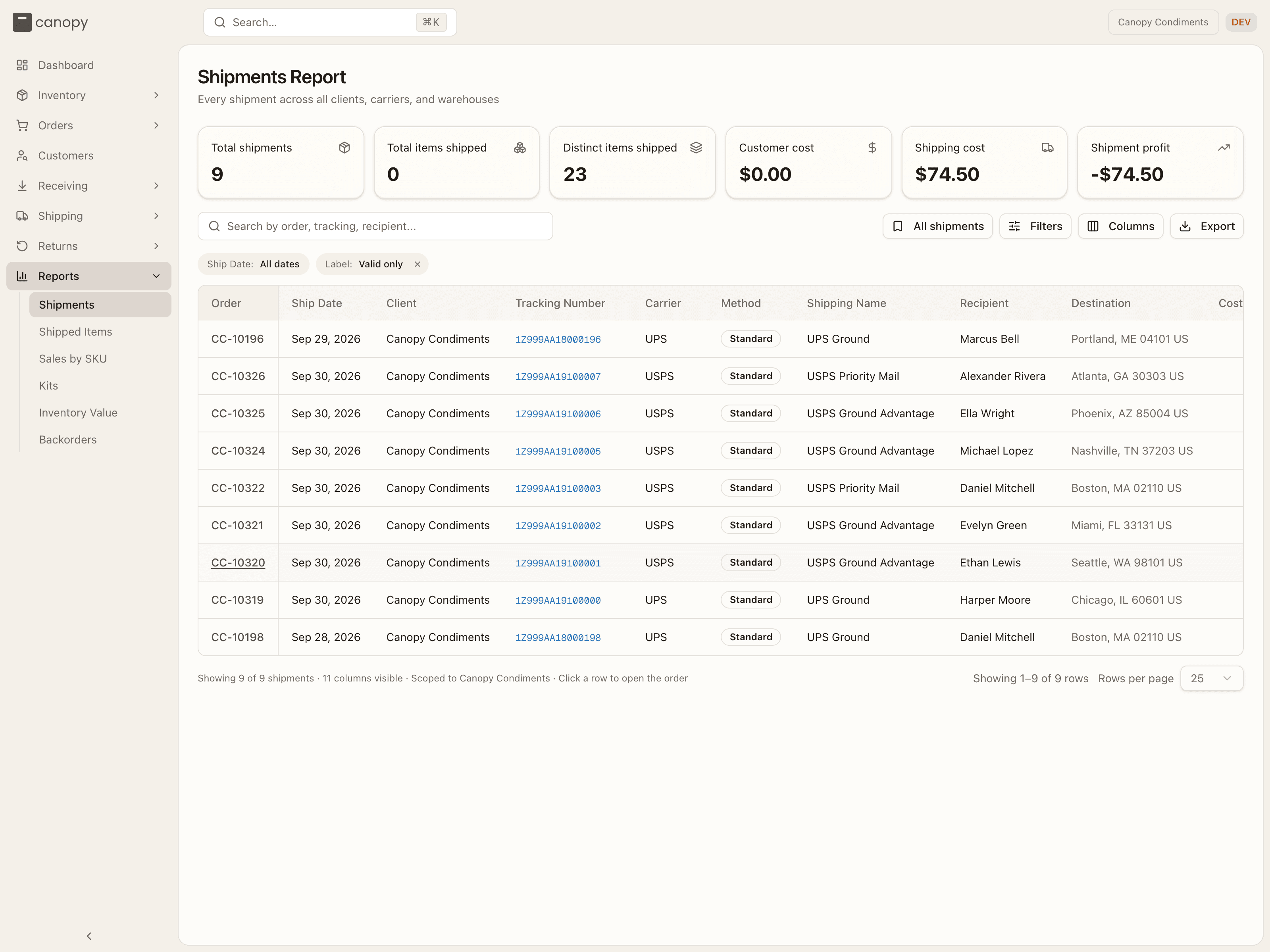
The Shipments Report covers every shipment over a period — one row per shipment — with six headline tiles above the table: Total shipments, Total items shipped, Distinct items shipped, Customer cost (what your customers paid for shipping), Shipping cost (what the labels cost), and Shipment profit (the difference). The tiles follow the filters you set. If some shipments settle in a different currency than their labels, the profit tile notes how many it had to leave out.
Filtering
Search by order number, tracking number, or recipient. The Filters popover has a Ship Date range, a Carrier picker, a Method picker (your shipping method — Standard, Express, and so on), and Show voided labels. Voided labels are hidden by default; that's the "Label: Valid only" chip, and removing it brings them back. Active filters show as chips with a Clear all.
The bookmark button beside the search box (it reads "All shipments" until you change something) holds four built-in views — All shipments, Daily Ops (today's shipments), Billing Reconciliation (the cost columns, voided labels included), and Customer Support Lookup (recipient and tracking columns) — and lets you save your own filter-and-column combination for this browser.
Columns and rows
Order stays pinned on the left, and the essentials — Ship Date, Client, Tracking Number, Carrier, Method, Shipping Name, Recipient, Destination, Cost to Customer, Label Cost — are always shown. Use Columns to add extras such as Order Date, Packer, Warehouse, Shipped using Canopy (Canopy when the label was bought on your 3PL's carrier account, Client when it was bought on one you brought), Weight, Size, Shipping Box, Insurance, Promotion Discount, Quantity Shipped, Lot Code, and Lot Expiration, and to pin any of them to the left. Tracking numbers link to the carrier's tracking page. Click any row to open the order behind it, and Export to download the current page as CSV.